How to Lock Applications on iPhone
Learn practical, built‑in ways to lock apps on iPhone using Screen Time, Guided Access, and privacy best practices. This step‑by‑step guide helps you protect sensitive data without third‑party apps.


By the end of this guide you’ll know how to lock applications on iPhone using built-in tools like Screen Time, Guided Access, and Face ID. You’ll configure app limits, set a passcode, and test access so only authorized users can open targeted apps. No third‑party apps are needed, keeping your privacy intact while protecting sensitive data.
Why locking apps on iPhone matters
Protecting sensitive data on an iPhone matters because apps in banking, health, messaging, and password managers can expose private information if the device falls into the wrong hands. When you learn how to lock applications on iPhone, you create a privacy barrier that reduces the risk of accidental or intentional access. Locking individual apps makes sense even on a device you normally use personally, because it limits what others can open without your authorization. In practice, you’ll combine device-level security (passcodes, Face ID/Touch ID) with app-level controls so that a thief or curious family member can’t peek into a single app even if the device is unlocked. This approach is also useful for shared devices, school iPads, or a family iPhone used by multiple people. The goal is not to complicate daily use, but to add a quiet layer of defense that you can audit and adjust over time.
Core methods for securing apps on iPhone
iPhone ships with powerful built‑in controls that let you protect apps without installing anything extra. The two most practical methods are Screen Time (with App Limits) and Guided Access. Screen Time is well suited for protecting several apps or categories and supports a dedicated passcode separate from the device unlock. Guided Access shines when you need a temporary lock for a single app—great for demos, shared devices, or kiosk use. Both rely on Apple’s ecosystem, so updates typically improve reliability and privacy.
Screen Time and App Limits
Screen Time lets you set limits on how long you can access apps, but you can also lock certain apps by enforcing a per‑app limit and requiring a Screen Time passcode to extend usage. To use this method, you’ll enable Screen Time, create an appropriate passcode, and then apply limits to the apps you want to restrict. This approach works well for parents, shared devices, or limiting distractions while still keeping core apps available. Be mindful that some system apps might require different handling, and you may need to update each target app’s behavior as iOS evolves.
Guided Access: a temporary, kiosk‑style lock
Guided Access locks the device into a single app, restricting what the user can do inside that app. It’s ideal for demonstrations, accessibility scenarios, or scenarios where you don’t want the user to leave the app. To activate Guided Access, you’ll triple‑tap the side button or home button (depending on device) to start the session, then outline the areas that should be disabled. Ending a Guided Access session returns the device to normal use. This method is fast to deploy and easy to reverse, making it a favorite for educators and caregivers.
Privacy hygiene and account security
Beyond app locking, consider overall privacy hygiene. Use a strong device passcode, enable Face ID/Touch ID for quick unlocking, and keep iCloud/Find My iPhone enabled so you can recover access if a lock is forgotten. Regularly review which apps have access to sensitive data, and disable permissions you don’t need. Remember that no security solution is foolproof; combine locking with disciplined behavior (don’t share passcodes, avoid storing passwords in notes, and keep your device updated).
Troubleshooting common issues and limitations
If a lock seems to fail, check that you’re applying the correct method to the right app. Screen Time requires a Screen Time passcode, while Guided Access locks into one app. If you forget the Screen Time passcode, you may need to reset it via Apple ID verification. Some apps behave differently across iOS updates, so keep your device updated and re‑test after major OS changes. If access remains unclear, review all related settings (Screen Time, Content & Privacy, and app permissions) to ensure there are no conflicting rules.
Best practices and caveats
- Keep your Screen Time passcode unique and separate from your device passcode. - Regularly audit which apps are protected and adjust as your needs change. - For shared devices, combine Guided Access for temporary use with Screen Time for ongoing restrictions. - Remember that many locking mechanisms rely on your ability to remember passcodes; consider a secure password manager for retrieval. - Test frequently after updates to confirm that protections still work as intended.
Tools & Materials
- iPhone with latest iOS(Update to the latest iOS version)
- Apple ID / password(Needed for iCloud authentication and resets)
- Face ID / Touch ID hardware(Used to unlock protected apps quickly)
- Time to configure (15–30 minutes)(Recommended to schedule a setup session)
Steps
Estimated time: 30-60 minutes
- 1
Open Settings and assess targets
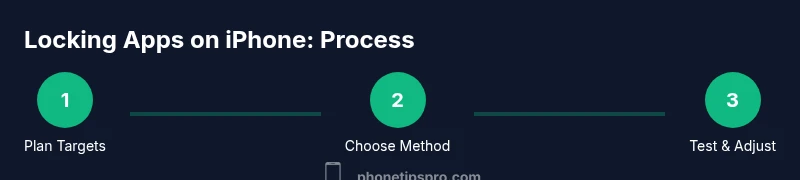
Launch the Settings app and make a quick list of apps you want to protect. Consider whether to protect a single sensitive app or a category of apps.
Tip: Plan your targets first to avoid rework later. - 2
Enable Screen Time and set a passcode
If Screen Time isn’t already on, turn it on and create a dedicated Screen Time passcode. This passcode should be different from your device unlock code.
Tip: Write the passcode down securely or store in a password manager. - 3
Add App Limits for targeted apps
Choose the apps you want to restrict and set a reasonable daily limit. When the limit is reached, the app may require the Screen Time passcode to continue.
Tip: Use a conservative limit to avoid user frustration. - 4
Configure Always Allowed apps
In Screen Time, mark any essential apps that should remain accessible, ensuring you don’t block critical services by mistake.
Tip: Keep essential apps always allowed to prevent getting locked out. - 5
Test the lock by attempting access
Exit Settings and try opening a restricted app. You should be prompted for the Screen Time passcode (or the app limit prompt).
Tip: Note whether the prompt appears reliably. - 6
Set up Guided Access for single‑app lock (optional)
If you need a temporary lock for a specific app, enable Guided Access and start a session in that app. Triple‑tap to exit and disable as needed.
Tip: Use Guided Access for demos or displays. - 7
Review and refine security settings
Revisit the settings after a week to ensure they still reflect your privacy goals. Update the passcode if you suspect it’s compromised.
Tip: Schedule periodic reviews.
FAQ
What is the fastest way to lock apps on iPhone?
Guided Access is fastest for locking a single app; Screen Time works well for multiple apps with a passcode.
Guided Access is fastest for one app; Screen Time covers more apps with a passcode.
Can I lock apps without jailbreaking?
Yes. You can lock apps using Screen Time and Guided Access built into iOS without jailbreaking.
You can lock apps without jailbreaking by using Screen Time and Guided Access.
Will locking apps affect notifications?
Locking an app restricts access to that app, but notifications may still appear depending on per‑app settings.
Locking affects access; notifications can still show if the app is allowed to present them.
What if I forget my Screen Time passcode?
You may need to reset the Screen Time passcode using your Apple ID verification. Plan recovery steps in advance.
If you forget the Screen Time passcode, you’ll need to verify with Apple ID to reset it.
Can I lock all apps at once?
Screen Time can apply broad restrictions, but for single‑app locking, Guided Access is more direct.
Screen Time sections can lock groups, while Guided Access locks one app at a time.
Watch Video
Quick Summary
- Lock apps using built‑in iOS tools
- Use a unique Screen Time passcode
- Test protections after setup
- Review settings periodically