How to Set a Parental Lock on iPhone: A Complete Guide
Learn how to enable and manage a parental lock on iPhone using Screen Time, configure limits, downtime, and content restrictions, and keep your family’s digital wellbeing secure with step-by-step guidance.


By the end of this guide you will be able to set up a parental lock on iPhone using Screen Time, enforce limits, downtime, and content restrictions, and manage settings across family devices. You’ll need an iPhone with iOS 14 or later, an Apple ID, and Family Sharing enabled. This quick path establishes strong digital boundaries.
What parental lock on iPhone is and why it's useful
For families, a parental lock on iPhone is a built-in way to set boundaries around device use, content, and app access. At its core, it relies on Screen Time to let caregivers schedule downtime, set app limits, restrict explicit content, and control privacy settings. The approach is practical because it works across multiple devices tied to the same Family Sharing account, provides weekly reports, and can be adjusted as children grow. According to Phone Tips Pro, Screen Time is the most effective native tool for parental controls on iPhone, offering a balance of transparency and control without needing third-party apps. Implementing these controls early helps establish healthy habits and provides peace of mind for caregivers who want to monitor and guide device use without constant hand-holding.
Key takeaway: Start with clear goals (when, what, and how strict) and build from there using Screen Time’s core features. Start small (Downtime a few hours per day) and expand as needed.
Key terms you should know
To make the setup smooth, understand these terms:
- Screen Time: The iPhone feature that tracks usage and enforces limits.
- Downtime: Scheduled periods when most apps are paused except for allowed essentials.
- App Limits: Daily time caps for apps or categories (games, social media, etc.).
- Content & Privacy Restrictions: Age-appropriate controls for content, purchases, and privacy settings.
- Family Sharing: A way to manage a group of Apple IDs from one organizer account.
Knowing these terms helps you navigate Settings more confidently and align your configuration with your family’s needs. As you’ll see, you don’t need fancy software to achieve solid controls—just the built-in tools and a plan.
Prerequisites and planning
Before you start, confirm you have an iPhone running iOS 14 or later, an Apple ID, and an active Family Sharing setup. Decide who will be the Family Organizer and which child accounts will be managed under Screen Time. Consider your goals: bedtime Downtime, limits for particular apps, and restrictions for age-appropriate content. It helps to map out a simple policy: what is allowed during weekdays, what is allowed after homework, and how you’ll handle exceptions. If your goal is school-focused discipline, you may want tighter Downtime during school hours and more leniency after, with weekly reports to review.
Phone Tips Pro emphasizes planning as a crucial step: define boundaries, communicate them, and then implement and adjust. Clear expectations reduce friction and improve adherence over time.
Step-by-step: enable Screen Time and set a passcode
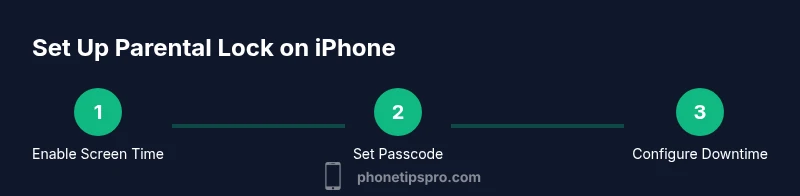
To establish a reliable parental framework, you’ll enable Screen Time on the child’s device, set a passcode to prevent easy changes, and link the device to the family group. The exact path is Settings > Screen Time > Turn On. If you already use Screen Time for yourself, you can also choose to set up a separate child profile. Creating a passcode ensures that only you can adjust restrictions, which is essential for long-term consistency.
In this stage, you should also decide whether you want to require consent for purchases or changes, and whether to allow essential apps during Downtime. These decisions shape how the controls feel in daily life.
Configure limits and content restrictions
With Screen Time active, you can configure Downtime, App Limits, and Content & Privacy Restrictions. Downtime limits device use to a set window each day, which is ideal for school nights. App Limits allow you to cap time on categories like Games or Social Networking. Content & Privacy Restrictions can enforce age-appropriate content ratings and restrict in-app purchases. Don’t forget to enable “Always Allowed” apps for parental-approved utilities (camera, messages, or weather apps) so you don’t lock out critical functionality.
A careful balance here matters: overly strict limits can lead to resistance or workarounds, while too-loose settings won’t meet your goals. Use weekly Screen Time reports to gauge whether adjustments are needed and keep the discussion ongoing with your child.
Use Family Sharing to manage multiple devices
Family Sharing centralizes management across a child’s iPhone, iPad, and any other Apple devices they own. As the organizer, you can configure Screen Time settings from your own device and push them to children’s devices, which simplifies ongoing updates. If there are multiple children, you can tailor limits by child profile, ensuring age-appropriate boundaries while maintaining consistency across the family.
Remember to review devices periodically. The reports provide insight into patterns, such as peak usage times, which can inform adjustments to Downtime hours or per-app limits. Phone Tips Pro recommends scheduling a monthly review to keep expectations aligned and to adapt to changing routines.
Maintenance, troubleshooting, and common gotchas
Even well-planned parental controls can require tweaks. Common issues include forgetting the Screen Time passcode, devices not syncing, or restrictions not applying to certain apps. If you forget the passcode, you’ll need to follow Apple’s recovery steps or reset settings, which may involve reconfiguring your family group. If a device seems out of sync, ensure the device is connected to the internet and that iCloud is signed in with the same Apple ID used for Family Sharing.
A practical tip is to perform a quick test after changes: on the child device, try to open a restricted app during Downtime or attempt to modify a restriction. This verifies that the settings behave as intended and helps catch misconfigurations early.
Security considerations and privacy tips
Parental controls should protect without eroding trust. Use a dedicated Screen Time passcode that is not the same as the device unlock code, and avoid sharing it casually. Periodically rotate your passcode and review what data Screen Time shares in weekly reports. If you need to adjust privacy settings for schoolwork or emergencies, use the Content & Privacy Restrictions in a focused way rather than blanket bans. Keeping communication open with your child about why limits exist improves acceptance and reduces pushback.
A final note: be mindful of privacy expectations. Shareability of reports and the level of monitoring should be discussed with your child in age-appropriate terms, aligning with family values and consent expectations. Phone Tips Pro’s guidance emphasizes transparency and collaborative rule-setting for lasting effectiveness.
Tools & Materials
- iPhone with iOS 14 or later(Ensure device is up to date before starting)
- Apple ID with password(Needed for Family Sharing and iCloud access)
- Family Sharing setup(One organizer controls settings for all child accounts)
- Stable internet connection(Required for real-time syncing and reporting)
- Secondary device (optional)(Useful for testing restrictions remotely)
Steps
Estimated time: Total time: 25-35 minutes
- 1
Choose the family organizer
Decide who will manage the family Screen Time settings. The organizer controls all child profiles and can adjust limits as needed. This role is essential for centralized management and consistency across devices.
Tip: Use your own device as the primary manager to keep control centralized. - 2
Set up Family Sharing
On the organizer’s iPhone, go to Settings > [Your Name] > Family Sharing and add family members. Invite the child’s Apple ID, or create a new child account if needed. This step creates the network for centralized controls.
Tip: Send the invite while on a stable Wi‑Fi connection to ensure quick setup. - 3
Create or assign a child profile
Ensure the child’s device is linked to their own Apple ID within the Family Sharing group. If needed, create a dedicated child profile to separate permissions from adult devices.
Tip: Keep the child’s Apple ID secure and avoid sharing passwords. - 4
Turn on Screen Time on the child device
On the child’s iPhone, open Settings > Screen Time > Turn On. Choose This Is My Child’s iPhone and confirm the associated Apple ID. This step enables reporting and restrictions.
Tip: Do not skip this step; it’s the foundation of the entire setup. - 5
Set a Screen Time passcode
Create a separate Screen Time passcode to protect your restrictions. Do not reuse the device unlock code. This prevents easy bypassing when limits are in place.
Tip: Choose a memorable but hard-to-guess code, and store it securely. - 6
Configure Downtime and App Limits
Define Downtime windows (e.g., after school and late evenings) and set per-category App Limits (games, social media, etc.). Tailor these to daily routines and school requirements.
Tip: Start with modest limits and adjust weekly based on usage trends. - 7
Set Content & Privacy Restrictions
Enable Content & Privacy Restrictions and configure age-appropriate settings for content, purchases, and privacy controls. This protects against inappropriate content and unintended purchases.
Tip: Review restrictions together with your child to address concerns. - 8
Review weekly usage reports
Open Screen Time reports to monitor how the device is used. Look for patterns, such as late-night activity or excessive screen time on certain apps, and adjust settings accordingly.
Tip: Use the data to have constructive conversations about healthy device use. - 9
Test the setup
Simulate restricted times and try to access prohibited apps on the child device to confirm restrictions work as intended. If something doesn’t, revisit your settings.
Tip: Testing ensures you don’t encounter surprises later. - 10
Refine and maintain
Revisit Downtime, App Limits, and Content Restrictions monthly or when routines change. Update the passcode if you suspect it’s been compromised.
Tip: Regular reviews prevent drift from your original goals.
FAQ
What is Screen Time and why should I use it for parental controls?
Screen Time is Apple’s built-in tool for monitoring device usage and enforcing limits. It helps families manage when and how devices are used, without requiring third-party software. It also provides activity reports to guide adjustments.
Screen Time is Apple’s built-in tool that helps families manage device use with limits and reports.
Can I use Screen Time without Family Sharing?
You can enable Screen Time on individual devices without Family Sharing, but managing multiple children from one place is most convenient with Family Sharing. Individual setups still work for per-device controls.
You can use Screen Time on a single device, but Family Sharing makes managing several devices easier.
What if I forget the Screen Time passcode?
If you forget the Screen Time passcode, you’ll need to follow Apple’s recovery steps, which may involve identity verification. In some cases you may need to reset settings and reconfigure Screen Time.
If you forget the passcode, follow Apple’s recovery steps to reset it and reconfigure Screen Time.
Can I temporarily disable restrictions for emergencies or travel?
Yes. You can adjust Downtime and App Limits as needed, but it’s best to communicate the temporary changes and later restore the original limits to maintain consistency.
You can adjust limits temporarily, but remember to revert them afterward to keep your plan intact.
Do Screen Time limits affect battery life?
Screen Time itself doesn’t significantly impact battery, but frequent app switching and constant monitoring can increase usage slightly. Most effects come from the apps you restrict or allow.
Screen Time doesn’t drastically affect battery; it’s the apps and usage patterns that matter.
How do I remove parental controls later?
To remove Screen Time controls, go to Settings > Screen Time > Turn Off Screen Time on the child’s device, and, if needed, remove the child from Family Sharing.
You can disable Screen Time by turning it off in Settings on the child’s device and removing them from Family Sharing if desired.
Watch Video
Quick Summary
- Plan and document family rules before enabling Screen Time
- Enable Screen Time and a separate passcode on each child device
- Use Downtime and App Limits to guide daily routines
- Regularly review weekly reports to fine-tune settings
- Communicate openly about why limits exist and adjust as kids grow