Is My iPhone Hacked? Urgent Troubleshooting Guide
Urgent guide to determine if your iPhone is hacked, recognize signs, run a diagnostic flow, fix issues, and prevent future compromises with tips from Phone Tips Pro.


Signs your iPhone may be hacked include sudden battery drain, unfamiliar configurations, unexpected messages, slow performance, or apps you didn’t install. Quick checks: review device settings, update iOS, enable two-factor authentication, and change important passwords. If behavior persists after basic steps, escalate to a full security audit. This guide from Phone Tips Pro helps you act fast.
Quick Reality Check: Signs Your iPhone May Be Hacked
You might be worried if your iPhone suddenly behaves strangely, but not every odd symptom means a hack. According to Phone Tips Pro, start with a quick, structured check to separate ordinary glitches from real security concerns. Look for signs like unexpected data usage, unfamiliar popups, apps you did not install, or settings that have changed without your input. These indicators don’t prove compromise by themselves, but they strongly suggest you begin a focused security audit rather than chasing random rumors.
How iPhone Security Works: Core Protections You Should Know
iPhone security rests on a layered approach: hardware-based enclave protection, app sandboxing, signed and vetted apps, regular iOS updates, and robust privacy settings. These protections reduce the chance of silent intrusions. Phone Tips Pro analysis shows that most compromises begin with phishing attempts, weak passwords, or misconfigured accounts, not just a mysteriously installed malware. Always keep iOS up to date, review app permissions, and enable lockdown features like Face ID and secure unlock when possible. Understanding these basics helps you spot deviations more quickly.
Common Symptoms That People Mistake for Hacking
Many signs you worry about are common everyday issues. You may notice spikes in data usage, random popups, unfamiliar push notifications, or shorter battery life after a software update. Some devices experience slower performance after heavy use, background refresh anomalies, or unexpected advertising elsewhere on the screen. While these don’t confirm hacking, they warrant a careful check of settings, accounts, and installed apps to rule out benign causes before assuming the worst. Remember, not every strange behavior equals a breach; however, persistent anomalies deserve a security-focused review.
Diagnostic Flow: Symptom to Diagnosis to Action
Start with the simplest checks tied to the symptom you observe. Step A: verify Apple ID activity and look for unknown devices or sign-in attempts. Step B: inspect installed profiles, VPNs, or configuration changes. Step C: review apps with excessive permissions or recent installs. Step D: ensure iOS is current and that there are no unusual data spikes. Step E: monitor network traffic and verify there are no rogue proxies. If any step reveals something suspicious, proceed to targeted fixes and documentation for support.
Step-by-Step Fixes for the Most Common Cause
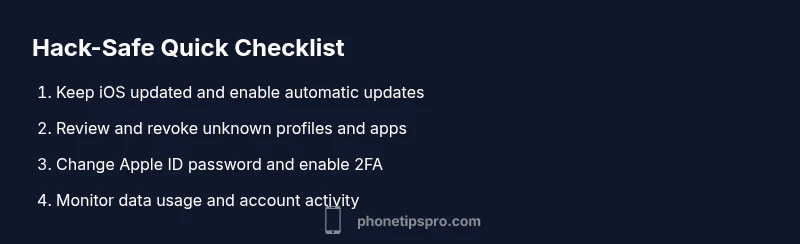
- Update iOS to the latest version and restart the device. This closes security gaps and applies fixes for known exploits. Tip: enable automatic updates to reduce delays. 2) Change your Apple ID password, enable two-factor authentication, and review trusted devices. Tip: use a password manager to create unique, strong passwords. 3) Remove unfamiliar or recently installed apps, and revoke suspicious profiles or VPN configurations in Settings. Tip: disable temporary profiles before removing them. 4) Reset network settings to clear rogue configurations that could siphon data. Tip: back up important data before reset. 5) If symptoms persist, back up data and consider a factory reset, then restore from a clean backup. Tip: choose a backup from a known-good state. 6) Reinstall essential apps from the App Store and reconfigure privacy settings. Tip: limit permissions for each app going forward.
Prevention: Best Practices to Reduce Risk
Establish a routine for privacy hygiene: enable two-factor authentication, use strong, unique passwords, review account activity weekly, and keep iOS updated. Disable suspicious profiles or VPNs, monitor data usage, and be cautious with phishing attempts. Phone Tips Pro emphasizes the importance of a calm, methodical approach—don’t rush to reset or reinstall without confirming the root cause. Regularly audit app permissions, location access, and push notifications to prevent recurring issues.
When to Seek Professional Help and What to Expect
If you cannot identify a clear source of compromise or if the issue recurs after cleanup, seek professional help. A security professional can perform a deeper analysis of profiles, network traffic, and device logs. Expect a guided process to isolate the root cause, verify backups, and ensure all sensitive accounts are secure. Phone Tips Pro recommends documenting all steps you’ve taken and keeping your device firmware and apps up to date to avoid future incidents.
Steps
Estimated time: 30-60 minutes
- 1
Secure basics and preserve data
Begin by backing up essential data to a trusted cloud or computer. Enable flight mode briefly if you suspect sudden data leakage and preserve logs of recent activity. Verify that you are using a legitimate device and account.
Tip: Backups should be recent and from a trusted source. - 2
Scan for malicious apps and profiles
Review every installed app and remove anything unfamiliar. Go to Settings > General > Profiles & Device Management to delete any suspicious profiles. Check for any VPN configurations that you did not authorize.
Tip: If unsure whether an app is legitimate, uninstall and reinstall only from the App Store. - 3
Inspect account security
Change your Apple ID password, enable two-factor authentication, and review trusted devices. Sign out of any sessions you don’t recognize on the web as well.
Tip: Use a password manager and avoid reused passwords. - 4
Update, patch, and verify
Install the latest iOS update and all app updates. This patches known vulnerabilities and reduces attack surface. Recheck for unusual activity after updates.
Tip: Automatic updates reduce risk of missing critical patches. - 5
Reset network and privacy settings
Reset network settings to clear misconfigured proxies or rogue DNS entries. Review location services and permissions for each app, revoking any unnecessary access.
Tip: You’ll need to reconnect Wi-Fi networks afterward. - 6
Decide on further steps
If signs persist, perform a factory reset and restore from a known-good backup. Only reset as a last resort after you have secured accounts and updated software.
Tip: Document every step and ensure backups are clean.
Diagnosis: iPhone behaving strangely after suspecting hack
Possible Causes
- highUnknown apps installed or configuration profiles
- highPhishing or credential theft leading to account compromise
- mediumOutdated iOS with unpatched security flaws
Fixes
- easyReview installed apps and revoke unknown profiles or VPNs
- easyUpdate iOS to the latest version and reset passwords with 2FA
- easyCheck Apple ID for unfamiliar devices and secure accounts
FAQ
How can I tell if my iPhone has been hacked?
Look for signs like unfamiliar settings, new apps, unusual data usage, unexpected messages, or battery drain. Verify iCloud and Apple ID activity, check for unknown devices, and review app permissions. If symptoms persist after basic checks, proceed with a full security audit.
Look for unfamiliar settings, new apps, and odd activity. Check your Apple ID and device list, then review apps and permissions.
Can iPhone viruses exist without jailbreaking?
Yes. iPhone malware often arrives via phishing, malicious apps, or profile configurations rather than traditional viruses. Keeping iOS updated, avoiding unknown profiles, and using trusted app sources reduces risk.
Malware can come from phishing or rogue profiles, not just jailbreaks. Stay updated and careful with profiles.
Should I restore from iCloud backup or set up as new after a suspected hack?
If you suspect a breach, set up as new or restore from a backup only after you confirm it’s clean. Restore can reintroduce compromised configurations if the backup was captured during the breach.
Set up as new if you’re unsure a backup is clean, then reconfigure gradually.
Is using antivirus apps on iPhone helpful?
Most iPhone antivirus apps provide limited protection due to iOS restrictions, but they can help with credential monitoring and safe browsing. Rely primarily on built‑in security features and safe practices.
Antivirus apps aren’t a cure-all on iPhone, but credential checks help.
What does a factory reset actually do for security?
A factory reset erases data and resets settings, removing most traces of malware or rogue configurations. Restore only after you’ve secured accounts and updated the device.
A factory reset wipes the device, but make sure accounts are secure first.
What can I do to prevent hacks in the future?
Practice good password hygiene, enable 2FA, avoid phishing links, review app permissions, and keep iOS updated. Regular audits of devices and accounts reduce risk significantly.
Keep software updated, use strong passwords, and stay vigilant against phishing.
Watch Video
Quick Summary
- Act quickly when you spot signs and document changes
- Secure accounts first: change passwords and enable 2FA
- Keep iOS and apps up to date to close vulnerabilities
- Remove unknown profiles/apps and reset network settings
- If issues persist, consider a factory reset after securing data