How to Protect iPhone from Virus: A Practical 2026 Guide
Learn practical steps to protect iPhone from virus with updates, safe apps, and defense habits. This 2026 guide covers iOS security features, safe browsing, and malware remediation.


You will learn how to protect iPhone from virus by applying a practical, step-by-step plan: keep iOS up to date, install only trusted apps, enable built-in security features, and practice safe browsing. This guide explains exact actions, common infection vectors, and best-practice routines to reduce risk, with checklists and warnings so you stay safer online.
Why protecting iPhone from virus matters
According to Phone Tips Pro, protecting an iPhone from virus is not about chasing every new threat but about building a resilient routine. The iPhone ecosystem is designed with strong security, yet simple mistakes—like sideloading apps, weak passwords, or unsafe Wi-Fi—can create opportunities for malware. This section explains why a layered defense works best and how small daily habits compound into stronger protection. By focusing on updates, app hygiene, and cautious browsing, you reduce exposure to common vectors. The goal is not fear, but predictable safety: you control the environment your iPhone operates in, and that control starts with awareness about where threats originate and how they can be blocked. The Phone Tips Pro team emphasizes practical steps you can implement today to protect iphone from virus and keep personal data safe.
Key takeaway: security is a habit, not a one-time fix.
How iPhone viruses spread and why it's hard to notice
Malware on iPhones typically travels through deceptive apps, phishing links, insecure Wi-Fi, or compromised backups. Because iOS sandboxing limits cross-app access, many infections rely on user errors rather than zero-click exploits. Users commonly encounter risk when downloading third-party apps or clicking links in messages. Another silent vector is outdated iOS versions that miss security patches. By understanding common infection vectors, you can prioritize the most impactful safeguards. The goal is to shorten the time between exposure and detection, making it easier to act quickly if something looks off. The Phone Tips Pro guidance highlights practical checks to stop a threat before it takes hold while keeping everyday use friction-free.
Practical note: trust your instincts—if something asks for unusual permissions or data, pause and verify.
Build a layered defense: updates, apps, and accounts
A layered defense combines several protective layers that work together. Start with updates: keeping iOS and apps current closes known gaps. Next, limit app sources to the official App Store and avoid sideloading. Then, tighten account security: enable two-factor authentication, use a strong passcode, and review device access permissions. Finally, manage device settings that reduce attack surfaces, such as disabling automatic app installs from unknown sources and enabling find my iPhone for faster recovery. These steps collectively reduce the chance of a virus taking root and help you respond swiftly if a threat is detected. The Phone Tips Pro approach focuses on actionable steps you can implement this week to safeguard your device.
Tip: set devices to auto-update where possible to maintain up-to-date defenses.
Safe browsing and app sources: choosing trusted stores
Browsing safely on an iPhone involves more than just avoiding sketchy sites. It means adopting a mindset that prioritizes trusted sources, recognizing phishing cues, and using built-in protections. Always install apps from the official App Store and review app permissions before installation. Be cautious with links in email, SMS, or chat apps, especially if they promise shortcuts or deals. When in doubt, search for the official app or website and verify publisher authenticity. These practices dramatically reduce exposure to malicious software targeting iPhone users and align with a sensible, long-term security approach. Phone Tips Pro recommends a regular audit of installed apps to remove any that are no longer needed or that request excessive permissions.
Warning: never bypass iOS safeguards to save time; it often introduces long-term risk.
Step-by-step defensive habits you can start today
Small daily habits accumulate into strong protection. Enable automatic iOS updates and turn on app updates from trusted sources. Review app permissions monthly and revoke access that isn’t necessary. Use strong, unique passwords with a password manager, and enable two-factor authentication on your Apple ID. Regularly back up data to iCloud or a trusted computer, and verify that backups are not compromised. Finally, perform quick device checks—look for unusual battery drain, crashes, or unfamiliar profiles—these can be early signs of a problem. By integrating these practices into your routine, you create a resilient environment that makes it harder for viruses to gain a foothold on your iPhone.
Action item: commit to a 10-minute weekly security check.
Practical checks and verification after suspicious activity
If you notice odd behavior—unexpected popups, unfamiliar profiles, or trouble with apps—do not ignore it. Start by restarting the device and ensuring iOS is up to date. Check for app updates and remove anything suspicious. Run a quick privacy audit: review app permissions, revoke suspicious access, and sign out of unknown sessions. If you suspect a malware-like issue, use official Apple diagnostics and consult Apple Support for guidance. Avoid jailbreaking or installing third‑party security tools that aren’t from reputable developers, as these can themselves introduce risk. Maintaining vigilance helps you quickly verify whether there’s a real threat and prevents misinformation from spreading.
Bottom line: timely checks protect iphone from virus exposure and keep your data secure.
Long-term security: backups, encryption, and device hygiene
Long-term protection depends on consistent practices: keep backups current, enable device encryption, and maintain a clean app ecosystem. Regular backups ensure you can restore data if needed, while encryption keeps stored information unreadable if a device is compromised. Practice secure logout habits, disable unnecessary remote access, and review trusted devices linked to your Apple ID. A well-managed device hygiene routine minimizes vulnerabilities and reinforces a defensive posture against evolving threats. The Phone Tips Pro team emphasizes that ongoing commitment to security hygiene is more effective than reactive fixes.
Summary: stable routines beat sporadic sweeps.
What to do if you suspect infection: remediation steps
If you believe your iPhone may be infected, act quickly and calmly. Start with a comprehensive check: update iOS, review app permissions, and remove any suspicious apps. If issues persist, reset network settings, sign out of iCloud on unfamiliar devices, and consider a full data backup followed by a device restore. After restoration, reinstall only trusted apps from the App Store and enable defensive settings anew. Finally, monitor for renewed symptoms and consult official support if concerns remain. Following these steps helps you regain control and minimize damage from a potential virus on your iPhone.
Tools & Materials
- iPhone with latest iOS(Keep automatic updates enabled when possible)
- Apple ID with two-factor authentication(Essential for account security)
- Trusted Wi‑Fi network(Prefer home or known networks; avoid public wifi for sensitive tasks)
- Password manager(Use a reputable 2FA-enabled manager)
- Official App Store access(Only install apps from the App Store)
- Backup solution(Regular backups to iCloud or trusted computer)
Steps
Estimated time: 30-60 minutes
- 1
Check for iOS updates
Open Settings, tap General, then Software Update to install any pending iOS updates. Updates patch known security holes and improve protection against new threats.
Tip: Enable automatic updates to ensure you’re always protected without manual checks. - 2
Audit installed apps
Review each app’s permissions and remove any that aren’t essential. Avoid sideloading or apps from untrusted sources.
Tip: If an app requests unusual permissions, revoke them or delete the app. - 3
Strengthen account security
Activate two-factor authentication on your Apple ID and use a strong passcode. Consider rotating passwords and using a password manager.
Tip: Never reuse passwords across sites or apps. - 4
Set up safe browsing habits
Avoid clicking suspicious links in messages and emails. Use a secure browser with built-in anti-phishing features and disable ad trackers where possible.
Tip: If a link looks odd, verify via official sources before tapping. - 5
Enable Find My iPhone and backups
Turn on Find My iPhone and regularly back up data to iCloud or a trusted computer. This ensures recovery if a device is compromised.
Tip: Test Find My iPhone occasionally to confirm it’s functioning. - 6
Review device permissions monthly
Set a calendar reminder to review app permissions and revoke unnecessary access. This reduces surface area for exploitation.
Tip: Keep a simple log of permission changes for future audits. - 7
If you suspect malware, act fast
Follow remediation steps: update, remove suspicious apps, and reset network settings if needed. Consult Apple Support for guidance.
Tip: Do not restore from a potentially compromised backup without cleaning first.
FAQ
What is the most effective way to protect iPhone from virus?
The most effective approach combines regular iOS updates, capped app permissions, trusted app sources, and strong account security. Together, these layers reduce the chance of infection and provide quick recovery if something goes wrong.
Use regular updates, trusted apps, and strong account security for the best protection.
Can iPhone viruses spread through email or messages?
Yes, phishing messages can lead to malware if links are clicked or attachments opened. Always verify sender identity and avoid clicking suspicious links.
Phishing in emails or messages is a common infection vector; verify before you click.
Should I install antivirus software on iPhone?
iOS generally does not require third-party antivirus software. Rely on built-in protections, trusted App Store apps, and safe browsing habits instead.
Most iPhone users don’t need antivirus apps; focus on safe practices and official sources.
What should I do if Find My iPhone isn’t working?
Check iCloud settings, ensure device is signed in with the correct Apple ID, and verify network connectivity. If problems persist, contact Apple Support for assistance.
Make sure Find My iPhone is enabled and linked to your Apple ID, then troubleshoot with Apple Support if needed.
Is jailbreaking my device risky for security?
Yes. Jailbreaking removes many built-in protections and makes devices more vulnerable to malware. Avoid it to keep iPhone security intact.
Jailbreaking weakens protections and raises malware risk.
How often should I review permissions on my iPhone?
Review app permissions monthly or after adding new apps. Revoke access that isn’t necessary to minimize data exposure.
Review permissions monthly to keep control over data sharing.
Watch Video
Quick Summary
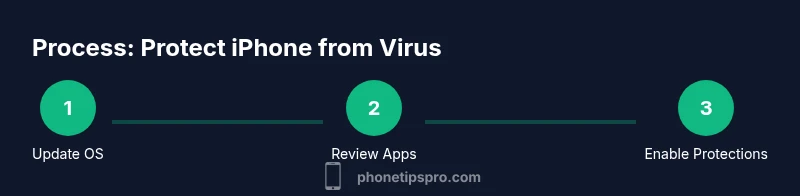
- Update iOS and apps to close security gaps
- Install only from the official App Store
- Strengthen Apple ID security with 2FA
- Practice safe browsing; verify links before tapping
- Back up data and enable Find My iPhone