How to Check iPhone for Virus: Step-by-Step Guide
Learn how to perform an iPhone check for virus, identify malware symptoms, and safely remove suspicious apps. This educational guide covers iOS security practices, practical checks, and prevention tips for 2026.


According to Phone Tips Pro, you will learn how to perform an iPhone check for virus, spot malware symptoms, and safely remove unwanted apps. This guide covers iOS security basics, common myths, and practical checks you can do now to protect your device. The steps are practical, non-alarming, and designed for quick results.
What 'virus' means on iPhone
According to Phone Tips Pro, viruses on iPhone are extremely rare due to Apple’s strict app vetting, cryptographic protections, and iOS sandboxing. When users report an infection, it’s usually not a true virus but a misbehaving app, a malicious configuration profile, or aggressive adware masquerading as legitimate software. The term iphone check for virus is common among users seeking reassurance, but practical checks—rather than fear-mongering—are the best path. iPhone malware today typically results from phishing links, profile installs, or scams that push you to install something outside the App Store. By understanding how iOS defenses work and what to look for, you can perform a calm, methodical check and restore normal operation.
In this section we define what a virus means in the iPhone context, set realistic expectations, and connect the dots between symptoms and possible causes. The goal is to empower you with clear, actionable steps and keep you from jumping to conclusions. Phone Tips Pro emphasizes that most problems come from configuration issues, browser hijackers, or misbehaving apps rather than a true virus. A steady, evidence-based approach helps you protect your data and keep your device running smoothly.
Tools & Materials
- iPhone with the latest iOS update(Keep automatic updates enabled when possible)
- Stable Wi-Fi connection(Prefer a trusted home network)
- Backup storage (iCloud or computer)(Back up before major changes)
- Apple Support app (optional)(For direct guidance from Apple)
- Safari data cleared (optional)(Clear caches if you suspect browser-based issues)
- Trusted sources for verification(Use official docs and reputable security sites)
Steps
Estimated time: 20-40 minutes
- 1
Review unfamiliar apps and profiles
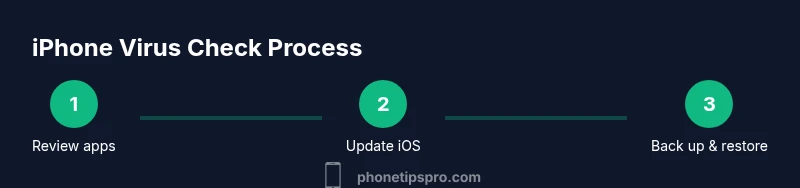
Open Settings > General > iPhone Storage and look for unfamiliar apps. Then go to Settings > General > VPN & Device Management to inspect any profiles you did not install. If you find something suspicious, remove the app and delete the profile.
Tip: If you’re unsure about a profile, don’t delete it immediately—document it and research its origin before removal. - 2
Update iOS to the latest version
Navigate to Settings > General > Software Update and install any available updates. Updates fix known security issues and improve malware defenses. Keep your device configured to receive automatic updates when possible.
Tip: After updating, restart your iPhone to ensure new protections take effect. - 3
Check battery usage and performance
Go to Settings > Battery to spot apps that consume abnormal power. A sudden spike by an unfamiliar app can indicate background activity or adware. Uninstall or revoke permissions for anything suspicious.
Tip: If you don’t recognize an app, research its name before uninstalling to avoid removing legitimate software. - 4
Clear Safari data and review permissions
In Settings > Safari, clear history and website data. Review which sites have permissions or pop-up redirects. Consider enabling Privacy Protection features and blocking pop-ups from unknown domains.
Tip: Regularly refresh browser data to reduce exposure to malicious scripts. - 5
Reset network settings and refresh permissions
Settings > General > Transfer or Reset iPhone > Reset > Reset Network Settings. Then review Privacy settings to revoke any suspicious app permissions.
Tip: Back up first; network resets can alter saved Wi‑Fi passwords and configurations. - 6
Back up and restore from a clean backup if needed
Back up your data, then consider erasing all content and settings and restoring from a backup made before the issue appeared. This minimizes the chance of reinfecting your device with affected data.
Tip: Test after restore by using the device normally for a day before restoring more data.
FAQ
Can iPhones get viruses?
Yes, but it's rare. Most issues come from misbehaving apps, malicious profiles, or phishing. A calm, structured check helps distinguish real threats from harmless anomalies.
Yes, iPhones can get malware, but it's uncommon. Focus on profiles, apps, and settings rather than fear.
Should I install antivirus on iPhone?
Most iPhone malware isn't stopped by third-party scanners because iOS restricts app access. Rely on built-in protections and safe practices rather than routine scanning.
Most antivirus apps aren't necessary on iPhone; rely on iOS protections and safe usage habits.
What should I back up before troubleshooting?
Back up to iCloud or a computer. A recent backup protects your data if you need to reset or restore. Always verify the backup completion before proceeding.
Back up your data before major changes to stay safe.
Is it safe to reset network settings?
Resetting network settings can fix connectivity issues and remove some misconfigurations. It won’t erase data like photos but will remove saved Wi-Fi networks and VPNs.
Resetting network settings can help with issues, but it resets saved networks.
What about jailbreaking your iPhone?
Jailbreaking bypasses many built-in protections and increases exposure to malware. It is not recommended for security and privacy reasons.
Jailbreaking raises your risk of malware and data loss.
Watch Video
Quick Summary
- Update iOS to reduce risk.
- Check for unfamiliar apps and profiles.
- Back up before making major changes.
- If unsure, contact Apple Support.