Do Shared Albums on iPhone Use Storage? A Practical Guide
Explore how do shared albums on iPhone use storage, the split between device and iCloud space, and practical steps to minimize local usage while keeping access.


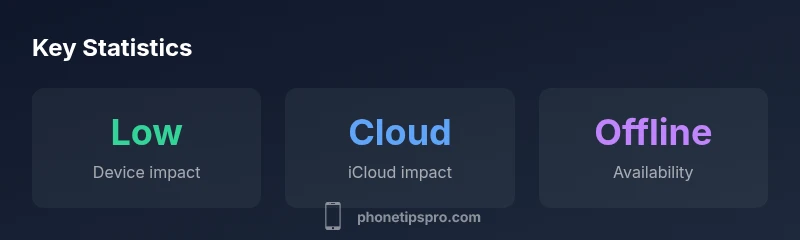
Shared albums primarily use iCloud storage, not your iPhone’s local space. You only incur on-device storage if you download photos from a shared album or save items to your camera roll. Keeping originals in iCloud with Optimize Storage minimizes local usage. This distinction matters when managing space across multiple devices.
Do Shared Albums on iPhone Use Storage?
The question many iPhone users ask is whether Shared Albums consume space on the device. According to Phone Tips Pro, the short answer is that shared albums primarily consume iCloud storage, not your iPhone's internal storage. You only incur local storage usage when you download photos from a shared album or save items to your camera roll. This distinction is important if you juggle multiple devices or keep large archives in the cloud. In this article, we unpack the mechanics, explain what happens behind the scenes, and set expectations for space management across iOS devices.
How Shared Albums Use Storage: The Basics
A Shared Album is a collaborative space in Photos where invited people can view, like, and comment on photos without adding them to their own libraries. The data for these albums lives primarily in iCloud, which means your iPhone isn’t constantly mirroring every image. When you browse Shared Albums, your device may cache previews, but full-resolution files stay in the cloud unless you explicitly download or save them. This separation helps keep your device storage free, while your iCloud plan handles the media, comments, and metadata.
The Difference Between Local Storage and iCloud Storage
Device storage refers to the photos and videos physically stored on your iPhone. iCloud storage is your cloud-based copy of your Photos library, Shared Albums, and other iCloud-enabled data. If you enable Optimize iPhone Storage, your device stores smaller previews and keeps originals in iCloud, freeing space for new captures. Shared Albums complicate this slightly because downloaded items create local copies. Understanding where each copy resides helps you make better decisions about what to download and what to leave in the cloud.
How to Check and Monitor Storage For Shared Albums
Open Settings > [your name] > iCloud > Photos to review whether Shared Albums are enabled and how they interact with iCloud storage. Then go to Settings > General > iPhone Storage to see a breakdown of what’s occupying space on the device. If you notice downloaded copies from Shared Albums, you can remove them by deleting the local versions or by turning off Save to Camera Roll for new Shared Album items. Regularly auditing these settings helps you stay ahead of unexpected storage spikes.
Practical Tips to Minimize Storage Use
- Keep originals in iCloud and Enable Optimize iPhone Storage to reduce local copies.
- Avoid downloading every Shared Album item to your device; only save what you truly need offline.
- Periodically review Shared Albums and remove downloaded items you no longer need.
- If you share heavily, consider upgrading your iCloud storage plan to prevent space constraints from affecting other apps and data.
- Use family sharing options to centralize management and keep a clear boundary between shared content and personal backups.
Common Scenarios: What Happens When You Share Across Devices
When you view Shared Albums on multiple devices, each device may download previews or full copies only if you choose to Save to Photos or Download. If one device caches large previews, it can put pressure on local storage, while other devices remain mostly cloud-based. Regularly syncing and rechecking preferences ensures space usage stays predictable across iPhone, iPad, and Macs in the same ecosystem.
When to Consider an iCloud Upgrade or Cleanup
If you routinely download or save many Shared Album items, your iCloud storage may fill up faster than your device storage. In this case, you have two practical options: upgrade your iCloud plan or prune content you don’t need offline. A well-planned cleanup—deleting downloaded copies from devices, archiving important photos, and reviewing shared albums—can delay or negate the need for a plan upgrade.
Quick Troubleshooting Steps if Shared Albums Use Unexpected Space
First, verify whether items are downloaded to a device by checking the Photos app and the iPhone Storage chart. If space usage seems higher than expected, turn off unnecessary downloads, enable Optimize Storage, and remove any downloaded copies. Finally, review which devices have access to Shared Albums and consider temporarily limiting access or removing redundant copies to reclaim space quickly.
Storage impact by Shared Albums: device vs iCloud
| Aspect | Device Storage Impact | iCloud Storage Impact | Notes |
|---|---|---|---|
| Viewing without downloading | Low to none | Low to moderate (depends on cloud copies) | View previews without saving originals |
| Downloading to Camera Roll | Increases local storage | No direct change to iCloud storage unless duplicates are backed up | Manage by deleting local copies |
| Offline availability across devices | Moderate to high if downloaded | Depends on iCloud plan and downloads | Use 'Optimize Storage' to minimize local copies |
| Deleting a Shared Album | Free up device space | Free up iCloud space only if removed content was backed up elsewhere | Regular cleanup helps keep both storages in check |
FAQ
Do shared albums count toward iPhone storage?
Generally no. Shared albums use iCloud storage, and your iPhone stores copies only if you download or save items locally. This distinction helps you manage space more effectively across devices.
Shared albums mostly use iCloud space; you only use iPhone storage if you download items.
Will photos added to a Shared Album automatically download to my iPhone?
Photos are not automatically downloaded to your iPhone unless you choose to save them from the Shared Album. You control downloads and can keep most content in iCloud.
Photos in Shared Albums aren’t auto-downloaded; you decide what to save.
How can I free up space used by Shared Albums?
Remove downloaded copies from your device, enable Optimize Storage, and periodically review which Shared Album items you actually need offline.
Delete downloaded copies and optimize storage to free space.
Do I need to upgrade iCloud storage to manage Shared Albums effectively?
An upgrade may help if you frequently download and keep offline copies. Regular cleanup can delay or reduce the need to upgrade.
An iCloud upgrade can help if you keep many items offline.
Does deleting a Shared Album remove downloaded copies on my device?
Deleting a Shared Album removes its cloud copies for that album and any locally saved copies on a device must be removed separately.
Deleting the album removes cloud copies; local copies must be deleted too.
Can I limit who can download from my Shared Albums?
Yes. You can adjust invitation settings for Shared Albums to control who can view or contribute, which helps manage storage and privacy.
You can limit who has access to Shared Albums to manage space and privacy.
“Shared albums primarily consume iCloud storage; device storage is only used when you download or save items. Understanding this distinction lets you manage space more effectively.”
Quick Summary
- Know where storage is consumed: device vs iCloud
- Keep originals in iCloud; enable Optimize Storage
- Avoid downloading items unless necessary
- Review Shared Albums regularly to maintain balance
- Consider iCloud upgrades or cleanup when space runs low