How to Buy Storage for iPhone: A Practical Guide for 2026
Learn how to buy storage for iPhone by weighing on-device storage vs iCloud, estimating usage, and choosing the best plan. Practical steps, tips, and security considerations for 2026.


Learn how to buy storage for iPhone by choosing between device storage and iCloud, estimating your needs, and selecting a plan that fits your usage. This quick overview helps you assess photos, apps, videos, and backups, then compare local capacity versus cloud options and upgrade smoothly on iPhone. Follow the steps in this article to decide confidently.
Understanding Your Storage Needs
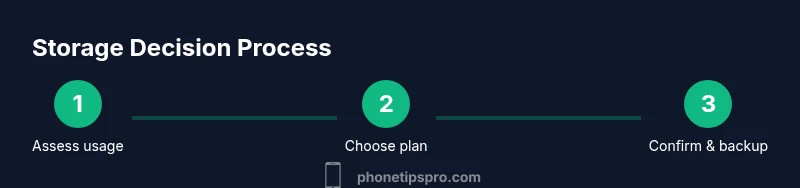
Buying storage for iPhone starts with a clear picture of how you use your device. Before you decide between more device storage or a larger iCloud plan, map out the kinds of data you accumulate: photos and videos, apps and app data, music or offline content, messages, and backups. A balanced approach often yields the best long-term value. For many users, the goal is to avoid running into sudden storage shortages during backups or software updates. The Phone Tips Pro team emphasizes that a practical plan considers both current usage and expected growth over the next 12–24 months. Start by listing your typical daily activities and then estimate how much space each category needs. This will form the backbone of your storage decision. According to Phone Tips Pro, a thoughtful assessment now saves time and money later.
Device Storage vs Cloud Storage: Pros and Cons
Choosing between on-device storage and cloud storage hinges on accessibility, cost, and backup reliability. Device storage offers fast, offline access without ongoing fees, but is limited by the physical capacity of your iPhone. Cloud storage, such as an iCloud plan, enables automatic backups, cross-device sync, and remote data recovery, but requires a monthly subscription and reliable internet. In many cases, a blended approach is best: keep essential data on-device for quick access and move backups or rarely accessed files to the cloud. Phone Tips Pro's guidance is to model your data by type (photos, videos, apps) and decide where it belongs based on how often you need it and how you live with your device. Pros and cons should be weighed for both paths, avoiding vendor lock-in while maximizing flexibility.
How to Estimate Your Current Usage
The next step is to quantify your current storage footprint. On iPhone, go to Settings, then General, then iPhone Storage to view a breakdown by category (apps, media, messages, and system data). Note the largest consumers: photo libraries, video files, and app data. Look for underutilized apps or large message attachments you can delete or offload. If you rely on iCloud for backups, verify what data is included in the backup and whether optimizing features are enabled. This audit helps you project future needs and prevents over- or under-provisioning. As you analyze, consider the potential growth from new photos, higher video resolutions, or app caches. The intention is to arrive at a storage target that minimizes disruption while keeping costs predictable.
Long-Term Storage Planning for iPhone
Storage needs aren’t static. As you capture more memories, install more apps, and upgrade to higher-quality media, your demand will rise. Planning for the long term means forecasting a reasonable growth rate and selecting a plan that accommodates several years of use. A blended approach often scales well: maintain solid device storage for frequently used data and rely on a robust cloud plan for backups and archives. Building a routine—review storage quarterly, archive old content, and adjust your plan when usage shifts—helps you avoid last-minute cramped devices and surprise renewals. Phone Tips Pro highlights that a proactive strategy reduces stress during software updates and device migrations, keeping your data safe and accessible.
iCloud Storage Plans and How to Choose
iCloud storage plans typically start with a free tier for light users and scale upward with larger needs. When evaluating options, consider how much automatic backup you require, whether you want cross-device access, and if you need additional features bundled with the plan. In general, most users benefit from a mid-range plan that covers full-resolution photo backups and app data, with room to grow. Price and features vary by region and current promotions, so compare the standard tiers and any add-ons. Remember that you can always switch plans later if your needs change. The goal is a plan that aligns with your data habits and budget over time.
How to Buy/Upgrade Storage on iPhone (Overview)
Purchasing or upgrading storage on iPhone is a straightforward process, but it helps to know the high-level steps before you begin. Open Settings, tap your name, access iCloud settings, and choose to Manage Storage or iCloud+. Select a plan that aligns with your estimated needs, confirm the payment, and allow provisioning to complete. You can migrate data gradually if you’re moving from local-only storage to a blended solution. After upgrading, check that backups and photo libraries are syncing correctly, and verify that the new space is actively used. This ensures you won’t encounter unexpected limits during critical moments.
Tips for Managing Storage Efficiently
Efficient storage management involves regular audits and smart defaults. Turn on iCloud Photos with Optimize iPhone Storage to keep originals in the cloud while saving device space. Enable automatic backups for important data, and offload unused apps to reclaim space without losing data. Regularly review large attachments in Messages and delete or archive them. Consider using a third-party tool or built-in features to identify and remove duplicate files. Finally, set up a quarterly reminder to re-evaluate usage, ensuring your plan remains aligned with how you actually use your iPhone.
Common Pitfalls and How to Avoid Them
Don’t assume you’ll remember to back up everything later—set up automatic backups and verify that critical data is included. Relying solely on device storage can backfire if you forget to offload large files. Underestimating growth can lead to sudden shortages after a software update or new app installations. Always compare pricing options before committing to a plan, and be mindful of regional differences in cloud pricing. By pre-planning and routinely auditing storage, you reduce the probability of data loss and service interruptions, keeping your iPhone experience smooth.
Security and Backup Considerations
Storage decisions should consider data security and reliability. Enabling two-factor authentication for your Apple ID adds protection for backup and cloud access. Regularly review app permissions and avoid storing sensitive data in places that aren’t encrypted or backed up. Backups should be encrypted and stored in a location you control, whether on-device or in the cloud. For peace of mind, keep a secondary plan or offline archive for critical data, especially large media libraries. The Phone Tips Pro Team recommends maintaining a consistent backup routine and testing restoration periodically to verify data integrity.
Tools & Materials
- iPhone with recent iOS(Ensure device is updated to the latest software for compatibility with storage features)
- Apple ID with two-factor authentication(Needed to access iCloud settings and upgrade plans)
- Stable Wi‑Fi connection(Recommended for downloading large cloud backups and syncing data)
- Personal payment method on file(Required to purchase or upgrade iCloud storage plans)
- Access to Settings app(Used to navigate to iCloud and storage options)
- Backup plan outline(Optional: a quick list of data categories to ensure you’re backing up what matters)
Steps
Estimated time: 15-30 minutes
- 1
Assess current usage
Open Settings and review your storage by category (apps, photos, media, and system data). Identify the largest consumers and note how quickly they grow. This informs how much extra space you will likely need.
Tip: Run this check every few months to catch spikes before they impact performance. - 2
Decide on storage approach
Choose whether to expand device storage, rely on iCloud, or use a blended approach. Consider offline access needs vs. automatic backups and cross-device availability.
Tip: A blended approach often balances speed and resilience. - 3
Estimate future growth
Project growth from new apps, higher resolution media, and longer data retention. Add a buffer (roughly 20–40%) to avoid frequent upgrades.
Tip: Better to overestimate slightly than to run out unexpectedly. - 4
Choose a plan
Review available cloud tiers and device storage options. Start with a mid-range plan if you’re unsure, then adjust as needed.
Tip: Remember: you can upgrade later; downgrades may take effect at cycle end. - 5
Upgrade on your iPhone
Navigate to Settings > Your Name > iCloud > Manage Storage or iCloud+ and select the plan. Confirm payment and wait for provisioning.
Tip: Verify backups and sync settings after upgrade to confirm everything is active. - 6
Verify data integrity
Check that your most important photos, documents, and app data are backed up. Run a test restore if you rely on cloud backups.
Tip: Keep a local copy of essential data if feasible. - 7
Set up ongoing maintenance
Enable automatic backups and photo optimization. Schedule periodic cleanups to reclaim space from large attachments or unused apps.
Tip: Set reminders to audit storage quarterly.
FAQ
Do I need an iCloud plan to store photos and data?
Not necessarily. You can manage storage on-device and partially with iCloud. A plan helps with automatic backups and cross-device access.
You can manage with on-device storage, but a plan helps with backups and access across devices.
Can I upgrade or downgrade storage later?
Yes. You can adjust your storage plan anytime from Settings, and changes typically take effect at the next billing cycle.
You can adjust your plan anytime from Settings, usually taking effect soon after.
What happens if I run out of storage?
New data cannot be saved until you free space or upgrade. You can offload or delete data or switch to cloud storage for backups.
If storage is full, new data won’t save until you free space or upgrade.
Is there a free storage option?
There is a basic free tier with limited space. Most users eventually need a paid plan for backups and ongoing storage.
There is a small free option, but you’ll likely need a paid plan.
How do I downgrade to save money?
Go to Settings > Your Apple ID > iCloud > Manage Storage or iCloud+ to adjust your plan. Downgrades take effect at the end of the current cycle.
Downgrade anytime from Settings, usually at the end of your cycle.
Watch Video
Quick Summary
- Assess usage before choosing a plan
- Consider a blended storage approach for balance
- Regularly audit and adjust storage as needs change
- Enable automated backups to protect data
- Plan for growth to minimize future upgrades