Is iPhone Storage the Same as iCloud Storage? A Practical Guide
Explore the differences between iPhone storage and iCloud storage, how each works, and practical steps to manage space, backups, and data access for Apple devices.


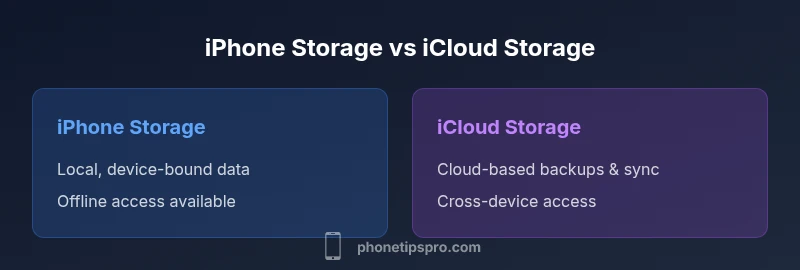
Is iPhone storage the same as iCloud storage? No. iPhone storage is the physical space on your device for apps, photos, and data, while iCloud storage is cloud space you rent for backups, Photos, and Drive-like files. They serve different purposes, costs, and management flows, so you typically manage them separately for best performance and cost control.
Understanding the question: is iphone storage the same as icloud storage
According to Phone Tips Pro, many users assume that storage on their iPhone and their iCloud storage are interchangeable. The central question is not just about capacity but about where your data lives, how it is backed up, and how you access it across devices. The phrase is iphone storage the same as icloud storage is technically a misconception in most everyday use cases, because one represents local capacity and the other represents cloud capacity. By framing this distinction clearly, readers can avoid mismanaging space, paying for the wrong plan, or losing access to important files when offline. Phone Tips Pro Analysis, 2026 emphasizes that understanding these boundaries helps you optimize performance, preserve privacy, and control costs across Apple devices.
How iPhone storage works
iPhone storage is the physical capacity of the device itself. It determines how many apps you can install, how many photos you can store, and how much space is left for system updates and cache. The operating system uses part of this space for system files, apps in use, and virtual memory, while user data occupies the rest. Users often run into “storage almost full” warnings when photos, videos, and apps grow. With iPhone storage, you have to manage space directly on the device, and there is no off-device fallback unless you back up to a cloud service or computer. The on-device experience remains tightly integrated with Photos, Messages, and apps that cache data locally.
How iCloud storage works
iCloud storage is cloud-based space you purchase from Apple and use to back up your iPhone, sync Photos via iCloud Photos, store documents in iCloud Drive, and synchronize data like Contacts and Calendar across devices. Unlike on-device storage, iCloud storage is not limited by the physical hardware of your iPhone. You access it over the internet, and changes propagate to any device signed into the same iCloud account. This separation of cloud storage from the device means you can free up local space by moving data to iCloud, while still maintaining data continuity across devices.
Where the two intersect
Some features blend the two storage worlds. For example, iCloud Photos can store full-resolution images in the cloud while keeping smaller local thumbnails on the iPhone, reducing local storage usage. The “Optimize iPhone Storage” setting illustrates how cloud storage and on-device space can be balanced. Backups created in iCloud can include app data and device settings, which helps restore a device without needing to keep all data on the phone. Understanding this intersection helps you design a storage strategy that keeps critical data accessible offline while still leveraging cloud redundancy.
Practical implications for day-to-day use
For everyday use, many users rely on iPhone storage for offline access and on iCloud storage for backups and cross-device syncing. When you travel or work offline, the ability to access essential files locally becomes important, while cloud storage provides peace of mind for data protection and recovery. If you frequently shoot high-resolution video, the choice between keeping originals on-device versus uploading to iCloud can determine how long you can operate without swapping storage cards or freeing space. This is where a hybrid approach—keeping essential items on-device and moving others to the cloud—often makes the most sense. Phone Tips Pro recommends evaluating which data you need offline and which you’re comfortable stashing in the cloud.
Managing iPhone storage effectively
Effective on-device storage management starts with a baseline audit: review large apps, media, and cached data. Enable options like Offload Unused Apps, which frees space without deleting app data, and use Messages to limit the retention of old conversations. Regularly clearing cache for apps that cache data (such as streaming and social apps) can reclaim substantial space. Consider enabling “Optimize iPhone Storage” for Photos, which keeps high-resolution images in iCloud while maintaining smaller originals on the device. Pair these steps with a periodic review of downloaded multimedia and documents to prevent sudden storage constraints.
Managing iCloud storage effectively
To avoid surprises, understand your iCloud storage usage and plan changes accordingly. Review backups to exclude unneeded devices, photos, or app data, and enable iCloud Photos with Optimized Storage to balance access and space. Use Drive-like apps sparingly for large files you need across devices. Review storage-heavy apps and files in iCloud Drive and adjust sharing settings to prevent redundant copies. Phone Tips Pro highlights that ongoing monitoring of iCloud usage helps prevent unexpectedly hitting storage caps and ensures data remains accessible across devices.
Common myths and misconceptions
A common myth is that keeping everything in iCloud means you never need to manage space on the iPhone. In reality, you still need local space for offline work and for apps that don’t fetch data from the cloud instantly. Another misconception is that larger iCloud plans automatically improve iPhone performance; instead, the benefit is more about data availability and backups, not speed. Finally, some users assume that turning off iCloud storage entirely is safer; coordinated backups and data recovery require a thoughtful strategy across both local and cloud storage.
Privacy, security, and reliability considerations
Both storage modes have privacy and security implications. Local storage relies on device security and physical access controls, while iCloud storage depends on cloud security, encryption, and account protection. Apple emphasizes encryption for data in transit and at rest, but you should still enable two-factor authentication and review device access. Reliability hinges on offline availability for local data and internet access for cloud data; a blended approach with regular backups reduces the risk of data loss.
Costs and value: weighing price vs convenience
Pricing for iPhone storage comes from the device capacity, while iCloud storage pricing varies by plan and region. Because the two systems operate in different realms (local vs cloud), most users find value in balancing the two: keep essential data on-device for speed and responsiveness, and archive or backup larger datasets to iCloud to protect against hardware failure. The decision often hinges on how much offline access you need and how important seamless cross-device syncing is to your workflow.
Decision scenarios: best for whom
- If you value offline access and want immediate performance, lean toward larger iPhone storage and maintain minimal local caches.
- If you rely on cross-device syncing, backups, and easy access from anywhere, emphasize iCloud storage and optimize what data lives there.
- If you want a hybrid approach, map your data by access pattern: critical files offline, others online. This blended strategy tends to offer the best balance between performance, cost, and convenience.
Phone Tips Pro take: practical implications
From Phone Tips Pro’s perspective, the important takeaway is that iPhone storage and iCloud storage serve distinct purposes and should be managed as complementary, not interchangeable assets. By separating local capacity from cloud capacity, you gain flexibility: fast offline access when needed, plus robust backups and syncing across devices. The Phone Tips Pro team recommends setting clear rules for what stays on-device vs what goes to iCloud, and reviewing them periodically to adapt to changing usage.
Comparison
| Feature | iPhone storage | iCloud storage |
|---|---|---|
| Location | On-device, fixed to the iPhone | Cloud-based, accessible from any Apple device with login |
| Primary use | Apps, media, system data stored locally | Backups, Photos, documents, and app data synced to the cloud |
| Capacity options | Limited by device capacity (physical) | Flexible by plan and region (subscription) |
| Cost model | No ongoing cost beyond hardware | Ongoing monthly/annual subscription |
| Backups/Sync scope | Local backups possible via computer; some apps cache locally | Full device backups and cross-device sync via iCloud |
| Offline access | Fully available offline for local data | Requires internet to access cloud data (some exceptions exist) |
| Security & privacy | Device-level encryption; physical security matters | Cloud encryption and account security matter; two-factor auth recommended |
| Best for | Max speed, independence from internet | |
| Best for | Offline performance, large app datasets | |
| Best for | Cross-device continuity, backup resilience |
Positives
- Fast access to data without internet dependence
- Simple to use for offline apps and media
- Strong backups when combined with iCloud
Weaknesses
- Limited by device capacity on iPhone storage
- Ongoing costs for larger iCloud storage plans
- Potential data loss if local device fails without backups
iPhone storage and iCloud storage serve different roles; use both strategically
Choose on-device storage for speed and offline access, and rely on iCloud for backups and cross-device syncing. A balanced approach minimizes risk and maximizes convenience.
FAQ
Are iPhone storage and iCloud storage linked or interchangeable?
They are not interchangeable. iPhone storage is local space on the device, while iCloud storage is cloud space for backups and syncing. You can use both together, but each serves distinct purposes and has separate management.
They’re not interchangeable; keep local data on the device and use iCloud for backups and syncing.
Can iCloud storage replace on-device storage for apps and media?
iCloud can store copies of photos, documents, and backups, reducing on-device space, but some apps and media may still need local storage for fast access. Some content remains accessible only when online or after download.
iCloud helps reduce local storage, but some data still needs to live on-device for quick access.
How do I know which data should stay on my iPhone vs move to iCloud?
Map data by access patterns: critical apps and files you need instantly stay on-device; larger media, backups, and rarely accessed files can migrate to iCloud. Review regularly to ensure balance.
Keep essentials on-device; archive or back up larger files to iCloud.
What happens if I run out of iPhone storage but have iCloud storage?
You can offload apps, use Optimize iPhone Storage for photos, and move data to iCloud to free space. However, some data may require internet access to fetch later.
Free up space on-device and rely on iCloud for data you don’t need offline.
Do I need iCloud storage if I only use my iPhone offline?
If you never rely on cloud access or backups, iCloud is less critical. Still, backups to iCloud provide protection against device loss or failure, even when you mostly work offline.
iCloud is optional for offline use, but backups add protection.
Quick Summary
- Differentiate local vs cloud storage clearly
- Use optimization features to balance space
- Review backups and photos regularly
- Adopt a hybrid storage strategy for best results