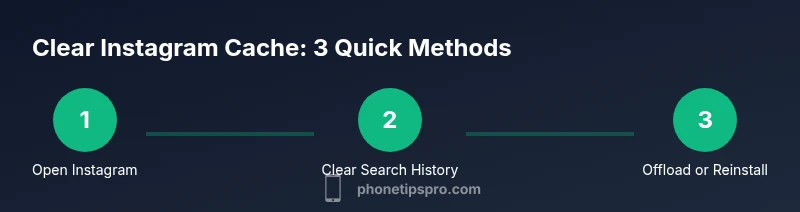
Clear Instagram Cache on iPhone: A Practical Guide
Learn how to clear cache Instagram iPhone to reclaim storage and speed up the app. This comprehensive guide covers in-app history clears, offloading, and full reinstalls with practical tips and safety notes.


Clear Instagram cache on iPhone to reclaim storage and fix slow loading. This quick guide covers in-app history clearing, offloading the app, and a full reinstall, plus safe steps to avoid data loss. You’ll refresh temporary data, free space, and regain snappier performance without risking your photos or messages today.
Why clearing cache on iPhone for Instagram matters
Caching is how apps speed up performance by storing data locally. On iPhone, Instagram builds up temporary files, images, and search data that can bloat storage and slow the app. According to Phone Tips Pro, caches can accumulate quickly when you browse, search, or watch stories, and they may not be obvious in Settings. Clearing the cache instagram iphone can reclaim space and refresh the app, reducing load times and glitches. While clearing cache doesn’t remove your photos or messages from the Instagram servers, it does reset last viewed content and search suggestions, which can improve responsiveness. If you’re running low on storage or seeing odd behavior like stuck uploads or stale feeds, clearing cache instagram iphone is a practical first step.
Quick health check before you start
Before you dive in, run a quick prep check:
- Make sure your iPhone is on iOS 15 or later for the smoothest experience.
- Install the latest Instagram app from the App Store to ensure compatibility with new cache controls.
- Connect to a reliable Wi‑Fi network to download any required updates during the process.
- Back up important login info or notes in case you need to re-authenticate after reinstall.
According to Phone Tips Pro, starting with a clean slate on a well-updated device minimizes surprises.
Method A: Clear in-app history (Instagram settings)
The simplest, least disruptive method is to clear in-app history where available. This doesn’t purge all cached files but removes search history and some temporary data that affects performance.
Steps:
- Open Instagram and go to your profile. Tap the three horizontal lines to access Settings.
- Navigate to Security > Clear Search History. Confirm the action.
- Return to Feed and test responsiveness.
Tip: Clearing search history reduces auto-suggest noise and can speed up searches in the app.
Method B: Offload the app to purge cache
Offloading removes the app but keeps its documents and data. This is a middle-ground approach that frees space without a full reinstall.
Steps:
- Open iPhone Settings > General > iPhone Storage. Scroll to Instagram and choose Offload App.
- After the offload completes, tap Reinstall App if you want to reuse the cache-free version, or leave it off to start fresh after a reinstall.
- Open Instagram to verify performance and re-authenticate if prompted.
Tip: Offloading can reclaim space quickly and reduce cache bloat without deleting your login credentials stored by iOS.
Method C: Reinstall the app for a full purge
For a thorough cache purge, reinstall the app. This clears most temporary files but requires you to log back in.
Steps:
- Press and hold the Instagram app icon, then choose Remove App and Confirm Delete.
- Open the App Store, search for Instagram, and reinstall it.
- Launch the app and sign back in.
Tip: A fresh install often yields the cleanest cache and improves startup time. If you’re worried about losing offline media, remember that photos and videos are stored on Instagram servers, not on your device.
When to use each method
If you notice sluggish loading or erratic feeds, start with in-app history clears. If storage remains tight, try Offload before a full reinstall. A full reinstall is best when you’ve tried lighter approaches and still see issues or when you want a complete cache reset.
Check storage impact and confirm results
After completing any method, re-check your iPhone storage:
- Settings > General > iPhone Storage shows the available space.
- Open Instagram and verify improved response times and fresh feed loading.
If space is still tight, repeat the offload or consider removing large media from device caches (not the server). This step helps you quantify the improvement and decide if further action is needed.
Troubleshooting common issues after clearing cache
Sometimes removing caches can trigger minor hiccups:
- You may be logged out of Instagram; re-login will restore access.
- Some settings or filters may reset; reconfigure as needed.
- If you notice repeated crashes, ensure the app is updated and the device has sufficient free space.
In most cases, a quick relaunch and sign-in resolves these glitches.
Safety and data considerations
Clearing cache Instagram iphone is generally safe, but be mindful of authentication and saved login details. Backing up login information or ensuring you can re-authenticate helps avoid lockouts. Do not delete app data associated with two-factor authentication codes unless you’re prepared to reconfigure security methods. Instagram photos live on servers, not solely on your device, so deleting cache won’t erase your media from the cloud.
Pro tips to prevent cache buildup
- Limit autoplay video data by adjusting Instagram settings to reduce automatic playback.
- Periodically clear search history to keep suggestions relevant and reduce cache.
- Schedule cache refreshes after large media downloads or heavy usage periods to maintain responsiveness.
- If you frequently switch between networks, consider enabling automatic app updates to ensure cache handling stays optimal.
Method D: Quick verification tips
If you want an additional quick verification, this method ensures you didn’t miss cached data:
- Compare app load times before and after the cache purge.
- Check the storage graph in Settings to ensure space has freed up.
- Confirm you can still access saved media and messages in the app without issues.
Tools & Materials
- iPhone with iOS 15+(Ensure the OS is up to date for best app compatibility.)
- Instagram app (latest version)(Install from the App Store to ensure access to the latest cache controls.)
- Stable Wi-Fi or cellular connection(Needed for downloading updates and reinstalling apps.)
- App Store access(Required to reinstall Instagram if you choose that path.)
- Backup/notes for login info(Keep login details handy in case you need to re-authenticate.)
Steps
Estimated time: 15-25 minutes
- 1
Open Instagram settings
Open the Instagram app, go to your profile, tap the three-line menu, and select Settings to access cache-related options and general app controls.
Tip: Navigating directly to Settings saves time and reduces digging through menus. - 2
Clear in-app search history
In Settings, go to Security and choose Clear Search History to purge cached search data that can slow performance.
Tip: This step reduces autocomplete clutter and speeds up searches. - 3
Offload the Instagram app
If you want a lighter purge, go to iPhone Storage, find Instagram, and Offload App to remove the app while keeping documents.
Tip: Offloading is faster than a full reinstall and preserves login data. - 4
Reinstall Instagram for a full purge
If the cache remains large, delete the app and reinstall from the App Store to clear nearly all temporary files.
Tip: Re-authenticate carefully; ensure you can access your account after reinstall. - 5
Sign back in and verify
Open the newly installed app, sign back in, and confirm that it loads faster and that feeds refresh normally.
Tip: Keep login credentials handy in case you’re asked to verify via SMS or email. - 6
Check iPhone storage and app performance
Go to Settings > General > iPhone Storage to confirm free space, then use Instagram to test responsiveness.
Tip: If space remains tight, consider removing large media files from your device or further offloading. - 7
Repeat if needed
If issues persist, consider a second reinstall after ensuring all backups and credentials are up to date.
Tip: Sometimes a second pass resolves stubborn caches. - 8
Adopt preventive habits
Establish a routine: clear search history monthly, monitor storage, and update the app regularly.
Tip: Proactive maintenance prevents recurring cache buildup.
FAQ
Can clearing Instagram cache delete my photos or messages?
Clearing the cache typically does not delete photos or messages stored on Instagram servers. Local temporary files and search data may be removed, which can improve performance. Always ensure you can re-authenticate if needed.
Clearing the cache removes temporary files and data stored on the device, not your photos or messages saved on Instagram servers.
What is the quickest way to clear Instagram cache on iPhone?
The quickest method is to clear search history within Instagram and, if needed, offload the app. A full reinstall provides the most thorough purge but requires re-authentication.
Start with clearing search history inside Instagram, then offload the app if more space is needed before considering a full reinstall.
Will offloading Instagram affect my login or saved data?
Offloading removes the app but keeps its documents and data. You may need to sign back in after reinstallation, but your account data on Instagram remains intact.
Offloading keeps data on your iPhone and won’t delete your Instagram account data; you’ll just need to log in again if you reinstall.
How can I verify that cache has been cleared and space freed?
Check Settings > General > iPhone Storage to see free space. Open Instagram and monitor load times and feed updates to confirm improved performance.
Look at your storage in settings and test the app’s speed to confirm the cache purge worked.
Are there any risks to clearing cache frequently?
Frequent clearing is generally safe but may require re-authentication and could temporarily slow loading until caches rebuild. Use it as a maintenance habit rather than a daily routine.
There aren’t major risks, but you may need to log back into Instagram after clearing caches.
Watch Video
Quick Summary
- Clear cache instagram iphone to reclaim storage
- Use in-app history clears first, then offload or reinstall if needed
- Reinstall provides the most complete cache purge
- Offloading is a safe middle-ground that preserves data
- Regular maintenance helps prevent cache buildup