How to Clean iPhone Storage: A Practical Guide
Learn practical steps to clean iPhone storage, free up space, and maintain performance. Offload unused apps, optimize photos, delete large attachments, and set up ongoing storage habits.


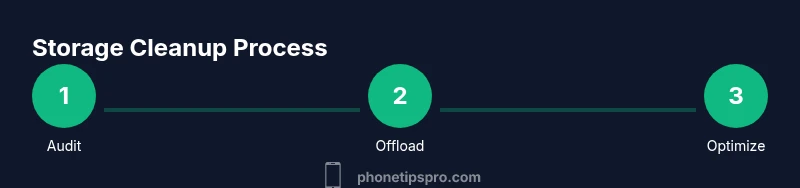
To clean iPhone storage, audit and remove the biggest space sinks: photos and videos, unused apps, large message attachments, and Safari caches. Use built-in tools like Offload Unused Apps, Optimize iPhone Storage for Photos, and Review Large Attachments in Messages. After the cleanup, set a monthly reminder to repeat the steps.
Why storage health matters on
Identify the biggest space hogs on
Step-by-step: offload unused apps and review large attachments
Start by turning on Offload Unused Apps in Settings > App Store. This preserves app data while removing the app binary, freeing space without deleting documents. Then, go to Settings > General >
Manage Photos and videos: optimize, compress, and back up
Photos often occupy the largest share of storage. If you enable Optimize
Clear browser data, app caches, and offline content
Safari cache and website data can accumulate and silently consume space. In Safari, choose Clear History and Website Data to remove cached files. Similarly, review apps that store offline content, such as streaming apps or maps, and delete cached files. Remember that some caches are useful for performance; delete only what’s stale or duplicated. If you prefer, use a built-in option in each app to clear caches or reduce offline content. Always back up important data before performing large cache purges.
Manage Messages and attachments to reclaim space
Text messages and
Create a monthly maintenance routine and backup plan
Set a calendar reminder to audit storage at the end of every month. Your routine should include reviewing the
Authoritative sources to support storage cleanup
- Official Apple guidance: https://support.apple.com/en-us/HT201265
- Consumer Reports storage tips: https://www.consumerreports.org
- The Verge storage behavior and cleanup tips: https://www.theverge.com
Tools & Materials
- iPhone with latest iOS(Ensure you’re on the latest version for best storage management features.)
- Settings app and Photos app(Primary tools for cleanup actions and optimization.)
- iCloud account (optional)(Used for Photo Library optimization and backups.)
- Computer or cloud storage(For backups and offloading large media if needed.)
Steps
Estimated time: 45-60 minutes
- 1
Open storage dashboard
Open Settings > General > iPhone Storage and review the space usage by category. Note the biggest contributors and any recommended actions displayed by iOS.
Tip: Take a quick screenshot of the breakdown for reference. - 2
Offload unused apps
Tap apps with large data and choose Offload App to reclaim space while preserving documents. Repeat for other apps you rarely use.
Tip: Consider apps you never open weekly or monthly. - 3
Delete or reduce large message attachments
In Messages, filter by Attachments and delete old photos and videos you no longer need. Archive conversations if necessary.
Tip: Back up essential attachments before deletion if they’re important. - 4
Enable Photo storage optimization
Go to Settings > Photos and enable Optimize iPhone Storage. Manage the balance between access and local space.
Tip: Ensure iCloud Photos is configured to store originals in the cloud. - 5
Clear Safari and app caches
Clear History and Website Data in Safari and review apps that cache content; purge old cached files that are not needed.
Tip: Back up passwords and important data before purging caches. - 6
Review large downloaded files in Files
Open the Files app, sort by Size, and delete or move large downloads you no longer need.
Tip: Keep only the files you’ll use in the near term. - 7
Keep a backup and set a routine
Back up your library to iCloud or computer, and set a monthly cleanup reminder to repeat these steps.
Tip: Test restore from backup to ensure data integrity. - 8
Finalize and reflect on results
Confirm free space has increased and note any remaining large items to monitor next month.
Tip: Celebrate a smoother, faster device after cleanup.
FAQ
Where do I find iPhone storage usage?
Open Settings, then General, and tap iPhone Storage to see a breakdown of space usage by category. iOS also provides recommendations for freeing space.
Go to Settings > General > iPhone Storage to view the usage breakdown and follow the on-screen recommendations.
Will offloading apps delete data?
Offloading removes the app itself but keeps its documents and data. If you reinstall the app, your data is restored if it was stored with the app.
Offloading saves your data; reinstall the app later and your data should return.
Does iCloud Photos affect storage usage?
Enabling iCloud Photos with 'Optimize iPhone Storage' stores full-resolution images in the cloud and keeps lightweight versions on the device, freeing local space.
Yes—optimized storage in iCloud reduces local space while keeping access to photos.
Should I factory reset to free space?
Factory reset is a last resort after backing up. It clears all data; consider other steps first and ensure you can restore.
Only use a factory reset if you’ve exhausted other options and have a solid backup.
How often should I clean storage?
A monthly audit is a good baseline. Adjust frequency based on how quickly your storage fills up, especially after big photo or video shoots.
A monthly cleanup usually works, but adjust as needed based on your usage.
Watch Video
Quick Summary
- Identify top space hogs first to guide cleanup.
- Enable storage optimization features to reduce local usage.
- Back up important data before deleting items.
- Regularly review attachments and caches to prevent growth.
- Set a monthly reminder to repeat the cleanup process.