How to Get Rid of iPhone Storage: A Practical Guide
Discover proven, safe steps to reclaim iPhone storage by auditing space, offloading data, optimizing photos, and managing messages and apps. A comprehensive, end-to-end method for 2026.


Learn how to get rid of iphone storage with a practical, step-by-step approach. This quick guide covers auditing space, offloading vs deleting, and optimizing photos, messages, and apps. By following these steps, you’ll reclaim storage safely while keeping your data intact. Phone Tips Pro notes that proactive cleanup helps device speed, battery life, and privacy.
Why iPhone Storage Fills Up Quickly
According to Phone Tips Pro, most iPhone users accumulate storage in three main areas: Photos and videos, Messages and attachments, and apps with their cached data. Over time, system files, caches, and offline media also creep in, making storage management feel like a moving target. The result is slower device performance and a constant “Storage Almost Full” alert. By understanding where space goes, you can prioritize which areas to address first and avoid unnecessary data loss. In 2026, many iPhone owners underestimate how quickly high‑resolution media and app caches add up, especially if you back up to iCloud or sync with other devices. This section breaks down practical, predictable patterns so you can tackle space with confidence.
Quick Audit: Find What Consumes Space
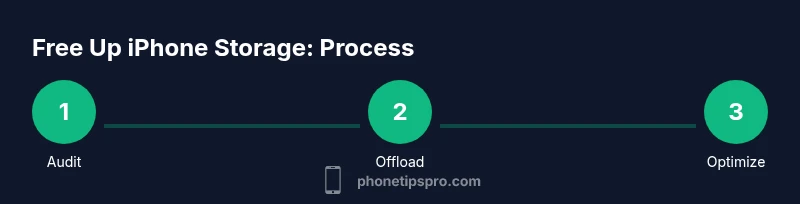
The fastest way to reclaim space is to locate the biggest culprits. Start in Settings > General > iPhone Storage to see a color-coded bar and a list of apps ordered by how much space they use. Review large apps, then expand each item to reveal its data. Note that some data is essential (like messaging threads), while others are cache-heavy and removable. If you see 'Photos' or 'Messages' occupying a lot, follow the recommended actions below rather than deleting random files. This audit gives you a clear starting point and prevents guesswork.
Free Up Space Without Deleting Data
Not all storage loss requires erasing memories. iPhone offers offloading unused apps, which removes the app but keeps its documents and data, so reinstalling restores access. Enable 'Offload Unused Apps' in Settings > App Store. For photos and videos, turn on iCloud Photos and choose 'Optimize iPhone Storage' so full-resolution media remains in iCloud while devices keep lightweight thumbnails. Review unused media and attachments in Messages and Mail, and delete or archive where appropriate. In many cases, you can reclaim tens to hundreds of megabytes or more without sacrificing important content.
Manage Photos and Videos Efficiently
Photos and videos are the most space-hungry items on iPhones. Use the iPhone’s built‑in optimization: Settings > Photos > Optimize iPhone Storage. This stores full-resolution files in iCloud and keeps device-optimized versions on the phone. If you use iCloud, ensure you have enough storage and a reliable Wi‑Fi connection for initial uploads. Consider converting outside video formats to HEVC (H.265) where supported, as it reduces file sizes. Regularly review your 'Recently Deleted' album, as items there still occupy space for 30 days.
Messages and Attachments Cleanup
Conversations with long histories and many media attachments consume substantial space. In Messages, enable 'Keep Messages' for 30 days or 1 year (Settings > Messages > Keep Messages). Delete large attachments—photos, videos, and GIFs—selectively by going to a conversation, tapping the info button, and removing items. Consider exporting important threads to a backup location before deletion. You can also use the 'Review Large Attachments' feature in Settings to target big files quickly.
Apps and Offloading: What to Remove
Apps you rarely use still consume space for their caches and data. Start by identifying apps with high data usage from the iPhone Storage list, then offload or delete those you don’t need. Offloading preserves documents and data for later restoration. For apps with critical data, consider clearing cache from the app itself (if supported) or moving content to cloud storage. Regularly revisit this list to prevent space creep.
Understanding 'Other' Storage and How to Address It
'Other' storage is a catch‑all category that includes caches, logs, Safari data, and app data. It often grows after system updates or app usage. You can reduce it by clearing Safari caches (Settings > Safari > Clear History and Website Data), deleting app caches via the app-specific options, and performing a local backup before a comprehensive cleanup. In some cases, 'Other' can shrink after a period of routine maintenance.
60-Minute Action Plan to Free Up Space
If you’re short on time, use this lean plan: 0–5 minutes: Check storage usage in Settings. 5–15 minutes: Offload unused apps and enable 'Optimize iPhone Storage' for Photos. 15–30 minutes: Clear large attachments in Messages and review the 'Recently Deleted' album. 30–45 minutes: Review 'Other' components by clearing Safari data and resetting caches where safe. 45–60 minutes: Back up, then perform a final check to ensure you’ve regained space.
Tools & Materials
- iPhone with latest iOS(Ensure it's updated to the latest version for best results)
- Apple ID credentials(Needed for iCloud settings and backups)
- Wi‑Fi connection(Stable network for backups and uploads)
- iCloud storage plan(Optional if you plan to optimize photos; requires space)
- Computer (Mac or PC)(For local backups using Finder or iTunes)
- Lightning/USB-C cable(For wired backups or device connections)
- External storage or backup location(Useful for securing important data)
Steps
Estimated time: 60-120 minutes
- 1
Back up and prepare
Begin with a complete backup of your iPhone to iCloud or a computer. This ensures you won’t lose anything during cleanup. Verify that backups completed successfully before proceeding.
Tip: Pro tip: Enable iCloud Backup and run it last thing at night to capture the latest changes. - 2
Audit space usage
Open Settings > General > iPhone Storage and review the space distribution. Note the largest apps and data chunks. Decide which areas to tackle first based on impact and importance.
Tip: Pro tip: Sort by size to quickly spot the biggest culprits. - 3
Offload unused apps
Enable Offload Unused Apps to remove apps while keeping documents and data. After offloading, revisit the list to see remaining space and which apps still contribute data.
Tip: Pro tip: Reinstall only the apps you actually use to reclaim cached data. - 4
Optimize Photos
Turn on iCloud Photos and select Optimize iPhone Storage. This stores full-res media in iCloud and keeps a lightweight version on-device. Consider consolidating large libraries before cleanup.
Tip: Pro tip: Run a quick pass to delete duplicates or blurry shots before enabling optimization. - 5
Clean Messages and Attachments
Review conversations with heavy media. Delete large attachments or keep only essential threads. Consider exporting critical conversations as a backup before deletion.
Tip: Pro tip: Use the 'Review Large Attachments' feature to target big files fast. - 6
Clear Safari and app caches
Clear Safari history and website data. If possible, clear app caches from within app settings or by performing a controlled reset of optional features.
Tip: Pro tip: Only clear caches when you have a stable backup, to prevent data loss. - 7
Final verification
Check Settings > General > iPhone Storage again to confirm free space. If needed, repeat targeted cleanups or move data to the cloud or computer.
Tip: Pro tip: Schedule a 30-day reminder to re-check storage and avoid creep.
FAQ
What is the 'Other' storage category on iPhone?
Other storage is a catch‑all category for caches, logs, Safari data, and app data. It can grow after updates or heavy app usage. Reducing it involves clearing caches and performing careful backups before cleanup.
Other storage covers caches and app data. Clearing caches and backing up before cleanup helps reclaim it safely.
Will offloading apps delete my data?
Offloading removes the app but keeps its documents and data. If you reinstall the app later, your data should reappear. It’s a safe way to reclaim space without losing content.
Offloading removes the app while preserving data, so you can reinstall it later and recover your content.
Can I reclaim space without losing photos or messages?
Yes. Use Optimize iPhone Storage for photos, backup messages to iCloud or your computer, and delete only large or unnecessary attachments. This preserves your memories while freeing space.
You can reclaim space without losing important photos or messages by using storage optimizations and safe backups.
How long does it take to free up space?
The cleanup can take 15 minutes to over an hour depending on data volume and backups. A staged approach makes the process smoother and safer.
Expect 15 minutes to a little over an hour depending on data size and backups.
Should I perform a factory reset to reclaim space?
A factory reset is usually unnecessary for storage cleanup and should be avoided unless you’re troubleshooting deeper software issues. Back up first, and try targeted cleanups.
No, a factory reset isn’t typically required for storage cleanup; use targeted cleanup first.
Is iCloud storage required for photo optimization?
Photo optimization works with iCloud Photos, but you can still manage space by deleting local copies and using curated backups. A sufficient local backup is recommended.
iCloud helps, but you can still manage space with local backups if needed.
Watch Video
Quick Summary
- Audit first to identify biggest space hogs
- Offload vs delete: protect data you need
- Enable photo optimization to save space
- Clean messages and caches regularly
- Back up before major cleanup