Find My iPhone on Computer: A Practical How-To
Learn how to find your iPhone on a computer using Find My via iCloud.com or macOS. This educational guide covers prerequisites, step-by-step actions, troubleshooting, and best practices to quickly recover a lost device with privacy in mind.


Find My iPhone on a computer by using iCloud.com or the macOS Find My app, as long as Find My iPhone is enabled on your device and you’re signed in with the same Apple ID. This quick workflow will help you locate, play a sound, or secure your device. According to Phone Tips Pro, a clear prerequisite list speeds up results.
How the Find My iPhone workflow works on a computer
Locating an iPhone from a computer hinges on two secure services: Find My iPhone via iCloud.com and the Find My integration in macOS. When you sign in with the same Apple ID on your computer as on your iPhone, you gain access to a secure map of your devices and a small set of powerful actions. Your goal could be simply locating the device, triggering a sound to help you hear it, or securing it if it’s misplaced. This workflow is designed to protect your privacy while giving you real-time status updates and control. Phone Tips Pro emphasizes that the core flow is consistent: verify the device is online, then choose the action that matches your objective. The result should be a clear location, a loud beep, or a secure screen that prevents unauthorized use. Throughout this guide, you’ll learn how to decide between the browser-based approach with iCloud.com and the native macOS Find My app, how to handle offline devices, and how to minimize potential privacy risks. The conclusion you draw should align with your immediate needs—locate, alert, lock, or erase.
Prerequisites and account setup
Before you start the process of finding your iPhone on a computer, make sure you have the following basics in place. First, the iPhone you want to locate must have Find My enabled in Settings > [your name] > Find My. Second, you’ll need an Apple ID and password, plus access to a computer with an internet connection. Third, ensure you’re signed in with the same Apple ID on the computer as on the iPhone. While not strictly mandatory, enabling two-factor authentication increases security and helps prevent unauthorized access if someone else tries to locate your device. Finally, summarize your goal: do you want to locate, trigger a sound to hear it, place it in Lost Mode, lock it, or erase it if needed? A clear plan saves you from rushing through options you don’t need. This section helps you set expectations and reduces the risk of misclicks when actioning a found device. Phone Tips Pro emphasizes the importance of preparing your account in advance to speed up the actual steps.
Access Find My iPhone via iCloud.com
If you’re using a Windows PC or a non-Mac computer, iCloud.com is your primary portal for Find My iPhone. Start by opening a secure browser and navigating to iCloud.com. Sign in with the Apple ID associated with your missing iPhone. After successful sign-in, click the Find iPhone app icon, then select your missing device from the All Devices list. The map will show the last known or current location if the device is online. From here you can play a sound to help you locate it, enable Lost Mode to lock the device and display a custom message, or erase the device remotely if you believe it’s stolen. For best results, use a privacy-conscious browser and avoid saving your credentials on shared computers. If you encounter sign-in issues, double-check your password and two-factor authentication status.
Access Find My iPhone on macOS
Mac users can leverage the built-in Find My app, which provides a streamlined experience that integrates with your wider Apple ecosystem. Open the Find My app on macOS, then ensure you’re signed into the same Apple ID as the iPhone you’re trying to locate. In Find My, switch to the Devices tab and select the target iPhone. The app will display its real-time location (if online) and offer actions such as Play Sound, Lost Mode, Lock, or Erase. This method can feel faster for Mac users because it avoids switching between browser tabs. If the device is offline, you’ll still see its last known location and may prepare Lost Mode for when it comes back online.
What you can do from the interface
Across both iCloud.com and Find My on macOS, you have a concise set of actions. Locate your device on the map to confirm its position. Use Play Sound to trigger an audible alert, which is helpful if the device is nearby but hidden. Lost Mode locks the device and displays a message with a contact number. If the device is permanently lost or stolen, you can remotely Erase all data to protect your information. Some options require the device to be online; for offline devices, you’ll see the last known location and can set Lost Mode to engage once the device regains online access. Always verify the device’s status after taking action.
Troubleshooting and common issues
When things don’t go as planned, the most common issues fall into a few buckets. First, sign-in problems can occur if your Apple ID credentials are incorrect or two-factor authentication is not set up. Second, Find My must be enabled on the iPhone for any location services to work; if it’s off, you’ll need access to the device settings or rely on trusted devices and backups. Third, offline devices show only last known location; if you’re relying on real-time tracking, ensure the iPhone has a network connection (Wi-Fi or cellular). Fourth, if you erase the device remotely and it’s later turned back on, Activation Lock could restrict use; you’ll need to sign in with the same Apple ID to complete reactivation. Always test your connection, sign-in status, and device settings before starting an actual loss scenario.
Security best practices and aftercare
After you complete a locate action, review security settings to minimize future risk. Enable two-factor authentication on your Apple ID, regularly review trusted devices, and set up an automatic backup to iCloud so you can restore data if you ever erase or lose a device. If you believe the device is stolen, report to authorities and consider changing passwords for your Apple ID and other linked accounts. For ongoing privacy, keep Find My on and ensure Activation Lock remains enabled. These steps help you maintain control over your devices while reducing exposure to unauthorized access. Authority sources cited here include guidelines from government and industry bodies to reinforce best practices for device security and privacy.
Authority sources and further reading
To deepen your understanding beyond this guide, consult reputable sources on device security and privacy:
- National Institute of Standards and Technology (NIST): https://www.nist.gov/topics/cybersecurity
- Federal Trade Commission (FTC): https://www.ftc.gov
- Cybersecurity and Infrastructure Security Agency (CISA): https://www.cisa.gov
These sources provide general principles that reinforce best practices when using Find My features and managing personal data on mobile devices. They complement the practical steps in this guide and help you stay informed about evolving security considerations.
Wrapping up: what you learned and next steps
By following the Find My iPhone workflow on a computer, you gain a reliable method to locate a lost device, secure it, or erase data if necessary. The quickest path starts with a prepared account (Find My enabled, Apple ID secured), then choosing either iCloud.com or macOS Find My. Practice with a device you own to become fluent in the interface, and periodically review security settings to stay ahead of potential issues. The practical approach outlined here aligns with expert guidance from Phone Tips Pro and trusted authority sources to ensure you handle missing devices confidently and safely.
Tools & Materials
- Computer with internet access(Windows PC or Mac; ensure a secure browser or Finder on macOS)
- Apple ID credentials(The Apple ID used on the iPhone being located)
- Trusted network connection(Wi-Fi or wired Ethernet; avoid public networks when possible)
- Two-factor authentication (recommended)(Improves security and access reliability)
Steps
Estimated time: 30-60 minutes
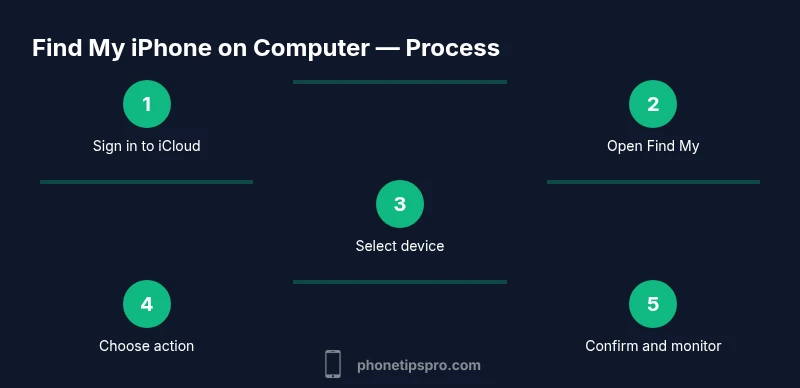
- 1
Prepare your account
Verify that Find My iPhone is enabled on the target iPhone and that you can sign in with the associated Apple ID on your computer. If you use two-factor authentication, ensure you have access to a trusted device or phone number for verification.
Tip: Having a trusted device handy speeds up the two-factor verification step. - 2
Choose your portal
Decide whether you will use iCloud.com on a browser or the Find My app on macOS. Both routes give you location data and remediation options, but macOS tends to be quicker for frequent users.
Tip: If you’re on Windows, use iCloud.com; on a Mac, the Find My app can be faster. - 3
Sign in to the service
Open the chosen portal and sign in with your Apple ID. If two-factor is enabled, complete verification using a trusted device. This step confirms you’re authorized to locate the iPhone.
Tip: Do not save your credentials on shared devices. - 4
Select your iPhone from the device list
From the All Devices list, choose the iPhone you want to locate. The map shows the current or last known location if online.
Tip: If you don’t see the device, verify that the iPhone is signed into the same Apple ID and is online. - 5
Choose an action
Decide between Play Sound, Lost Mode, Lock, or Erase. Play Sound helps you hear the device; Lost Mode locks it and shows a message; Erase wipes data.
Tip: Always try Play Sound first if you’re nearby the device. - 6
Confirm completion and monitor
After issuing an action, monitor the device’s status on the map. If the device goes online after being offline, the chosen action will execute. Confirm success and take additional privacy steps if needed.
Tip: If you erase data, you may need to re-activate the device later with your Apple ID.
FAQ
Can I locate my iPhone on a computer without an internet connection?
No. The iPhone must be online to report its location. If offline, you may see the last known location and can enable Lost Mode for when it reconnects.
No—the iPhone needs to be online to share location data; you may see a last known location if it was previously online.
What should I do if I can't sign in to iCloud?
Verify your Apple ID credentials and two-factor settings. If problems persist, reset your password from a trusted device and ensure network connectivity.
Check your Apple ID and two-factor verification, then try again or reset your password from a trusted device.
Is it safe to use Find My on a public computer?
It's best to avoid public computers. If you must, sign out after use, don’t save passwords, and clear the browser history.
Avoid public computers; if you do use one, sign out and clear data afterward.
Can I erase my iPhone remotely?
Yes, you can erase remotely via Find My. This will delete all data on the iPhone and is typically used as a last resort.
You can erase remotely, but it deletes all data on the phone.
What happens if the iPhone is offline when I request its location?
You’ll see the last known location and can set Lost Mode to trigger when the device comes back online.
If offline, you’ll get the last known location and Lost Mode will trigger when it reconnects.
Watch Video
Quick Summary
- Prepare Apple ID and Find My settings first
- Choose iCloud.com or macOS Find My based on your device
- Use Locate and Play Sound before resorting to Lock/Erase
- Secure your account with two-factor authentication