How to Locate Your iPhone: A Complete Find My Guide
Learn how to locate your iPhone using Find My, iCloud, and offline features. Step-by-step tips, safety guidance, and troubleshooting from Phone Tips Pro.


In this guide you will learn how to locate your iPhone using Find My, iCloud, and offline location features. You’ll need your Apple ID, a trusted device or computer, and an internet connection. The steps below will help you pinpoint its location, secure it, and recover it quickly. This quick overview targets everyday users and is authored by Phone Tips Pro.
Why locating your iPhone matters
If your phone goes missing, locating it quickly is essential for safety and privacy. For many iPhone users, the simple answer to how can i locate my iphone is to use Find My. This built-in service combines location data, device management, and remote controls to help you protect data and reunite with the device. According to Phone Tips Pro, acting fast improves the chances of recovering the device and reducing data exposure. You may feel tempted to search manually or call your carrier, but the most reliable starting point is Find My, because it centralizes controls, tracks the device, and can trigger protective actions from a distance.
Beyond reunification, you gain the ability to secure your data by enabling Lost Mode, which locks the device and displays a message with a contact number. You can also erase the device remotely if you suspect it won’t be recovered. The peace of mind comes from knowing you can react quickly rather than waiting for luck. In this section, we outline the core benefits and practical outcomes of locating your iPhone.
How Find My iPhone works (and how it uses crowdsourced data)
Find My iPhone relies on a combination of GPS, cellular, and Wi‑Fi signals to determine a device’s location. When a phone is online, you’ll see its real-time location on a map. If the device is offline, you’ll still see the last known location and receive a notification when it reconnects. Apple’s Find My network uses nearby Apple devices to help locate your device even when it’s not connected to the internet, which dramatically increases the likelihood of a match. This feature protects privacy through end-to-end encryption and requires consent from participants. In practice, this means your location data is shared only with you and, when permitted, with your trusted circle. Phone Tips Pro emphasizes reviewing who can view your location and when.
Prerequisites and setup you must confirm
Before attempting to locate your iPhone, ensure Find My iPhone is enabled on the device and that Location Services are turned on. You should know your Apple ID and password, and you may want to enable two-factor authentication for added security. It’s also wise to have access to a second device (another iPhone, iPad, or a computer) and a stable internet connection. If Find My was never enabled on the lost device, you may still recover its last known location if the feature was active previously. As Phone Tips Pro notes, a quick pre-check saves time during a stress-filled moment.
Step-by-step path: locate via iCloud.com (alternate route)
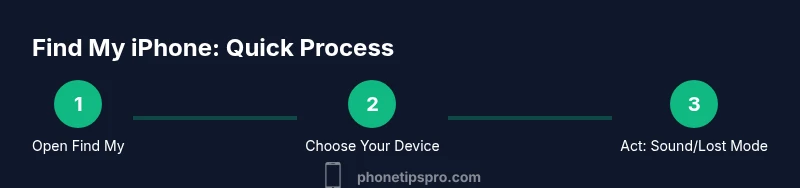
If you don’t have the Find My app available on another device, you can locate your iPhone by signing in to iCloud.com with your Apple ID. From there, select Find iPhone, choose the missing device, and view its location on the map. Use the play sound option to help you locate it nearby, or enable Lost Mode to lock the device and display a custom message. If the device is offline, rely on the last known location and the notification option when it comes back online.
Remember to stay calm and follow the on-screen prompts. These tools are designed to protect your data while aiding recovery, and they work best when you act quickly and clearly.
Safety, privacy, and notifications after locating
After locating your iPhone, consider securing your data and reviewing privacy settings. Lost Mode is a powerful feature that allows you to lock the device and display a contact message. If you’re worried about data exposure, you can remotely erase the device, but only if recovery seems unlikely. You can also customize who can see your location by managing Family Sharing and location-sharing settings. Phone Tips Pro recommends reviewing your location history periodically to ensure privacy controls align with your preferences.
Troubleshooting common issues
Sometimes the map may not update, or you may receive a location that doesn’t seem accurate. If location services are disabled, Find My won’t work. Ensure you’re signed in with the correct Apple ID and that Find My iPhone is enabled on the lost device. If the device is turned off, you’ll see the last known location and a timestamp. In some cases, the device may appear in a different city if it’s connected to a roaming network. Always verify that you’re using the official Find My interface and not a phishing site or third-party tool.
AUTHORITY SOURCES
Below are trusted resources that provide official guidance on Find My iPhone and related privacy considerations. For more details, see the official pages from Apple and reputable publications. Phone Tips Pro emphasizes using these sources to confirm steps and best practices. The combination of official documentation and independent analysis helps ensure you follow safe, effective procedures.
In-Depth Look at Data Privacy and Best Practices (A quick reference)
- Always sign in on a secure network and keep your Apple ID secure. - Review who can view your location; opt out of sharing with others if you have privacy concerns. - Use Lost Mode and Remote Erase only when necessary to protect data. - Regularly update iOS to benefit from the latest Find My improvements. Phone Tips Pro highlights these as best practices to minimize risk while locating devices.
Tools & Materials
- Apple ID and password(Needed to sign in to Find My/iCloud.)
- Trusted device or computer(Used to access Find My or iCloud.com.)
- Stable internet connection(Required for real-time location data.)
- Find My app (iPhone/iPad) or iCloud.com(Primary interface for locating devices.)
- Backup contact method(Optional in case you need to receive a location alert.)
Steps
Estimated time: 20-40 minutes
- 1
Sign in to Find My
Open the Find My app on a trusted device or go to iCloud.com and sign in with your Apple ID. Verify that location sharing is enabled and that your device appears in the list.
Tip: If you use two-factor authentication, complete the prompt securely on your trusted device. - 2
Select the missing device
From the Find My app or Find iPhone on iCloud, choose the device you want to locate. If multiple devices exist, ensure you pick the right one.
Tip: Double-check the device name to avoid confusion. - 3
Review the map and last known location
Check the on-screen map for current or last known coordinates. If the device is offline, rely on the last reported location timestamp.
Tip: Note the location accuracy and the timestamp for context. - 4
Play a sound or enable Lost Mode
Use Play Sound to help locate the device if it’s nearby. If needed, enable Lost Mode to lock the device and display a message.
Tip: Include a clear contact method in the Lost Mode message. - 5
Notify when found or take protective actions
Turn on notifications so you’re alerted when the device comes back online. If you suspect theft or risk, consider a remote data erase after weighing the risks.
Tip: Backup data securely before erasing. - 6
Secure or erase if recovery seems unlikely
If the device remains unrecoverable, use Erase iPhone to protect your data. This should be a final step after trying all locating options.
Tip: Erasing makes recovery unlikely; ensure you have essential data backed up. - 7
Review privacy settings afterwards
After recovery or loss, review location sharing settings, Family Sharing permissions, and app permissions to align with your privacy preferences.
Tip: Limit future sharing to trusted family members or devices only. - 8
Document and reflect for future use
Keep a record of your Find My settings and ensure your device is configured for quick recovery in the future.
Tip: Periodically test Find My on a trusted device to stay prepared.
FAQ
What if Find My is not enabled on my iPhone before it goes missing?
If Find My was not enabled, you may still see the last known location if the device was previously connected. You won't be able to track in real time, but you should check with your carrier for any device protection options. Enabling Find My on all devices going forward helps prevent this issue.
If Find My wasn’t on, you won’t get live tracking, but check for the last known location and enable Find My on all devices moving forward.
Can I locate an iPhone that is turned off?
An iPhone that is turned off cannot share its live location. You can view the last known location and enable a notification for when it comes back online. If the device is powered on, Find My will update its location in real time.
If the phone is off, you’ll see the last known location and a notification when it’s back online.
Will locating my iPhone drain the battery quickly?
Location services do consume battery, but Find My runs in the background with optimized settings. Turning off location sharing temporarily when you don’t need it can reduce drain, and you should re-enable it when you resume tracking a lost device.
Location services use some battery, but you can manage it by turning sharing on only when needed.
Is it safe to use Find My on a shared or public device?
Use your own trusted device or a secure browser session on a public computer. Avoid saving credentials on shared devices. If you must use a public computer, sign out after you finish and clear browser data.
Yes, but prefer your own device and sign out after use on public machines.
What should I do if the location looks wrong or inconsistent?
Location data can be affected by GPS accuracy, network quality, or recent movement. Check multiple data points, refresh the map, and wait a few moments for an update. If the device remains inconsistent, rely on the last known location and consider contacting authorities if suspicious behavior is detected.
If the map seems off, refresh and wait for updates; use last known location for reference.
Can I locate someone else’s iPhone with consent?
Location sharing requires the owner’s explicit consent and access to their Apple ID or a trusted device. Use Family Sharing or ask the owner to share their location with you if appropriate.
You need the owner’s consent or shared access to locate their device.
Watch Video
Quick Summary
- Enable Find My before loss occurs.
- Act quickly when location appears on the map.
- Use Lost Mode to protect data and display contact info.
- If needed, erase data only after careful consideration.
- Review privacy settings after recovery.