How to Use Find My iPhone: A Practical Guide 2026
Learn how to use Find My iPhone to locate, secure, and manage your missing iPhone. This educational guide covers app vs. iCloud access, best practices, step-by-step actions, and privacy considerations, with tips from Phone Tips Pro.


According to Phone Tips Pro, you can locate, lock, or erase your iPhone using Find My iPhone. Ensure Find My iPhone is enabled and you're signed into iCloud on a connected device; you can use iCloud.com or the Find My app. If the device is offline, you’ll still see its last known location and can set up notifications for when it comes online.
How Find My iPhone fits into your safety toolbox
Find My iPhone is a cornerstone of Apple’s safety and device-management ecosystem. When you enable Find My iPhone and keep your iCloud account secure, you gain a remote set of controls that can help you locate a missing device, play a sound to hear it somewhere nearby, lock it to prevent unauthorized use, or wipe data if needed. Phone Tips Pro emphasizes setting up these tools before trouble strikes so you can act quickly. In practice, you’ll use location data that can be shared across your iPhone, iPad, and Mac, and you’ll have the option to send a message to the thief if applicable. Remember that accessibility and accuracy depend on the device having some network connectivity, and on location services being allowed. This section lays the groundwork for using the Find My system confidently, whether you’re at home or miles away.
Key concepts to keep in mind include: (a) the need for an active iCloud account, (b) the importance of enabling Find My iPhone in iCloud settings, and (c) understanding what happens when the device is offline. As you proceed, you’ll see how to access Find My iPhone via the iOS app or via iCloud.com, and you’ll get practical guidance on responses to common scenarios, such as a device that’s powered off or without a network connection at that moment.
How Find My iPhone works with location data
Find My iPhone relies on Apple’s Find My network and location services to determine where a device is or was last connected. Location data is not always precise in dense urban areas or indoors, and a device may appear as a nearby dot rather than a precise pin. The system uses anonymous, rotating identifiers to preserve privacy, but it can still help you recover a device when you act quickly. Phone Tips Pro recommends enabling “Notify When Found” and keeping contact information up to date on your Apple ID profile so responders can reach you if someone else helps locate the device. In short, Find My iPhone combines real-time signals with account controls to maximize your chances of recovery while minimizing risk to your privacy.
Access methods: Find My app vs iCloud.com
There are two primary ways to access Find My iPhone: the dedicated Find My app on iOS/iPadOS and the web interface via iCloud.com. The app is convenient for on-device control and quick actions, while iCloud.com is invaluable when you don’t have your iPhone handy. Phone Tips Pro highlights that the web interface can be accessed from any computer or tablet, which is helpful if your device is lost. Regardless of the method, you’ll see a map with the device location (if available), the option to Play Sound, Mark as Lost, or Erase. If you’ve set up Family Sharing, family members may also view and assist with the device’s location. Always sign in with your Apple ID credentials to ensure you have the right permissions.
Tips for choosing between methods:
- Use the Find My app for quick responses when you still have a device nearby or want to act immediately.
- Use iCloud.com if you’re on a non-Apple device or away from your usual iPhone/iPad.
- Regularly test both methods so you’re familiar with the interface when you need it most.
Core actions: locate, play sound, Lost Mode, and erase
The core actions of Find My iPhone are designed to help you recover or secure a device efficiently. Locating the device shows its most recent location on a map. Playing a sound helps you locate the phone if it’s nearby in a couch cushion or backpack. Lost Mode locks the device, displays a custom message, and tracks its location. Erasing is a last-resort option to protect sensitive data if recovery seems unlikely. Phone Tips Pro recommends attempting a location check and a sound ping first, then moving to Lost Mode if the device is not in your immediate vicinity. Only use Erase if you are sure you cannot recover the device; afterward, the device can be reactivated by a new owner.
Each action has caveats:
- Location accuracy depends on network connectivity and device settings.
- Lost Mode requires the device to be turned on for you to see updates.
- Erasing the device is irreversible for data on the device but does not guarantee recovery.
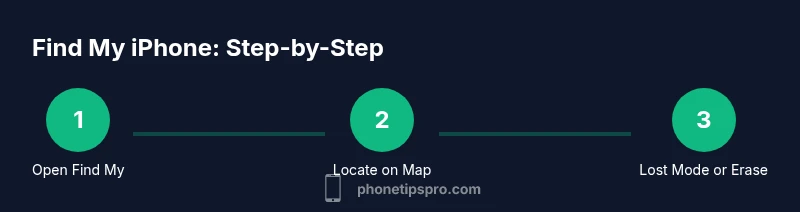
Practical workflow: start with Locate, then Ping Sound, then Lost Mode, and only erase after confirming you cannot recover the device.
Limitations and common issues
Find My iPhone is powerful, but it has limits. If the device is powered off or has no network connection, you’ll see its last location rather than a live update. Location data can be delayed or unavailable in some areas, and there are privacy safeguards that limit how often location information refreshes. If you’ve recently changed your Apple ID password or disabled Find My iPhone, you won’t be able to locate the device until settings are corrected. Phone Tips Pro notes that you should keep your device’s software updated, verify that location services are enabled for Find My, and ensure your iCloud account is secure. In cases of theft, contact local authorities and avoid confronting the suspect yourself.
Troubleshooting tips:
- Recheck that Find My iPhone is enabled on the missing device.
- Confirm that you’re signed into the correct iCloud account.
- Make sure you have internet access on a trusted device to view the Find My results.
Privacy, security, and best practices
Security and privacy considerations are central to using Find My iPhone responsibly. The system is designed to help you recover a device without exposing you to unnecessary risk. Phone Tips Pro emphasizes keeping your Apple ID credentials confidential, enabling two-factor authentication, and setting up a trusted phone number for verification. You can manage which apps have permission to share location and review your Find My settings regularly. If you’re sharing your device with family members, discuss expectations about location sharing and data privacy. In a broader sense, using Find My iPhone responsibly protects personal data while providing a practical recovery tool. Remember that reporting the loss to authorities when appropriate is a key part of responsible behavior.
Best practices include:
- Keep your Apple ID secure and enable two-factor authentication.
- Review location sharing permissions across devices.
- Use Erase only when you have exhausted other recovery options and have backups.
Phone Tips Pro recommends a quarterly privacy check of Find My settings to ensure you’re aligned with your personal comfort level.
Quick-start checklist for immediate action
- Verify Find My iPhone is enabled on all your devices.
- Sign into iCloud.com or the Find My app with your Apple ID.
- Confirm location services are on and your device has an internet connection.
- Practice the four core actions (Locate, Play Sound, Lost Mode, Erase) in a safe environment so you’re prepared if a real loss happens.
- Keep your backups current and ensure your data can be restored if you ever need to erase a device.
Authoritative sources
For further reading and verification, consult the following sources:
- Apple Support: Find My iPhone help and setup guidance (https://support.apple.com/guide/find-my-iphone)
- FTC Privacy and security resources (https://www.ftc.gov)
- NIST Privacy Framework overview (https://www.nist.gov/privacy-framework)
Tools & Materials
- iPhone with Find My iPhone enabled(Ensure location services are on and connected to the internet)
- Apple ID and password(Needed to sign in to iCloud/Find My)
- A second device for verification (optional)(Helpful if you don’t have access to the lost iPhone)
- Stable internet connection(Wi‑Fi or cellular data for real-time location updates)
- Access to Find My via app or iCloud.com(App is convenient for quick actions; iCloud.com is useful from a computer)
Steps
Estimated time: 15-25 minutes
- 1
Open Find My app or sign in to iCloud.com
Launch the Find My app on your iPhone, iPad, or Mac, or visit iCloud.com and sign in with your Apple ID. This first step establishes your access to the device's location, settings, and controls. If you’re using a shared computer, ensure you log out after use to protect your account.
Tip: If you’re using a missing iPhone but you have another Apple device, start from the Find My app for speed. - 2
Select the missing device on the map
From the list or the map, choose the iPhone you want to locate. If multiple devices appear, verify you’re selecting the correct one by looking at the device name and last known location details. The map will show the approximate position if the device is online.
Tip: Use the search bar to filter devices by name if you have several linked devices. - 3
Choose Locate to see the current position
Click Locate to refresh or view the device’s latest known location on the map. If the device is online, a precise dot will appear and update as the device moves. If offline, you’ll see the last known location.
Tip: Be aware that location updates may be delayed in poor network areas. - 4
Tap Play Sound to locate it nearby
When the device is within Bluetooth or network range, Play Sound will emit a loud ping to help you locate it even through walls. This is useful if the device is hidden in a bag or closet.
Tip: Keep others informed—if the sound could reveal your location, use it only when safe. - 5
Enable Lost Mode for security
Lost Mode locks the device, displays a custom message with a contact number, and keeps track of location changes. This helps deter misuse and gives you a way to reach the finder. You can also add payment or delivery instructions if needed.
Tip: Use a brief, clear message and a way to contact you without exposing sensitive information. - 6
Consider Erase if recovery seems unlikely
As a last resort, Erase will wipe all data on the device. This removes personal information but also prevents further tracking unless the device is restored and reactivated by the new owner. Ensure you have backups before erasing.
Tip: Only erase after you’ve confirmed there’s no possibility of recovery and you have data backups. - 7
Verify your settings and notifications
After taking action, double-check that location updates and status are reflecting correctly. Set up a notification if the device comes online, so you’re alerted as soon as it reconnects.
Tip: Keep your Apple ID two-factor authentication enabled to protect your account while you act. - 8
Follow up with authorities if needed
If you suspect theft, contact local authorities and provide any necessary information from Find My iPhone. Do not attempt to seize the device yourself.
Tip: Document the events and any location data you collected for evidence.
FAQ
What is Find My iPhone and what can it do for me?
Find My iPhone helps you locate a missing device on a map, play a sound to help you locate it, lock it with Lost Mode, and remotely erase data if needed. These tools provide security and a chance to recover the device while protecting your information.
Find My iPhone is a security tool to locate, lock, or erase a missing iPhone. It helps you recover the device or protect your data if recovery isn’t possible.
Can I locate my iPhone when it’s offline?
If the iPhone is offline, Find My will show the last known location and you can enable notifications for when the device comes back online. Location updates depend on network access and device settings.
If the phone is offline, you’ll see its last location and get a notice when it reconnects.
How do I use Find My iPhone from iCloud.com?
Sign in to iCloud.com with your Apple ID, select Find iPhone, choose the device, and use Locate, Play Sound, Lost Mode, or Erase. The web interface mirrors the app and works from any browser.
From iCloud.com you can locate, ping, lock, or erase your iPhone even if you don’t have your device.
What should I do if I can’t access Find My iPhone?
Check your internet connection, verify you’re signed into the correct Apple ID, and ensure Find My iPhone is enabled on the device. If problems persist, try another device or the iCloud website.
If you can’t access Find My, check your connection, sign-in, and device settings, then retry from another device.
Will using Find My iPhone drain my battery?
Find My iPhone uses background services but typically has a minimal impact. If you’re worried, disable unnecessary location sharing and monitor how often you check for updates.
The feature uses some battery, but it’s usually small; you can limit updates by adjusting location sharing.
Can I erase my iPhone remotely with Find My iPhone?
Yes, you can erase the device remotely. This protects data, but you will lose access to the device until it’s restored and reactivated. Ensure you have a backup before erasing.
Yes—remote erase wipes data. Make sure you have a backup because you’ll lose access to the device until it’s restored.
Watch Video
Quick Summary
- Enable Find My iPhone now to prepare for future loss.
- Use Locate and Play Sound first, then Lost Mode, and Erase as a last resort.
- Offline devices show last location; notifications help you act when they come online.
- Protect your Apple ID with 2FA and secure your data via backups.