How Come iPhone Location Won't Update: Urgent Troubleshooting
Urgent guide to fix iPhone location updates failing. Learn quick checks, diagnostic flow, and step by step fixes to keep Find My and Maps accurate.


The most likely cause is Location Services being off or the app lacking proper permission. First, turn on Location Services in Settings > Privacy & Security. Then ensure the specific app (Maps or Find My) has Location access set to While Using or Always. If it still won’t update, check your network and update iOS.
Why location updates fail and what you should know now
If you are wondering how come iphone location won't update, you're not alone. This urgent issue often stems from Location Services being disabled or apps lacking permission. According to Phone Tips Pro, most fixes start with a quick check of settings. This guide offers a practical, step by step approach, a diagnostic flow, and clear actions you can take today to restore accurate location data. Throughout, we reference common apps like Maps, Find My, and third party navigation tools to help you triage quickly and safely.
Tip from Phone Tips Pro: Start with the simplest setting first; small toggles are often the root cause. The goal is to reestablish a reliable location signal and confirm your iPhone can share it when needed.
Quick checks you can do right now
Before diving into deeper settings, run through these quick checks. They cover the most common culprits in order of impact.
- Ensure Location Services are enabled: Settings > Privacy & Security > Location Services, toggle on.
- Check app permissions: Open the affected app and confirm Location access is set to While Using or Always.
- Confirm system time and date are correct: Settings > General > Date & Time, enable Set Automatically.
- Test with a familiar app: Open Maps and drop a pin to see if the location updates in real time. If not, try Find My location sharing with a friend to rule out one app at a time.
If any of these steps improve the behavior, you can often stop there. If not, move to the deeper checks below, which address network, privacy, and account issues. Phone Tips Pro recommends keeping your device connected to a reliable network during testing to isolate causes more effectively.
Location services, permissions, and app behavior explained
Location data on iPhone is a collaboration between system services, app permissions, network connectivity, and privacy settings. When any link in this chain fails, updates can stall or lag. Here are the core areas to understand:
- Location Services: The backbone feature that allows apps to access GPS, cellular, and Wi-Fi signals. If this is off, no app can receive updates.
- App permissions: Apps must be granted location access in the foreground or background to refresh locations when you move. This is often overlooked after updates or resets.
- Privacy controls: Recent iOS versions add granular controls for each app. If a permission is restricted, even a healthy GPS signal won’t update data.
- Network and GPS signals: Indoor environments or weak signals can slow updates. GPS relies on a strong satellite lock and a stable internet connection for the fastest refresh.
Deep dive into system settings and privacy controls
When location data stops updating, a thorough sweep of settings is warranted. Start with the basics, then drill down to app-specific permissions and iCloud/Find My status. Remember that Find My iPhone relies not just on location services, but also an active iCloud sign in and proper device discovery in the Find My app. If you recently updated iOS, certain permissions may reset and require re-granting. Finally, if you use VPNs or privacy-focused networks, they can interfere with location data and should be temporarily disabled for testing.
Phone Tips Pro suggests a systematic approach: confirm services are on, verify per-app access, test location in multiple apps, and escalate only if the issue persists after all basic checks.
Network quality, GPS signal, and indoor vs outdoor scenarios
GPS is strongest outdoors with clear skies; indoors, GPS accuracy degrades and waits for network-assisted positioning. If you consistently see stale locations indoors, check for
- Strong cellular signal or reliable Wi-Fi connectivity
- VPN or firewall rules that might block location data
- Time of day and satellite availability, which can affect updates during poor satellite conditions
- Bluetooth connections that can sometimes influence location data in some apps
In scenarios with weak signals, iOS may provide approximate locations or delay updates. Moving to an open area or using a known network can help confirm whether the issue is signal-related.
Common iOS issues that mimic location lag
Sometimes the root cause is an iOS bug or a recently installed app that conflicts with location updates. If you notice other odd behavior after an update (battery drain, camera lag, or delayed notifications), it may indicate a broader software problem. In such cases, a clean restart, updating to the latest version, or performing a soft reset can resolve transient glitches. If the problem began after a specific app installation, try removing that app to test whether it influences location performance.
Phone Tips Pro emphasizes testing with a known-good app (Maps) while isolating variables to avoid chasing phantom issues.
Step back and test: what to do first when updates lag
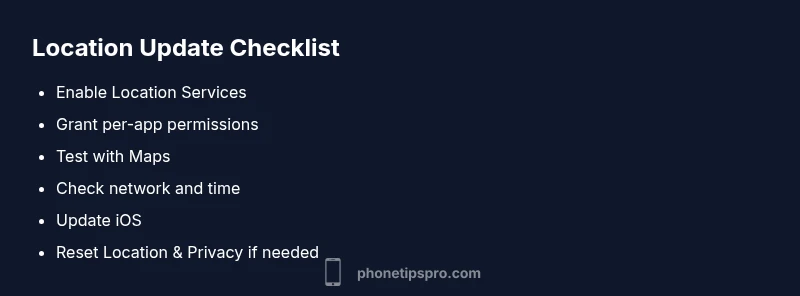
Start with the simplest fixes: restart the iPhone, ensure Location Services are on, and confirm app permissions. If Location Services are already enabled but updates still lag, toggle the setting off and on again. Next, verify the device is signed in to iCloud and Find My is enabled. After that, check for iOS updates and install any available patches. If problems persist, consider resetting Location & Privacy settings as a last resort before seeking professional help.
Step-by-step perspective on the most common cause
The most common cause is a mismatch between Location Services being on and an app lacking necessary permissions. To fix this, enable Location Services, grant per-app access, and test with a second app to verify the signal is being received. If an app still fails, remove and reinstall the app or reset its permissions. Keep testing after each change to identify the exact fix that works for your setup.
Preventing location issues in the future
Proactive prevention reduces repeat outages. Regularly review app permissions after iOS updates, keep the system time accurate, and ensure you have a stable network connection. Consider enabling Find My iPhone and regularly testing location sharing with a trusted device. If you rely on precise location for critical tasks, enable Always Allow location access for essential apps and review privacy settings quarterly.
What to do if none of the above works
If location updates still do not reflect your position after all checks, contact Apple Support or visit an Apple Store for in-depth diagnostics. There could be a hardware issue with the GPS receiver or a deeper software problem that requires professional intervention. Document the steps you took so the technician can reproduce the problem quickly.
Steps
Estimated time: 25-40 minutes
- 1
Open Location Services and toggle on
Go to Settings, then Privacy & Security, tap Location Services, and ensure the switch is on. If it was off, test location updates again in Maps or Find My.
Tip: If you toggle off, wait a few seconds before turning it back on to observe any pause in data flow. - 2
Check app permissions
Under each relevant app, verify location access is set to While Using or Always. If permissions are missing, grant access and reopen the app to test.
Tip: Some apps remember old permissions after updates; re-granting can resolve stale states. - 3
Verify network and time settings
Ensure you have a stable Wi-Fi or cellular connection. Set Date & Time to Set Automatically for correct timestamping of location data.
Tip: A VPN can interfere with location data; disable it temporarily for testing. - 4
Sign in to iCloud and Find My
Open Settings, sign in to iCloud if needed, then enable Find My iPhone and Location Sharing. Confirm the device is visible in Find My on another device.
Tip: Make sure your Apple ID is the same across devices used for testing. - 5
Update iOS
Check for iOS updates in Settings > General > Software Update and install any available patches. Reboot after the update.
Tip: Back up important data before major updates just in case. - 6
Reset Location & Privacy settings if needed
If nothing else works, reset Location & Privacy in Settings > General > Transfer or Reset iPhone > Reset Location & Privacy. Re-grant permissions after reboot.
Tip: This will reset all app permissions; re-allow essential apps first and re-test.
Diagnosis: Location updates lag or show stale position across apps (Maps, Find My, rideshare, etc.)
Possible Causes
- highLocation Services disabled or restricted
- highApp permissions missing or misconfigured
- mediumPoor network or GPS signal indoors
- mediumiOS bug after update or misconfigured date/time
Fixes
- easyEnable Location Services in Settings > Privacy & Security > Location Services
- easyGrant per-app location access (While Using/Always) for affected apps
- easyTest location using Maps and another app to confirm signal
- easyUpdate iOS to the latest version and verify Find My is enabled
- easyReset Location & Privacy settings if issues persist
FAQ
Why doesn't my iPhone location update after enabling Location Services?
There may be missing app permissions or a temporary software glitch. Go through the quick checks first, then confirm per-app access and try a restart before deeper resets.
Check permissions and try a restart; if needed, proceed with deeper checks.
How can I tell if Find My iPhone is causing the issue?
If Find My shows stale data or the device does not appear in your Find My list, verify iCloud sign in and re-enable Find My iPhone. Test location sharing with another device.
Verify iCloud and re-enable Find My iPhone, then test with another device.
Will updating iOS fix location update problems?
Often yes. Updates include bug fixes that affect location services. Always back up before updating and install the latest version available.
Yes, updates can fix location bugs; back up first.
Can indoor use cause location lag?
Indoor GPS relies on network assistance, which can delay updates. Try a test outdoors to confirm whether the signal is the bottleneck.
Indoor tests may lag; test outdoors to confirm signal quality.
Is it safe to reset Location & Privacy settings?
Resetting is safe but resets all app permissions. Re-grant essential permissions one by one and re-test location after each change.
It's safe but resets permissions; re-grant them as you test.
What if none of the steps help?
If issues persist after all checks, contact Apple Support or visit an Apple Store for hardware/software diagnostics.
If it still fails, contact Apple Support for deeper diagnostics.
Watch Video
Quick Summary
- Enable Location Services for all affected apps.
- Verify per-app permissions and iCloud/Find My status.
- Test location updates after each change to identify the fix.
- Update iOS or reset permissions as a last resort.