How to Change Location on iPhone: A Practical Guide
Learn how to adjust Location Services, manage per-app permissions, and control location sharing on iPhone to protect privacy, save battery life, and keep apps accurate.


You can change location on iPhone by adjusting Location Services, app permissions, and location sharing. Start in Settings > Privacy & Security > Location Services, then tailor permissions per app (Never, While Using, or Always). If you want to share your live location, enable Find My Location sharing and Family Sharing as needed.
Understanding Location Services on iPhone
Location Services on iPhone lets apps determine your position by using GPS, Wi‑Fi, Bluetooth, and cellular data. This enables maps to give accurate directions, reminders to trigger when you arrive at a location, and weather apps to fetch local forecasts. But every app that can access your location also consumes battery and creates data about your movements. According to Phone Tips Pro, grasping the basics of Location Services is the foundation for privacy and usability. You can review and adjust which apps have access by going to Settings > Privacy & Security > Location Services. Here you’ll see a list of apps with their current permission: Never, While Using the App, or Always. If you want maximum privacy, you can toggle Location Services off entirely, but note that system services and some features may lose functionality.
Turning Location Services On or Off
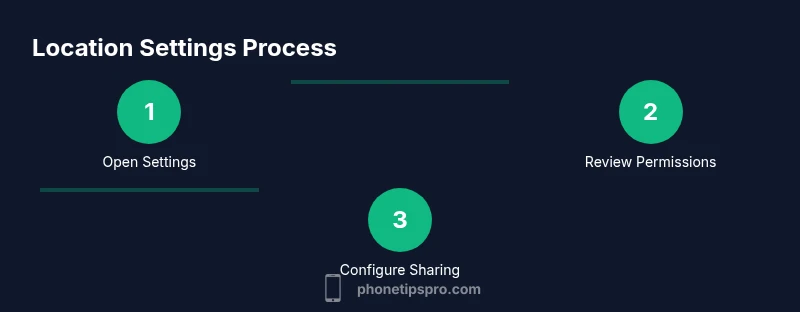
Turning Location Services on or off is straightforward. Open Settings, tap Privacy & Security, then Location Services. Use the main switch to enable or disable the feature for the entire device. If you leave Location Services on, you can still control access per app—which is ideal for privacy and battery life. Scroll to the specific apps and adjust permissions to Never, While Using the App, or Always. Don’t forget about System Services within the same menu; you can toggle location access for things like Find My iPhone, Calibration, and more. For better battery life, disable Location Services for apps you don’t need in the background and keep it on for critical apps like Maps and Weather.
Set Location Permissions Per App
Location Services offers per-app permission settings, allowing you to tailor access. Tap an app in the Location Services list to choose Never, Ask Next Time, While Using the App, or Always. Prefer While Using the App or Never for non-essential apps to reduce background tracking. Some apps require Always for features like live location sharing or silent updates. Examples:
- Maps: While Using or Always
- Fitness: While Using or Always if you rely on workout routes
- Social apps: Mostly While Using, or Never if privacy is a priority These settings empower you to strike a balance between functionality and privacy with precision.
Precise Location vs Approximate Location
Precise Location provides exact coordinates, which is useful for navigation and geotagging photos but uses more battery and raises privacy considerations. Some apps let you toggle Precise Location on or off from the per-app Location Services screen. If you’re sensitive about your exact whereabouts, disable Precise Location for apps that don’t need pinpoint accuracy (e.g., a weather app). If you’re navigating, keep Precise Location enabled for Maps and ride-share apps. Remember, you can still get useful results with approximate location for many apps without exposing precise data.
Sharing Location with Family and Find My
Sharing your live location can be convenient for family and friends but may reveal your patterns. To enable this, go to Settings > [Your Name] > Find My and toggle Share My Location. Choose who can see your location and whether to share all the time or only when you’re using Find My. You can also stop sharing at any time from the same menus. If you collaborate with family members, consider using “Share My Location” with trusted contacts only and review permissions periodically.
What to Do If Location Seems Inaccurate
If Location Services aren’t lining up, start with the basics: ensure Location Services is enabled, check that the specific app’s permission is correct, and confirm you’re connected to a stable network. Calibrate your iPhone’s compass by moving in a figure-eight motion. Reboot the phone after updates, and ensure your device runs the latest iOS version, since software fixes often improve location accuracy. For Maps and rideshare apps, consider using additional data sources like Wi‑Fi, GPS, and cellular networks to improve precision.
Change Region or Country in Apple ID
Your iPhone’s physical location isn’t the same as your Apple ID country. If you need access to apps or content from another country, you must update your Apple ID country/region. Go to Settings > [Your Name] > Media & Purchases > View Account > Country/Region and follow prompts. You may need a payment method valid in the new country. This change affects App Store catalogs, subscriptions, and payment options, so plan accordingly.
Limit Location Access for Battery Life
Limit location access for nonessential apps to preserve battery life. A common approach is:
- Keep Location Services on only for essential apps
- Use While Using the App where possible
- Disable Background Location Refresh for most apps
- Turn on Low Power Mode when battery is low These practices help you retain usable features without unnecessary tracking or power drain.
Privacy Considerations and Security Risks
Location data is powerful. Consider who can view your location and under what circumstances. Regularly review app permissions, disable location for apps you don’t trust, and enable Find My Location sharing only for people you trust. Be mindful that sharing your location means others can infer your routines and home/work patterns, so keep access to a minimum and revoke permissions when not needed.
Troubleshooting Common Scenarios
If location seems wildly off, try these quick checks: ensure you’re indoors or outside with a clear sky view (GPS works best outdoors), reboot the device, reset network settings if needed, and verify you’re not in a location with weak signals. If problems persist, check for iOS updates or reinstall the app that shows poor location accuracy.
Quick Reference: Location Settings Checklist
- Location Services ON for essential apps
- Per-app permissions set (While Using / Always)
- Precise Location enabled only where needed
- Share My Location limited to trusted contacts
- Region/Country updated only when necessary
- System Services toggled judiciously
Next Steps and Resources
For deeper guidance, visit official resources from Apple:
- https://support.apple.com/guide/iphone/access-location-services-iphx1005d1a/ios
- https://support.apple.com/guide/iphone/find-my-iphone-sec-iplp32a1e/ios
- https://support.apple.com/guide/iphone/locating-and-sharing-your-location-iph18e08f/ios
Tools & Materials
- iPhone with latest iOS version(Ensure the device is running the latest iOS for best Location Services performance.)
- Stable internet connection(Wi‑Fi or cellular data helps improve accuracy and app updates.)
- Apple ID(Used for region changes and Find My location sharing.)
- Charger or power source(Helpful if you’re performing settings changes and testing for a while.)
Steps
Estimated time: 15-25 minutes
- 1
Open Settings and locate Location Services
Launch the Settings app, then tap Privacy & Security. Select Location Services to access the global toggle and per‑app permissions. Turning Location Services off here disables location access for all apps until you turn it back on. Pro tip: Review this screen when you install new apps to see what location access they request.
Tip: Always confirm you’re adjusting the correct screen before changing permissions. - 2
Toggle Location Services on or off
Use the switch at the top to enable or disable Location Services for the entire device. If you keep it on, you can fine‑tune access for individual apps to balance privacy and functionality.
Tip: If battery life is a priority, consider leaving it on but restricting background access for nonessential apps. - 3
Review per‑app permissions
Scroll through the list of apps and assign permissions: Never, While Using the App, or Always. This is where you practice the privacy‑by‑design approach. Prefer While Using the App for most apps that don’t need background location.
Tip: Ask yourself: does this app truly need location data in the background? - 4
Manage Precise Location per app
Tap an app to toggle Precise Location. If you’re privacy‑conscious, disable precise location for apps that don’t require exact coordinates, like weather apps. Leave precise location on for navigation or delivery apps if accuracy matters.
Tip: Precise location isn’t necessary for all apps—disable it when you don’t need pinpoint accuracy. - 5
Enable Share My Location (optional)
If you want friends or family to see where you are, go to Settings > [Your Name] > Find My and turn on Share My Location. Choose who can see your location and for how long.
Tip: Only share with people you trust and review permissions regularly. - 6
Consider changing Apple ID country/region (optional)
If your needs require content from another country, adjust your Apple ID country/region. Go to Settings > [Your Name] > Media & Purchases > View Account > Country/Region and follow prompts. This change affects app availability and billing.
Tip: Make sure you have a valid payment method for the new region.
FAQ
What is Location Services, and why does it matter?
Location Services lets apps access your device’s location through GPS, Wi‑Fi, Bluetooth, and cellular data. It enhances maps, reminders, and local content, but it can affect privacy and battery life. Review per‑app permissions to balance usefulness and privacy.
Location Services help apps know where you are, improving features like maps and local reminders, but you should review who has access to protect your privacy.
How do I know which apps are using my location?
Open Settings > Privacy & Security > Location Services to see a list of apps and their current permission. You can change permissions from there. Some apps may show a location icon when running in the background.
You can see all location‑using apps in one place and adjust each one individually.
Can I turn off location for emergencies?
Disabling Location Services may affect features like emergency SOS or Find My. If you must turn it off, keep it on for essential services and test emergency functions after changes.
Turning off location can affect emergency features, so keep it enabled for critical services unless you have privacy reasons to limit it.
Will changing my country affect location sharing?
Changing your country affects App Store content and payment methods, not your physical location. It can influence Find My settings if you use services tied to region accounts.
Country settings don’t directly change your location, but they affect available apps and payments in the store.
How can I fix location accuracy problems?
Ensure Location Services are enabled, app permissions are correct, and you’re connected to a reliable data source. Reboot if needed and update iOS to improve accuracy.
If location seems off, check permissions, restart the device, and update iOS for the latest fixes.
Watch Video
Quick Summary
- Review per‑app permissions to protect privacy
- Enable Share My Location only for trusted contacts
- Prefer 'While Using' over 'Always' where possible
- Keep iOS updated to benefit from location improvements
- Change region responsibly if content access requires it