Why is iPhone Not Sharing Location? An Urgent Troubleshooting Guide
Urgent, step-by-step troubleshooting for why your iPhone isn’t sharing location. Learn to check Find My, iCloud, Location Services, and privacy settings to restore reliable location sharing across apps.


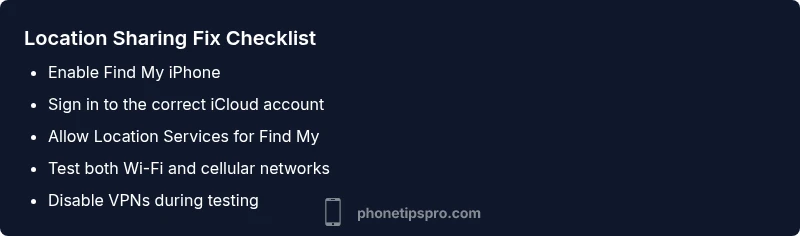
Most location-sharing failures come from Find My being off, an Apple ID sign-in issue, or privacy restrictions. Start by ensuring Find My iPhone is enabled, you’re signed into iCloud, and Location Services are allowed for Find My. If it still fails, test on cellular and Wi‑Fi, disable any VPNs, and reset network settings. Follow the step-by-step guide below for a fast fix.
Understanding Location Sharing on iPhone
Location sharing on iPhone relies on several interlinked components: Find My, Location Services, iCloud authentication, and the network connection that carries the data. When any one of these parts is misconfigured or temporarily unavailable, your device may show a stale location, fail to share, or give you a generic error. According to Phone Tips Pro, most users underestimate how a single toggle can cascade into a broader problem. If you’re wondering why is iphone not sharing location, the root cause is often a simple setting out of sync rather than a hardware fault. This section explains the dynamics in plain terms, highlights the common culprits, and frames the fixes in a logical order so you can regain accurate location sharing quickly. The goal is to establish a plan you can repeat after iOS updates, device resets, or switching networks, ensuring you know exactly what to check first and why it matters.
Verify Find My iPhone and iCloud Settings
The most frequent culprits are Find My iPhone being turned off or the Apple ID not being signed in on the device. Start by going to Settings, tapping your name at the top, and checking Find My. If Find My iPhone is toggled off, turn it on and confirm the on-screen prompts. Next, ensure you are signed into the correct Apple ID for iCloud. Go to Settings > [your name] and confirm the account matches the one you use on other devices. A mismatch here can prevent location sharing from propagating to your trusted contacts and apps. If you use Family Sharing, verify that Find My is enabled for family members as needed. These steps address the most immediate blockers and set the stage for deeper checks.
Check Location Services and Privacy Permissions
Location Services must be enabled globally, and the Find My app needs explicit permission to access your location. Navigate to Settings > Privacy & Security > Location Services and ensure it is turned on. Then scroll to Find My and set access to While Using the App or Always, depending on your use case. If you limit location access to While Using the App, you may experience intermittent sharing issues when apps run in the background. After adjusting permissions, verify that other apps can still access location data to validate the settings. If you’re troubleshooting why is iphone not sharing location, these privacy permissions are often the decisive factor.
Network, VPNs, and Time Settings
A stable network is crucial for location sharing to update in real time. Connect to a known Wi‑Fi network or reliable cellular data. If you use a VPN, disable it temporarily, as some VPNs route traffic in a way that prevents precise geolocation from being transmitted. Also ensure your device’s date and time are correct; enable Set Automatically so certificates and authentication tokens don’t fail. These network and timing adjustments are quick to test and frequently resolve stubborn sharing glitches.
Testing Scenarios and Reproducing the Issue
After applying the earlier checks, test location sharing in real-world scenarios. Have a friend share their location with you and vice versa, use Maps or Find My to locate your own device, and observe whether updates appear promptly. Document the steps you took and whether location changes reflect on both devices. If the problem persists after all these checks, you’ll have a solid report for support channels and a clear path for Apple Support if needed.
When to Escalate to Apple Support
If you have completed all the above steps and location sharing still fails consistently, there could be an account or hardware-level issue that requires professional attention. Before contacting support, collect the following: your device model, iOS version, screenshots of the Settings screens you checked, and a brief log of timing when the issue occurs. The Phone Tips Pro team recommends confirming you have recent backups before any major troubleshooting or OS updates.
Note: If you’re dealing with sensitive data or a business context, ensure you follow your organization’s privacy policies when sharing location information, and avoid sharing exact locations with untrusted apps or contacts.
Steps
Estimated time: 30-45 minutes
- 1
Check Find My iPhone is Enabled
Open Settings, tap your name, go to Find My, and ensure Find My iPhone is switched on. If it’s off, toggle it on and follow prompts. This step ensures the service is active for location sharing. If you’re unsure, sign out and back into iCloud to refresh authentication.
Tip: If prompted, reboot after enabling to ensure the change sticks. - 2
Verify iCloud Sign-In
In Settings, verify you’re signed into the correct Apple ID that you use across devices. If you detect a mismatch, sign out and sign back in with the right account. This prevents cross-device conflicts that block location sharing.
Tip: Use another device on the same Apple ID to confirm cross-device sync. - 3
Review Location Services Permissions
Go to Settings > Privacy & Security > Location Services, ensure it’s On, then Find My should be set to Always or While Using the App. If you restrict access too tightly, location sharing can stop working in background apps.
Tip: Avoid setting Find My to Never; this silently disables sharing. - 4
Check Networks and Time Settings
Test on both Wi‑Fi and cellular data. Disable VPNs temporarily to see if they interfere. Ensure Date & Time is set to Automatic to keep authentication tokens valid.
Tip: A quick network reset (toggle Airplane Mode) can clear stale connections. - 5
Test Location Sharing Scenarios
Use Find My or Maps to locate your device and verify updates appear. Have a second person verify sharing from their end. Document outcomes to share with support if needed.
Tip: Note down exact steps and times for faster troubleshooting with support. - 6
Escalate When Needed
If issues persist after these steps, contact Apple Support with device model, iOS version, and steps taken. Prepared logs help speed up diagnosis.
Tip: Back up data before major troubleshooting or OS updates.
Diagnosis: Location sharing not working on iPhone
Possible Causes
- highFind My iPhone is disabled
- highApple ID not signed in or iCloud mismatch
- highLocation Services disabled globally or for Find My
- mediumNetwork connectivity issues or VPN interference
- lowDate & time misconfiguration causing authentication errors
Fixes
- easyTurn on Find My iPhone in Settings > [Your Name] > Find My > Find My iPhone
- easySign in to iCloud with the correct Apple ID and verify account is active
- easyEnable Location Services and set Find My permissions to Always or While Using the App
- easyTest network connections (Wi-Fi and cellular) and disable VPN or proxies temporarily
- easySet date/time to automatic in Settings > General > Date & Time
- easyIf the issue persists, contact Apple Support or visit an Apple Store for a diagnostic
FAQ
Why isn’t Find My iPhone sharing my location?
Common causes include Find My being off, iCloud sign-in issues, or Location Services disabled. Start by checking these settings and testing across networks.
Find My not sharing is usually Find My off, iCloud sign-in, or Location Services settings. Check those first and test on multiple networks.
Can a VPN affect location sharing?
Yes. Some VPNs route traffic in a way that blocks precise geolocation. Disable VPN temporarily to test location sharing.
A VPN can block precise location; try turning it off to test location sharing.
Is internet required for location sharing?
Location sharing requires an active data connection. Ensure Wi‑Fi or cellular data is connected and stable.
Yes, you need a working internet connection for location sharing to update.
Will iOS updates affect location sharing?
Updates can reset some permissions. After updating, re-check Find My and Location Services settings.
After updating iPhone, re-check location sharing permissions.
Why does my location sometimes show the wrong city?
Location accuracy depends on GPS and network data. Indoor environments or poor signal can show approximate locations.
GPS and networks determine location; poor signals can show wrong cities.
Watch Video
Quick Summary
- Check basics first: Find My on, iCloud sign-in, and Location Services.
- Test across networks and time settings to rule out environmental factors.
- Document results and escalate to Apple Support if needed.
- Phone Tips Pro recommends consistent checks to prevent future issues.