How to Deal with iPhone Unavailable
Practical, step-by-step methods to recover an iPhone showing 'unavailable' after failed passcode attempts. Includes waiting, erasing via Find My iPhone, restoring backups, and when to contact Apple Support.


An iPhone shows 'unavailable' after too many failed passcode attempts. To regain access, determine whether the device is simply locked or has been erased. If you have a backup, you can restore; otherwise you may need to erase via Find My iPhone and set up from a backup. Follow official steps to avoid data loss.
What does 'iPhone unavailable' mean?
An iPhone shows the message 'unavailable' after multiple failed passcode attempts. The device is not broken; it’s a security feature designed to protect your data by temporarily locking the screen. If Find My iPhone was enabled and your device is tied to your Apple ID, an additional Activation Lock may appear after a reset, requiring the original credentials. The exact lockout duration can vary, so patience and a clear plan help you recover without data loss. According to Phone Tips Pro, recognizing whether you simply need to wait or must erase is the crucial first step in safely regaining access.
If you have a recent backup on iCloud or your computer, you may be able to restore your data after unlocking. If there is no backup, be prepared for data loss and consider the best path forward based on what matters most (photos, messages, apps).
Immediate steps to regain access
Start with the simplest path first: determine if you can wait out the timer and then retry with the correct passcode. If you recall your Apple ID and the device is still associated with Find My iPhone, you can attempt to erase the iPhone remotely to remove the locked state. Remember, erasing will wipe all data unless you have a backup. If you are unable to wait or erase remotely, proceed with a recovery method that suits your setup. The safest approach is to use only official recovery options from Apple, avoiding third-party tools that claim to bypass security. Phone Tips Pro emphasizes sticking to official methods to protect your data and account.
Using Find My iPhone to erase or unlock
If Find My iPhone is enabled, sign in to icloud.com/find from any device and select your locked iPhone. Choose 'Erase iPhone' to wipe the device and remove the lock screen. After erasure, you can set up the iPhone as new or restore from a recent backup. If Activation Lock appears, sign in with the Apple ID that was used to enable Find My iPhone. This process requires an active internet connection on the device or the iCloud account you’re using.
If you don’t have the required Apple ID credentials, you’ll need to recover that access first. For unlock success, you must be the account owner or have proof of purchase if you’re seeking help from Apple Support.
Restoring from backup after unlock
Once the iPhone is erased or unlocked, you’ll be guided through setup. During setup, choose to restore from an iCloud backup or from a computer backup via Finder (macOS) or iTunes (Windows). Select the most recent backup that contains the data you want to recover. The restoration time depends on the backup size and your network speed; be patient and keep your device plugged in and connected to Wi-Fi during the process.
After restoration, re-enter your Apple ID credentials to re-enable services like iCloud, Messages, and Find My iPhone. If you run into issues with missing data, you can still recover some information from other devices that share the same iCloud account.
Contacting Apple Support and options
If you’re stuck due to Activation Lock, or you can’t erase the device because you don’t have access to the Apple ID, contact Apple Support for guidance. They may verify ownership and assist with account recovery or device removal from the original account. Prepare proof of purchase if required. Apple Support can also help you schedule a visit to an Apple Store or an authorized service provider if in-person assistance is needed.
If you’re unable to complete the process yourself, an Apple Authorized Service Provider can assist with device recovery while protecting your data. Always use official channels to avoid scams or data risk.
Preventive measures to avoid future lockouts
To minimize future 'unavailable' lockouts, practice regular backups (iCloud or computer), enable Find My iPhone, and keep your Apple ID credentials secure and recoverable. Use a memorable but strong passcode, enable two-factor authentication on your Apple ID, and review trusted devices periodically. Consider storing a recovery method for your Apple ID in a safe place and keep your contact information up to date. Regular practice with a test unlock helps you stay prepared and reduces panic during an actual lockout.
Tools & Materials
- iPhone(Ensure you know your Apple ID and that Find My iPhone is enabled before you lock yourself out.)
- Lightning cable(Needed if you perform a recovery or restore via computer.)
- Computer with macOS Finder or iTunes(Required for recovery mode restore if Find My iPhone erase isn’t an option.)
- Apple ID credentials(Needed to sign back in after erasing or restoring from backup.)
- Recent backup on iCloud or computer(Critical for restoring data after unlocking.)
- Stable internet connection(Needed for iCloud restore or Find My iPhone erase.)
Steps
Estimated time: 60-120 minutes
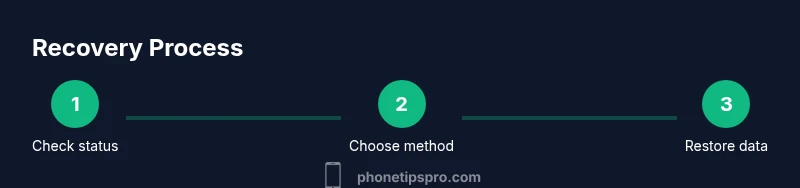
- 1
Check prerequisites and status
Confirm whether Find My iPhone is enabled, and gather your Apple ID and backup options. If you know your passcode, you may still regain access by waiting for the timer and retrying. If not, prepare to erase or restore.
Tip: Have your Apple ID ready and verify backup availability before proceeding. - 2
Decide on the recovery path
If you can wait, you may retry after the lockout ends. If you can sign in with iCloud, Erase iPhone via Find My iPhone is a viable option. If neither is possible, plan to restore using Recovery Mode after connecting to a computer.
Tip: Choose only official recovery options to protect data. - 3
Erase via Find My iPhone (if eligible)
Sign in to iCloud, open Find My iPhone, select the device, and choose 'Erase iPhone'. This will wipe data and allow you to set up anew. You must then restore from a backup after the erase.
Tip: Erase only if you have a recent backup you can restore from. - 4
Restore with Recovery Mode (if needed)
If Find My iPhone erase isn’t possible, connect the iPhone to a computer and enter Recovery Mode, then restore with Finder/iTunes. This will erase the device and reinstall iOS.
Tip: Keep the device connected during the entire restore process to avoid error states. - 5
Restore data from backup
During setup after erasing or restoring, choose to restore from iCloud or a computer backup. Ensure you pick the most recent backup that contains your important data.
Tip: After restoration, sign back in with your Apple ID to re-enable services. - 6
Secure credentials and prevent future lockouts
Update your passcode to a memorable but strong option, enable two-factor authentication, and regularly back up. Review trusted devices and ensure your account recovery options are up to date.
Tip: Test a brief unlock after implementing changes to confirm the setup works.
FAQ
What does 'iPhone unavailable' mean?
It means the device has temporarily locked due to failed attempts or a security state. You may need to wait or erase the device to regain access, especially if Find My iPhone is enabled.
The iPhone is locked due to security after failed attempts. Wait or erase the device if you have backup.
How long is the timer after failed attempts?
The exact duration varies and can extend with continued failed attempts. You should plan to wait for the official reset prompt before trying again.
The timer length varies; you should wait for the device to allow another attempt.
Will erasing erase all data?
Erasing via Find My iPhone wipes the device. If you have a backup, you can restore most data after setup.
Erasing wipes data, but you can restore from a backup afterward.
Can Activation Lock block access after erasing?
Yes. If Activation Lock is on, you must sign in with the Apple ID that was used to set up Find My iPhone.
Activation Lock may require your Apple ID to unlock.
What if I forgot my Apple ID password?
Use Apple's account recovery process to regain access to your Apple ID, then proceed with unlocking your device.
You can recover your Apple ID password through the official account recovery process.
When should I contact Apple Support?
If Activation Lock is blocking you or you can't complete the erase/restore, contact Apple Support for assistance or visit an Apple Store.
If you’re blocked by Activation Lock or can’t complete recovery, reach out to Apple Support.
Watch Video
Quick Summary
- Back up regularly to prevent data loss
- Use Find My iPhone to erase only if backed up
- Restore from backup after unlocking
- Keep Apple ID credentials secure and accessible
- Activation Lock may require proof of ownership