How to Fix iPhone Unavailable Without a Computer: A Practical Guide
Discover practical steps to resolve the 'iPhone unavailable' message without a PC. Use Find My iPhone, iCloud backups, and safe recovery methods to regain access and prevent future lockouts.


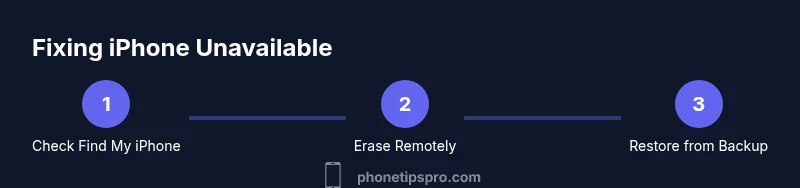
You can regain access to an iPhone labeled 'iPhone unavailable' without a computer by erasing the device remotely via Find My iPhone (iCloud) if Find My iPhone is enabled and the device has internet. This will wipe all data; you can restore from a backup afterward. If you can't erase remotely, wait out the timeouts and then try again.
Understanding iPhone unavailable and why it happens
The message iPhone shows as "unavailable" usually appears after multiple failed passcode attempts. This security feature is designed to protect your data from unauthorized access. The lockout duration grows with each consecutive failed attempt, and during that period the phone won’t respond to passcode input. While Apple does not publish exact lockout timelines, the consequence is clear: you’re temporarily blocked from accessing the device until the system re-enables input or you erase the device remotely. According to Phone Tips Pro, recognizing the reason behind the lockout helps you choose the safest, fastest path to regain access without a computer. The most reliable path is to use trusted recovery options like Find My iPhone if they’re already enabled on your device and you have an active internet connection.
What makes an iPhone unavailable?
- Repeated wrong passcodes triggering automated lockouts
- Activation or device-wide security measures triggered by unusual activity
- A temporary server-side delay after device signaling issues
Understanding these triggers helps you decide whether you should wait (in some cases the system self-resets) or take action via Find My iPhone. Phone Tips Pro’s guidance emphasizes safety: don’t attempt multiple failed attempts in a row; instead, use allowed recovery channels and keep your Apple ID secure.
Tools & Materials
- Apple ID credentials(You’ll need your Apple ID email and password to access Find My iPhone or iCloud.)
- Access to another device with internet(An iPhone, iPad, or computer with internet to sign into iCloud or Find My.)
- Active internet connection(Wi‑Fi or cellular data for the other device used to erase or locate your iPhone.)
- Find My iPhone enabled on the lost device(This feature is essential for remote erasure via iCloud/Find My.)
- Backup plan(Have a recent iCloud backup ready in case you need to restore data after erasure.)
Steps
Estimated time: 30-60 minutes
- 1
Verify Find My iPhone is available
Confirm you have Find My iPhone enabled on the lost device and that it can connect to the internet. This determines whether you can erase remotely without a computer. If Find My iPhone isn’t enabled or the device is offline, you’ll need alternate steps or wait for the device to come online.
Tip: If you’re not sure, check another Apple device signed into the same Apple ID to see if the option appears in Find My. - 2
Sign into Find My iPhone on another device
Open the Find My app or go to iCloud.com and sign in with your Apple ID. Locate the target device in the list. This is the bridge to remote recovery without a computer.
Tip: Use a trusted device you’ve used before to minimize login prompts or MFA steps. - 3
Erase the device remotely
From Find My, select the lost iPhone and choose Erase This Device. Confirm the action. The device will erase all data and reset to factory settings, allowing you to set it up anew.
Tip: Be aware: erasing removes all data unless you have a recent iCloud backup ready to restore later. - 4
Set up the device after erasure
Turn on the iPhone and follow the setup prompts. When asked, restore from an iCloud backup if available, or set up as new if no backup exists. This step is how you recover essential data after a remote erase.
Tip: If you have an iCloud backup from before the lockout, choose Restore from iCloud during setup. - 5
Restore from iCloud backup (if available)
Select a backup from the list during device setup to recover photos, messages, apps, and settings. The restoration depends on the backup’s recency and contents.
Tip: Ensure you’re connected to Wi‑Fi during restore to avoid data charges and speed up the process. - 6
Post-restore security checks
After restoring, sign back into iCloud and review security settings, including two-factor authentication and trusted devices. Re-enable Find My iPhone to facilitate future recoveries if needed.
Tip: Set a strong passcode and enable biometric unlock to reduce future lockouts. - 7
Alternative paths if remote erase isn’t possible
If the device remains offline or Find My is unavailable, you’ll need to wait for the device to come online or contact Apple Support for guidance. Avoid attempting to guess or bypass the passcode.
Tip: Avoid third‑party tools or unofficial methods; they can compromise data integrity and violate terms. - 8
Enable Erase Data after failed attempts (optional)
On eligible devices, there’s an option to erase data after a number of failed attempts. This is a last‑resort safeguard to protect data when the device is lost or stolen.
Tip: Only enable if you understand the data loss risk and you have backups. - 9
When to seek direct Apple support
If you’re stuck despite remote options, contact Apple Support or visit an Apple Store for hands‑on help. They can guide you through device-specific steps and verify account safety.
Tip: Bring proof of purchase or account details to speed up service.
FAQ
What does it mean when my iPhone shows 'unavailable'?
It usually indicates multiple failed passcode attempts or security measures. The device is temporarily blocked from access and may require a remote erase or waiting period to regain control.
It means your iPhone is temporarily blocked after failed attempts and you may need to erase it remotely or wait until it unlocks.
Can I unlock my iPhone without a computer?
Yes, if Find My iPhone is enabled and the device is online, you can erase the device remotely via iCloud/Find My and then restore data from backup.
Yes, you can erase it remotely using Find My iPhone if it’s online, then restore from backup.
What happens to my data if I erase remotely?
Remote erasure wipes all content on the device. You can restore your data from a recent iCloud backup if one exists.
Remote erase wipes the device, but you can restore from backup if you have one.
What if Find My iPhone isn’t enabled or the device is offline?
If Find My iPhone is off or the device is offline, you’ll need to wait for connectivity or seek guidance from Apple Support for alternative options.
If Find My isn’t available or the device is offline, you may need to wait or contact Apple for help.
How can I prevent this in the future?
Enable Find My iPhone, keep a current iCloud backup, and consider turning on Erase Data after multiple failed attempts. Use biometric unlock to reduce lockouts.
Turn on Find My iPhone and backups, and use biometrics to avoid future lockouts.
Should I visit an Apple Store for help?
If online options fail, visiting or calling Apple Support is a reliable way to verify account status and receive device-specific instructions.
If online steps don’t work, contact Apple Support or go to an Apple Store for help.
Watch Video
Quick Summary
- Plan ahead with Find My iPhone enabled.
- Remote erase is your fastest path without a computer when online.
- Restore from iCloud backup to recover data after erasure.
- Enable Erase Data and biometric unlock to minimize future lockouts.
- Contact Apple Support if remote options fail.