How to Share iPhone Internet with PC: A Practical Guide
Learn step-by-step how to share your iPhone's internet with a PC, using USB tethering, Wi‑Fi hotspot, or Bluetooth. Includes troubleshooting, security tips, and real-world scenarios.


If you’re wondering how to iphone internet to pc, this guide helps you choose between USB tethering, Wi‑Fi Personal Hotspot, or Bluetooth. Each method has its own setup steps, pros, and caveats, and you’ll learn what you need and how to connect quickly. This quick answer previews the three reliable options and what to expect when you try them.
What you’ll accomplish with iPhone internet to PC
In today’s connected world, getting your PC online through your iPhone can be a lifesaver, whether you’re traveling, dealing with a home outage, or debugging a network issue. The core goal is simple: turn your iPhone into a temporary gateway and route internet traffic to your PC. You’ll be able to browse, download updates, or run cloud-based tools without a traditional home connection. This guide centers on practical, repeatable methods that work across Windows and macOS. For readers of Phone Tips Pro, the approach you choose should balance speed, data usage, and ease of setup. You’ll encounter three main methods: USB tethering for speed and reliability, Wi‑Fi Personal Hotspot for flexibility, and Bluetooth tethering as a lightweight option when other connections aren’t feasible. By the end, you’ll know which method fits your scenario and how to implement it swiftly, so you can stay productive on the go. how to iphone internet to pc is a common task that, when done correctly, feels seamless rather than fiddly.
Quick context on when each method shines
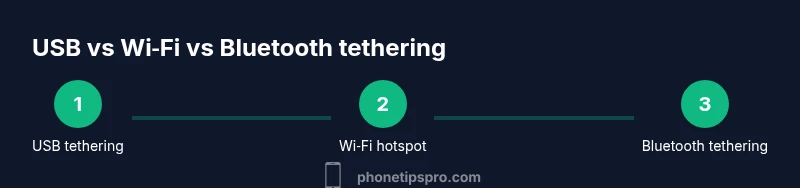
- USB tethering is typically the fastest and most stable option for large file transfers or video calls because it uses a direct wired connection.
- Wi‑Fi Personal Hotspot provides maximum flexibility, letting your PC join your iPhone’s network while keeping your iPhone’s battery in check with modest usage settings.
- Bluetooth tethering is a fallback when you cannot access USB or Wi‑Fi, offering a low-power connection with modest speeds suitable for light browsing.
Throughout this guide, you’ll see concrete setup steps tailored to Windows and macOS environments, along with troubleshooting tips to handle common hiccups. This approach aligns with best practices recommended by Phone Tips Pro for maintaining a secure, reliable tethering workflow.
Important prerequisites before you start
Before you dive into setup, make sure you have an active data plan on your iPhone and a PC ready to connect. Update your devices to the latest OS versions to minimize driver or compatibility issues. If you expect to use USB tethering frequently, keep a dedicated charging cable handy to prevent battery drain during long sessions. For Wi‑Fi hotspot usage, consider setting a strong password and choosing WPA3 if available. By planning ahead, you reduce surprises and keep the focus on getting online quickly. how to iphone internet to pc needs both devices to be in proximity and their wireless radios enabled.
USB tethering: a fast, reliable wired option
USB tethering creates a direct, high-speed link between your iPhone and PC. Start by plugging your iPhone into your computer with the appropriate USB cable. On the iPhone, open Settings, navigate to Personal Hotspot, and enable Allow Others to Join or Personal Hotspot, then ensure USB only is selected if you see multiple options. On Windows, you may see a new network connection appear; macOS users will typically see the iPhone listed as a network option. Quick tip: if prompted, install or approve necessary drivers; this step is often automated. When the connection is established, your PC should recognize the iPhone's internet feed as a network source. If you notice slowdowns, try reconnecting the USB cable or changing the USB port. Security wise, avoid sharing over USB on public machines unless you’re certain of the host environment. how to iphone internet to pc with USB tethering is a favored approach for speed and stability.
Wi‑Fi Personal Hotspot: wireless flexibility with control
Wi‑Fi Personal Hotspot turns your iPhone into a portable wireless router. On the iPhone, go to Settings > Personal Hotspot and switch it on. Create a password and select a strong, unique network name (SSID). On your PC, open Wi‑Fi settings and join the iPhone’s hotspot like any other wireless network. Expect decent speeds for everyday tasks, with performance influenced by carrier data plans and signal strength. If multiple devices are connected, monitor data usage to avoid unexpected overages. This method is ideal when you need mobility and don’t want to tether via a cable. how to iphone internet to pc through hotspot keeps devices untethered and flexible.
Bluetooth tethering: a low-power alternative for light tasks
Bluetooth tethering uses a short-range wireless link to share internet from the iPhone to the PC. Pair your iPhone and PC via Bluetooth in their respective Bluetooth settings. On the iPhone, enable Personal Hotspot and set the connection to Bluetooth if prompted. On Windows, select the iPhone from the Bluetooth network list to share the internet connection; on macOS, choose the iPhone’s Bluetooth PAN if available. This option is slower than USB or Wi‑Fi but can be useful when power or radio interference is a concern. how to iphone internet to pc via Bluetooth is best reserved for light browsing and basic email.
Troubleshooting common issues and quick fixes
If your PC won’t connect, verify that the iPhone’s Personal Hotspot is enabled and that the correct connection type is selected (USB, Wi‑Fi, or Bluetooth). For USB ties, try a different USB port or a fresh cable; USB power delivery can affect stability. If Wi‑Fi hotspots aren’t visible, toggle Airplane Mode off and back on, or reset network settings on the iPhone. Ensure you haven’t exceeded data limits, which can throttle speeds. On Windows, check that the hotspot network is set as “Private” to allow seamless discovery by other devices. On macOS, verify that the network priority places the iPhone above other known networks. If issues persist, restarting both devices often resolves minor software hiccups. how to iphone internet to pc troubleshooting steps help you resolve most connectivity problems quickly.
Safety, privacy, and best practices for sharing iPhone internet with PC
Sharing your iPhone’s internet connection can expose you to privacy and data risks if you connect to unfamiliar networks. Always enable a strong hotspot password and use WPA2/WPA3 when available. Keep your iPhone’s firmware updated to patch vulnerabilities that could be exploited through tethered connections. If you’re using public or shared PCs, consider using a guest profile and disable file sharing to mitigate data exposure. For businesses or sensitive tasks, prefer USB tethering over public Wi‑Fi when possible, as it minimizes the attack surface and offers more consistent speeds. By maintaining good security habits, you protect your devices while staying productive with how to iphone internet to pc.
Real-world scenarios and best practices for consistent results
In travel or remote work scenarios, you may need a reliable iPhone-to-PC setup for longer sessions. If you frequently work from a single location, a stable Wi‑Fi hotspot with a dedicated USB charger can balance speed and battery life. For quick-browse tasks on a laptop in a café, Bluetooth tethering can serve as a low-power backup. Always monitor your data usage when tethering and adjust your plan accordingly to avoid overage charges. Keep your devices within a few meters of each other to maintain a strong signal, and consider placing the iPhone in a favorable position (e.g., near a window) to maximize reception. With patience and a little setup, you’ll master how to iphone internet to pc across different environments.
Tools & Materials
- iPhone with an active data plan(Ensure you have cellular data enabled and a plan that supports tethering)
- PC or Mac(Windows 10/11 or macOS; ensure OS is up to date)
- USB cable compatible with iPhone(Lightning to USB or USB-C depending on model)
- Wi‑Fi network (optional for hotspot)(Only needed if using the wireless hotspot method)
- Bluetooth adapter (optional for Bluetooth tethering)(Built‑in Bluetooth is usually enough)
- Power source(Keep devices charged during longer sessions)
Steps
Estimated time: 15-30 minutes
- 1
Choose your tethering method
Decide whether you’ll use USB, Wi‑Fi Hotspot, or Bluetooth based on speed needs, battery impact, and environment. This initial choice directs all subsequent actions and settings.
Tip: If you need speed and reliability, start with USB tethering. - 2
Prepare both devices
Update iPhone and PC to the latest OS, and ensure Bluetooth and Wi‑Fi radios are enabled where needed. Have a charged battery or a charger handy.
Tip: Close bandwidth-heavy apps on the PC to avoid throttling during setup. - 3
Enable Personal Hotspot on iPhone (USB or Wi‑Fi)
Go to Settings > Personal Hotspot and toggle it on. If using USB, keep Allow Others to Join enabled; for Wi‑Fi, note the SSID and password.
Tip: Use a strong password and change the SSID to something memorable. - 4
Connect using USB tethering
Plug the iPhone into the PC with the USB cable and select the iPhone network on the PC, or allow automatic driver installation on first connect.
Tip: If Windows doesn’t recognize the device, try a different USB port or reboot one device. - 5
Connect using Wi‑Fi hotspot
On the PC, open Wi‑Fi settings and join the iPhone’s hotspot using the correct password. Verify internet access by loading a webpage.
Tip: If you have multiple devices, secure the hotspot to prevent unauthorized connections. - 6
Optional: Bluetooth tethering setup
Pair the iPhone and PC via Bluetooth, then enable Bluetooth tethering on the iPhone. Connect in the PC’s network settings and test connectivity.
Tip: Bluetooth is slower; use it only when USB or Wi‑Fi aren’t available. - 7
Test and confirm connectivity
Open a browser and load a few sites to confirm the connection. Check data usage in Settings to monitor consumption.
Tip: Disable background updates if you’re on a capped plan. - 8
Secure and optimize for future use
Remember to turn off hotspot when not in use to avoid data drain. Save the preferred method for quick re‑connect on future occasions.
Tip: Keep your devices secure and avoid sharing hotspots in unsafe locations.
FAQ
Can I share my iPhone's internet with a PC via USB if I use Windows 10?
Yes. Connect your iPhone with a USB cable, enable Personal Hotspot on the iPhone, and Windows should recognize the iPhone as a network. You may need to install drivers or approve a prompt on first connection.
Yes. Just connect with USB, enable the hotspot, and let Windows recognize the iPhone as a network; you might see a prompt to install drivers.
Is Bluetooth tethering slower than USB or Wi‑Fi?
Generally yes. Bluetooth tethering is convenient when no USB or Wi‑Fi options are available, but speeds are slower and suitable for light browsing.
Bluetooth is slower, best for light tasks when other options aren’t available.
Will tethering impact my data plan quickly?
Tethering uses your mobile data. Monitor usage and set data alerts to avoid overages.
Tethering uses your data plan; keep an eye on usage to avoid extra charges.
Can I use a hotspot without enabling personal hotspot on the iPhone?
No. Personal Hotspot must be enabled on the iPhone to share internet. You can still use USB or Bluetooth once hotspot is on.
You need the iPhone hotspot enabled to share internet via USB or Bluetooth.
What security practices should I follow when tethering?
Always use a strong hotspot password, enable WPA3 if available, and avoid connecting to unknown devices. Turn off hotspot when not in use.
Use a strong password and disable hotspot when not needed.
Does the iPhone need to be unlocked for tethering to work?
The iPhone does not need to be unlocked for tethering to function, but you may need to approve connections on first setup.
No, unlock isn’t required, but you might need to approve initial connections.
Watch Video
Quick Summary
- Choose USB for speed, hotspot for flexibility.
- Always secure your hotspot with a strong password.
- Update devices to minimize driver issues.
- Use the least invasive method that meets your needs.