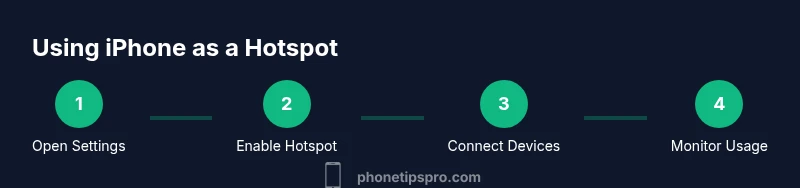
How to Use iPhone as a Hotspot: A Practical Guide Today
Learn how to turn your iPhone into a personal hotspot, connect devices, manage security, and monitor data usage with practical, step-by-step guidance.


You can use iPhone as a hotspot to share cellular data with nearby devices. To enable, open Settings > Cellular > Personal Hotspot, turn it on, and choose a strong Wi‑Fi password. Connect other devices by choosing your iPhone’s network name from their Wi‑Fi settings or use USB/Bluetooth tethering as needed. For most users, hotspot stays on until you disable it.
What is Personal Hotspot on iPhone and Why Use It
If you’ve ever wondered how to stay connected on the go, you’re not alone. Personal Hotspot on iPhone is the built‑in feature that lets you share your cellular data with nearby devices, turning your phone into a portable Wi‑Fi access point. Whether you’re working from a train, traveling, or debugging a device without cellular service, this capability keeps your laptop, tablet, or another iPhone online. When you enable Personal Hotspot, your iPhone broadcasts a secure network that others can join using a password you set. You can connect via Wi‑Fi, USB, or Bluetooth, depending on your needs. In short, this is a safe, flexible way to extend your data plan without hunting for public Wi‑Fi. If you’re asking how do you use iPhone as a hotspot, the answer is straightforward: turn on the feature and share your connection with trusted devices. Throughout this guide we’ll cover setup, security, and best practices so you can stay productive without unexpectedly draining data or battery.
Data Plans and Carrier Considerations
Not every plan supports tethering, and some carriers may require an additional hotspot pass or may bill extra per‑GB. Before you rely on a hotspot, check your current plan and any throttling rules that apply after you reach a data cap. If you use multiple devices or stream video, your data can go fast, so consider enabling usage alerts or setting a data cap on your device. Some carriers may offer a separate hotspot plan that shares your existing data pool; others let you tether at full speed but limit speeds after a threshold. In addition, iPhone hotspot behavior may vary by region and OS version, so confirm in Settings > Cellular or Personal Hotspot that you see the expected options. This section helps you plan the feasibility of using the iPhone hotspot in everyday scenarios and aligns expectations with your data budget.
Prepare Your iPhone: Settings and Security
Before you go wireless, confirm your iPhone supports Personal Hotspot and is on a recent iOS version. Open Settings, tap Cellular or Personal Hotspot, and verify that Allow Others to Join is on. Set a strong Wi‑Fi Password (avoid obvious strings). If you plan to use USB tethering, you’ll need a computer and a Lightning/USB cable; Bluetooth tethering does not require a physical connection but is slower. For security, keep the hotspot password confidential and only share it with trusted devices. Regularly update iOS to receive the latest security improvements, and consider turning off the hotspot when it’s not actively in use to protect your data and battery life.
Connecting Devices: Wi‑Fi, USB, and Bluetooth
Wi‑Fi is the easiest method: on your computer or tablet, go to Wi‑Fi settings, select your iPhone’s network name, and enter the hotspot password. For USB tethering, connect your iPhone to your computer with a USB cable and select the tethering option in your device’s network preferences. Bluetooth tethering provides another option when Wi‑Fi isn’t convenient, but you’ll typically see slower speeds. In all cases, ensure the connected devices have up‑to‑date software to maintain compatibility and security. Tip: label your hotspot network clearly and use a memorable but strong password to prevent neighbor interference.
Managing Data Usage and Battery Life
Personal Hotspot can drain your battery quickly, especially when tethering multiple devices or streaming video. To conserve power, keep your iPhone plugged in when possible and disable the hotspot when you don’t need it. Monitor data usage by checking Settings > Cellular > Personal Hotspot and by reviewing per‑app data usage in Settings. If you’re on a limited plan, set alerts or data caps from your carrier’s app to avoid overages. Consider switching off Auto‑Join for unfamiliar devices to reduce the chance of unwanted connections.
Troubleshooting Common Issues
If devices can’t see your hotspot, first verify the toggle is on and the password is correct. Ensure you’re within range and that Bluetooth and Wi‑Fi radios on both devices are active. Restarting the iPhone or the connected device can clear temporary network glitches. If USB tethering isn’t recognized, try a different USB port or cable, and ensure the latest OS updates are installed. For persistent problems, reset network settings (Settings > General > Transfer or Reset iPhone > Reset > Reset Network Settings) and reconfigure the hotspot.
Best Practices and Security Tips
Always use a strong, unique hotspot password and change it periodically. Share your hotspot password only with trusted devices and avoid leaving the hotspot on in public or insecure locations. Keep your iPhone updated to the latest iOS version to benefit from security patches and performance improvements. If you frequently travel, consider enabling data‑saver modes on connected devices and pre‑configuring known networks to minimize manual setup.
Authoritative Sources and Practical References
For authoritative guidance on Personal Hotspot and related settings, refer to official resources and reputable tech publishers. Apple’s support documentation provides authoritative steps for enabling and securing the hotspot, while major tech publications offer user‑friendly tutorials and troubleshooting tips. These sources help you validate setup steps, security practices, and data management strategies while using your iPhone as a hotspot.
Tools & Materials
- iPhone with an active cellular data plan(Ensure your plan allows Personal Hotspot; confirm data limits and roaming rules if traveling.)
- One or more devices to connect (laptop, tablet, another iPhone)(Have Wi‑Fi, USB, or Bluetooth capability as needed.)
- Stable power source(Hotspot use can drain battery; keep phone charged or plugged in for long sessions.)
- Strong hotspot password(Use a long, unique password to prevent unauthorized access.)
- USB or Lightning cable (optional for USB tethering)(Only needed if you plan to tether via USB.)
Steps
Estimated time: 10-15 minutes
- 1
Open Settings and go to Personal Hotspot
From the home screen, open Settings. Depending on your iOS version, you may find Personal Hotspot under Cellular or directly listed. This is the first step to enable your iPhone as a hotspot.
Tip: Tip: If you don’t see Personal Hotspot, update iOS and check with your carrier for hotspot allowances. - 2
Toggle Allow Others to Join
Turn on the hotspot toggle so other devices can see the network. This setting controls who can connect to your iPhone’s internet.
Tip: Pro tip: Leave Allow Others to Join on only when you need connectivity to prevent unwanted connections. - 3
Set a strong Wi‑Fi password
Tap Password to set a new password. Use a long, random combination of letters, numbers, and symbols that others can’t guess.
Tip: Pro tip: Consider using a password manager to keep track of hotspot credentials securely. - 4
Choose your connection method
Decide whether you’ll connect devices via Wi‑Fi, USB, or Bluetooth. Wi‑Fi is most convenient for most devices, while USB can be more secure and stable.
Tip: Pro tip: If you need maximum reliability, use USB tethering when available. - 5
Connect a device via Wi‑Fi
On the other device, open Wi‑Fi settings and select your iPhone’s network name. Enter the hotspot password you created.
Tip: Pro tip: Name your hotspot clearly to avoid confusion in crowded areas. - 6
Connect a device via USB
Plug the iPhone into your computer with a USB cable and enable USB tethering if prompted. Your computer should detect a new network.
Tip: Pro tip: USB tethering typically provides more stable connectivity on macOS and Windows. - 7
Connect a device via Bluetooth
Pair the devices in Bluetooth settings and select the iPhone as a tethered network source. This is useful when Wi‑Fi isn’t available.
Tip: Pro tip: Bluetooth tethering is slower but can be handy without power or cable access. - 8
Monitor data usage
Check Settings > Cellular to see hotspot data consumption and adjust usage as needed. This helps prevent overages on limited plans.
Tip: Pro tip: Enable data alerts from your carrier app to stay informed. - 9
Turn off hotspot when not in use
Disable Allow Others to Join to stop broadcasting the network and conserve battery.
Tip: Pro tip: Put your iPhone on a low‑power mode when hotspot is not needed. - 10
Troubleshoot if devices can’t connect
If connections fail, verify password accuracy, restart devices, and consider a quick reboot of the iPhone. Re‑try connection after a moment.
Tip: Pro tip: If issues persist, reset network settings as a last resort.
FAQ
Do I need a special plan to use Personal Hotspot on iPhone?
Many carriers require hotspot access and may charge extra or adjust throttling. Check your current plan and any add‑ons for tethering before relying on the hotspot.
Most carriers require hotspot access or an extra plan. Check your data plan before using hotspot.
Can I connect multiple devices at once?
Yes. You can connect several devices to the iPhone’s hotspot via Wi‑Fi, USB, or Bluetooth, depending on the method you choose.
You can connect several devices either by Wi‑Fi, USB, or Bluetooth.
How can I protect my hotspot from unauthorized use?
Always use a strong password and disable the hotspot when not in use. Regularly update iOS to keep security features current.
Use a strong password and turn off the hotspot when not needed.
What’s the best way to monitor data on hotspot?
Use Settings > Cellular to view hotspot data usage and set alerts with your carrier app to stay within limits.
Check data usage in Settings and carrier apps for alerts.
Is Bluetooth tethering slower than Wi‑Fi?
Yes, Bluetooth tethering is typically slower than Wi‑Fi but can be useful when you don’t have a power outlet or Wi‑Fi is unavailable.
Bluetooth tethering is slower than Wi‑Fi, but handy when you have no power outlet.
Should I use USB tethering when possible?
USB tethering generally provides more stable connectivity and can charge your iPhone at the same time, making it ideal for longer sessions.
USB tethering is usually more stable and can charge your iPhone.
Watch Video
Quick Summary
- Enable hotspot only when needed to save data and battery.
- Choose a strong password to prevent unauthorized access.
- Wi‑Fi is convenient; USB tethering offers stability for critical sessions.
- Monitor data usage to avoid overages and surprises.