How to Use Hotspot on iPhone
Learn how to turn your iPhone into a Personal Hotspot, connect devices, manage security, and optimize data usage with a clear, practical guide for iPhone users.


With your iPhone, you can share cellular data by turning on Personal Hotspot. To do this, go to Settings > Personal Hotspot (or use the Control Center on supported devices), enable Allow Others to Join, and connect your computer or tablet via Wi‑Fi, Bluetooth, or USB. Ensure your data plan supports tethering.
What is Personal Hotspot on iPhone?
If you're wondering how to use hotspot on iPhone, Personal Hotspot is a built‑in feature that turns your iPhone into a portable Wi‑Fi access point. When enabled, nearby devices can connect to your iPhone and share its cellular data connection. This is useful when you’re away from a traditional Wi‑Fi network or need internet on a laptop, tablet, or another phone. The hotspot creates a private network with its own name (SSID) and password, which you control. According to Phone Tips Pro Team, understanding the basics helps you use tethering responsibly and securely, avoiding unexpected data charges. In practice, you’ll typically see options to connect via Wi‑Fi, Bluetooth, or USB, and you’ll manage access with a password. Phone Tips Pro Analysis, 2026, also highlights that hotspot performance depends on your carrier plan and signal strength, so plan accordingly.
Prerequisites and plan requirements
Before you enable the hotspot, confirm you have an active cellular data plan that supports tethering. Some carriers require a specific add‑on or may impose data caps for hotspot use. On the device side, make sure your iPhone is updated to a recent iOS version, as newer builds improve reliability and security for tethering. You should also be aware that using Personal Hotspot will drain the iPhone’s battery more quickly, especially if multiple devices are connected. The Phone Tips Pro team emphasizes checking data limits and your plan’s terms to avoid overage charges, and recommends turning off the hotspot when you’re done.
How to enable Personal Hotspot on iPhone
Enabling Personal Hotspot is straightforward, but the exact path can vary slightly by iOS version. Generally, you’ll find the controls in Settings under Personal Hotspot and in Control Center on compatible models. You’ll be prompted to set a Wi‑Fi password, choose whether to allow others to join, and sometimes select whether the hotspot uses a 2.4 GHz or 5 GHz band if the option is available. A secure password is essential to prevent unauthorized access. Keep in mind that some devices may already be paired with Bluetooth, which can also be used to share the connection.
How to connect other devices (Wi‑Fi, Bluetooth, USB)
Connecting devices to your iPhone hotspot is usually easiest via Wi‑Fi. On the connecting device, select the iPhone’s network name from the list of available networks, then enter the password you configured. If you’re using Bluetooth, pair the devices first and then enable internet sharing on the iPhone. For USB tethering, connect the iPhone to a computer with the appropriate cable; the computer should recognize the shared connection almost immediately. The goal is to establish a stable link with minimal latency for smooth web browsing, video streaming, and work tasks.
Security and data usage considerations
Security matters more when you’re sharing data. Use a strong, unique Wi‑Fi password for your hotspot and disable Allow Others to Join when you don’t need tethering. Regularly review connected devices in Settings to ensure only trusted devices have access. Monitoring data usage is also important, because hotspot activity can consume data quickly if left unchecked. The Phone Tips Pro Team recommends setting data alerts with your carrier and using the hotspot only when needed to avoid unnecessary charges.
Troubleshooting common hotspot problems
If your hotspot isn’t appearing or devices can’t connect, start with a quick reset: toggle Personal Hotspot off, wait a few seconds, then turn it back on. Verify the password is correct, and ensure the connected device is within range and has Wi‑Fi enabled. If you’re on USB tethering, try a different USB port or cable. Restarting the iPhone and the connecting device can clear minor software glitches. In some cases, carrier settings updates or a fresh iOS update are required to restore tethering functionality.
Tips for optimizing hotspot performance
To maximize reliability, keep your iPhone plugged into power when using hotspot for extended periods. Use the strongest signal available by staying close to your cellular source and avoid physical obstructions. If your device supports it and you see the option, prefer a 5 GHz hotspot network for less interference, especially in crowded areas. Rename your hotspot to a clear, memorable name and use a long password to deter unauthorized access. Finally, limit the number of connected devices to maintain especially stable performance for your active needs.
Tools & Materials
- iPhone with active cellular data plan(Tethering must be supported by the plan; check with your carrier if unsure.)
- USB-C to Lightning or Lightning to USB-C cable(For USB tethering to a computer.)
- Other device to connect (laptop, tablet, another iPhone)(Wi‑Fi is most common; Bluetooth or USB can work too.)
- Power source or charger(Tethering drains battery; keep device charged.)
Steps
Estimated time: 8-15 minutes
- 1
Open Settings on iPhone
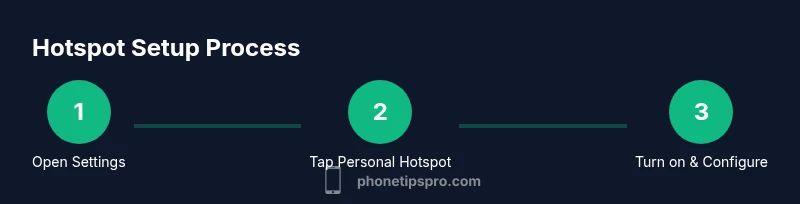
From the home screen, locate and tap the Settings app to access tethering controls. This is the starting point for enabling Personal Hotspot and configuring security settings.
Tip: If Settings isn’t visible, use Spotlight search by swiping down and typing 'Hotspot'. - 2
Select Personal Hotspot
In Settings, tap Personal Hotspot to access the sharing options. If you don’t see it, contact your carrier to confirm tethering support. You may also see a toggle within the cellular settings on some iOS versions.
Tip: Some carriers require you to enable tethering from their own app or website. - 3
Turn on Allow Others to Join
Enable the hotspot and adjust the network name (SSID) and password. Set a strong password and decide whether to allow other devices to join. Some iOS versions offer a 2.4 GHz/5 GHz option if your device supports it.
Tip: Use a password of at least 12 characters with a mix of letters, numbers, and symbols. - 4
Choose connection method
Decide how you’ll connect: Wi‑Fi, Bluetooth, or USB. Wi‑Fi is best for multiple devices; Bluetooth works well for nearby devices; USB provides a wired tethering option to a computer.
Tip: Wi‑Fi is the most universal method for sharing with several devices. - 5
Connect your device
On the other device, pick the iPhone’s network name from the Wi‑Fi list and enter the password. For Bluetooth, complete the pairing process and enable internet sharing. For USB, ensure you have the correct cable and drivers if needed.
Tip: If you don’t see the network, toggle the hotspot off and on again or reconnect Bluetooth. - 6
Test and monitor usage
Open a browser or app on the connected device to confirm connectivity. Keep an eye on data usage and battery life; stop hotspot when not in use to conserve cellular data and power.
Tip: Set a data alert with your carrier to avoid overages.
FAQ
What is Personal Hotspot on iPhone and how does it work?
Personal Hotspot lets your iPhone share cellular data with nearby devices over Wi‑Fi, Bluetooth, or USB. The process creates a private network protected by a password, and you control who can connect.
Personal Hotspot shares your iPhone’s data with nearby devices via Wi‑Fi, Bluetooth, or USB, using a password you set.
Do I need a special plan to use hotspot on iPhone?
Most carriers support tethering, but some plans require an add‑on or may impose data caps for hotspot use. Check with your carrier to confirm tethering availability and any fees.
Most carriers support tethering, but confirm with your provider about plan requirements and any data limits.
How many devices can connect to the hotspot?
The number of connected devices depends on your iPhone model, iOS version, and carrier policy. In practice, several devices can connect, but performance may drop as more devices join.
Several devices can connect, but performance may vary with more connections.
Why can’t I see my iPhone hotspot network?
Ensure Personal Hotspot is turned on, your device is within range, and the network name is visible. If needed, reset the hotspot or reboot the phone and the connecting device.
Make sure the hotspot is on and nearby devices are searching for networks; try a quick reset if needed.
Is hotspot secure, and how can I improve security?
Yes, using a strong password and limiting who can join improves security. Turn off Allow Others to Join when not needed and review connected devices regularly.
Yes—use a strong password and monitor who’s connected to keep things secure.
Why does hotspot drain my battery so quickly?
Tethering uses more power than normal use. Keep your iPhone plugged in, and disable hotspot when you don’t need it.
Hotspot uses more battery; keep it plugged in if you plan to use it for a while.
Watch Video
Quick Summary
- Enable Personal Hotspot when you need internet access for other devices.
- Use a strong password and limit connected devices.
- Connect via Wi‑Fi for most users; USB is good for a single computer.
- Monitor data usage and battery to avoid surprises.