How to Keep iPhone from Overheating: Practical Guide
Learn actionable steps to prevent iPhone overheating, from quick fixes to long-term habits. Avoid heat, protect battery health, and optimize settings for cooler performance.


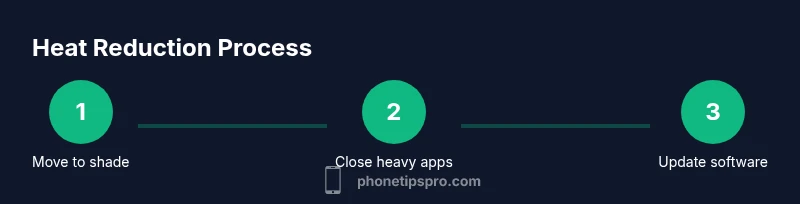
If your iPhone is overheating, you can take quick, practical steps to cool it down and prevent future heat. Start by moving to shade, removing the case, and closing intensive apps. Update iOS and apps, enable Low Power Mode when appropriate, and avoid using the phone while charging in hot environments. These actions address the most common heat sources and protect battery health.
Understanding iPhone Overheating
According to Phone Tips Pro, overheating occurs when the device cannot effectively dissipate heat generated by its processor, screen, and radios. Modern iPhones are designed to manage thermal stress, but high ambient temperatures, heavy workloads, charging during hot weather, and aging batteries can push the device beyond its safe operating range. The key is to recognize heat early and intervene with a mix of quick actions and long-term habits. By understanding how heat builds up, you can make smarter choices about when and how to use your device, which apps you run, and where you charge it.
A practical rule of thumb from the Phone Tips Pro team is to monitor both the surface temperature and battery behavior over the course of a day. If you notice rapid temperature rises, it’s usually a signal to pause high-load tasks, move to a cooler spot, and check for software or battery issues. Building a routine around heat-aware usage helps preserve performance and battery health over time.
Why iPhones Overheat: Common Triggers
Tools & Materials
- iPhone with latest iOS version(Ensure the device is updated before testing heat scenarios to rule out software-related heat spikes)
- Original Apple charger and cable(Use the included charger for charging sessions to minimize unexpected warmth)
- Breathable or minimal-case option(A case that does not trap heat can help airflow around the back and sides)
- Stable, cool environment(Try to work in a shaded area away from direct sunlight during heat-heavy days)
- Optional cooling accessory(External fan or cooling pad can be helpful for devices under heavy load)
Steps
Estimated time: 45-60 minutes
- 1
Check ambient temperature and reduce workload
Start by moving the iPhone to a cooler, shaded spot. Pause nonessential tasks and close apps using heavy processing. Heat often comes from long runs of graphics, video rendering, or games. Let the device breathe for 5–10 minutes if it feels warm.
Tip: Use the Battery or Usage settings to spot which apps are consuming CPU and memory. - 2
Update iOS and critical apps
Software updates often include thermal performance and battery efficiency improvements. Install the latest iOS update and update high-usage apps to ensure apps don’t run hotspot cooling loops in the background.
Tip: Update overnight if possible to avoid interruptions during work. - 3
Enable Low Power Mode when appropriate
Low Power Mode reduces background activity, brightness, and fluid frame rates, which lowers heat generation. Use it during extended sessions in warm environments or when the device shows early signs of heat buildup.
Tip: Remember to re-enable when you need peak performance. - 4
Close background processes and disable unnecessary features
Swipe through recent apps and swipe away or force-quit those that are staying active. Turn off Background App Refresh, excessive location tracking, and push notifications for nonessential apps.
Tip: For continuous use, recheck background activity after 15–20 minutes. - 5
Optimize charging in hot weather
Avoid charging in direct sun or hot cars. If the phone is hot, unplug and let it cool before resuming charging. Prefer charging in a cool environment and consider a lower-wattage charger if available.
Tip: Do not use the device aggressively while charging in hot ambient conditions. - 6
Remove or adjust the device’s case
If your case traps heat, remove it to improve air circulation. For extremely hot days, a looser or vented case is preferable. This helps heat escape rather than build up near the chassis.
Tip: If removing the case is impractical, switch to a lighter one during intense usage. - 7
Dim the display and reduce motion
Lower screen brightness and enable 60 Hz or lower motion settings where possible. Heavy graphics and high brightness can significantly tax the GPU and CPU, driving heat.
Tip: Turn on Auto-Brightness to help manage heat without manual adjustments. - 8
Let it rest and monitor the temperature
If the device continues to feel hot, stop using it for 15–20 minutes in a cooler area. After cooling, resume normal usage and watch for recurring heat spikes.
Tip: Check temperatures after re-engaging tasks to ensure the issue isn’t recurring.
FAQ
Why does my iPhone overheat even when I’m not gaming or streaming?
Overheating can happen due to high ambient temperatures, poor ventilation, charging in hot spaces, or degraded battery health. Software processes may also run in the background and generate heat over time. Monitoring app activity helps identify culprits and prevent unnecessary heat.
Overheating can happen from heat in the environment or background activity. Check ventilation and apps running in the background, then update software and consider battery health checks.
Can a case cause overheating?
Yes, a bulky or non-breathable case can trap heat and slow cooling. If you notice heat buildup, try removing the case during intensive tasks or switch to a breathable design.
A thick case can trap heat, so remove it during heavy use or switch to a breathable case.
Does turning off Background App Refresh help with heat?
Disabling Background App Refresh reduces background activity, which often lowers heat generation. It’s especially helpful when you notice heat after waking the device.
Turning off background refresh can help reduce heat by limiting what apps do in the background.
Is it safe to use an iPhone while charging in hot weather?
Using a device while charging in hot weather can amplify heat. If the environment is hot, pause heavy use during charging and charge in a cooler area.
Avoid heavy use while charging in heat; try charging in a cooler room and reduce workload.
How can I check battery health and know if it’s a factor?
Go to Settings > Battery > Battery Health. If Maximum Capacity or Peak Performance is degraded, heat-related performance can worsen and battery replacement may help reduce heat.
Check Battery Health in Settings to see if the battery is aging or degraded.
What should I do if overheating persists after updating software?
If overheating continues after updates, consider scheduling a battery health check, reducing high-load tasks, and seeking professional service if the device remains hot.
If it stays hot after updating, check battery health and seek help if needed.
Watch Video
Quick Summary
- Identify heat sources and reduce workload.
- Update software to improve thermal management.
- Use Low Power Mode during hot conditions.
- Adjust charging habits to avoid hot environments.
- Monitor temperature and battery health regularly.