How to know if my iPhone is hacked: A practical guide
Urgent, step-by-step guide to determine if your iPhone is hacked, with quick checks, diagnostic flow, fixes, and prevention tips. Learn signs, safe actions, and when to seek help.


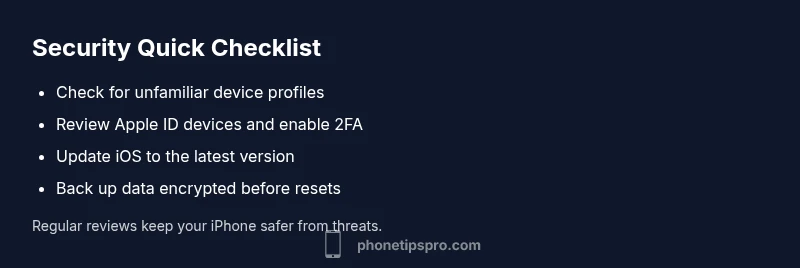
Short answer: most iPhone hacks show up as unfamiliar profiles, unusual battery drain, sudden data usage, or unexpected sign-ins. To confirm quickly, check for unfamiliar configuration profiles, review your Apple ID devices, update iOS to the latest version, enable two-factor authentication, and sign out of sessions on other devices. If still unsure, move to the diagnostic flow below.
Understanding
Common signs your
How
Quick checks you can do now
Start with the basics you can perform without specialized tools:
- Settings > General > VPN & Device Management: look for unfamiliar profiles and remove them.
- Settings > [your name] > Photos/Apps: review recently added apps and permissions.
- Settings > Apple ID > Devices: sign out of any device you don’t recognize.
- Passwords: change your Apple ID password and enable two-factor authentication.
- Updates: install the latest
Diagnostic flow overview
This section maps symptoms to likely causes and practical fixes. If you notice an unusual profile, account activity, or data drain, follow the flow from symptom recognition to targeted actions. The goal is to interrupt misuse, secure your accounts, and reestablish trust in your device. As you work through the flow, keep your backups up to date and avoid risky actions that could erode data integrity.
Step-by-step fixes for the most common cause
The most frequent root cause is a rogue configuration profile or a compromised Apple ID. The following fixes are structured to be tried in order, starting with the simplest.
- Remove unknown profiles: Open Settings > General > VPN & Device Management, delete unfamiliar entries, and reboot.
- Secure your Apple ID: Change password, enable two-factor authentication, review connected devices, and sign out on unknown devices.
- Update
Safety, data protection, and best practices
Security on
When to seek professional help
If you cannot identify a clear cause, or if you suspect persistent unauthorized access despite following steps, contact Apple Support or visit an Apple Store. Signs that warrant professional help include persistent unknown sign-ins, ongoing data loss, or you’re unable to remove a rogue profile. A tech professional can run device diagnostics, securely wipe and restore, and help you implement a robust post-incident plan.
Reclaiming control and prevention
After gaining back control, implement a prevention plan: enable 2FA, use strong passwords, review devices quarterly, and stay vigilant for phishing. Regularly update
Steps
Estimated time: 45-60 minutes
- 1
Back up data securely
Create an encrypted backup of your iPhone to iCloud or a computer. This preserves your photos, messages, and settings before making major changes. Verify the backup contents and ensure it’s recent.
Tip: Encryption is essential; use a strong password for the backup itself. - 2
Inspect account security
Open Settings > [your name] to review devices that are logged into your Apple ID. Sign out from any unfamiliar devices, then change your Apple ID password and turn on two-factor authentication.
Tip: If you can’t remember adding a device, treat it as suspicious and revoke access immediately. - 3
Remove rogue profiles
Navigate to Settings > General > VPN & Device Management and delete any profiles you don’t recognize. Reboot the device afterward to ensure changes take effect.
Tip: rogue profiles can grant persistent access; removing them is a high-impact fix. - 4
Update and verify
Install the latest iOS update. After updating, review app permissions and ensure no new prompts bypass your awareness. Run through essential apps to confirm they function normally.
Tip: Software updates often close security gaps that attackers exploit. - 5
Limit data and reset if needed
If issues persist, consider resetting all settings first, which keeps data but resets network and system preferences. If still unresolved, perform a factory reset, then restore from a clean backup.
Tip: Only restore from a backup made after you’re sure the device is clean. - 6
Verify aftercare and monitor
Set up ongoing monitoring: enable 2FA, review device list quarterly, and watch for unusual activity. Keep security notes and a quick incident response plan.
Tip: Establish a routine to review security settings every few months.
Diagnosis: iPhone shows signs of compromise (unfamiliar profiles, battery drain, data spikes, unexpected sign-ins)
Possible Causes
- highUnfamiliar configuration or device management profiles installed via phishing or apps
- highApple ID compromise leading to sign-ins on new devices
- mediumMalicious apps or phishing prompts requesting sensitive permissions
- lowSoftware glitch or legitimate feature enabling unexpected behavior
Fixes
- easyRemove unknown profiles (Settings > General > VPN & Device Management)
- easyReview and secure Apple ID: change password, enable 2FA, review devices
- easyUpdate iOS to the latest version and reboot
- easyCheck app permissions and revoke suspicious ones
- mediumBack up data and consider a factory reset if issues persist
FAQ
What exactly counts as hacking on an iPhone?
Hacking can mean that an attacker gains access to your account, installs unfamiliar configuration profiles, or manipulates settings to exfiltrate data. It often begins with phishing or credential theft and can lead to unauthorized device access or data leakage.
Hacking on an iPhone often starts with credential theft or rogue profiles that give attackers access to your account or settings. Look for unfamiliar profiles and devices, and act quickly.
Can iPhone hacks happen without physical access?
Yes. Most compromises start with phishing, credential theft, or malware introduced via links or apps. A compromised Apple ID used from another device can give attackers ongoing access even if you never physically hand them the device.
Hacks can happen without physical access, usually starting with phishing or credential theft and then using your Apple ID from another device.
Is there antivirus software for iPhone?
Apple’s iOS uses a different security model, so traditional desktop-style antivirus isn’t necessary or effective. Focus on updating iOS, reviewing profiles, and securing your Apple ID instead.
There isn’t typical antivirus for iPhone; instead, keep iOS updated and secure your Apple ID and profiles.
Should I erase all content and settings if I suspect hacking?
If the device remains compromised after fixes, a factory reset is warranted. Back up first, ensure backups are clean, and restore only from a known-good source. This should restore a trusted baseline.
If issues persist, you may need a factory reset after backing up and ensuring the backup is clean.
How can I verify if my Apple ID is compromised?
Check for unfamiliar devices, recent sign-ins, and changes to account details. Change the password, enable two-factor authentication, and review security questions and trusted numbers.
Check for unfamiliar devices, change your password, and enable two-factor authentication to secure your Apple ID.
What can I do to prevent future hacks?
Use strong, unique passwords; enable 2FA; beware phishing; keep iOS updated; review devices periodically; and avoid sideloading or installing profiles from untrusted sources.
Create strong passwords, enable two-factor authentication, and stay vigilant about phishing and suspicious profiles.
Watch Video
Quick Summary
- Identify signs quickly: unfamiliar profiles, new devices, and data spikes.
- Secure accounts first; update iOS and enable 2FA immediately.
- Remove rogue profiles and review device activity regularly.
- Back up data before resets; factory resets as last resort.
- Maintain ongoing vigilance with quarterly security reviews.