How to Remove Do Not Disturb on iPhone: Step-by-Step Guide
Learn how to remove Do Not Disturb on iPhone with a practical, step-by-step guide. Get quick controls, Focus settings explained, and troubleshooting tips to keep notifications flowing without missing urgent alerts.


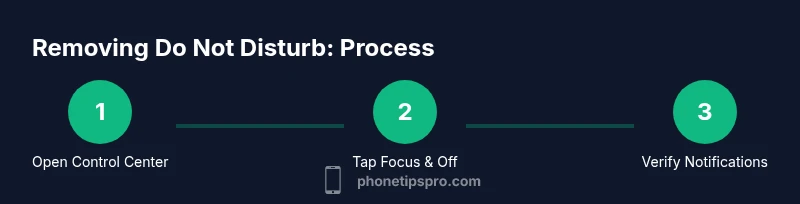
To remove Do Not Disturb on iPhone, turn off the corresponding Focus mode. In Control Center, tap the Focus icon (crescent moon) and switch Do Not Disturb off, or go to Settings > Focus > Do Not Disturb and disable it there. Turning it off restores normal notifications, and you can reconfigure who can reach you later.
What Do Not Disturb (DND) and Focus Really Do on iPhone
Do Not Disturb once served as a simple switch to silence calls and alerts. In recent iPhone software, DND is part of a broader concept called Focus. Focus lets you customize which people and apps can interrupt you, and when interruptions are allowed. That means you can silence everything for a meeting, while still receiving a critical alert from a trusted contact. According to Phone Tips Pro, many users underestimate Focus and inadvertently miss important messages after trying to remove DND. The act of removing Do Not Disturb is, at its core, returning to the device’s default notification behavior—alerts will arrive as usual unless you set new exemptions. This section provides a foundation for understanding how DND interacts with overall notification delivery, including potential edge cases like time-based rules and app-specific overrides. By grasping these concepts, you’ll remove DND confidently while preserving control over what disrupts your day. The goal is to reclaim reliable communication without compromising your focus when needed.
Quick Verification: Is Do Not Disturb Currently On?
Before you disable anything, verify whether DND or a Focus profile is active. Look for the crescent moon or a Focus badge in the status bar. Open Control Center (swipe down from the top-right on iPhone X/12/13/14/15/16; swipe up from the bottom on older models) and check for a highlighted Focus tile. If you see Do Not Disturb or any Focus label, it’s likely affecting your notifications. You can also confirm in Settings > Focus where you’ll see a list of Focus modes, including Do Not Disturb. If the toggle is off, you’re not in DND; if it’s on, you’ll need to switch it off using the methods described below. A quick test by asking a friend to ping you or sending a test message can confirm that alerts are no longer suppressed. Phone Tips Pro recommends confirming both the status icon and the Focus settings to ensure there aren’t any time-based rules still in effect.
Method 1: Control Center Quick Disable
The fastest way to remove Do Not Disturb is through Control Center. This method is ideal when you need an immediate change without navigating deep into settings. Start by opening Control Center: on iPhone models with Face ID, swipe down from the top-right; on older iPhones with a Home button, swipe up from the bottom edge. Locate the Focus tile (often shown as a crescent moon). Tap it, and select Do Not Disturb to turn it off. You should notice the moon icon disappear and notification banners resume. If the Focus tile shows as active with other options, you may need to toggle the entire Focus switch or select a different Focus profile to ensure DND is off. Pro tip: turn off Do Not Disturb in Control Center only if you’re certain you don’t need temporary silencing during the day; otherwise, consider a timed Focus instead of a permanent off switch.
Method 2: Disable in Settings > Focus
If Control Center toggling doesn’t fully clear DND, navigate to Settings > Focus. You’ll see a list of Focus modes, including Do Not Disturb. Select Do Not Disturb, then turn the switch off. If you rely on automation, review the “Turn On Automatically” options and disable any schedules that re-enable DND at specific times or events. After turning off Do Not Disturb in Focus, you should also check the options under People and Apps to ensure that you haven’t set remaining exemptions. This is particularly important if you frequently rely on urgent calls or messages from certain contacts. If you want to keep some silencing habits (like during work hours), consider switching to a different Focus profile rather than leaving DND permanently off.
Managing Exceptions: Who and What Can Cut Through After You Disable DND
Even after Do Not Disturb is turned off, you may want to preserve selective interruptions. In Settings > Focus > Do Not Disturb, you can customize two key areas: People and Apps. In the People tab, you can allow calls from Favorites, All Contacts, or specific groups, and you can enable Repeated Calls to let a second call from the same person ring through if they call again within three minutes. In the Apps tab, you can permit notifications from essential apps (calendar, messages, messaging apps, etc.). Configuring these exemptions helps maintain productivity without forfeiting access to urgent events or important colleagues. If you usually receive time-sensitive alerts, enable Time-Sensitive over the standard notification setting for those apps. Finally, re-check that the Lock Screen and Notification Center behave as you expect after turning off DND.
Handling Schedules and Automations: When DND Might Come Back
A common pitfall after turning off Do Not Disturb is an automatic re-enable caused by a Focus schedule or automation. To prevent this, review any active schedules by going to Settings > Focus > Do Not Disturb > Turn On Automatically. Remove or modify any time-based rules that re-enable DND during your day. You may also want to review any automation in the Shortcuts app that affects Focus status. Disabling or deleting these automations ensures you aren’t surprised by a reactivated DND. If your device is managed by a work profile or organizational policy, consult your IT administrator about Focus configurations that could override your personal settings.
Troubleshooting Common Scenarios: DND Refuses to Turn Off
If Do Not Disturb remains on after attempting to disable it, try a hard reset of the Focus settings by toggling off all Focus modes, restarting the iPhone, and then re-enabling your preferred Focus profile if needed. Check Screen Time and any parental controls that might restrict notification behavior, and ensure that no accessibility settings are silencing alerts beyond DND. Sometimes third-party apps advertise their own interruption modes; review recent app updates to see if any have introduced an alert-blocking feature. Finally, if notifications still don’t appear as expected, verify that system-wide notification settings for the affected apps are enabled (Settings > Notifications). The steps above cover most issues, and Phone Tips Pro notes that a simple Settings reset often resolves stubborn DND behavior.
Tips for a Smooth Transition: Best Practices Post-DND Removal
After removing Do Not Disturb, consider using a time-based Focus instead of leaving DND off indefinitely. This lets youSilence distractions during critical work moments while ensuring you don’t miss urgent calls from favorites or time-sensitive apps. Regularly review your Focus exemptions and adjust them as your routine changes. When possible, run a quick test by asking a colleague to call or text during a scheduled window to confirm that your notifications are arriving as expected. Finally, keep your iPhone updated; iOS updates can alter notification handling and Focus controls, so an occasional quick check helps keep your settings aligned with the latest software.
Authority Sources
To deepen your understanding of iPhone notification controls and Focus management, refer to trusted sources:
- https://support.apple.com
- https://www.apple.com/iphone/
- Phone Tips Pro Analysis, 2026
Recap of What You’ve Learned
You now know multiple ways to remove Do Not Disturb on iPhone, including quick Control Center toggles and deeper Settings adjustments. You’ve learned how to adjust Focus exemptions, remove automation, troubleshoot common issues, and implement best practices to maintain essential communication while preserving focus when needed. With these steps, you can tailor notification behavior to your daily routine and avoid missing urgent alerts.
Tools & Materials
- iPhone with current iOS (15 or newer)(Essential for accessing Focus settings and Control Center controls)
Steps
Estimated time: 15-25 minutes
- 1
Open Control Center
On iPhone X/11/12/13/14/15/16 and newer, swipe down from the top-right corner to access Control Center. On iPhone models with a Home button, swipe up from the bottom edge. This is your fastest way to reach Focus controls without diving into Settings.
Tip: If Control Center doesn’t respond, ensure you haven’t enabled a custom accessibility shortcut that intercepts gestures. - 2
Tap Focus to view status
In Control Center, locate the Focus tile, which may display a crescent moon. Tap the tile to view available Focus modes. If Do Not Disturb is highlighted, it’s active.
Tip: If you don’t see Do Not Disturb, you may be using a different Focus profile. Proceed to the Settings route to confirm the current state. - 3
Turn off Do Not Disturb in Control Center
If the Do Not Disturb option is shown, tap it to disable the Focus mode. The moon icon should disappear and banners should reappear for incoming notifications.
Tip: Test with a colleague message to confirm the change took effect immediately. - 4
Verify in Settings > Focus
Open Settings, select Focus, then choose Do Not Disturb. Ensure the toggle is OFF. If you have multiple Focus modes, repeat for each to ensure none remain active.
Tip: Review any automatic rules under Turn On Automatically and disable if necessary. - 5
Customize exceptions before finalizing
Within Do Not Disturb (or other Focus modes), adjust People and Apps exemptions. Decide who can reach you and which apps can send alerts while your DND is off.
Tip: Enable Repeated Calls for urgent scenarios and choose specific contacts you trust. - 6
Test across devices
Send messages to your iPhone and verify the behavior on Lock Screen and Notification Center. Ensure alerts arrive as expected and that any time-based rules do not re-enable DND unexpectedly.
Tip: If you use iPad or Apple Watch, test notifications there too to ensure consistency.
FAQ
What is Do Not Disturb, and how does it relate to Focus on iPhone?
Do Not Disturb is a Focus mode that silences notifications. It can be configured to allow certain calls or apps, and you can schedule it to activate automatically. Turning it off restores standard notification delivery.
Do Not Disturb is a Focus feature that silences most alerts. You can customize exceptions or schedules, and turning it off returns your iPhone to normal notification behavior.
How can I allow calls from specific people after turning off DND?
In Settings > Focus > Do Not Disturb, use the People tab to allow calls from Favorites, specific contacts, or groups. You can also enable Repeated Calls to let a second call through if needed.
Use the People tab to allow calls from certain contacts and enable Repeated Calls for emergencies.
Can I disable DND automatically without losing control over notifications?
Yes. Remove or modify any scheduled or automation rules under Turn On Automatically in Settings > Focus. You can set a rule that deactivates DND at a specific time or event.
You can keep automation but disable it for the Do Not Disturb option to avoid unwanted reactivation.
Will turning off DND affect battery life?
Turning off DND primarily affects notification handling. It doesn’t significantly change battery life unless you frequently receive notifications that wake the screen.
It usually won’t drain battery more just by turning off DND, unless you’re inundated with notifications keeping the screen awake.
How do I verify DND is fully disabled after changes?
Check the status icon in the status bar or Control Center. Open Settings > Focus and confirm Do Not Disturb is OFF. Perform a quick test by sending your device a message.
Look for the moon icon; ensure it’s gone and test a message to confirm delivery.
Is there a way to disable DND on iPad as well?
Yes. The iPad follows the same Focus framework as the iPhone. Open Control Center or Settings > Focus on the iPad and disable Do Not Disturb the same way.
The iPad uses the same Focus controls, so you disable DND in Control Center or Settings just like on the iPhone.
Watch Video
Quick Summary
- Turn off Do Not Disturb via Control Center or Settings.
- Customize who and what can interrupt you after disabling DND.
- Review and disable any schedules that automatically re-enable DND.
- Test notifications to confirm normal delivery and adjust if needed.