Is My iPhone on Do Not Disturb? Quick Check Guide
Learn how to determine if Do Not Disturb is active on your iPhone, distinguish it from Focus modes, adjust scheduling, and troubleshoot notification issues with practical steps.


Is my iPhone on Do Not Disturb? This quick check walks you through the two fastest ways to verify DND status and how to switch it off if needed. You will learn how to spot the DND icon, review Focus settings, and distinguish DND from Focus modes for accurate notification behavior.
What Do Not Disturb does on iPhone
Do Not Disturb (DND) is a classic iPhone setting that silences calls and alerts to help you focus or rest. In modern iPhones, DND has evolved into a broader family called Focus, which lets you tailor which people or apps can interrupt you. A key behavior to remember is that alarms still sound even when DND or Focus is active, so you won’t miss waking alerts. When DND is on, you may see a crescent moon icon in the status bar, and notifications are delivered to the Notification Center when you unlock the device. The aim of DND is to reduce interruptions while preserving essential alerts, such as alarms or calls from allowed contacts. For quick checks, knowing where DND lives in the settings helps you verify its current state and adjust its behavior to fit your day.
Quick Ways to Check If Do Not Disturb Is On
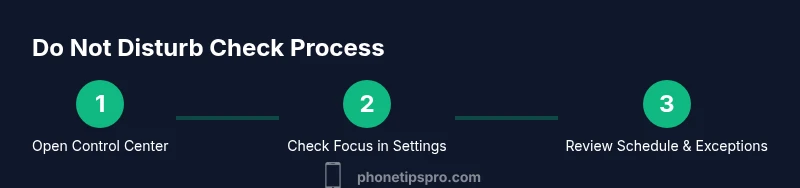
There are several fast ways to confirm DND is active. First, look at the status bar for a crescent moon icon—this is the universal indicator that DND or a Focus mode is currently engaged. If you don’t see the moon, swipe to open Control Center (on devices with a home button, swipe up from the bottom) and look for the Focus tile; if it shows DND or a crescent moon, DND is active. You can also open Settings and go to Focus or Do Not Disturb to see the exact switch state and any scheduled times. In some iOS versions, you may also see a notification banner that states DND is enabled, helping you distinguish it from normal notification settings. Finally, note that Focus modes can be customized so you might be in a Focus profile that resembles DND but has exceptions, so a direct check in Settings is often necessary to confirm.
Understanding Focus vs Do Not Disturb
Do Not Disturb is a specific Focus mode that silences calls and alerts when enabled. Focus, however, is a broader system that can be customized to your daily routines, with allowances for certain people or apps. DND is effectively a preset Focus with stricter silencing rules; Focus adds nuance like auto-responders, time-based activation, and tailored exceptions. If you rely on certain contacts or apps, you can create Focus modes that behave like DND but still let important notifications through under defined conditions. This distinction helps you troubleshoot why notifications might still arrive during your supposed DND period.
How to Verify Scheduled or Automatic DND
DND can be scheduled to turn on and off automatically or triggered by location or activity. Open Settings > Focus > Do Not Disturb and inspect the Toggles for Schedule, Focus Timers, or Smart Activation. If any of these are enabled, your DND state may flip without you manually toggling it. Review the listed times and conditions; remove or adjust them if you want full manual control. When schedules are active, the moon icon will appear during the scheduled window, and notifications will be silenced according to your configured rules. In busy periods, this helps prevent interruptions while preserving essential alarms and ring tones that you still choose to allow.
Practical Scenarios and How to Manage DND
- Nighttime: Use a Sleep Focus or Do Not Disturb with a night schedule to silence alerts while ensuring alarms still function. - Work: Create a Work Focus that silences nonessential apps but allows calls from teammates. - Family time: Apply a personal Focus that silences work-related alerts while permitting certain family contacts. - Travel: Turn on Do Not Disturb or a Travel Focus when you want fewer interruptions and set exceptions for emergency contacts. Managing Focus modes this way ensures you stay productive while not missing critical alerts.
Troubleshooting Common DND Issues
If notifications slip through during DND, check that you are not in a Focus profile with exceptions. Verify that Silence is set to be active while the iPhone is locked. Inspect each app’s notification settings, because some apps may have their own alert rules. Ensure that Emergency Bypass (for calls or messages from specific contacts) is not enabled unless you want to allow those specific alerts. Finally, test DND by triggering a test notification while a timer is active or a scheduled period is underway to confirm behavior. If needed, disable DND, then re-enable it to reset any transient glitches.
Authority sources and further reading
For official guidance, refer to Apple Support resources and major publications that cover notification management and Focus. See Apple Support content for iPhone notifications and Focus settings, plus general guidance from major tech outlets on how Focus differs from classic Do Not Disturb. This provides a well-rounded understanding of how to manage interruptions effectively on modern iPhones. External references include Apple’s official support pages and reputable technology outlets for additional context.
Tools & Materials
- iPhone with iOS 15+(Ensure you have access to Settings and Focus features)
- Access to Settings app(Required to view and adjust DND/Focus states)
Steps
Estimated time: 8-12 minutes
- 1
Open Control Center and check the Focus status
Swipe to open Control Center and look for the Focus tile. If the Moon icon is highlighted or the tile shows DND, Do Not Disturb is active. This step gives the fastest visual cue without digging into settings.
Tip: If you can't find the Focus tile, customize Control Center to include Focus for quicker access. - 2
Verify in Settings under Focus
Go to Settings > Focus > Do Not Disturb. Check whether the Do Not Disturb switch is on and review any schedules, status, or allowed people/apps. This confirms the exact state and any automated rules.
Tip: If you see a Focus profile other than Do Not Disturb, switch to Do Not Disturb to avoid confusion. - 3
Review scheduled or automatic activation
In the Do Not Disturb screen, inspect Schedule or Smart Activation settings. If enabled, DND may turn on automatically at set times or locations, so you might not have manually activated it.
Tip: Temporarily disable schedules to test real-time behavior and verify alerts while DND is off. - 4
Check exceptions and Emergency Bypass
Under Focus settings, review which contacts or apps are allowed to break through. Ensure Emergency Bypass is configured only for contacts you want to always reach you.
Tip: Add critical contacts to Emergency Bypass if you rely on urgent calls or messages. - 5
Test with a controlled notification
Send a test message or have a friend call you while DND is active to confirm whether alerts are silenced. This test verifies the actual effect on notifications and helps you fine-tune allowances.
Tip: If testing shows missed alerts you need, adjust Focus exceptions accordingly.
FAQ
How can I tell if Do Not Disturb is on my iPhone?
Look for the crescent moon icon in the status bar and check Settings > Focus > Do Not Disturb to confirm its state. You can also verify via Control Center.
Check the moon icon and confirm in Settings; Control Center also shows the status.
What is the difference between Do Not Disturb and Focus?
Do Not Disturb is a specific Focus mode that silences most alerts. Focus is a broader system with customizable exceptions and automation for different scenarios.
DND is a focused silencing mode; Focus lets you tailor alerts for different situations.
Will DND mute emergency calls or messages?
DND silences most notifications, but Emergency Bypass can allow calls or messages from selected contacts. Check Focus settings to configure or remove bypass.
Emergency bypass lets urgent alerts through if you enable it.
How do I turn off Do Not Disturb quickly?
Open Control Center and toggle the Moon/DND status, or go to Settings > Focus > Do Not Disturb and switch it off.
Use Control Center or Settings to disable DND in seconds.
Can DND be scheduled for certain times?
Yes, you can schedule Do Not Disturb or configure a specific Focus profile with a time-based trigger to automatically activate.
Yes, you can set a schedule for DND to turn on automatically.
Why do some notifications still appear during DND?
Check that you are not in a Focus profile with allowed apps, and review any exceptions or Emergency Bypass settings that might permit alerts.
Examine Focus exceptions and bypass rules to identify why alerts slip through.
Do Not Disturb and Focus affect alarms?
Alarms are designed to override DND/Focus settings, so they will still sound even if notifications are silenced.
Alarms always sound, even when DND is on.
How do I reset DND if things behave oddly?
Toggle Do Not Disturb off and on, review Focus configurations, and consider restarting the iPhone if issues persist.
Turn DND off then back on, or restart the iPhone to reset behavior.
Watch Video
Quick Summary
- Identify the moon icon as a quick DND cue.
- Differentiate Do Not Disturb from Focus profiles in Settings.
- Use scheduled DND to automate quiet hours without missing alarms.
- Review exceptions to avoid missed important notifications.