How to Reset iPhone Without Password
Learn safe, legal methods to reset an iPhone without the password—remote erase via Find My iPhone or recovery mode. Expert guidance from Phone Tips Pro.


You can reset an iPhone without the password by erasing it remotely through Find My iPhone or by restoring it via recovery mode on a computer. Both options wipe all data and settings, so only proceed if you own the device or have proper authorization. After erasing, you’ll set up the iPhone from a backup or as a new device.
Why Resetting an iPhone Without a Password Matters
There are legitimate scenarios where you need to regain access to an iPhone when the password is forgotten, the device is unresponsive, or you’ve inherited a device from a family member. In these cases, the official paths to reset without the password rely on remote erasure via Find My iPhone or a recovery-mode restore through a computer. According to Phone Tips Pro, understanding the differences between these methods helps you pick the safest option for your situation. The process is designed to protect data and ownership, but it also means data loss if you haven’t backed up recently. If you’re reading this, you’re likely seeking a clear, step-by-step approach to regain control while respecting device security. Throughout this guide, we’ll emphasize safe, legal practices and practical expectations for Activation Lock, data loss, and post-reset setup. Phone Tips Pro analysis shows that choosing the right path reduces risk and speeds up getting back to a usable device.
Methods Overview: Remote Erase vs Recovery Mode
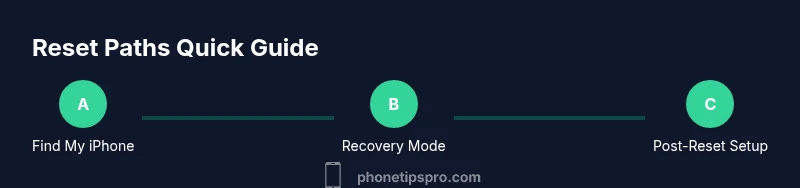
Resetting an iPhone without a password boils down to two main routes: a remote erase using Find My iPhone, and a recovery-mode restore via a computer. The remote erase wipes everything on the device and is useful when the iPhone remains connected to the internet and Find My iPhone is enabled. Recovery-mode restore requires a computer and iTunes/Finder and will reinstall iOS, which guarantees a clean slate but removes all data unless you have a backup. Both methods are legitimate for devices you own or are authorized to manage. The key is to recognize Activation Lock status after the reset, which can block reactivation if you don’t know the Apple ID credentials tied to the device.
Path 1: Remote Erase Using Find My iPhone
If Find My iPhone is enabled and you have access to your iCloud account, you can erase the device remotely. This method is quickest when the device is online, but it will delete all content and settings. After erasing, you’ll set up the iPhone as new or restore from a backup. Activation Lock may require your Apple ID credentials to reactivate, so having those handy is essential. The main caveat is that if the device is offline, the erase will occur once it comes online.
Path 2: Recovery Mode Restore via Computer
If remote erase isn’t possible, a recovery-mode restore via a computer provides a reliable alternative. You’ll connect the iPhone to a Mac or PC with Finder/iTunes, force the device into recovery mode, and reinstall iOS. This process also erases all data, so a backup is crucial if you want to recover information later. Activation Lock remains a factor after the install, so you’ll need the Apple ID that was previously linked to the device.
Activation Lock: What It Means and How to Plan
Activation Lock is a security feature tied to your Apple ID and iCloud. After a reset, you’ll be prompted to enter the Apple ID and password to reactivate the device. If you don’t know the credentials, you’ll need to recover the Apple ID or contact the account owner. This lock protects the device from unauthorized use but can complicate legitimate resets. Plan for Activation Lock by locating Apple ID details or enabling account recovery options in advance.
Data Loss and Backups: What to Expect
A factory reset or remote erase removes all data from the iPhone. If you have a recent iCloud or iTunes backup, you can restore some or all information after the reset. Without a backup, photos, messages, and apps will be gone. It’s a best practice to verify backups before taking action whenever possible. If you’ve got time, back up critical data first, then perform the reset.
Step-by-Step Reference: Choosing Your Path and Acting Confidently
Before you start, decide which method suits your situation: remote erase or recovery mode. If you can access Find My iPhone and the device is online, remote erase is fast. If not, use recovery mode with a computer. Keep Apple ID credentials handy and ensure you have a backup plan. Your goal is a clean reset that lets you restore essential data later if a backup exists.
Troubleshooting Common Issues During Reset
If the reset process stalls or you encounter Activation Lock prompts you can’t meet, pause and reassess. Ensure the device has an active internet connection for remote erase, or verify the computer recognizes the device for recovery mode. If you previously turned off Find My iPhone, remote erase won’t be available, requiring recovery-mode steps instead.
After the Reset: Reconfiguration and Safe Practices
Once the reset completes, you’ll go through the iPhone setup flow. If you have a backup, you can restore data and apps. If not, set up as a new device and re-download essential apps. To prevent future lockouts, enable Find My iPhone again, set a recovery-friendly password, and record your Apple ID securely.
Alternatives to a Full Reset
If you’re primarily dealing with a forgotten passcode but not ownership issues, consider options like password recovery for your Apple ID or visiting an Apple Store for identity-verified help. These alternatives can avoid data loss when appropriate.
Tools & Materials
- Apple ID credentials(Needed to sign in after reset; if you forgot, prepare for account recovery)
- Trusted device with Find My iPhone enabled(Required for remote erase via iCloud; ensure it’s linked to the Apple ID)
- Computer with Finder or iTunes(Used for recovery mode restores when remote erase isn’t possible)
- USB cable (Lightning or USB-C)(To connect iPhone to the computer during recovery mode)
- Stable internet connection(Needed for remote erase and activation verification)
- Recent backup (optional but recommended)(If available, enables data restoration after reset)
Steps
Estimated time: 30-60 minutes
- 1
Choose your reset path
Decide between remote erase via Find My iPhone or a recovery-mode restore using a computer. This choice depends on whether Find My iPhone is enabled and whether the device is currently online.
Tip: If possible, use remote erase first for speed and convenience. - 2
Prepare required credentials
Gather your Apple ID, password or set up account recovery if you’ve forgotten it. Ensure you have a trusted device and a computer ready.
Tip: Having your Apple ID email ready speeds up post-reset setup. - 3
Remote erase via Find My iPhone (if chosen)
Sign in to iCloud.com or the Find My app, select your device, and choose Erase iPhone. Confirm prompts to erase; the device will wipe data and settings.
Tip: If the device is offline, the erase executes when it comes online. - 4
Recovery mode restore via computer (if chosen)
Connect iPhone to computer, open Finder or iTunes, and force the device into recovery mode. Select Restore to reinstall iOS, wiping all data.
Tip: Ensure you’re using the latest macOS or iTunes version for compatibility. - 5
Handle Activation Lock post-reset
After reset, you’ll be prompted to sign in with the Apple ID used previously. If you don’t have credentials, use Apple’s account-recovery flow.
Tip: If you own the device, locate your Apple ID password or use two-factor recovery. - 6
Restore data from backup (optional)
If you created a backup, restore from iCloud or the computer backup to recover apps, settings, and data.
Tip: Choose a backup created before the password was lost to minimize missing data. - 7
Reconfigure essential settings
Set up your preferences, re-enable Find My iPhone, and review security by adding a strong passcode and updated recovery options.
Tip: Use a memorable but secure passcode and enable two-factor authentication. - 8
Verify device status
Ensure iCloud, Find My iPhone, and activation status are all functioning as expected before continuing.
Tip: Test by a quick lock/unlock and a Find My iPhone ping from another device.
FAQ
Can I reset iPhone without password if Find My iPhone is disabled?
If Find My iPhone is off, you cannot erase remotely. You’ll need to perform a recovery-mode restore via a computer, which still erases data. After the reset, you can set up the device anew.
If Find My iPhone isn’t enabled, you’ll rely on recovery mode on a computer to reset, which erases data.
Will resetting erase all data on the iPhone?
Yes. A factory reset or remote erase removes all content and settings. If you have a backup, you can restore some data after the reset.
A reset wipes everything, but you can recover data if you have a backup.
What about Activation Lock after reset?
Activation Lock may require the Apple ID credentials used on the device. If you don’t have them, you’ll need to recover the Apple ID or seek authorized assistance.
Activation Lock may block reactivation until you provide the Apple ID credentials.
I forgot my Apple ID password. Can I still reset the iPhone?
You can pursue Apple ID account recovery to regain access. If you can’t recover the ID, reset options won’t let you reactivate the device.
If you forgot your Apple ID password, use Apple’s account-recovery process first.
Is there a way to reset without losing data entirely?
A reset inherently erases data. The only way to minimize loss is to restore from a backup created before password loss.
Generally, you’ll lose data, but you can recover by restoring from a backup if one exists.
How long does Activation Lock verification take after reset?
Activation Lock verification happens during setup. If credentials are available, it is usually quick; otherwise, account recovery steps may be required.
Activation Lock verification occurs during setup; have your Apple ID ready.
Watch Video
Quick Summary
- Choose the path you can complete safely: remote erase or recovery mode.
- Back up data before erasing to enable restoration later.
- Activation Lock is the primary barrier after reset; have Apple ID credentials ready.
- Verify Find My iPhone and iCloud settings post-reset to prevent future lockouts.