How to unlock iPhone without passcode: safe, legitimate options
Forgot your iPhone passcode? Explore safe options to regain access: verify ownership with Apple ID, erase with Find My iPhone, restore from backups, and get expert help from Apple Support.


If you forgot your iPhone passcode, you cannot bypass it legally. This guide shows safe, legitimate paths to regain access: verify ownership with Apple ID, use Find My iPhone to erase and restore, or contact Apple Support for guidance. Avoid third-party hacks that could damage data or void warranty. Start by confirming your Apple ID, then choose the recovery path that fits your situation.
Understanding the security framework behind iPhone passcodes
According to Phone Tips Pro, iPhone passcodes are a critical line of defense designed to protect your personal data. The system combines a passcode with your Apple ID and activation lock to ensure only you can regain access after a lockout. Bypassing or using unofficial tools not only risks data loss but can also violate terms of service and local laws. This section lays the groundwork so you know what options are truly legitimate and what to expect if you need to regain access to your device.
Safe, legitimate pathways to regain access
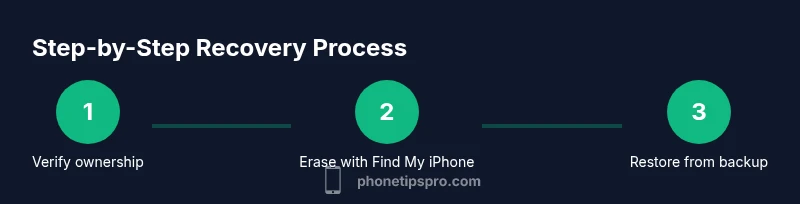
There are clear, legitimate routes to recover access when you forget a passcode. The most common options are: (1) verify ownership with your Apple ID and attempt official recovery paths, (2) use Find My iPhone to remotely erase and then restore from a backup, and (3) contact Apple Support for guided recovery if you cannot complete self-service steps. These options prioritize security and data integrity, and they are designed for devices you own or have explicit authorization to use.
Using Apple ID and account recovery options
A forgetful moment with a passcode is often tied to your Apple ID. Start by signing into your Apple ID account page on a trusted device and reviewing the list of devices linked to your account. If the device is listed, you can initiate certain recovery options and verify ownership. If you cannot sign in, use Apple’s account recovery tools or contact Apple Support. Having access to your trusted devices and two-factor authentication codes makes the process smoother and more secure.
Erasing with Find My iPhone: what it means for data
Find My iPhone offers a remote erase option that can unlock the path back to a usable device, but it will delete all local data on the iPhone. If you have an iCloud backup, you can restore your data afterward. Consider the data you would lose and whether you have recent backups before initiating an erase. Activation Lock may also require your Apple ID credentials to reactivate the device after the erase, even if you regain access.
Recovery via iTunes/Finder and DFU mode (advanced)
If Find My iPhone is unavailable, you can restore your iPhone using a computer with iTunes (Windows or macOS older versions) or Finder (macOS Catalina and later). This approach uses a device recovery sequence that ultimately reinstalls iOS. It is a powerful option and will erase all data, so you should only proceed if you are the rightful owner and you have a backup strategy in place. Remember that this step requires a compatible cable and a computer with internet access.
What data you might lose and how backups help
Erasing the device will remove apps, settings, and content stored on the device itself. Your ability to recover depends on backups you’ve previously created, whether in iCloud or on a computer. Regular backups minimize the impact of a lockout scenario by allowing you to restore essential data after the erase. If you have no backup, some data may be irretrievable, so starting with a legitimate recovery path is crucial.
How to prepare for future lockouts: best practices
Make a habit of enabling Find My iPhone and keeping your Apple ID credentials secure. Maintain regular iCloud or local backups and review your security settings periodically. Consider setting up a trusted device for easy authentication and create a recovery plan that you can follow if you forget your passcode. Proactively preparing reduces downtime and data loss in the event of a future lockout.
When to seek help from Apple Support
If you cannot complete self-service options or you’re unsure about activation lock status, contact Apple Support for direct assistance. An agent can verify ownership and guide you through resolution steps. Prepare proof of ownership and purchase details to expedite the process and ensure you are authorized to regain access to the device.
Authority sources
- Apple Support: If you forgot your iPhone passcode, learn about official recovery options at https://support.apple.com/HT204306.
- Apple Support home: https://support.apple.com/
- Apple’s general device recovery guidance: https://www.apple.com/support/
Tools & Materials
- Apple ID and password(You must be able to sign in to access recovery options)
- Access to Find My iPhone (iCloud)(Needed to erase device remotely)
- A computer (Mac or Windows) with iTunes or Finder(For restoring via computer if Find My iPhone isn’t available)
- USB charging cable(To connect device to computer if required)
- Recent backup (iCloud or computer)(Useful to restore data after erasing; not always available)
- Proof of ownership (receipt, serial number)(Helpful when contacting Apple Support)
Steps
Estimated time: 1-2 hours
- 1
Verify ownership with Apple ID
Sign in to your Apple ID account page on a trusted device to confirm the device you want to recover. This step establishes ownership and prepares you for any official recovery options. If you cannot sign in, proceed to the account recovery process via Apple Support.
Tip: Have your Apple ID credentials and two-factor authentication ready - 2
Prepare Find My iPhone and erase remotely
From a trusted device, use Find My iPhone to select your device and choose Erase iPhone. This removes all data and resets the device to factory settings so you can set it up again as a new device or restore from backup.
Tip: If Activation Lock is enabled, you’ll need your Apple ID to reactivate after the erase - 3
Restore via recovery mode if Find My is unavailable
Connect the iPhone to a computer with iTunes or Finder, put the device into recovery mode, and follow the prompts to Restore. This will reinstall iOS and erase all data; only proceed if you own the device and have backups ready.
Tip: Ensure you have a stable internet connection and the correct cable - 4
Set up the device after erasing
After the restore completes, set up the iPhone as new or restore from a backup. Sign in with your Apple ID to re-enable services and reconfigure Find My iPhone and Activation Lock settings.
Tip: Use a strong passcode and enable biometrics for future access control - 5
Restore data from backup
If you have a recent iCloud or computer backup, choose Restore from Backup during setup to recover apps and data. Data not included in the backup will remain unavailable until recovered via other means.
Tip: Verify the backup date to ensure you recover the most recent data - 6
If problems persist, contact Apple Support
If you’re unable to regain access through self-service paths, reach out to Apple Support for guided assistance. They may request proof of ownership and device details to help you unlock the device legitimately.
Tip: Prepare purchase receipts or serial numbers to streamline verification
FAQ
Can I unlock my iPhone without the passcode?
Official recovery methods require proving ownership. There is no safe, legal bypass. Use Apple’s recovery options or contact Support if you’re the rightful owner.
There isn’t a safe bypass to unlock an iPhone without the passcode; you should verify ownership and use Apple’s official recovery options.
Will erasing erase all data on the iPhone?
Erasing the device removes all content. You can restore data later only if you have a backup available. Without a backup, data is typically unrecoverable.
Yes, erasing deletes everything, but you can restore from a backup if you have one.
What if I can’t sign in to my Apple ID?
Use Apple’s account recovery process or contact Apple Support for identity verification and access options. Proof of ownership may speed up the process.
If you can’t sign in, use Apple’s recovery options or reach out to Support for help.
Can Activation Lock prevent me after erasing?
Yes. If Activation Lock is enabled, you must sign in with the original Apple ID after the erase to reactivate.
Activation Lock may require your Apple ID to reactivate after erasing.
Is it safe to use third-party unlocking tools?
Avoid third-party unlock services; they can compromise security and void warranties. Stick to official recovery options from Apple.
Avoid third-party tools—they can be dangerous and illegal.
How long does a restore usually take?
Restore time varies by backup size and network speed. Plan for a session that could range from minutes to a few hours.
Restoration time depends on backup size and your connection; it can take a while.
Watch Video
Quick Summary
- Verify ownership first with Apple ID before attempting recovery
- Erasing via Find My iPhone is a legitimate path but deletes data
- Backups are essential to restore data after a reset
- If you can't verify ownership, contact Apple Support for help
- Prevent future lockouts by enabling Find My iPhone and keeping credentials secure