How to Restart iPhone When It Freezes or Won’t Respond
Learn soft and forced restart methods for iPhone when the screen is unresponsive or apps lag. This step-by-step guide from Phone Tips Pro covers safe reboot techniques, troubleshooting tips, and what to do afterward to keep your data secure.


Why Restarting Matters on iPhone
According to Phone Tips Pro, knowing how to restart iphone when it freezes or behaves unpredictably can save you time, data, and frustration. This guide breaks down soft restarts, forced restarts, and the best practices for each situation, with model-specific instructions and precautions. Restarting is not just a quick fix; it helps clear temporary glitches, refresh system processes, and can prevent more serious issues if done promptly. As you read, you’ll see concrete steps you can take on any iPhone model, whether you’re at home or on the go. Remember, a reboot is often the simplest first step in troubleshooting. The Phone Tips Pro team emphasizes safety and data integrity, so you’ll find tips on backups and when to seek help. If you’re asking how to restart iphone when it’s behaving oddly, this guide has you covered.
When to Restart Your iPhone
Restarting can help in many scenarios, from a sluggish interface to a frozen screen. Key moments include apps crashing, the home screen not responding to swipes, the device feeling unusually warm, or after a software update that seems to have introduced minor glitches. You should also consider a restart if your iPhone is slow to wake from sleep or if you notice random keyboard input or unexpected apps opening. In general, treat a restart as a lightweight diagnostic that clears temporary memory and resets processes that may have gone astray. Phone Tips Pro analysis shows that most common issues resolve with a quick reboot, especially on newer models where updates can temporarily affect performance.
Soft Restart vs Forced Restart: What’s the Difference
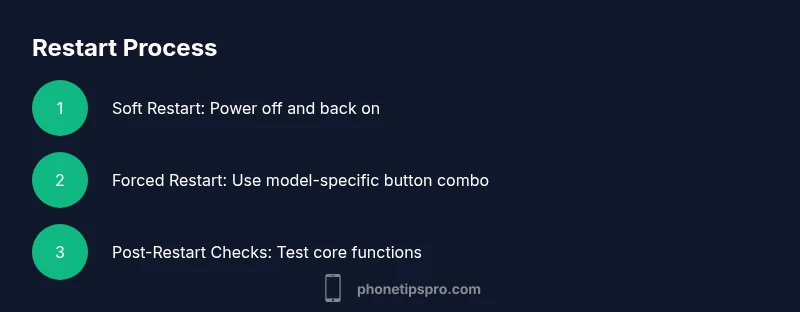
A soft restart, or graceful reboot, powers the device down and back up in the standard way. It preserves data and performs a routine system refresh. A forced restart, by contrast, is used when the device is unresponsive or stuck on the Apple logo. It forcibly reboots the hardware, which can interrupt unsaved work but helps recover from a non-responding state. Understanding which method to use is crucial: begin with a soft restart for minor glitches; escalate to a forced restart only if the screen remains unresponsive. This distinction matters across iPhone generations, including iPhone 8, iPhone X, and newer devices.
Step-by-Step Soft Restart (Device Responds Normally)
- Press and hold the side button (and one of the volume buttons on most models) until the power-off slider appears. Why: this confirms you’re issuing a proper shutdown request. 2) Drag the slider to power off and wait 30 seconds. Why: a short pause ensures all processes stop gracefully. 3) After the device shuts down, press and hold the side button again until the Apple logo appears. Why: this reinitializes system software cleanly. 4) Once booted, sign back in if needed and test a few core apps to confirm responsiveness. Tip: If you don’t see the slider, keep holding the buttons for a longer moment to trigger the shutdown.
Step-by-Step Forced Restart (Unresponsive Screen)
- iPhone 8 and later: Quickly press and release Volume Up, quickly press and release Volume Down, then press and hold the side button until the Apple logo reappears. Why: this sequence forces a reboot without data loss if the device is frozen. 2) iPhone 7/7 Plus: Press and hold the Volume Down and the Sleep/Wake (side) button for up to 10 seconds until the Apple logo shows. Why: this combination is tailored for older devices. 3) iPhone 6s and earlier: Press and hold the Home button and the Sleep/Wake button until the Apple logo appears. Why: this classic method works on legacy hardware. 4) After the logo appears, release the buttons and allow the device to finish booting. If the device charges slowly, connect it to a charger before retrying.
After Restart: What to Check
Once your iPhone restarts, verify basic functionality: swipe responsiveness, keyboard input, touch accuracy, and app launch times. Open Settings to check battery health and iOS version, then run a quick app check to ensure nothing remains stuck in memory. If problems persist, consider clearing app caches, updating to the latest iOS, or performing a backup and, as a last resort, a factory reset. Phone Tips Pro recommends keeping a current backup so you won’t lose data during troubleshooting.
Special Scenarios: After an Update or Battery Anomaly
Software updates can temporarily affect performance; a restart often resolves post-update hiccups. If your battery drains unusually fast after a restart, check Battery Health in Settings, review background activity, and ensure you’re on a supported iOS version. If your iPhone won’t restart after a recent update, you may need to reinstall the update or restore from a backup while preserving data. In all cases, avoid repeatedly force restarting if the device heats up, as sustained thermal stress can impact longevity.
Data Safety: Backups Before Real Troubleshooting
Backing up before any reboot—especially if you plan to troubleshoot more deeply—protects your information. Use iCloud or a computer to create a recent backup before attempting complex steps like recovery mode or factory reset. This precaution minimizes data loss and makes it easier to restore your settings and content if something goes awry during troubleshooting. The Phone Tips Pro team highlights backups as a best practice for proactive device care.
Troubleshooting If Restart Doesn’t Help
If restarting doesn’t resolve the issue, there may be a software or hardware problem. Check for iOS updates, review storage usage, and test in Safe Mode (where available) to isolate problematic apps. If the device still misbehaves, contact Apple Support or visit an Apple Store for diagnostics. Remember to bring a recent backup and your device’s serial number for efficient service.
Quick Troubleshooting Checklist
- Soft restart first, then force restart only if unresponsive.
- Ensure the device is charged or connected to power.
- Back up data before performing advanced steps.
- Update iOS to the latest version.
- If issues persist, seek official support rather than attempting risky repairs.