iPhone Alarm Not Going Off: Quick Fixes and a Step-by-Step Guide
Struggling with an iPhone alarm not going off? This expert guide walks you through quick checks, a diagnostic flow, and practical fixes to restore reliable wakeups every day.


Commonly, an iPhone alarm not going off is caused by a misconfigured alarm, muted volume, or a conflicting Do Not Disturb setting. Start by confirming the alarm is set for the correct time and sound, then check Silent/Ring, Focus modes, and any schedule conflicts. Follow these steps for a quick, reliable fix. If the issue persists after basic checks, update iOS, restart, or reset alarms.
Why the iphone alarm not going off
According to Phone Tips Pro, the reliability of your
Quick checks you can perform in seconds
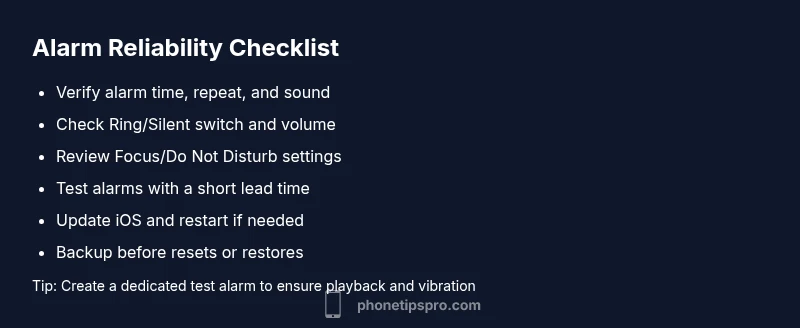
- Confirm the alarm is enabled, set for the correct time, and has a distinct sound. A simple mis-tap can render the alarm ineffective.
- Check the hardware volume and the Ring/Silent switch. If the switch is in silent, the alarm may not play audible alerts even if the alarm is active.
- Inspect Do Not Disturb and Focus settings. If a Focus mode is active during your wake window, alarms can be silenced without obvious clues.
- Verify date, time zone, and system clock accuracy. A mismatch here can cause alarms to ring at the wrong time or not at all.
- Review the alarm’s repeat days and the alarm label. A recurring misconfiguration can mask itself as a failed alarm until you inspect settings.
Diagnostic flow to isolate the cause
When an alarm misbehaves, think in a loop: symptom → likely causes → fixes → retest. Start with the simplest checks (volume, mute switch, Focus) and move toward more involved steps (
Step-by-step plan at a glance
If you’ve confirmed basic settings and the alarm still doesn’t sound, you’ll follow a progression: first re-check configuration, then adjust audio routes, then address software state, and finally escalate to a reset or restore if needed. The goal is to restore predictable wakeups without erasing personal data. Always test after each change to isolate the effective fix. If you’re uncomfortable with any step (like a reset), seek professional help to avoid data loss or misconfigurations.
Preventive strategies to keep alarms reliable
To minimize future issues, keep
Steps
Estimated time: 20-40 minutes
- 1
Verify alarm settings
Open the Clock app, tap Alarm, and confirm the time, repeat options, and sound. Make a note of the exact configuration you’re using, in case you compare with a working alarm later.
Tip: Tip: Create a test alarm set for 5 minutes ahead to confirm playback. - 2
Check hardware volume and switch
Ensure the ringer volume is up and that the Ring/Silent switch is not silencing alerts. Test with a standard notification sound to confirm the volume path works.
Tip: Tip: Use a loud alert to verify audible output. - 3
Review Focus/Do Not Disturb
Check Settings > Focus for any active profiles during your wake window. If a Focus mode is enabled during the alarm, disable it temporarily to see if the alarm sounds.
Tip: Tip: Temporarily turn off Focus to test the alarm. - 4
Update iOS and restart
Go to Settings > General > Software Update and install any available updates. After updating, restart the iPhone to clear transient software issues.
Tip: Tip: A simple restart can fix many minor glitches. - 5
Reset alarms or alarms data
Delete all alarms in the Clock app and recreate a fresh alarm with a distinct sound and no duplicates.
Tip: Tip: Note settings before deletion so you can recreate them exactly. - 6
Backup and restore if needed
If alarms still fail, backup your iPhone and perform a restore via iTunes/Finder or iCloud. This should be a last resort.
Tip: Tip: Ensure you have a current backup before a restore.
Diagnosis: Alarm fails to ring at scheduled time
Possible Causes
- highAlarm is turned off or disabled
- highVolume muted or Ring/Silent switch engaged
- highDo Not Disturb or Focus mode silencing alarms
- mediumSoftware bug or outdated iOS
- lowIncorrect time zone/date settings
Fixes
- easyEnsure the alarm is enabled, time is correct, and tone is selected
- easyIncrease volume and verify Ring mode is active
- easyDisable Do Not Disturb/Focus during wake window
- easyRestart iPhone and quit Alarm app, then test again
- easyUpdate iOS to the latest version
- hardReset All Settings if nothing else works
FAQ
Why is my iPhone alarm not going off even though I set it?
There are several common causes: an incorrect time, a muted volume, or Do Not Disturb/Focus mode silencing alarms. Verify the alarm details, test with a new alarm, and ensure iOS is up to date before moving to deeper fixes.
Usually it’s due to a settings or software issue. Check the alarm details, sound, and Focus mode, then test with a new alarm.
Can Focus or Do Not Disturb silence my alarm?
Yes. Focus or Do Not Disturb can suppress notification sounds at certain times. Review Focus schedules and disable them during your wake window to see if the alarm sounds.
Focus modes can silence alarms during set times, so check and temporarily disable them to test.
Will updating iOS fix alarm issues?
Software updates often fix bugs that prevent alarms from sounding. After updating, restart your iPhone and test the alarm again.
An update can resolve bugs that block alarms; restart and test after updating.
How can I test an alarm to confirm it works?
Set a short-term alarm a few minutes ahead and verify it rings with sound and vibration. If it doesn’t, proceed with the other troubleshooting steps.
Set a quick alarm a few minutes ahead and listen for sound and vibration.
What should I do if none of the fixes work?
If all fixes fail, back up your data and contact Apple Support or visit an Apple Store for hands-on assistance. There may be a hardware or deep software issue.
If it still fails, back up and seek Apple Support for deeper diagnostics.
Watch Video
Quick Summary
- Verify alarm settings and tone first
- Check Focus and Do Not Disturb states
- Update iOS before heavier fixes
- Test alarms after each change
- Back up before any reset or restore