How to Fix iPhone Not Ringing: Urgent Troubleshooting
Urgent guide to fix iPhone not ringing for incoming calls. Quick checks, step-by-step fixes, and prevention tips to restore a reliable ring now.


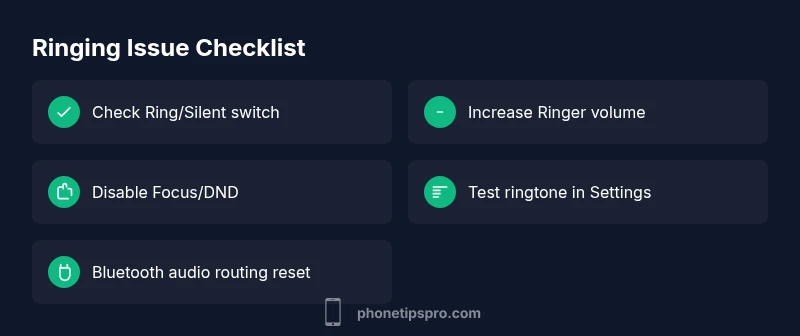
Most iPhone ringing issues come from simple settings or routing rather than hardware. Start with a quick fix: ensure the Ring/Silent switch isn’t silencing calls, raise the Ringer volume, and check that Do Not Disturb or Focus isn’t blocking rings. If it still doesn’t ring, continue with the full step-by-step troubleshooting below.
Why this issue happens and what the search phrase "how come iphone doesn't ring" usually means
According to Phone Tips Pro, most ringing problems aren’t a failing speaker but a settings or routing issue. When someone searches for how come iphone doesn't ring, they often need fast, actionable checks rather than a long warranty claim. In this section, we cover the most common scenarios: the phone is silenced, Do Not Disturb or Focus is active, the Ring volume is too low, or call audio is being routed to Bluetooth devices or wired headphones. We also explain how to perform quick tests to distinguish software from hardware problems. The goal is to restore audible rings for incoming calls quickly and without guesswork.
Quick checks you can perform in 5 minutes
- Verify the Ring/Silent switch on the side of the iPhone is in the ring position (not showing orange).
- Increase the Ring volume via the side buttons or Settings > Sounds & Haptics > Ringer and Alerts.
- Open Control Center and confirm Do Not Disturb/Focus is off; if Focus is on, switch it off or adjust exceptions.
- If you recently connected Bluetooth devices, disconnect them and test ringing through the iPhone speaker again.
- Make a test call from another phone and listen for the ring tone and notification sound. If you hear the ring, the issue is likely routing or a mode setting; if not, move to the next checks.
Focus modes, Do Not Disturb, and emergency alerts
iOS Focus modes can silence calls from everyone except certain allowed people. Do Not Disturb (DND) might be scheduled to activate during your work hours or at night. Check Settings > Focus and ensure all basic modes are disabled or properly configured with allowed callers. Also review Settings > Do Not Disturb (older iOS versions) to confirm it isn't set to mute calls during certain times. If alerts or emergency sounds are disabled, you may not hear incoming calls even when the screen lights up.
Audio routing, Bluetooth devices, and accessories
Sometimes calls route to a connected Bluetooth device or connected headset, so you won't hear the iPhone ring. Check Settings > Bluetooth and disconnect any devices you aren't using. You can also test sound output by playing a ringtone in Settings > Sounds & Haptics > Ringtone. If you hear it through the speaker after disconnecting devices, the issue was routing; if not, proceed with the next checks.
Ringtone settings, test tones, and volume calibration
Go to Settings > Sounds & Haptics > Ringtone and pick a tone you recognize. Tap the tone to preview it and confirm you hear it clearly. Also verify the alert volume under Settings > Sounds & Haptics > Volume is not muted or set too low. If the preview sounds faint or uses a non-default tone, reselect a tone and test again. Some users accidentally disable all alert sounds via Accessibility settings; recheck those options as a precaution.
Software health, updates, and occasional resets
If none of the above fixes work, consider an iOS update or a reset of settings. A software glitch can occasionally disrupt the ringing path, especially after big updates. In Settings > General > Software Update, install any available update. If needed, you can reset all settings (Settings > General > Transfer or Reset iPhone > Reset > Reset All Settings) without erasing your data, but you may need to reconfigure Wi‑Fi passwords and preferences afterward. If the problem persists after a reset, professional support is advised.
Steps
Estimated time: 20-45 minutes
- 1
Check Ring/Silent switch
Locate the switch on the left side of your iPhone. If you see orange, switch it toward the screen to enable ringing. Then play a quick sample ringtone from Settings > Sounds & Haptics > Ringtone to confirm the device produces sound.
Tip: Tip: Always re-test after any switch adjustment to confirm effect. - 2
Increase Ring volume
Increase the Ringer volume using the side volume buttons while watching the screen. If you still hear nothing, go to Settings > Sounds & Haptics and raise the Ringer and Alerts volume slider.
Tip: Tip: Do not rely on Silent mode alone—test aloud after adjusting. - 3
Disable Focus/Do Not Disturb
Open Settings > Focus and turn off any active Focus profiles. Check the Control Center to ensure the Focus icon is off. If you use DND, set it to off or allow calls from Favorites during tests.
Tip: Tip: A scheduled Focus could reactivate automatically; review schedules here. - 4
Review audio routing
If you recently paired a Bluetooth device, disconnect it and play a ringtone to confirm it echoes from the iPhone speaker. Check Settings > Bluetooth and remove any unused devices.
Tip: Tip: For some devices, toggling AirPlay or audio routing helps reset the path. - 5
Test with different tones
In Settings > Sounds & Haptics > Ringtone, select a different tone and tap to preview. Ensure the Test Audio plays clearly through the speaker.
Tip: Tip: Some tones are quiet—test several to ensure audible results. - 6
Check for software updates
Go to Settings > General > Software Update and install any available update. Updates can fix known ringing issues.
Tip: Tip: Back up important data before major updates. - 7
Reset settings if needed
If the issue persists, reset all settings (Settings > General > Transfer or Reset iPhone > Reset > Reset All Settings). This preserves data but reconfigures preferences.
Tip: Tip: Keep track of Wi‑Fi passwords and personalization after reset. - 8
Know when to seek help
If you still can’t hear calls after all steps, there could be a hardware issue or deeper software fault. Contact Apple Support for diagnosis.
Tip: Tip: Use Apple Support Channel or an authorized service provider for accuracy.
Diagnosis: iPhone won\'t ring for incoming calls even when not in silent mode
Possible Causes
- highMute/Silent switch engaged
- highDo Not Disturb or Focus mode enabled
- highLow Ring/Silent volume setting
- mediumCall audio routing to Bluetooth/headphones
- lowRingtone or alert sound disabled
Fixes
- easyToggle Ring/Silent switch and raise the volume
- easyDisable Do Not Disturb/Focus mode, or adjust its allowances
- easyDisconnect Bluetooth devices and reset audio routing
- easyChange the ringtone and test sound levels
- mediumReset all settings if the issue persists
FAQ
Why isn\'t my iPhone ringing for incoming calls?
Common causes include Do Not Disturb, Focus modes, low volume, and audio routing to Bluetooth. Start with quick checks and then follow the step-by-step guide.
Most often it’s a setting or routing issue. Begin with DND and volume checks, then test again.
How do I disable Do Not Disturb or Focus mode on iPhone?
In Settings, open Focus or Do Not Disturb and turn them off or adjust allowed callers. You can also toggle the Focus icon in Control Center.
Go to Focus or DND in Settings and switch off.
What if Bluetooth is routing calls away from the iPhone speaker?
Disconnect Bluetooth devices in Settings > Bluetooth and test ringing. Ensure audio routing is set to iPhone speaker when available.
Disconnect Bluetooth devices and test again.
How can I test if the ringtone works on my iPhone?
Go to Settings > Sounds & Haptics > Ringtone, choose a tone, and tap to preview. Confirm you hear it clearly.
Select a tone and preview it in Settings.
When should I contact Apple Support?
If nothing fixes the issue, there may be a hardware or deeper software fault. Reach Apple Support for diagnostics.
If it still won\'t ring after all steps, seek Apple Support.
Watch Video
Quick Summary
- Verify Ring/Silent switch and volume first.
- Disable Focus and Do Not Disturb if enabled.
- Check for Bluetooth routing and re-route audio to speakers.
- Test ringtone in Settings and adjust tones.
- Escalate to support if issues persist after all checks.