Why is My iPhone Not Ringing? A Practical Troubleshooting Guide
Struggling with an iPhone not ringing? This urgent, step-by-step guide helps you diagnose and fix ringing issues fast, covering DND, volume, ringtone settings, and potential hardware problems. Get back to normal calls quickly.


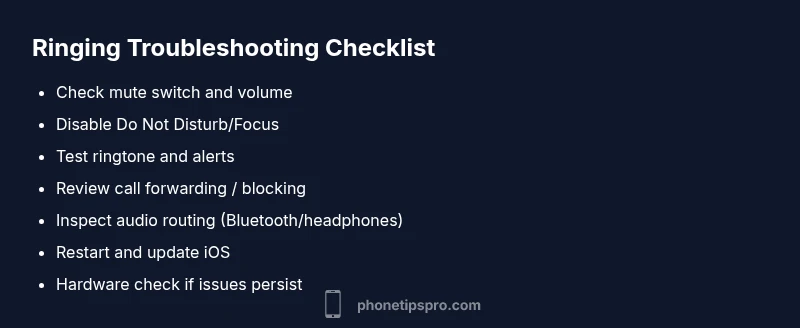
Most iPhone ringing issues come from simple settings, not hardware. Start by checking the mute switch, ringer volume, and Do Not Disturb or Focus mode. If these are correct, perform a quick reboot and test with a known ringtone. This sequence fixes the majority of non-ringing problems. If it still won't ring, move to the deeper checks in the body.
Check the Physical Hardware and Quick Settings
Before diving deeper, rule out the simplest issues. Inspect the side mute switch to ensure your iPhone isn’t accidentally silenced. Toggle Silent off and raise the volume using the side buttons or Control Center. If you use a case, make sure it isn’t muting the speakers. Listen closely for a clear ring tone when you receive a test call from another phone. If the speaker sounds muffled or weak, debris or a hardware fault could be the culprit. This block also covers verifying that the device is not stuck in a muted profile due to accessibility shortcuts. According to Phone Tips Pro, many ringing problems originate from these quick checks, so starting here saves time and frustration.
Verify Do Not Disturb and Focus Modes
Do Not Disturb (DND) or Focus modes can silence calls without obvious signs. Open Settings > Focus (or Do Not Disturb on older iOS) and ensure “Silence” is set to “While iPhone is unlocked” or disabled for calls from everyone. Check scheduled or automatic activations that might turn on unexpectedly (like during bedtime or work hours). If DND or Focus is active, incoming calls won’t ring, but notifications may still appear. Temporarily disable Focus modes and test by asking someone to call you. If the issue resolves, adjust the schedules or allow calls from favorites or all contacts.
Confirm Ring/Silent Switch and Volume
The hardware Ring/Silent switch should be in the up position for ring mode. If it’s stuck, gently toggle it a few times to free the mechanism. Then verify the ringer volume is set high enough: swipe down from the top-right (or up from the bottom on older models) to open Control Center and drag the volume slider. Ensure “Ringtone” is the selected alert tone under Settings > Sounds & Haptics. If the device is connected to a Bluetooth audio device, audio may be routed there instead of the speaker, so disconnect Bluetooth devices and test again.
Test with a Custom Ringtone and Alerts
Set or reset your default ringtone to confirm the issue isn’t tied to a specific sound file. Go to Settings > Sounds & Haptics > Ringtone and choose a different tone, then request a test call. If you hear the ringtone, it’s likely your prior ringtone file was corrupted or missing. Also check alert tones for text messages and missed calls; sometimes only one notification channel is affected. If none of the tones play, the problem might involve the overall audio pathway or a software glitch.
Check Call Forwarding, Blocked Numbers, and Silence by Contacts
Call forwarding can route incoming calls away from your iPhone to another line, effectively making it seem like it isn’t ringing. Verify Settings > Phone > Call Forwarding is off (or configured as desired). Review blocked numbers to ensure legitimate callers aren’t blocked by mistake. Some contact groups may be muted if you have custom notification settings. If you recently added new SIM profiles or carrier settings, ensure they are properly activated and not redirecting calls.
Inspect Third-Party Apps and Accessibility Features
Some apps can interfere with normal call handling or sound routing, particularly call-blocking apps or those with advanced notification controls. Review recently installed apps and remove or disable any that claim to manage calls or sounds. Also check accessibility features such as Audio/Visual settings, mono audio, or headphone modes that could route sound differently. Disable any third-party sound modifiers and re-test ringing.
Software Troubleshooting: Restart, Reset, and Updates
Software glitches can disrupt core iPhone functions including ringtones. Perform a soft restart first: hold the side button and volume button until the power-off slider appears, then power back on. If problems persist, try Reset All Settings (Settings > General > Transfer or Reset iPhone > Reset > Reset All Settings) which preserves data but resets network, home screen, and system settings. Check for iOS updates and install any pending ones, as they often fix audio and notification bugs. Always backup before more invasive steps.
Storage, Network, and Audio Output Considerations
Low storage can impact notification and alert delivery, including ringtones. Free up space if your device is nearing full capacity. Network issues can affect call notifications in some scenarios, so ensure your SIM is properly seated and network settings are correct. Finally, verify the audio output path: ensure earbuds or Bluetooth devices aren’t connected unintentionally; reconnect to the iPhone speaker for testing. If you’re using an external accessory, disconnect it to isolate the problem.
When to Seek Professional Help and Prevention Tips
If all basic and mid-level checks fail, a hardware fault such as a damaged speaker may be the cause. Contact Apple Support or an authorized service provider for a diagnosis. Prevent future issues by keeping iOS updated, backing up regularly, and performing periodic maintenance like cleaning the speaker grille, checking accessories, and avoiding exposure to moisture. Regular checks on sound settings can prevent recurrences after updates.
Steps
Estimated time: 25-45 minutes
- 1
Check mute switch and volume
Locate the physical mute switch on the side of the iPhone and flip it to the ring position. Increase the volume using the side buttons or Control Center. Test by asking someone to call you or by using the test call feature in Settings if available.
Tip: If the switch feels stuck, gently toggle it several times to free the mechanism. - 2
Disable Do Not Disturb / Focus
Open Settings > Focus (or Do Not Disturb) and turn it off. If you prefer schedules, ensure calls from favorites or everyone are allowed. Retest the incoming call to verify there is no silence.
Tip: Consider temporarily disabling Focus during testing to rule out scheduling conflicts. - 3
Test a different ringtone
Go to Settings > Sounds & Haptics > Ringtone and choose a different tone. Save and perform a test call. If the new tone works, the previous file may be corrupted.
Tip: Choose a simple, distinct ringtone to avoid ambiguity during testing. - 4
Check for call forwarding or blocking
Navigate to Settings > Phone to verify Call Forwarding is off and review Blocked Contacts. Ensure legitimate callers aren’t blocked by mistake.
Tip: If forwarding is needed, note the rule and test with a trusted contact. - 5
Restart and update
Restart the device, then go to Settings > General > Software Update and install any available updates. Re-test ringing after the update completes.
Tip: Back up your data before major updates or resets. - 6
Reset all settings if needed
If issues persist, reset all settings (not content) to default. Reconnect Wi‑Fi, re-enter passwords, and verify ring behavior after reset.
Tip: Only perform this if you have recently changed many settings; it can fix misconfigurations. - 7
Check audio path and accessories
Disconnect Bluetooth devices and any wired headphones. Confirm the iPhone plays sound through the speaker. Reconnect devices one by one to identify routing issues.
Tip: Never leave Bluetooth devices connected during critical testing to isolate issues. - 8
Hardware check and support
If none of the steps resolve the issue, a speaker or internal hardware fault could exist. Schedule a repair with Apple Support or an authorized service provider.
Tip: Bring proof of purchase if needed and request a diagnostic in advance.
Diagnosis: iPhone won't ring for incoming calls
Possible Causes
- highDo Not Disturb or Focus mode enabled
- highMute switch engaged or low ringer volume
- mediumRingtone not configured or corrupted
- mediumCall forwarding or accidental blocking
- mediumSoftware glitch or pending iOS update
- lowHardware speaker issue
Fixes
- easyTurn off Do Not Disturb/Focus and test ringing
- easyToggle mute switch and raise ringer volume; test again
- easyChange or restore ringtone; check alert tones
- easyDisable call forwarding and check blocked numbers
- easyRestart the iPhone and install any iOS updates
- mediumReset All Settings if needed (backup first)
- easyCheck Bluetooth/audio routing and external accessories
- hardConsult Apple Support for potential hardware issues
FAQ
Why is my iPhone not ringing even though the volume is up?
There are several common culprits: Do Not Disturb/Focus mode, the mute switch, or a misconfigured ringtone. Check each area in sequence and re-test after each change to isolate the cause.
Check DND and the mute switch first, then re-test with a new ringtone.
How do I turn off Do Not Disturb on iPhone quickly?
Swipe to open Control Center and tap the crescent moon icon to toggle Do Not Disturb off. Alternatively, go to Settings > Focus and turn off Focus mode entirely or adjust allowed calls.
Open Control Center, tap DND, and then test a call.
What if the iPhone speaker is damaged?
If the speaker hardware is damaged, you’ll likely hear no ring or distorted sound. Contact Apple Support or visit an authorized service provider for evaluation and repair.
If the speaker seems damaged, get a professional assessment.
Can third-party apps cause ringing problems?
Yes. Some call-blocking or audio-modifying apps can interfere with normal ringing. Review recently installed apps and disable or uninstall anything that controls calls or alerts.
Check for apps that manage calls or sounds and disable them if needed.
Will an iOS update fix not-ringing issues?
Updates often include bug fixes for notifications and audio routing. Install any pending updates and re-test ringing after the installation completes.
Install available iOS updates and test the ringtone again.
When should I seek professional help?
If you’ve exhausted all troubleshooting steps and the problem persists, contact Apple Support or visit an authorized service provider for a hardware diagnosis.
If troubleshooting fails, get expert help.
Watch Video
Quick Summary
- Check hardware switches and volume first
- Disable Do Not Disturb and Focus modes during testing
- Test with a fresh ringtone and verify call forwarding
- Back up before major resets or restores