Track iPhone Location: A Comprehensive How-To
Learn reliable steps to track iPhone location using Find My, privacy tips, and troubleshooting. This Phone Tips Pro guide covers prerequisites, common issues, and best practices for staying safe and respectful of privacy.


Track an iPhone location using Find My with your Apple ID by ensuring Find My iPhone is enabled, location services are on, and an internet connection is available. This quick answer outlines the prerequisites and the basic steps to view, share, and secure location data in a responsible way. Follow the detailed steps below for a complete, privacy-conscious workflow.
Why Location Tracking Helps iPhone Owners
For many iPhone users, keeping tabs on location data is a practical safeguard. Whether you’ve misplaced a device, want to ensure a family member’s safety, or need to confirm a device’s whereabouts for peace of mind, tracking location with Find My can be a reliable tool when used ethically and with consent. The Phone Tips Pro team understands that location tracking intersects with privacy, security, and personal responsibility. By using built-in tools, you avoid third-party apps that may compromise data. When used correctly, iphone tracking location features empower you to reduce anxiety, recover devices faster, and coordinate with trusted contacts without exposing sensitive information publicly. Always start with consent and clear boundaries.
Prerequisites and Privacy Boundaries
To track an iPhone location effectively, you must meet a few baseline requirements and respect privacy frameworks. Ensure you are signed in to iCloud with the same Apple ID on the device you want to locate. Location services should be turned on, and Find My iPhone must be enabled in iCloud settings. A stable internet connection (cellular or Wi‑Fi) is essential for real-time updates. If you’re sharing your location with others, confirm that those recipients have agreed to receive updates. Phone Tips Pro advises documenting consent and limiting location sharing to trusted contacts to protect everyone’s privacy and security. Consider the implications of sharing location data, and review app permissions regularly to prevent accidental disclosures.
How Find My iPhone Location Works
Find My uses Apple’s secure ecosystem to translate a device’s GPS coordinates, nearby Wi‑Fi networks, and cell towers into a map location you can view from another device. If the iPhone is online, updates appear quickly; if offline, the system stores a last known location and sends a notification when the device reconnects. Location data is encrypted end-to-end and tied to the user’s Apple ID, reducing the risk of interception. Real-world usage often involves a mix of live updates and recently cached data, which can still be invaluable for locating a device or coordinating with someone you trust. This approach aligns with best practices and user privacy expectations.
Step-by-Step: View Location on iPhone and Prepare to Share
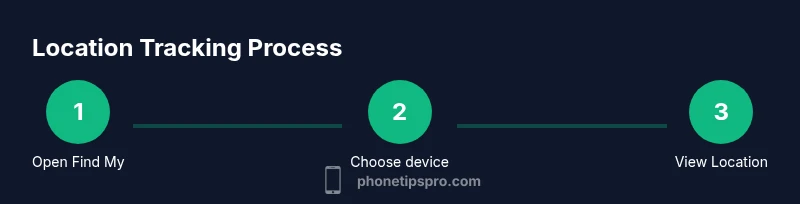
Viewing location is only the first step. Preparing to share location with family or trusted friends adds transparency and accountability, which is especially important for guardianship or safety scenarios. Begin by opening Find My and selecting your device. You can view the current location on a map, play a sound to locate the device if nearby, or enable “Share My Location” to keep others updated in real time. Always verify the accuracy of the map data and check that date stamps reflect the latest update. Phone Tips Pro recommends testing the setup in a safe, controlled environment to ensure that updates appear as expected before relying on it in an urgent situation.
Sharing Location with Family or Friends
Location sharing is most effective when used with Family Sharing or direct sharing with trusted contacts. You can choose to share your location with designated people for a specified period or indefinitely. When you share, others can see your live location, estimated arrival times, and movement history if you enable that feature. It’s important to configure permissions thoughtfully: limit access to the minimum necessary and review who can see your location regularly. Clear communication about why you’re sharing data helps reduce misunderstandings and builds trust. Phone Tips Pro emphasizes consent and transparency as the foundation of responsible location sharing.
Troubleshooting Location Updates
If Find My isn’t showing a current location, several factors could be at play. Check that the iPhone is powered on, connected to the internet, and has location services enabled. Make sure the device is signed in to iCloud and associated with the correct Apple ID. If you recently turned off Find My iPhone, re-enable it and re-check permissions. For offline devices, remember that the map will reflect the last known location until the device comes back online. If updates seem delayed, refresh the Find My app, restart the device, or switch between Wi‑Fi and cellular data to test connectivity. Phone Tips Pro notes that environmental factors and device settings can impact accuracy.
Privacy, Security, and Best Practices
Location data is sensitive. Treat it as private information and limit exposure to only trusted individuals. Review who can see your location and revoke access when it’s no longer needed. Regularly update your iPhone, iCloud settings, and any related Family Sharing configurations. When you’re finished locating a device, consider turning off location sharing to minimize ongoing exposure. Always pair tracking with safeguards like passcodes, Face ID, and device lockdown features to prevent misuse. The Phone Tips Pro guidance is to maintain a strong privacy posture while using Find My for responsible tracking.
Common Myths and Misconceptions
A frequent myth is that Find My provides perfect real-time accuracy in every situation. In reality, location can be influenced by GPS signal strength, interference, and environmental conditions. Another misconception is that you can track any iPhone without consent; Apple’s privacy model requires the user’s permission or a lawful basis for sharing. Always verify the device owner’s consent and rely on official tools rather than third-party apps that claim to enhance tracking. Understanding these nuances helps you use iphone tracking location features effectively and ethically.
When Location History Matters
Location history, when enabled, can provide a timeline of movements, which can be helpful for safety checks, insurance claims, or recovering a device after loss. However, it introduces ongoing data collection concerns, so enable it only if you’re comfortable with stored location data. Review history periodically and delete unnecessary records. Phone Tips Pro recommends documenting why you’re collecting history and who has access to it, maintaining a balance between usefulness and privacy.
Tools & Materials
- iPhone with Find My enabled(Ensure iCloud Sign-In and Find My iPhone active in Settings → [your name] → iCloud → Find My iPhone.)
- Trusted device (iPhone/iPad/Mac)(Used to view location data in Find My app or iCloud.com.)
- Stable internet connection(Wi‑Fi or cellular data for real-time updates.)
- Apple ID credentials(Needed to sign in to iCloud and access Find My data.)
- Optional: Family Sharing setup(Enables location sharing with designated family members.)
Steps
Estimated time: 15-25 minutes
- 1
Sign in and enable Find My iPhone
Open Settings, tap your Apple ID, then iCloud (or Find My). Ensure Find My iPhone is turned on and that you’re signed in with your Apple ID. This creates the attachment between device data and your iCloud account.
Tip: Verify that Find My iPhone is enabled on the device you want to track before needing it later. - 2
Open Find My on a trusted device
On a trusted iPhone, iPad, or Mac, open the Find My app or visit iCloud.com. Sign in with the same Apple ID used on the target device. This connects you to the device list that you can locate on a map.
Tip: If you don’t see the device, refresh the app or sign out and back in to refresh your session. - 3
View the device location on the map
Select the target device to view its current location on the map. If the device is online, you’ll see live updates; if offline, you’ll see the last known location and timestamp.
Tip: Use the map to zoom and verify accuracy; a nearby Wi‑Fi network can help triangulate a precise spot. - 4
Play sound or mark as lost
If you’re nearby, use Play Sound to locate the device by its audible notification. If the device is truly lost, enable Lost Mode to secure it and display a contact number on the lock screen.
Tip: Only act on devices you own or have explicit permission to locate. - 5
Share your location with trusted contacts
In Find My, choose Share My Location and add trusted contacts. You can set the duration or keep it ongoing. This keeps family or friends informed about your movements.
Tip: Limit sharing duration to the minimum necessary; review access periodically. - 6
Notify when the device comes online
If the device is offline, enable Notify When Found. You’ll receive a notification when it reconnects to the internet, updating you with a new location.
Tip: This is helpful when a device is temporarily unreachable due to deep sleep or network issues.
FAQ
Can you track someone else’s iPhone without their knowledge?
No. Tracking another person’s iPhone without explicit consent is both unethical and often illegal. Use Family Sharing with clear agreement or obtain permission before enabling any location sharing.
Tracking someone’s iPhone without consent is illegal in many places; always get permission or use official Family Sharing with consent.
What is Find My and how does it work for location tracking?
Find My is Apple’s built‑in service to locate Apple devices using GPS, Wi‑Fi, and nearby networks. It displays a device’s location on a map when online and can play a sound or mark the device as lost for security.
Find My helps you locate devices online and take actions like playing a sound or enabling Lost Mode.
Can location tracking work when the iPhone is offline?
Offline devices show the last known location until they reconnect to the internet. Once online, updates resume with new location data.
Last known location remains until the device reconnects to the internet.
How accurate is Find My location data?
Accuracy depends on GPS signals, device settings, and network conditions. It’s usually sufficient for locating a device indoors or outdoors but can vary.
Accuracy varies with GPS and network conditions; expect good results but not perfect pinpointing.
How do I stop sharing my location?
Open Find My, go to Location Sharing, and turn off sharing or remove specific contacts. You can also disable Share My Location globally.
You can stop sharing by turning off Location Sharing in Find My or removing people.
What should I do if Find My isn’t updating?
Check your internet connection, ensure Find My is enabled, sign in with the correct Apple ID, and restart the app. If issues persist, sign out and back in or contact Apple Support.
If updates fail, verify connection and settings, then try restarting the app or device.
Watch Video
Quick Summary
- Know prerequisites before tracking location.
- Use Find My with consent and trust.
- Keep data private by limiting access.