Is My iPhone Hot? Urgent iPhone Overheating Troubleshooting
Is your iPhone running hot? This urgent troubleshooting guide from Phone Tips Pro covers quick fixes, safety steps, and when to seek professional help. Learn to cool quickly, identify causes, and prevent future overheating.


Your iPhone overheating is most often caused by a hot environment, heavy processing, or charging in warmth. Quick fixes: move to shade, remove a thick case, close graphics-heavy apps, enable Low Power Mode, and avoid charging in direct sun. If it stays hot for more than 15 minutes, unplug and cool it down, then seek professional help if necessary.
What 'Is My iPhone Hot' Really Means
When users search for is my iphone hot, they want an urgent, actionable answer. Overheating is a symptom that your device is under stress from either its environment or its workload. According to Phone Tips Pro, overheating is a common issue, especially in warm rooms, cars, or during long gaming sessions. The iPhone’s sensors will throttle performance or dim the screen to protect internal components when temperatures rise. Recognizing the signs early can prevent long-term battery wear and unexpected shutdowns. This section helps you distinguish normal warmth from risky heat and sets the stage for fast, safe mitigation.
Immediate Safety Steps to Take Right Now
If you notice your iPhone is hot, take immediate precautions to avoid damage. Start by unplugging from charging if applicable and moving the device to a cooler, shaded area. Remove any bulky case to improve airflow and avoid covering the back housing. Activate Low Power Mode and reduce screen brightness temporarily to lower power draw. Do not place the device in a freezer or use a strong fan directly on it—rapid cooling can cause condensation. If the phone still feels hot after 15 minutes, turn it off and let it rest on a non-slip surface until it returns to a normal temperature.
Check Your Environment and Daily Habits
Environment matters more than most people realize. High ambient temperatures, direct sunlight, or leaving the phone in a hot car can drive temperature up quickly. Daily habits also contribute: long gaming sessions, streaming in high quality, and background tasks that drain CPU cycles increase heat. Keep the device out of sunlit areas, away from heaters, and off during heavy tasks if feasible. By adjusting where and how you use the phone, you reduce the frequency of heat buildup and preserve battery health over time. The Phone Tips Pro team notes that consistent environmental control is one of the strongest preventive measures.
Software and Battery Culprits to Watch For
Software can silently push a device over the heat threshold. Outdated iOS builds may cause inefficiencies, while certain apps pull resources in the background. Check for a battery health reading under Settings > Battery > Battery Health; if the maximum capacity is low or the peak performance capability is degraded, consider a replacement. Disable Background App Refresh for apps you don’t need running constantly, and close apps that show high activity in the multitasking view. Keeping iOS up to date and managing app behavior are effective, low-friction steps that Phone Tips Pro analysis shows reduce heat in most cases.
Diagnostic Checklist You Can Run at Home
- Observe your iPhone under normal use: does the heat appear only during specific tasks? This helps pinpoint the cause.
- Check battery health and update to the latest iOS version.
- Review running apps and close any that are graphic-intensive or unusually active in the background.
- Ensure you are not charging in direct sun or in a hot environment.
- Test with and without a protective case to see if airflow improves cooling.
- If swelling or loud battery signs appear, stop using the device and seek professional service immediately.
Step-by-Step Fixes for the Most Common Cause: Heavy Processing or Gaming
- Identify the culprit by checking recent app usage and heat patterns. Close the app and observe changes. Tip: Use a task switcher to fully close apps.
- Move to a cooler environment and remove the case to improve heat dissipation. Tip: Do not place the phone on a heat source.
- Enable Low Power Mode and lower screen brightness to reduce power drain. Tip: Refrain from running high-demand visuals while cooling.
- Update iOS and the problematic apps; reinstall if necessary. Tip: Fresh installs can clear runaway background processes.
- If the device still overheats after 20–30 minutes of cooling and standard fixes, consider a battery health check or professional inspection for potential replacement.
- Document recurring issues and monitor battery health after any fix. Tip: Regular checks help catch gradual wear early.
tip":"If applying fixes, prioritize safety: avoid sudden temperature swings and do not thaw a device in uncontrolled environments."}
How to Prevent Overheating in Daily Use
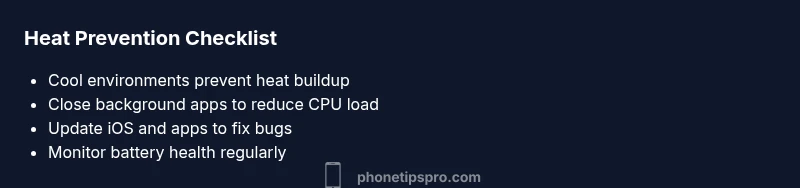
Prevention is easier than cure. Keep iOS updated to benefit from performance and thermal efficiency improvements. Use a cool, well-ventilated environment for intensive tasks, especially during gaming or video editing. Limit prolonged high-performance activities in heat, and manage background processes by disabling nonessential refresh and services. Keep the device out of direct sun and avoid charging overnight in hot rooms. Consider using a fan or air-conditioned space during heavy sessions, but never point a device directly at a powerful air stream for extended periods.
When to Seek Professional Help and What to Expect
If overheating becomes a persistent pattern despite following the steps above, or you notice battery swelling, abnormal battery drain, or the device shuts down unexpectedly, contact a professional. A technician can assess battery health, perform a battery replacement if needed, and check for hardware issues in the logic board or sensor array. The Phone Tips Pro team recommends acting quickly when you notice recurring heat, as prolonged overheating can degrade battery performance and long-term reliability.
Steps
Estimated time: 45-60 minutes
- 1
Identify heat pattern
Observe when your iPhone heats up most (gaming, camera use, charging). Check Settings>Battery to see if a specific app is responsible. This helps target the fix quickly.
Tip: Note the app or activity that correlates with heat. - 2
Move to a cooler environment
Take the device to shade or an air-conditioned room. Remove the phone case to improve airflow and prevent heat from getting trapped near the chassis.
Tip: Avoid direct airflow from fans that can let in dust. - 3
Conserve power and reduce load
Enable Low Power Mode and lower screen brightness. Close all nonessential apps and pause background tasks.
Tip: Use airplane mode if you don’t need network activity during cooling. - 4
Update software and apps
Check for iOS updates and app updates. Reinstall apps that show abnormal activity after updates.
Tip: A clean install can clear runaway background processes. - 5
Assess battery health
Go to Settings > Battery > Battery Health to check maximum capacity and peak performance. If health is poor, plan a replacement and avoid heavy use until serviced.
Tip: Battery health indicators help decide replacement timing. - 6
When to seek professional help
If the device remains hot after cooling, or you notice swelling, seek service promptly. A professional can diagnose hardware faults and perform safe repairs.
Tip: Don’t attempt hardware repairs yourself.
Diagnosis: iPhone won't stay cool during use or charging
Possible Causes
- highHigh ambient temperature or direct sun
- highHeavy processing from games or video editing
- highCharging in a hot environment
- mediumBattery health degradation or sensor fault
Fixes
- easyMove to a cooler, shaded area and remove bulky case
- easyClose background apps and enable Low Power Mode
- easyUpdate iOS and problematic apps; consider a fresh install
- mediumCheck Battery Health and consider replacement if capacity is low
- mediumIf heat persists, power off and seek professional service
FAQ
Why does my iPhone get hot even when I’m not using it?
Background activity, software bugs, or a rogue app can cause heat even when idle. Check for apps that run in the background and update iOS to fix potential issues. If the phone remains hot, turn it off and inspect battery health.
Background activity can heat the device; update iOS and close apps. If heat persists, power down and check battery health.
Can charging with a case cause overheating?
Yes, some cases trap heat and reduce airflow, especially in hot environments. Remove the case while charging in warm settings and ensure the device has room to vent.
A case can trap heat; try charging without the case in a cooler spot.
Is overheating harmful to the battery long-term?
Prolonged heat can accelerate battery wear and reduce capacity over time. Use cooling steps, limit high-performance tasks, and monitor battery health to mitigate long-term damage.
Long-term heat can wear the battery; keep it cool and check health regularly.
Should I use a fan or other methods to cool my iPhone?
Direct fans can blow dust into ports or create condensation. Use a fan at a safe distance or move to a cooler area instead, avoiding extreme cooling methods.
Avoid direct, powerful fans; move to a cooler area and use gentle cooling.
What if the iPhone overheats during charging only?
Charging in heat or a faulty charger can cause overheating. Use original chargers, avoid fast charging in hot environments, and try a different charger if available.
If it heats during charging, check your charger and environment and switch chargers if needed.
When should I seek professional help for overheating?
If overheating persists after cooling, or you notice swelling, irregular behavior, or persistent battery drain, seek professional service promptly.
If it keeps getting hot after cooling, get a professional check.
Watch Video
Quick Summary
- Cool the device promptly when it overheats
- Close heavy apps and enable Low Power Mode
- Update iOS and monitor battery health
- Avoid charging in direct sun or hot environments
- Seek professional help for persistent heat or battery swelling