Parental Control iPhone: Complete Screen Time Guide (2026 Edition)
Learn how to set up Screen Time and Family Sharing on iPhone to manage apps, content, and downtime for safer device use. Practical steps, tips, and troubleshooting.


This guide walks you through parental control iphone setup using Screen Time and Family Sharing to manage apps, content, and downtime. You’ll create a safer device experience for kids while keeping essential features. Prerequisites include an iPhone, an iCloud account, and enabling Family Sharing. According to Phone Tips Pro, consistent boundaries breed healthier digital habits.
Why Parental Controls on iPhone Matter
In today’s connected world, the iPhone is a powerful tool for learning, creativity, and communication. Parental controls on iPhone help guardians guide safe usage, curb excessive screen time, and protect kids from inappropriate material. By combining Screen Time with Family Sharing, families can set clear rules, review activity, and adjust restrictions as children grow. According to Phone Tips Pro, establishing consistent boundaries early fosters healthier digital habits and reduces friction when kids explore new apps and content. This approach also supports privacy and transparency, inviting open conversations about why limits exist and how they are enforced. The result is a balanced plan that respects a child’s curiosity while safeguarding well-being.
Core Tools: Screen Time and Family Sharing
Screen Time, a built-in iOS feature, provides usage reports, downtime scheduling, app limits, and content restrictions. When paired with Family Sharing, a parent can centrally manage settings across a child’s iPhone, iPad, and Mac. This integration makes it easier to apply uniform rules and share insights with guardians without needing to access the device directly. Phone Tips Pro’s guidance emphasizes starting with simple limits and gradually refining them as kids demonstrate responsibility. Remember that Screen Time also offers “Always Allowed” apps for emergencies and essential tasks, so you don’t accidentally block critical functions. Finally, ensure you enable “Ask to Buy” where appropriate to control app purchases.
Planning Your Family Setup: Roles & Devices
Before enabling controls, decide who will be the Family Organizer and how devices will be managed. The Organizer controls Family Sharing settings, Screen Time rules, and device-wide permissions. If you’ve got multiple children, you may tailor limits by age while preserving core protections. It’s wise to document expectations and boundaries so conversations stay collaborative. Consider starting with a pilot week to adjust schedules, then scale as routines stabilize. Phone Tips Pro recommends a transparent approach: explain the reasons behind limits and involve kids in the process to foster ownership.
Setting Up Screen Time for a Child
Setting up Screen Time creates a dedicated profile for a child under Family Sharing. You’ll configure a Screen Time passcode, assign a device to a child, and determine baseline restrictions. Start with a gentle baseline and increase restrictions gradually as needed. Screen Time can sync across devices via iCloud, so changes made on one device reflect on others. Use this block as a reference for the logical sequence; the step-by-step section provides exact actions to take.
Content & Privacy Restrictions You Can Enforce
Content restrictions help ensure age-appropriate material. You can restrict explicit music and podcasts, limit adult websites, and filter Safari content. You can also manage Siri web results, Game Center, and in-app purchases. Privacy settings prevent changes to critical safeguards without a passcode. Always balance restrictions with usability so kids can learn and grow. Phone Tips Pro emphasizes testing each restriction to confirm it works as intended across devices.
Downtime, App Limits, and Communication Controls
Downtime blocks all nonessential apps during scheduled hours, helping structure evenings and school nights. App Limits enforce daily usage caps on categories like Social Networking and Games. Communication controls let you manage who can contact your child and when. These features can be fine-tuned for weekdays vs weekends and adjusted as children advance. A staged rollout—beginning with shorter Downtime windows—helps curb resistance while building healthy routines.
Monitoring, Reports, and Privacy Considerations
Screen Time reports offer a window into how a child uses their device, including time spent per app and per category. Use these insights to guide conversations, not to punish. Be mindful of privacy; keep data access restricted to guardians and avoid sharing reports with the child unless appropriate. Transparent communication is key: discuss what data is collected, why it matters, and how it informs decisions about limits and content.
Troubleshooting Common Issues and Security Tips
If Screen Time isn’t syncing or restrictions seem inconsistent, verify iCloud login, confirm Family Sharing status, and ensure devices have an active internet connection. Passwords and passcodes should be unique and not shared with children. Regularly review settings for any drift, especially after iOS updates. For security, enable two-factor authentication on the parent account and avoid using predictable passcodes for Screen Time.
Tools & Materials
- iPhone with latest iOS(Ensure the device is updated to the latest iOS for Screen Time features.)
- Apple ID / iCloud account(Used for Family Sharing and synchronization.)
- Family Organizer Apple ID(The person who manages Family Sharing settings.)
- Strong Screen Time passcode(A separate code that your child cannot guess.)
- Stable Wi-Fi connection(Keeps settings syncing across devices reliably.)
- Optional: iPad or Mac for management(Useful for configuring settings from a larger screen.)
Steps
Estimated time: 20-40 minutes
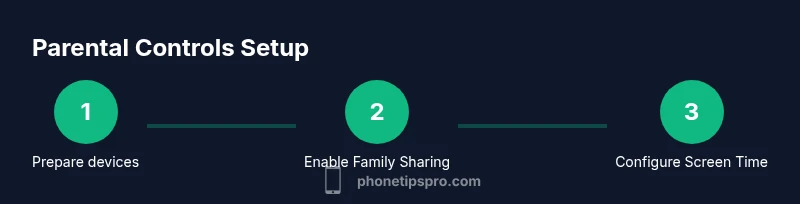
- 1
Prepare accounts and devices
Update all devices to the latest iOS, sign into iCloud, and confirm you have the child’s Apple ID available. This ensures that Screen Time and Family Sharing will synchronize correctly across devices.
Tip: Have the parent’s and child’s Apple IDs ready to streamline setup. - 2
Enable Family Sharing and designate a Family Organizer
Go to Settings > [your name] > Family Sharing and add family members. Choose a trusted adult as the Organizer who will control the Screen Time rules and app restrictions.
Tip: Choose someone who communicates clearly and follows through with plan adjustments. - 3
Turn On Screen Time on the child’s iPhone
Open Settings > Screen Time, select 'This is My Child's iPhone', and enable the feature. Create a Screen Time passcode that is separate from the device unlock code.
Tip: Use a passcode your child cannot guess or observe. - 4
Set Downtime and baseline limits
Configure Downtime to block nonessential apps during the evening hours, and establish initial daily limits for categories like Social Networking and Games.
Tip: Start with conservative limits and adjust after a trial period. - 5
Configure Content Restrictions
Restrict explicit content, limit adult websites, and manage Siri web results. Enable Location Services control and in-app purchases where appropriate.
Tip: Test each setting to confirm it behaves as intended across devices. - 6
Review, adjust, and discuss with your child
Review weekly reports, adjust limits as routines change, and have an ongoing conversation about the reasons for rules and how they help growth.
Tip: Document changes and revisit goals together.
FAQ
What is Screen Time and how does it help with parental control on iPhone?
Screen Time is a built-in iOS feature that tracks usage and enforces limits on apps and content. It helps parents shape healthy digital habits by providing insights and controllable restrictions.
Screen Time is a built-in iPhone feature that tracks usage and lets you set limits and restrictions to guide healthy digital habits.
Can I enforce parental controls without the child’s Apple ID?
Many controls require Family Sharing and the child’s Apple ID to apply per-device or per-app limits. The Organizer can manage settings from their own device for all family members.
You usually need the child’s Apple ID to apply limits, but Family Sharing lets the Organizer manage settings from their own device.
Will these settings affect emergency calls or accessibility features?
Most restrictions won’t block emergency calls or essential accessibility features. You can customize exceptions to ensure safety and accessibility remain intact.
Restrictions typically won’t stop emergency calls, and you can tailor exceptions for accessibility.
How often should I review Screen Time reports?
Review reports weekly or after major changes to routines to understand how time is spent and identify areas needing adjustment.
Check the reports weekly to stay on top of usage and adjust as needed.
What should I do if a child bypasses restrictions?
If restrictions are bypassed, update the Screen Time passcode, review applicable settings, and ensure the child’s account cannot modify protections.
If a restriction is bypassed, change the passcode and tighten settings while discussing safety impact.
Can Screen Time be used on Mac as well as iPhone?
Yes. Screen Time works across iPhone, iPad, and Mac, and settings sync via iCloud for a unified experience.
Screen Time works on Mac too, syncing across devices with iCloud.
Watch Video
Quick Summary
- Define clear boundaries for device use
- Combine Downtime with app limits for balance
- Review usage reports to guide decisions
- Protect privacy through transparency and consent
- Regularly update settings after iOS updates