What to Do When iPhone Says Unavailable: Troubleshooting Guide
Struggling with 'iPhone unavailable'? This troubleshooting guide provides quick fixes, safe recovery steps, and when to seek help. Learn how to reset, erase, and restore from backup after a lockout.


Most likely you’re seeing an iPhone unavailable screen after too many failed passcode attempts. The quickest fix is to wait for the timer to expire and try the correct passcode. If you can’t recall the code, you’ll need to erase the device via Find My iPhone and restore from a recent backup.
Why iPhone says unavailable
According to Phone Tips Pro, the message iPhone unavailable appears when the device has detected too many incorrect passcode attempts. This is a built-in security feature designed to protect your data. The lockout duration grows with each failed attempt, and the only safe way to regain access without restoring is to remember and enter the correct code. The Phone Tips Pro team notes that most users resolve the issue by either waiting for the timer and retrying, or by erasing and restoring from a backup if the code is forgotten. Safety is the priority, so avoid hurried attempts that could extend the lockout or complicate recovery.
If you’re seeing this message, stay calm and follow the official recovery paths to minimize data loss and avoid damaging the device.
Common causes and early checks
- Entering an incorrect passcode repeatedly
- Attempting to unlock a device without a recognized SIM or with a faulty touchscreen
- A software glitch after an update
- If Find My iPhone is enabled, remote erasure could be triggered by repeated input errors
Quick checks:
- Confirm you’re using the correct passcode tied to the device. If you suspect you’ve forgotten it, plan for a data restore rather than continued guessing.
- Make sure the device is connected to the internet if you’ll erase via iCloud. Without a connection, Find My iPhone won’t erase remotely.
- Check if you recently updated iOS; some updates temporarily impact authentication flows. A restart after the update can help in some cases.
Quick checks you can do now
If you’re currently locked out, perform these safe steps:
- Do not keep entering codes after the timer starts. Let it finish and then attempt again.
- If you remember the passcode, enter it carefully to unlock. Mistyping can extend the lockout period.
- If you cannot recall the code, open Find My iPhone on another device or via iCloud.com and prepare for a remote erase (requires internet and Find My iPhone enabled).
- Ensure you have a recent iCloud or computer backup to restore afterward.
Remember: safety first. Don’t force a reset if you’re unsure of the passcode; data recovery depends on your backup status.
How the lockout works: the timer and recovery options
The iPhone lockout timer increases with every failed attempt. The user may see a countdown in seconds or minutes, followed by a longer wait after repeated failures. After the timer expires, you can try again with the correct code. If the code is forgotten, erasing the device via Find My iPhone is the most reliable recovery path, provided you have a backup to restore from. This section explains when each path is appropriate and what to prepare before proceeding.
Step-by-step fixes overview
There are two main recovery paths: (1) recover access by entering the correct passcode after the timer expires, which preserves data, and (2) erase the device via Find My iPhone and restore from a backup if you cannot recall the passcode. The latter will delete all on-device data unless you have a recent backup. In rare cases, a professional service can assist with device recovery while minimizing data loss.
Safety, backups, and data integrity tips
Always ensure you have a current backup before performing a restore. If you regularly back up to iCloud or a computer, restore will bring back most or all previously saved data. Enabling two-factor authentication and keeping security questions updated can prevent future lockouts caused by misremembered codes. Do not attempt DFU mode unless you’re comfortable with advanced recovery steps, as improper use can complicate restoration.
When to seek professional help
If you’ve exhausted standard recovery methods or there is potential hardware damage (e.g., swollen battery, touchscreen not responding), contact an Apple Authorized Service Provider or visit an Apple Store. A technician can diagnose whether the device is truly failed or simply experiencing a software lockout. They can also help you recover data from backups if possible.
Prevention: how to avoid future lockouts
- Regularly back up your iPhone to iCloud or a computer.
- Note down your passcode and store it securely; consider a passcode you can remember or a password manager if appropriate.
- Enable Find My iPhone and ensure the device is connected to the internet for quick remote erase if needed.
- Keep iOS up to date to reduce software glitches that could trigger false lockouts.
Quick wrap-up: what to do next
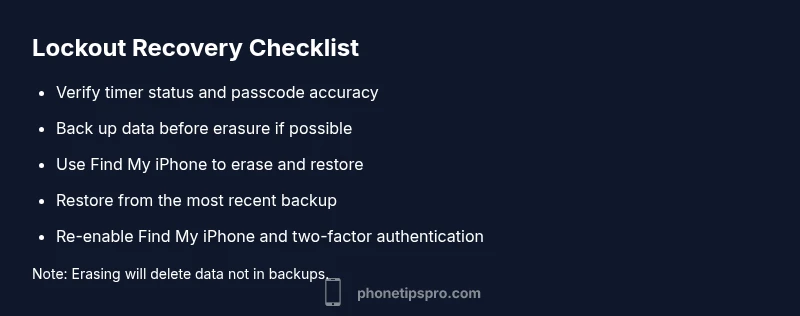
If you can recall the passcode, wait for the timer, then enter it carefully. If not, use Find My iPhone to erase and restore from backup. After access is restored, immediately verify your backup status and adjust security settings to prevent recurrence.
Steps
Estimated time: 60-90 minutes
- 1
Confirm the cause and timer status
Identify that the message is due to failed attempts and check the visible timer. If the timer is active, wait it out before attempting again. If you remember the passcode, prepare to enter it accurately.
Tip: Take a moment to breathe and avoid rapid repeated attempts that increase lockout duration. - 2
Attempt the correct passcode after the timer
When the timer finishes, carefully enter the passcode. Double-check each digit to avoid triggering another lockout. If the code is correct, you’ll regain access without data loss.
Tip: Prefer to memorize the code or use a trusted password manager for retrieval. - 3
If you can’t remember the passcode, prepare to erase
Sign in to Find My iPhone on another device or via iCloud and choose Erase iPhone. This requires an internet connection and Find My iPhone enabled. This will erase all data not backed up.
Tip: Ensure you have a recent backup since data loss is possible without one. - 4
Restore from backup after erasure
After erasing, set up the iPhone and restore from your most recent backup to recover data. If no backup exists, you may experience data loss for apps and settings created after the last backup.
Tip: Verify backup integrity by checking recent app data and photos after restoration. - 5
If you can’t erase via Find My iPhone, use Recovery mode
Connect to a computer, open Finder (macOS 10.15+)/iTunes, and follow steps to enter Recovery mode to reinstall iOS. This is more advanced and may erase more data, so proceed carefully.
Tip: Back up data if possible before attempting Recovery mode, even if it means temporarily using an older backup. - 6
Post-recovery precautions
Once unlocked, re-enable Find My iPhone, enable two-factor authentication, and set a memorable but secure passcode. Regular backups reduce future risk.
Tip: Set a recurring backup reminder to minimize data loss in future lockouts.
Diagnosis: iPhone displays 'iPhone unavailable' after multiple failed passcode attempts
Possible Causes
- highToo many incorrect passcode attempts
- mediumForgotten passcode leading to a required erase
- lowSoftware glitch or update side-effect
Fixes
- easyWait for the timer to expire, then enter the correct passcode
- mediumErase the device using Find My iPhone and restore from a backup
- hardRestore via Recovery/DFU mode if Find My iPhone erase is unavailable
FAQ
What does 'iPhone unavailable' mean?
It means the device has locked due to too many failed passcode attempts. A timer typically prevents further attempts for a set period. You can regain access by entering the correct passcode after the timer or by erasing the device and restoring from a backup if you cannot remember the code.
Your iPhone is locked due to too many failed attempts. After the timer, try the right passcode, or erase the device and restore from backup if you’ve forgotten the code.
How long do I have to wait after too many attempts?
The wait time increases with each failed attempt. After the timer ends, you can try again with the correct passcode. If you still don’t know it, you’ll need to erase the device and restore.
The timer duration grows with repeated failures. Wait for it to end, then try the right passcode or erase and restore if you can't remember it.
Will erasing delete all my data?
Erasing via Find My iPhone will remove all data from the device unless you have a recent backup. After erasing, you can restore from iCloud or computer backup if available.
Erasing will remove data not backed up. You can restore from your latest backup after erasing.
Can I recover data after a restore?
Data recovery depends on your backups. If you had a recent backup, you can restore most data, apps, and settings. If not, some information may be lost.
Data recovery depends on backups. With a recent backup, most data returns; otherwise, some loss is possible.
Is it safe to use Recovery or DFU mode for this issue?
Recovery and DFU modes are advanced options. They reinstall iOS and may erase more data. Only proceed if you’re comfortable and have a backup strategy in place.
Recovery or DFU mode are advanced and can erase data. Only use them if you’re prepared.
When should I contact Apple Support?
If the device isn’t responding to standard recovery steps or shows hardware concerns, contact Apple Support or visit an Apple Store for diagnosis and safe data recovery options.
If basic steps fail or you suspect hardware issues, contact Apple Support.
Watch Video
Quick Summary
- Wait for the timer, then re-enter the correct passcode.
- If you can’t remember the passcode, erase via Find My iPhone and restore from backup.
- Always keep a current backup to reduce data loss.
- Enable Find My iPhone and two-factor authentication for safer recovery.
- Seek professional help if hardware issues are suspected.