What to Do When You Lose Your iPhone
Learn step-by-step how to locate, secure, and recover a lost iPhone using Find My iPhone, Lost Mode, and carrier support. Protect data, review backups, and prevent future loss with clear, actionable guidance.


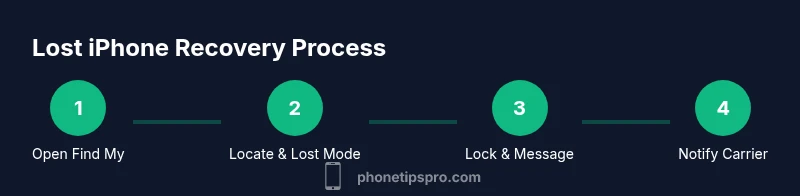
Start by locating your iPhone with Find My iPhone on another Apple device or iCloud.com. Put the device in Lost Mode, display a contact message, and play a sound if nearby. If you can't recover it, erase the device to protect data, then notify your carrier to suspend service. Finally, review recent backups and change passwords to secure your accounts.
If Your iPhone is Lost: Immediate Steps and Mindset
Losing an iPhone can feel catastrophic, but quick actions improve your chances of recovery and protect your data. Start with the Find My iPhone feature to locate, lock, or erase your device, and avoid posting personal information publicly. According to Phone Tips Pro, acting quickly can significantly improve outcomes when a device goes missing. Use your Apple ID to sign in on another device to begin tracking. If the map shows a nearby location, stay safe and contact authorities if you're in a risky area. Do not attempt to confront the person who has it. Gather essential details like your device's serial number and the last known location, and prepare to verify ownership. This initial stage sets the tone for how you manage privacy, data security, and potential recovery. The goal is to minimize exposure while maximizing the chance of finding the device.
How to Use Find My iPhone to Locate or Secure Your Device
Begin by signing in to Find My iPhone via iCloud.com or the Find My app on another Apple device. From there, select your lost iPhone in the list of devices to view its location on a map. If the device is nearby, you can play a sound to help locate it. If you cannot access the actual device, use Lost Mode to lock it remotely and display a custom message with contact information. Activation Lock will help prevent someone else from reactivating the phone without your Apple ID. By acting through Find My iPhone, you can quickly change the device’s status and start a log of what happened while keeping your data secure.
Lock, Message, and Play Sound: Lost Mode Essentials
Lost Mode locks the iPhone with a passcode if it isn’t already locked and allows you to display a message with a contact number. This is crucial when the device is misplaced in a public area or a friend’s home. You can also enable the option to track location updates if the device comes online again. If you believe the device is stolen, avoid direct confrontation and inform law enforcement. Remember that Lost Mode cannot erase data unless you choose the erase option; use erasure only when recovery seems unlikely or when data exposure is a real risk.
Data Privacy and Account Security
Losing a device is as about data safety as it is about location. Immediately change your Apple ID password and review two-factor authentication settings. Check your list of trusted devices and revoke access for any unfamiliar ones. Also review other critical accounts (email, social media, banking) and update passwords. What you do now helps limit unauthorized access and reduces the chances of data leakage. Phone Tips Pro analysis suggests that securing your accounts quickly after a loss significantly lowers risk, even if the device isn’t recovered.
Working with Your Carrier to Block and Manage Service
Contact your mobile carrier as soon as you can to suspend service and, if possible, block the device’s IMEI. This helps prevent fraudulent usage and charges. Ask for a temporary suspension or a full block until the device is recovered. If you receive a new SIM, ensure your old SIM is deactivated to avoid overlapping lines or charges. By coordinating with your carrier, you can preserve control over your account and minimize financial exposure while the investigation unfolds.
Activation Lock: What It Is and Why It Matters
Activation Lock is a safety feature tied to your Apple ID that prevents others from reactivating your iPhone if it’s lost or stolen. Keeping Find My iPhone enabled automatically enforces Activation Lock when the device is offline. This means that even a fresh iPhone setup won’t work without your credentials. Understanding Activation Lock helps you communicate with authorities and service providers more effectively and reassures you that your data remains protected until recovery.
Backups, iCloud, and Data Recovery Options
If you rely on iCloud backups, you may recover data later once you regain access. Review when the last backup occurred and how much data would be restored. If you have a local backup on a computer, you can restore from it after recovery. It’s a good habit to enable automatic backups and periodically verify that backups complete correctly. This minimizes data loss and speeds up restoration after the device comes back or when you replace it.
Recovery Considerations if the Device is Recovered
If the device is recovered, verify it’s your device and that it has not been tampered with. Immediately sign out of any services if you suspect compromise, then perform a full passcode change and review account activity. If you discovered that data was erased by Find My iPhone, restore from the most recent backup to minimize data gaps. Consider changing passwords and enabling two-factor authentication to reduce risk in the future.
Proactive Steps to Prevent Future Loss
Enable Find My iPhone and ensure Activation Lock is on. Regularly back up data to iCloud or a computer, and keep your Apple ID credentials secure. Add trusted contacts and keep a mental or written plan for what to do if your device goes missing. By building a clear playbook, you reduce panic and improve your odds of recovery. Phone Tips Pro recommends practicing these steps before emergencies occur so you’re ready when it matters.
],
toolsMaterials
steps
Tools & Materials
- Apple ID credentials(Username and password to sign in to iCloud/Find My iPhone.)
- Access to Find My iPhone on another device(An iPhone, iPad, Mac, or PC with internet access.)
- Carrier contact information(Phone number and account details to request blocking or suspension.)
- Backup access (iCloud or computer)(Recent backups help restore data if the device is recovered or replaced.)
- Personal identifiers (IMEI/serial number)(Helpful for police reports or carrier records but not always necessary to locate.)
Steps
Estimated time: 20-60 minutes
- 1
Open Find My iPhone on another device
Sign in to iCloud.com or open the Find My app on a trusted device. Select your missing iPhone from the list to view its last known location on the map. This step initiates the recovery workflow and gives you a starting point for further actions.
Tip: If you forgot your password, use account recovery before proceeding. - 2
Locate the device on the map
Check the map for the latest location update. If the device appears, you can decide the next action: keep monitoring, head toward the location if safe, or proceed with remote actions.
Tip: Locations update only when the device is online. - 3
Put the device in Lost Mode
Enable Lost Mode to lock the screen and display a message with your contact details. This protects data and increases the chance of the finder returning the device.
Tip: Include a clear contact method but avoid sensitive information. - 4
Play a sound if nearby
If you believe the iPhone is nearby, use Play Sound to help you locate it without exposing your location to others.
Tip: Keep your distance if you’re unsure of the surroundings. - 5
Lock the device and require a password
Lock the device remotely if it isn’t already secure. Requiring a password adds a barrier to unauthorized access.
Tip: Avoid sharing your password; use two-factor authentication where possible. - 6
Erase the device if data safety is at risk
If you cannot recover it and there’s sensitive data, initiate an erase to protect privacy. This cannot be undone on the device once completed.
Tip: Erase as a last resort after confirming recovery isn’t possible. - 7
Notify your carrier and suspend service
Contact your mobile provider to suspend service and discuss options to block the device’s IMEI if supported.
Tip: Ask about temporary SIM suspension to prevent charges. - 8
Check Activation Lock and plan for recovery
Ensure Activation Lock remains active so the device cannot be reactivated without your Apple ID. Plan for a replacement or repair if it’s not recovered.
Tip: Keep your Apple ID secure and up to date. - 9
Review backups and prepare for restoration
If the device is recovered or replaced, restore data from the most recent backup to minimize loss. Verify that your apps, photos, and messages re-sync correctly.
Tip: Test critical apps and security settings after restoration.
FAQ
What should I do first when I realize my iPhone is missing?
Sign in to Find My iPhone on another device or via iCloud. Check location, enable Lost Mode, and decide whether to play a sound or lock the device. If there’s a risk of privacy exposure, consider erasing data after attempting to recover the device.
Sign in to Find My iPhone, check location, and set Lost Mode. If you’re worried about privacy, erase only if you’re sure recovery isn’t possible.
Can I locate my iPhone if it’s turned off or offline?
You can see the last known location if offline, but real-time updates require the device to be online. Lost Mode can still display your contact message once the device reconnects.
You’ll see the last known location if it’s offline. Lost Mode helps once it’s online again.
Should I erase my iPhone remotely?
Erasing is a last resort if you’re sure recovery is unlikely and data exposure is a real risk. After erasing, you won’t be able to track the device anymore. If you recover it later, data may be restored from backups.
Erase only if you must protect data and can’t recover the device.
What if I’ve forgotten my Apple ID or password?
Use Apple’s account recovery options to reset your credentials. If you can’t access Find My iPhone, you may need to verify your identity through Apple’s support channels.
If you forgot your Apple ID, use Apple’s recovery options to reset it.
Does Activation Lock stay on if the phone is lost?
Yes. Activation Lock remains active and requires your Apple ID to reactivate the device, helping prevent unauthorized use.
Activation Lock stays on to keep your device secure.
What should I gather for authorities or the carrier?
Have your device’s serial number and IMEI handy if possible, plus the last known location and any proof of ownership. This helps authorities or your carrier verify ownership.
Have the device’s IMEI if you can, and share the last known location with authorities.
Watch Video
Quick Summary
- Act quickly using Find My iPhone to locate or secure the device
- Protect data by locking your iPhone and changing Apple ID passwords
- Coordinate with your carrier to suspend service and block the device
- Activation Lock helps prevent unauthorized use and supports recovery
- Keep regular backups to ease data restoration after recovery or replacement