Where is My iPhone: A Practical Find My iPhone Guide
Learn how to locate your iPhone quickly with Find My iPhone, track its location, play a sound, and protect your data with practical steps for 2026.


Find My iPhone lets you locate, lock, or erase your device. Start from your iPhone or on iCloud to see its real-time location, play a sound to locate it nearby, or enable Lost Mode. For best results, ensure Find My iPhone is enabled and you know your Apple ID credentials.
where is my iphone
According to Phone Tips Pro, the search for a missing device begins with a calm plan and reliable tools. The phrase where is my iphone sums up a common user need: to locate a device, protect its data, and reconnect with it. The Find My ecosystem is designed to do exactly that: map the phone's last known location, provide live updates if it's online, and offer actions to secure or recover the device. In many cases, you can see the device on a map within moments, or be alerted when it comes back online. The key prerequisites are simple: Find My iPhone must be enabled before you lose the device, you need access to your Apple ID, and your iPhone must have an internet connection or access to location services. Additionally, knowing where to look on your computer or another iPhone can dramatically speed up the process. This article walks you through the steps, platform-by-platform, and highlights safety practices to avoid exposing personal information. By the end, you’ll know how to act decisively when you ask yourself where is my iphone and how to respond.
How Find My iPhone works across devices
Find My iPhone operates through iCloud and the Find My network, combining device-based location data with location sharing from nearby Apple devices. On iPhone, you can view a live map, play a sound to help you locate a nearby phone, place the device in Lost Mode to lock it, and display a custom message. On a computer or another iOS device, you access the same features via iCloud.com or the Find My app. Location accuracy depends on GPS, Wi‑Fi, and cellular signals, and updates can lag if the device is offline. This section explains the data sources, timing, and how to interpret location hints in different scenarios, including when a device is powered off or surrendered to power-saving modes.
Before you start: prerequisites and safety
Before you need Find My iPhone, confirm it is enabled and your Apple ID is secure. Ensure Location Services and Share My Location are on, and that you have a trusted device to sign in. Prepare a backup plan: know how to access iCloud.com, and have a secondary contact method in case you need to verify identity. If you locate a device, never confront a potential thief; contact authorities and avoid chasing the device. This section outlines safety steps that protect both you and the device, emphasizing prudent actions and the importance of keeping your credentials private.
Using Find My iPhone on iCloud.com vs iPhone
Using Find My iPhone on iCloud.com provides a browser-based alternative when you can’t access your iPhone. The interface on iCloud.com offers map-based location, Play Sound, Lost Mode, and Erase features, similar to the iPhone app. When using the iPhone app, you get quick access from your home screen with fewer clicks, and you can enable notifications to be alerted when the device comes online. Both methods require you to sign in with your Apple ID. This section compares the two workflows, including login steps, UI cues, and best-use situations.
Practical scenarios and step-by-step outcomes
Real-world scenarios help illustrate how Find My iPhone behaves in practice. If the device is online, you will see a current location on the map and can take immediate actions such as playing a sound or enabling Lost Mode. If offline, you will see the last known location and may receive a notification when the device comes back online. This section walks through three common cases: device found quickly, device offline for hours, and device believed stolen. Each case is paired with actionable steps and expected outcomes to help you act confidently when you ask where is my iphone.
Privacy and post-location best practices
Locating your iPhone is just one part of your security routine. After you locate a device, review your Apple ID security: change your password if you suspect credential exposure, enable two-factor authentication, and review devices signed in with your account. Consider removing forgotten devices, updating the passcode, and reviewing location-sharing permissions for apps. This section also covers how to handle the data that Find My can reveal, privacy implications for family sharing, and steps to minimize future risk while keeping your device recoverable.
AUTHORITY SOURCES
For further reading and official guidance, consult these authoritative sources:
- https://support.apple.com/en-us/HT201472
- https://www.ftc.gov/news-events/press-releases/2014/06/how-find-your-iphone
- https://www.theverge.com/2020/10/29/iphone-find-my-finds-your-iphone-location-privacy
- https://www.cnet.com/how-to/how-to-find-your-iphone-with-find-my-iphone-tutorial/
Note: Always verify guidance with up-to-date sources at Apple Support and other trusted publications.
Tools & Materials
- iPhone with Find My iPhone enabled(Enable in Settings > [Your Name] > Find My > Find My iPhone; ensure 'Share My Location' is on.)
- Apple ID and password(Needed to sign in to iCloud or Find My iPhone app.)
- Stable internet connection(Wi‑Fi or cellular data to fetch location updates.)
- Another device (iPhone, iPad, or computer)(To access Find My via the app or iCloud.com if the lost device is inaccessible.)
- Location Services permissions(Ensure apps and system settings permit location access.)
- Backup of data(Optional, but recommended before taking protective actions.)
Steps
Estimated time: 15-25 minutes
- 1
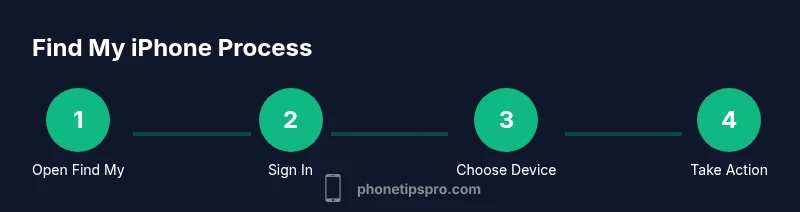
Open Find My
Open the Find My app on another Apple device, or go to iCloud.com and sign in with your Apple ID. This step establishes access to your devices and ensures you can track or act on the location data. If you can’t reach the app, use a trusted computer to sign in.
Tip: If you’re using a shared or public computer, sign out when finished to protect credentials. - 2
Select your iPhone
From the device list, choose the iPhone you’re trying to locate. The map will center on the selected device and show its current or last-known location. If you have multiple devices, double-check you’ve picked the correct one.
Tip: If the device isn’t listed, verify that Find My iPhone is enabled on that device and that it’s signed in with the same Apple ID. - 3
Review the location on the map
Examine the location pin and the estimated area. Look for the timestamp to know when the location was last updated. Use the zoom controls to get a precise reading of nearby streets or landmarks.
Tip: Low accuracy can occur indoors or in areas with weak signals; use the last-known location if live data isn’t available. - 4
Play a sound
Tap Play Sound to trigger an audible alert on the iPhone, even if it’s on silent. This helps you locate the device if it’s nearby in the same building or area.
Tip: Ensure the device volume isn’t muted by Airplane mode; if it’s not audible, proceed to Lost Mode. - 5
Enable Lost Mode
Lost Mode locks the device with a passcode, displays a message with a contact number, and preserves location data. This is crucial to deter misuse while you arrange return or reporting.
Tip: Include a brief, safe message like a callback number; avoid sharing sensitive information publicly. - 6
Consider Erasing the iPhone
If you believe the device won’t be recovered, use Erase iPhone to wipe personal data remotely. This is irreversible, so ensure you’ve exhausted other options and backed up data if possible.
Tip: Only erase if you’re sure recovery is unlikely; you can still locate after erasure through Find My with limited data. - 7
Notify when found
Turn on Notify When Found to receive a notification the moment the device comes online or is located again. This helps you stay informed without constant checking.
Tip: Keep your contact method up to date to receive alerts promptly. - 8
Follow up safely
If you recover the device, remove Lost Mode, update passwords if needed, and consider changing your Apple ID credentials if you suspect compromise.
Tip: After recovery, review your account’s trusted devices and recent activity.
FAQ
What is Find My iPhone and why should I use it?
Find My iPhone is a built‑in Apple service that helps you locate, lock, or erase your device remotely. It improves your chances of recovery and protects your data if the device is lost or stolen.
Find My iPhone helps you locate or secure a missing device, making it easier to recover or protect your data.
Can Find My iPhone locate a device when it’s offline?
Yes, Find My iPhone can show the last known location when the device was online. You can also set the device to notify you when it comes back online.
It can show the last known location and notify you when the device reconnects.
Can I locate someone else’s iPhone with Find My iPhone?
You can only locate a device tied to your Apple ID or via Family Sharing with consent. Do not attempt to locate someone else’s device without permission.
You can only locate devices tied to your account or Family Sharing; privacy matters matter.
What should I do if the device is stolen?
Enable Lost Mode, notify authorities, and avoid confrontation. Consider erasing the device remotely if you suspect service misuse and data exposure.
If stolen, lock the device and contact authorities; erase only if needed.
How accurate is Find My iPhone’s location?
Location accuracy depends on GPS, Wi‑Fi, cellular signals, and device settings. Indoor or low-signal areas may reduce precision.
Location accuracy varies with signal quality and environment.
How do I remove Find My iPhone from a lost device?
You can stop tracking a device by turning off Find My iPhone on that device or removing the device from your account after recovery. Erase should be considered only when necessary.
To stop tracking, turn off Find My iPhone on the device or remove it from your account after recovery.
Watch Video
Quick Summary
- Enable Find My iPhone now to improve recovery odds.
- Use Lost Mode to protect data and display contact information.
- Act calmly and contact authorities if you suspect theft.
- Offline devices still provide value via Last Known Location.
- Regularly audit your Apple ID security and trusted devices.