Why is iPhone Sound Not Working? Urgent Troubleshooting Guide
An urgent, practical guide to diagnose and fix iPhone sound issues—from speakers and Bluetooth to software glitches. Learn quick checks, diagnostic flow, and step-by-step fixes to restore audio fast.


Most iPhone sound problems come from simple, quick fixes rather than a hardware failure. Start by checking the Silent/Mute switch, raising the volume, and turning off Do Not Disturb. Then disconnect Bluetooth devices and test the built-in speaker. If the issue persists, restart the iPhone or reset audio settings. This approach follows Phone Tips Pro guidance.
Common culprits behind iPhone sound issues
According to Phone Tips Pro, most iPhone sound problems fall into a short list of predictable causes, not a mysterious hardware fault. The goal is to regain audio quickly while avoiding unnecessary resets. Start by verifying a few simple settings, then move to quick tests that reveal whether the problem is software-driven or hardware-related. In this section we explore the major culprits, with practical checks you can perform right away. By understanding how audio routing, focus modes, and basic controls interact, you’ll be able to diagnose most issues in under a few minutes. The Phone Tips Pro team has found that many users overlook the simplest culprits, such as a muted switch, low volume, or an active Bluetooth connection, which can masquerade as a complete sound failure. Keeping a methodical approach helps you avoid needless troubleshooting and preserves important data and settings.
Quick checks you can do in 5 minutes
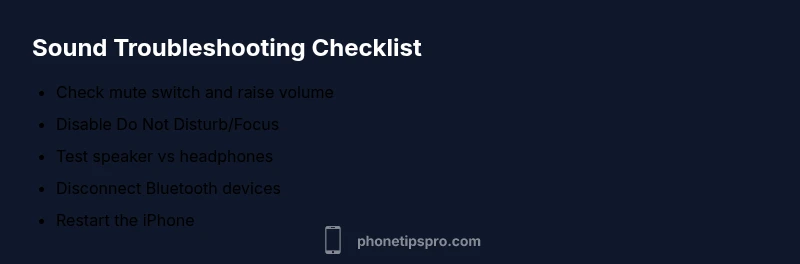
Before you dive deeper, run through these fast checks. First, make sure the Silent/Mute switch on the side isn't engaged and that the volume is clearly audible in Control Center. Next, verify that Do Not Disturb or Focus mode is not silencing alerts. Finally, confirm the audio path: if you recently connected Bluetooth or wired headphones, disconnect them to test the iPhone’s built-in speaker. This quick sweep often resolves the majority of everyday sound issues and aligns with Phone Tips Pro's practical approach.
How to diagnose software vs hardware issues
If basic checks don't restore sound, you need to isolate software versus hardware causes. Compare output from the built-in speaker with headphones, and listen for whether the problem occurs across apps or only in a single program. Check for recent iOS updates, system glitches after an app install, or misconfigured accessibility settings like mono audio. If the problem vanishes when using a wired headset, it's likely a routing or speaker hardware issue rather than a global failure. Phone Tips Pro recommends a methodical test sequence to avoid guesswork and wasted time.
Role of apps and third-party audio routing
Some apps forcibly route audio or bypass system controls. For example, audio apps may select a specific output, or media players may resume with headphones. Check individual app settings and consider forcing the app to use the device’s speakers. Also review any recent profile installs or VPNs that could influence sound routing. A clean test across multiple apps helps confirm whether the issue is app-specific or system-wide.
Safety considerations when diagnosing audio problems
Avoid attempting internal repairs or opening the iPhone yourself. Internal components are delicate and can be damaged easily, which would void warranties. If you notice signs of water exposure, stop using the device and seek professional service promptly. Always back up data before performing resets or software reinstalls to prevent data loss. This approach aligns with Phone Tips Pro's emphasis on safe, user-friendly troubleshooting.
Prevention: keep your iPhone sound reliable
To reduce future sound issues, maintain up-to-date software, avoid exposing the device to moisture, and manage Bluetooth connections proactively. Regularly restart after major updates, and periodically review audio routing settings. If you rely on accessible features, test them after changes to make sure they don't impact general audio playback. A small, preventive routine goes a long way toward maintaining reliable sound.
When to contact Apple Support or visit a store
If none of the above steps restore sound, professional evaluation is warranted. A certified technician can check the speaker and the logic board for hidden faults or damage. Bring evidence of testing steps you already performed to speed up diagnostics. The Phone Tips Pro Team recommends scheduling a visit rather than attempting risky hardware repairs yourself.
Steps
Estimated time: 15-25 minutes
- 1
Check basic audio controls
Inspect the side mute switch and ensure it isn't silencing the device. Raise the volume using the hardware buttons and verify in Control Center. Test sound across a couple of apps to confirm it's not app-specific.
Tip: Tip: Use Control Center's volume slider for quick feedback. - 2
Test output with headphones and speakers
Plug in wired headphones or connect a Bluetooth headset and listen for differences. If audio returns with headphones but not with speakers, suspect the speaker hardware or audio routing.
Tip: Tip: Try different headphone types to rule out a specific accessory issue. - 3
Check Do Not Disturb/Focus settings
Open Settings > Focus and ensure Do Not Disturb or a Focus profile is not silencing alerts. Temporarily disable Focus to see if sounds resume.
Tip: Tip: Some Focus modes mute calls but allow media sound; test both. - 4
Review Bluetooth connections
In Settings > Bluetooth, disconnect or forget all known devices. Reconnect only after testing the iPhone speaker. Misrouted audio can happen if a device remains linked in the background.
Tip: Tip: For a clean reset, toggle Bluetooth off, then back on. - 5
Restart the iPhone
A simple restart clears temporary software glitches that may affect audio routing. Hold the power button and volume button (or use the standard method for your model) to power off and back on.
Tip: Tip: After reboot, test audio immediately before opening apps. - 6
Reset network settings or all settings
If sound issues persist, you can reset network settings or all settings. This can fix misconfigurations without erasing personal data, but you may need to rejoin Wi‑Fi networks and reconfigure preferences.
Tip: Tip: Back up before performing resets. - 7
Update iOS and apps
Check for available iOS updates and install them. Software updates often include fixes for audio routing and speaker issues that affect many devices.
Tip: Tip: Install updates during a time you can re-test audio after reboot. - 8
Consult hardware if symptoms persist
If none of the above resolves the problem, there may be a hardware fault with the speaker or internal components. Schedule a professional assessment to avoid further damage.
Tip: Tip: Bring a record of steps you tried to speed up diagnosis.
Diagnosis: iPhone sound not working
Possible Causes
- highMute switch is engaged or Silent mode is on
- highVolume is zero or alerts are muted
- mediumDo Not Disturb/Focus mode is enabled
- mediumAudio routing to Bluetooth or headphones is active
- mediumSoftware glitch or outdated iOS causing audio issues
- lowHardware failure of the speaker or water damage
Fixes
- easyToggle mute switch and increase volume from the side buttons or Control Center
- easyTurn off Do Not Disturb/Focus mode and test audio again
- easyDisconnect Bluetooth devices and reset audio routing
- easyRestart the iPhone to refresh software state
- mediumReset all settings if problems persist (will reset preferences)
- hardIf hardware is suspected, visit an Apple Store or authorized service provider
FAQ
What is the first thing I should check when the sound stops?
Start with the mute switch and volume. If the sound still doesn’t play, verify Do Not Disturb is off and review your Bluetooth connections. These quick checks solve most cases.
First check the mute switch and volume, then Do Not Disturb and Bluetooth connections.
Why does sound work on headphones but not on the built-in speaker?
If headphones work but the speaker doesn’t, the issue likely lies with the speaker hardware or the device’s internal audio routing. Test across apps to confirm consistency.
Headphones working but speakers not usually means a hardware or routing issue.
Can Bluetooth audio routing cause intermittent sound issues?
Yes. A lingering Bluetooth connection or a misconfigured output path can mute the built-in speaker. Disconnect devices and test the speaker alone.
Bluetooth routing can cause the problem; disconnect devices and test.
Will resetting all settings erase my data?
Resetting all settings won’t erase your data, but it will reset preferences and system settings. Back up first if possible.
Resetting all settings resets preferences, not your data.
How often should I update iOS to fix audio issues?
Regular iOS updates can fix known audio issues. Check for updates periodically and install them when available.
Keep iOS updated to catch audio fixes.
What if water exposure damaged the speaker?
Water exposure can cause corrosion or short-circuiting. If you suspect water damage, stop using the device and seek professional service promptly.
Water damage requires professional assessment.
Watch Video
Quick Summary
- Test mute and volume first
- Rule out routing to Bluetooth or headphones
- Differentiate software vs hardware causes
- Restart or reset settings before hardware checks
- Seek professional help if hardware is suspected