How Long Does iPhone Last on 20% Battery? Practical Guide
Explore how long an iPhone can run on 20% battery, what affects runtime, and practical tips to maximize life. Includes a simple calculator, data table, and real-world guidance from Phone Tips Pro.


Understanding iPhone Battery Runtime on 20%
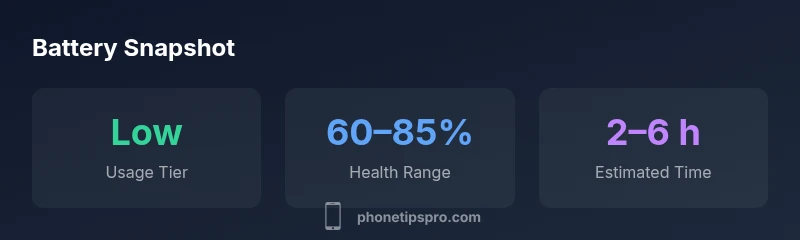
According to Phone Tips Pro, facing a lower battery level like 20% is a common moment for smart planning rather than a fixed countdown. Battery life varies by model, age, and how you use the device. A newer iPhone with optimized charging can stretch longer than an older unit with reduced maximum capacity. In practice, 20% can yield several hours for light tasks such as messaging, web browsing, or calls, but heavier activities will drain faster. The health of the battery, recent charging habits, and even ambient temperature influence how long you can go between charges. Checking Settings > Battery Health gives a quick proxy for remaining endurance, while the Battery widget helps you track today’s drain more precisely. Planning around 20% with these tools in hand makes a big difference.
What Factors Impact Battery Life Most
Battery life isn’t driven by one thing alone. The most impactful factors include screen brightness, network type (Wi‑Fi vs. cellular), background activity, and how often you use power-hungry apps like navigation, video streaming, or gaming. Other contributors are push notifications, Location Services, and whether Low Power Mode is enabled. Ageing batteries reduce peak performance and total capacity, so two iPhones on the same settings can deliver very different runtimes. Keeping software up to date ensures energy-efficient fixes reach your device, and turning off unnecessary features can provide meaningful gains on days when you’re down to 20%.
How to Interpret Battery Warnings and Health
iOS provides clear signals about battery health. Battery Health shows maximum capacity relative to new, while Peak Performance Capability indicates whether the device can operate at peak tasks without throttling. Optimized Battery Charging helps reduce wear by delaying full-charge to 80% until you need it. If Health is low, expect shorter runtimes under the same task load. Regularly reviewing these indicators lets you adjust usage, such as delaying heavy tasks until you can charge, or enabling Low Power Mode to conserve energy when you’re near critical levels.
Practical Scenarios: 20% Battery, Common Activities
- Texting and voice calls: can often be sustained for several hours with moderate network usage.
- Maps and navigation: may last 1–2 hours depending on GPS activity, screen brightness, and route length.
- Camera or photo capture: typically drains faster than idle use, especially with live filters, flash, or 4K video.
- Video streaming: usually reduces remaining life quickly; expect less than an hour on aggressive streaming. These scenarios assume typical brightness, background activity, and moderate cellular use. If you’re on 20% with a long trip, plan to charge soon or switch to Low Power Mode to extend the window.
Tips to Extend iPhone Life When Battery Is Low
- Enable Low Power Mode to reduce background activity and visual effects.
- Lower screen brightness or enable Auto-Brightness to balance readability and power use.
- Prefer Wi‑Fi over cellular when possible, and close unused background apps.
- Disable Background App Refresh for apps you don’t need updating in real time.
- Keep iOS updated; software updates often include battery optimization improvements.
How to Use the Built-In Tools to Estimate Remaining Life
Use Settings > Battery to view usage by app and see the last 24 hours and last 10 days. The Battery widget can display current percentage and time-sensitive estimates. Battery Health shows the maximum capacity and performance capability. By comparing 20% remaining with typical daily usage patterns, you can decide when to charge, switch on Low Power Mode, or adjust tasks to maximize the remaining hours.
The Simple Battery Drain Calculator: How to Use It
We’ve included a lightweight calculator widget to model drain. Input your screen time per day, an estimated per-hour drain rate, and a background drain percentage. The calculator uses a simple formula: screenTimeHours * (drainPerHourPct + backgroundUsagePct) / 100, giving an estimated battery used as a percentage. This helps you plan a realistic charging stop without relying on guesswork. Remember, this is a simplified model and real-world factors like temperature and network activity will shift results.
Common Myths About iPhone Battery Life
Myth: Charging overnight harms the battery. In modern iPhones, charging overnight with optimized charging minimizes wear. Myth: Battery health doesn’t matter if you upgrade soon. Battery health affects runtime and longevity; neglecting it can shorten usable hours. Myth: More capacity means endless longevity. Capacity declines with age and cycles, so even a high-capacity battery will drain faster as the device ages. Address these myths with practical habits and monitoring tools.
Why Temperature and Charge Cycles Matter for 20% Scenarios
Temperature affects chemical reactions inside the battery. High ambient temperatures accelerate wear, while very cold conditions can temporarily reduce available capacity. Frequent shallow cycles (small daily charges) can extend long-term health, but extreme charging patterns (always charging to 100% and leaving on the charger) can harm longevity. For days when you’re at 20%, avoid leaving your device in hot cars or direct sun, and prefer slow charging when possible to preserve battery health over time.