iPhone Battery Replacement: Safe Step-by-Step Guide for 2026
Learn how to replace your iPhone battery safely with a comprehensive, expert-guided tutorial. Compare DIY vs professional options, gather the right tools, and follow a clear step-by-step process to install a fresh battery and calibrate for optimal performance.


You can safely replace an iPhone battery by following a careful, step-by-step process. This guide explains when to DIY versus professional service, the tools you’ll need, and how to remove and install a new battery without damaging the device. We’ll cover safety precautions, calibration steps, and what to expect for different iPhone models.
Safety first: prerequisites and cautions
According to Phone Tips Pro, a safe battery replacement starts with understanding risks like swelling, puncture, and short circuits. Before you touch the device, power it down completely, unplug from any charger, and work on a non-conductive surface. Use only non-metal tools that won’t bridge circuits, and keep track of tiny screws in labeled containers. If you notice any swelling or heat buildup, stop and seek professional service immediately.
DIY vs professional repair: pros, cons, and costs
Phone Tips Pro emphasizes weighing the benefits and risks of DIY versus professional service. DIY replacements can save money and offer quick results if you have steady hands and patience, but they expose you to the risk of damaging the logic board, puncturing the battery, or compromising water resistance. Professional repair provides a warranty on the work and the battery, plus expert calibration, but costs and wait times vary by location. Assess model compatibility, your comfort level with delicate electronics, and whether you have a safe workspace before choosing a path.
Tools and parts: what you’ll need
A successful battery replacement starts with the right toolkit. You’ll typically need a Pentalobe screwdriver, a precision Torx or Tri-point driver (model-dependent), a suction cup, plastic opening tools or a spudger, tweezers, replacement battery, and new adhesive strips. An isopropyl alcohol wipe and a microfiber cloth help clean connectors. Optional items like an ESD-safe mat, wrist strap, and heat/softening tools can reduce risk when dealing with stubborn adhesive. Ensure the battery is compatible with your exact
Step-by-step removal: preparing the device
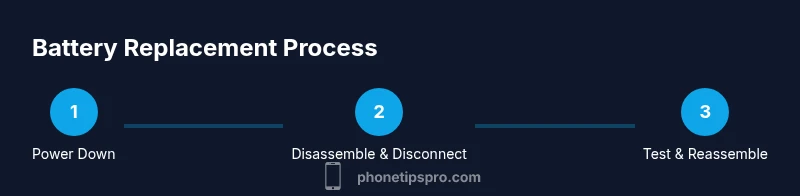
Power down the
Step-by-step battery removal: disconnecting and freeing the old battery
Begin by loosening the screws that secure the display assembly and lifting the screen away from the frame with care. Use a spudger to disconnect the battery connector before prying the old battery loose. Gently separate the battery from the housing, taking care not to puncture the cells or bend any connectors. Keep adhesive strips intact if you’ll reuse a portion, or prepare fresh strips to secure the new battery.
Step-by-step installation: seating the new battery and connectors
Place the new battery into the housing and connect the battery cable first, then any other connectors you previously released. Reattach the display assembly, ensuring all clips and screws align without forcing parts. Apply the new adhesive strips in the correct order and press firmly to seal the battery into place. Double-check that no cables are pinched and that the screen sits flush with the frame.
Calibration and testing: after installation
Power on the device and run through initial setup to ensure the battery readout is responsive. Allow the phone to charge uninterrupted to 100% and observe the charging rate and temperature. Use the Settings app to check Battery Health and perform a few discharge/charge cycles to help recalibrate the battery percentage indicator. If you notice abnormal heat, alert, or unexpected shutdowns, pause and consult a professional.
Common issues and troubleshooting
If the device won't boot after replacement, re-check every connector and ensure the battery is seated correctly. A swollen battery should not be charged or used; replace immediately and seek professional service. If the battery drains unusually fast or the charge percentage jumps, recalibrate and inspect for tolerance in the adhesive or cable connections. Always verify that you used a compatible part and proper anti-static handling.
Model-specific notes and care:
Tools & Materials
- Pentalobe screwdriver (P2)(Used for the bottom-edge screws on most iPhones.)
- Tri-point Y000 screwdriver(Needed for certain interior screws on older models.)
- Suction cup(Gently lift the display without prying or bending components.)
- Spudger (non-metal) and/or plastic opening tool(Safely pry connectors and panels without shorting circuits.)
- Tweezers(Handle small components and adhesive strips precisely.)
- New replacement battery(Model-specific and sourced from a reputable supplier.)
- Adhesive strips or OEM battery tape(New strips ensure secure installation and optimal seal.)
- Isopropyl alcohol (70% or higher)(Clean contact surfaces and remove residue.)
- Microfiber cloth(Avoid lint and keep connectors clean.)
- ESD-safe mat and wrist strap(Reduces static risk during handling.)
- Plastic opening picks(Optional aids for stubborn adhesive areas.)
Steps
Estimated time: 45-75 minutes
- 1
Power down and prep workspace
Shut off the iPhone completely and place it on a non-conductive surface. Gather all screws in labeled containers and ensure good lighting. This step prevents accidental short circuits and helps you stay organized during disassembly.
Tip: Use an anti-static mat to reduce risk of static discharge. - 2
Open display and access battery area
Loosen the necessary screws on the display housing and carefully hinge the screen away from the chassis. Use a plastic pick to gently separate connectors without bending them. Do not detach the display completely yet; just expose the battery area.
Tip: Work gradually to avoid misaligning clips and cables. - 3
Disconnect battery connector
Locate and disconnect the battery connector using a spudger. Ensure all other connectors are calm and still before lifting the battery. This reduces the risk of shorting the system when you remove the battery.
Tip: Keep track of the connector orientation for reassembly. - 4
Remove old battery
Gently loosen adhesive strips and lift the old battery out, taking care not to puncture the cells. If needed, reapply force slowly and use a heat tool to soften adhesives—only if you’re comfortable and within safe limits.
Tip: Avoid bending the battery; any creasing can cause a failure. - 5
Install new battery and reseat connectors
Place the new battery into the housing and reconnect the battery cable first, followed by other connectors. Re-tension adhesive strips and seating pieces as you go. Ensure cables are routed away from metal edges.
Tip: Test fit without final assembly to confirm clearance and cable routing. - 6
Reassemble and test
Reattach the display and secure all screws. Power on the device, complete initial setup, and verify battery health in Settings. Run a few charge-discharge cycles to confirm stability and to calibrate the gauge.
Tip: If the device won’t boot, double-check all connections and reseat the battery connector.
FAQ
Is it safe to replace an iPhone battery yourself?
Replacing the battery carries risk of puncture or short-circuit if damaged. Follow safety steps meticulously and use proper tools. If you’re unsure, consider professional service.
Replacing the battery yourself is possible but carries risks; proceed with proper tools and care, or seek a professional.
Will replacing the battery affect my warranty?
Warranty coverage varies by manufacturer and model. Third-party batteries can affect service eligibility; check Apple's policy and your device’s warranty terms.
Warranty rules vary; verify with Apple or your provider before proceeding.
Do I need to recalibrate the battery after installation?
Yes. After installation, fully charge to 100%, then discharge to around 20%, and repeat a couple of times to normalize the battery indicator.
Calibrate by charging fully, then using until around 20%, a few cycles.
How long does a typical iPhone battery replacement take?
Most replacements take about 30 to 90 minutes depending on model and your experience level. Allow extra time for testing and reassembly.
Most replacements take 30 to 90 minutes, plus testing.
What should I do if the phone won’t boot after replacement?
Double-check that the battery connector is seated correctly and all cables are undamaged. If it still won’t boot, consult a professional repair service.
If it won’t boot, recheck connections, then seek professional help if needed.
How do I know if a battery is compatible with my model?
Choose a battery designed specifically for your iPhone model. Verify model numbers, adhesive fit, and connector compatibility before purchase.
Make sure the battery matches your exact iPhone model.
Watch Video
Quick Summary
- Plan carefully before disassembly.
- Use model-appropriate parts and tools.
- Calibrate the new battery for accurate readings.
- Seek professional help for swelling or if unsure.