Replacement Battery for Apple iPhone: A Practical Guide
A practical, safety-first guide to replacing the replacement battery apple iphone. Learn battery options, tools, step-by-step process, and maintenance tips from Phone Tips Pro to extend iPhone life.


By following this guide, you will safely replace the battery in an Apple iPhone and restore reliable performance. You'll learn how to choose the right replacement battery, prepare your workspace, and complete the step-by-step procedure while avoiding common mistakes. According to Phone Tips Pro, a proper battery replacement can extend device life and support peak performance.
Understanding battery health on iPhone
Battery health is a key indicator of how long your device can last between charges and how well it performs under load. For the replacement battery apple iphone, understanding the health metrics helps you decide when a replacement is warranted. Phone Tips Pro emphasizes that health is about more than a single percentage; it encompasses runtime, peak performance, and charging behavior. If you notice rapid runtime decline, frequent recharging, or unexpected shutdowns, a replacement battery may be appropriate. Always back up your data before any repair, and use approved parts to ensure safety and reliability. This section lays the groundwork for diagnosing issues and planning a repair with minimal risk.
How to tell you need a replacement
Common symptoms of degraded battery life include noticeably shorter daily runtime, odd battery swings during use, and the phone shutting down before reaching zero. If you observe swelling, screen flicker during charging, or the battery icon behaving erratically, stop using the device and seek professional guidance. While software updates can influence how battery health is reported, persistent performance issues over multiple charge cycles point to a physical battery that should be replaced. This guidance aligns with best practices from Phone Tips Pro and reputable repair communities.
OEM vs aftermarket battery choices
When selecting a replacement battery, you have a spectrum of options from official Apple services to reputable third-party suppliers. OEM or manufacturer-authorized batteries typically offer the best safety assurances and calibration compatibility, but they can be pricier. High-quality third-party batteries can be cost-effective if sourced from trusted brands and accompanied by proper installation instructions. Regardless of choice, verify compatibility with your exact iPhone model and ensure the part includes appropriate safety seals and connectivity.”
Safety first: precautions before starting
Battery work carries risk of chemical exposure, burns, and puncture. Always power down the device completely, work on a non-conductive surface, and prevent contact between the battery’s terminals and metal tools. Use ESD-safe practices and wear eye protection if available. Never attempt battery work if you’re unsure about your ability to perform it safely; seek professional repair services instead. Following safety guidelines reduces the chance of injury and device damage, a principle Phone Tips Pro consistently reinforces in its tutorials.
Tools and workspace setup
Preparing a clean, organized workspace improves efficiency and safety. Gather the essential tools: a compatible replacement battery, pentalobe and tri-point screwdrivers, plastic opening tools, a suction cup, and anti-static wrist strap. A soft mat to cradle components and a magnetic project tray help keep screws from rolling away. If you’re working on an older model with adhesive, consider a heat source carefully—do not apply excessive heat. Always have a backup of your data before starting, and ensure you have good lighting for precision work.
Confirm device compatibility and model numbers
Before purchasing parts, confirm your iPhone model number to avoid a misfit battery. Check the model in Settings > General > About, or inspect the device’s rear shell for the model identifier. A correct match ensures the battery chemistry and connector placement align with the device’s logic board. When in doubt, reference the official Apple support resources or a trusted repair guide. The replacement battery you choose should explicitly list compatibility with your exact model to prevent calibration or fit issues.
Step-by-step overview for battery replacement (high-level)
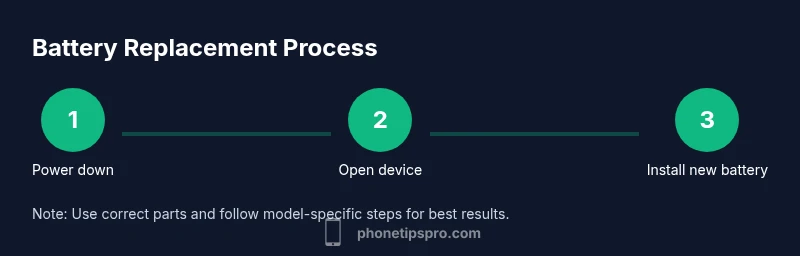
This section offers a high-level roadmap to accompany the formal Step-by-Step guide. You’ll prepare, safely disconnect the old battery, install the new cell, seal the device, and perform initial testing. While it’s tempting to rush, patience is essential; improper reassembly can damage the display or connectors. For the best outcome, follow the detailed steps below and consult the official service pages if you encounter model-specific challenges.
Post-replacement testing and calibration
After installing a replacement battery, perform a careful first charge cycle and monitor battery health in Settings > Battery. Look for smooth charge curves and no unexpected rapid drops in percentage. Run a few power-on and power-off cycles to confirm stability, and test essential tasks like calling, messaging, and app use. A short calibration period helps the system learn the new battery’s capacity, improving accuracy of remaining-life estimates. This testing phase is critical to ensure you didn’t miss a loose connector or a misaligned seal.
Costs, warranty, and service options
Cost considerations vary with model, part quality, and whether you use official service or a DIY route. DIY replacement parts are generally more affordable but carry higher risk if you lack experience. Authorized Apple service can provide warranty-backed installation and calibration, albeit at a higher price. When budgeting, factor in the replacement battery quality, any needed tools, and potential screen resealing costs. Phone Tips Pro advises weighing convenience, safety, and long-term reliability when choosing between DIY kits and professional service.
Long-term care to extend battery life
To maximize the lifespan of your replacement battery, minimize heat exposure, avoid letting the device fully discharge, and update iOS to benefit from power-management improvements. Maintain moderate charging habits, say between 20% and 80% when feasible, and keep the device within operating temperatures recommended by Apple. Periodically check Battery Health to detect any anomalies early, and schedule routine maintenance if you rely heavily on your iPhone for daily work.
Tools & Materials
- Replacement battery compatible with your iPhone model(Ensure correct model; prefer official Apple battery or a reputable, certified third-party option.)
- Pentalobe screwdriver(For the exterior case screws.)
- Tri-point Y0 screwdriver(For internal hardware screws.)
- Plastic opening tools (spudger, nylon picks)(Non-metallic to avoid short circuits.)
- Suction cup(Assist screen lift without damage.)
- ESD-safe wrist strap or mat(Reduces static risk during disassembly.)
- Isopropyl alcohol (90%+)(For cleaning connectors and residue.)
- Adhesive seal or replacement adhesive strips(Needed for resealing the display on some models)
Steps
Estimated time: 30-60 minutes
- 1
Power down and prep the workspace
Shut down the iPhone completely and unplug any accessories. Clear a clean, well-lit workspace with a non-conductive mat to minimize the chance of short circuits. Take a photo of connectors before disassembly for reference. This prepares you for a safe battery replacement.
Tip: Record the device orientation so you can reassemble correctly. - 2
Open the device and access the battery
Remove the exterior screws, then use non-marring tools to separate the display from the frame. Be cautious of the delicate connectors and hinges. Keep track of all screws and small parts to avoid lost pieces.
Tip: Work slowly and use minimal force to avoid screen damage. - 3
Disconnect the battery connector
Carefully locate the main battery connector on the logic board and disconnect it using a plastic tool. Ensure there is no power flowing through the circuit while disconnecting. This step prevents short circuits during removal.
Tip: Never pry on the connector; lift straight up to avoid damage. - 4
Remove the old battery
Loosen any adhesive securing the battery and gently lift it out with plastic tools. Avoid bending the battery or puncturing its cell, which can release dangerous chemicals. Place the old battery in a non-conductive container for disposal.
Tip: Do not use metal tools on the battery. - 5
Install the new battery
Place the replacement battery in its slot and align connectors with the logic board. Reconnect the battery connector securely but not overly tight. Ensure cables are routed away from any heat sources or moving parts.
Tip: Test fit before final sealing to confirm a clean connection. - 6
Reassemble the device
Carefully reattach the screen and tighten screws in a cross pattern to avoid warping. Replace any adhesive strips if you removed them, and reseal the device as required for your model. Confirm there is no gap around the display.
Tip: Check screen alignment and ensure no pressure points. - 7
Power up and initial test
Power the device on and perform a quick boot test. Check that the battery icon shows charging and that the device reaches the home screen without errors. If the device refuses to boot, disconnect and recheck connectors.
Tip: If you see a warning, revisit connections before continuing. - 8
Calibrate and monitor the new battery
Allow the first charge to complete, then perform several cycles to settle the battery’s reported capacity. Monitor Battery Health in settings and run a few tasks to ensure stable performance. Document the process for future reference.
Tip: A proper calibration improves accuracy of remaining-life estimates.
FAQ
Is it safe to replace an iPhone battery yourself?
DIY battery replacement can be safe when you follow proper safety protocols, use approved parts, and have the right tools. If you’re unsure, seek professional service to avoid injury or device damage.
Yes, it can be safe if you follow the safety steps and use quality parts; otherwise, consider professional help.
Can I use any aftermarket battery for my iPhone?
Use batteries from reputable brands that specify model compatibility and include safety certifications. Poor-quality batteries can swell, leak, or fail to calibrate correctly, leading to performance issues.
Only use reputable brands that match your exact iPhone model to avoid risks.
How long does a typical battery replacement take?
A typical replacement takes about 30 to 60 minutes, depending on model and your familiarity with the process. Rushed work increases the risk of damage.
Most replacements take under an hour when you have the right tools and a calm workspace.
Will replacing the battery affect water resistance?
Disassembly and resealing can affect water resistance if the seal isn’t restored properly. Use proper adhesives and follow model-specific guidelines to maintain protection.
If you’re careful with sealing and use the correct parts, you can preserve water resistance after replacement.
Do I need to calibrate the new battery after installation?
Calibrating the new battery helps the system report accurate remaining life. Perform a full charge cycle and observe Battery Health for several days.
Calibrating helps the phone know how much charge it has left, which is useful for accuracy.
Should I replace the battery at an Apple Store or authorized service?
Apple Store or authorized service offers warranty coverage and calibration, reducing risk if you’re not confident in DIY repair. Expect a higher cost.
If you want warranty and guaranteed calibration, go with Apple or an authorized service center.
Watch Video
Quick Summary
- Plan and backup before starting
- Use correct parts and model numbers
- Follow safety steps to avoid injury
- Test thoroughly after installation
- Calibrate the new battery for accurate readings