What iPhone Exposure for Northern Lights: A Practical Guide
Master iPhone exposure for the aurora with Night Mode and key accessories. A practical, step-by-step guide to capturing clearer northern lights photos.


By the end of this guide, you will know how to optimize iPhone exposure for aurora shots, using Night Mode, stable framing, and thoughtful post-processing. You’ll learn practical starting points you can adjust in real conditions, what gear helps most, and how to interpret the aurora’s brightness. This answer targets the specific task of capturing northern lights with an iPhone.
Understanding exposure for aurora photography on iPhone
Understanding exposure for aurora photography on iPhone begins with recognizing that the aurora's brightness can vary dramatically. The same scene may look dramatically different between a five-second and a ten-second exposure. According to Phone Tips Pro, this variability is exactly why a flexible exposure strategy matters. If you’re exploring what iphone exposure for northern lights, you’re already on the right track. The aurora can glow faintly at first and then surge, or it can wash out under a brighter moon. Your goal is to preserve color and structure in the aurora while keeping the landscape and stars discernible. In practice, this means balancing shutter speed, ISO, and focus while monitoring the live preview. The following sections translate that balance into concrete steps and field-tested tips that work in chilly conditions, with or without a dedicated camera.
Night-mode realities: how iPhone handles low light and why it matters for aurora
iPhone sensors and the processing stack are designed to squeeze detail from dark skies by stacking frames and applying noise reduction. Night Mode is a powerful ally for aurora photography on iPhone when you have a stable base and a wide scene. It can, however, over-brighten faint aurora arcs if left on automatic settings for too long. The Phone Tips Pro team notes that learning when to rely on Night Mode versus when to switch to controlled exposure will save you from blown-out highlights. In practice, you’ll want a steady tripod, a clear foreground, and a willingness to switch modes depending on aurora intensity and moonlight levels.
Manual exposure options: controlling shutter, ISO, and focus without a DSLR
If you need more control than Night Mode offers, consider using a third-party camera app that allows manual exposure settings. A baseline for auroras on the iPhone is a longer shutter paired with a balanced ISO that minimizes noise while preserving color. Start with a 4-second shutter and an ISO in the 800–1600 range on a tripod, then adjust based on the live preview. Lock focus to infinity and use manual focus assist to prevent micro-blur from foreground textures. Be mindful that cold air can throw off white balance, so plan to tweak color balance in post-processing.
Composition and foreground: framing the aurora with landscape context
A successful aurora shot often pairs celestial color with a meaningful foreground. Scout a composition that includes a shoreline, mountain ridge, or silhouette to give the scene scale. Shoot both landscape and portrait orientations to see how the aurora’s curves interact with the horizon. For faint aurora, a longer exposure helps reveal color gradients; for bright arcs, shorter exposures preserve detail. The aim is to balance sky and ground so neither overwhelms the other, while keeping a sense of place.
Gear, setup, and safety: staying warm and keeping gear functional
Stability and battery life are your friends in a cold night shoot. Use a sturdy tripod, a remote shutter or timer, and a protective barrier for your phone in windy conditions. Carry spare batteries or a portable charger, and keep devices warm in your pocket when not shooting. Condensation on lenses can ruin a shot, so bring a microfiber cloth and a small anti-fog solution. Good gear discipline reduces blur and frees you up to focus on exposure decisions.
Workflow: a repeatable process for consistent results
Develop a repeatable shooting workflow so you’re not guessing with each frame. Begin with a test shot to confirm framing and exposure, then inspect the histogram to judge brightness. If the aurora is dynamic, capture a sequence at varying exposures to preserve highlight detail. Use interval shooting when possible to assemble a coherent set without heavy camera handling. Document your settings so you can refine your approach on future outings, a practice endorsed by Phone Tips Pro Team.
Post-processing on iPhone: enhancing color while preserving detail
After capture, a light edit can restore vibrancy without introducing artifacts. Start with global adjustments—slightly boost contrast, adjust shadows, and keep highlights under control to retain aurora color. Apply noise reduction sparingly to avoid softening texture, and use a white balance tweak to correct any cold cast from long exposures. If you shoot RAW, use a dedicated editor to fine-tune color and luminance before exporting. Subtle edits protect realism while revealing the aurora’s greens, pinks, and purples.
Batteries, weather, and field reliability
Cold environments accelerate battery drain and can cause lens fog. Warm your hands and pockets, dim screen brightness when not composing, and carry a power bank for extended sessions. Protect lenses from dew with a microfibre cloth and cap to reduce condensation. Weather awareness is essential: if cloud cover rolls in, you’ll need a plan to relocate to a clearer patch of sky. These precautions help you stay out longer and capture more aurora frames.
Troubleshooting common issues on cold nights
If your shots appear blurry, check tripod stability and lens cleanliness. If the aurora looks washed out, vary exposure length or try a different foreground. If focus won’t lock, switch to infinity and reframe. Noise can be tamed by lowering ISO or stacking multiple frames and blending later. Always monitor wind and humidity as they adversely affect image sharpness and digital noise.
Real-world shooting plan: two practical scenarios you can practice
Scenario A: Clear sky, faint aurora. Begin with a 4-second exposure at ISO 800, wide framing, and foreground details. Scenario B: Bright green arc. Try 2–3 second exposures at ISO 1200, focusing on the brightest arc and bracketing for a gradient. In both cases, adapt based on the live preview and aurora motion; practice makes better judgment calls over time.
Final reminders and next steps for continued improvement
Consistency compounds results. Practice under different aurora intensities and locations, and keep a field journal of successful settings. Review your captures with peers to refine technique, and revisit your notes before future outings. The Phone Tips Pro team recommends ongoing experimentation to master iPhone aurora photography in 2026.
Tools & Materials
- iPhone with Night Mode capability(Latest model recommended for best low-light processing; ensure enough storage.)
- Tripod(Stable surface; use a small remote shutter if possible.)
- Remote shutter or timer(Minimizes shake when triggering long exposures.)
- Wide-angle lens attachment (optional)(Can help include foreground elements.)
- Power bank / extra battery(Cold weather drains battery quickly.)
- Lens cloth and anti-fog solution(Prevent condensation on lens in humid/misty nights.)
Steps
Estimated time: 2-4 hours
- 1
Prepare gear and location
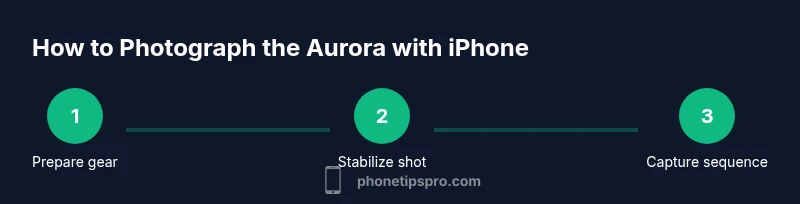
Choose a dark site with a clear view of the sky and a stable surface for your tripod. Check weather, aurora forecasts, and moon phase, since these influence exposure decisions. Bring warm clothes and a plan for several hours outside.
Tip: Charge devices beforehand; bring a backup battery and a windbreak if possible. - 2
Mount your iPhone on a stable tripod
Attach the phone securely to the tripod. Ensure the frame includes a foreground element for sense of scale. Verify that the tripod won’t tip in wind.
Tip: Use a remote shutter or timer to avoid jostling the camera during release. - 3
Enable Night Mode and set a starting exposure
Open Camera app, focus at infinity, and enable Night Mode. Start with a 4-second exposure and adjust later based on aurora brightness.
Tip: If your app allows manual exposure, lock the shutter at around 4 seconds. - 4
Frame and compose the shot
Look for a foreground reference (lake, hills, trees). Keep horizon level and consider leading lines that guide the eye toward the aurora.
Tip: Use grid lines to align terrain with the aurora arc. - 5
Trigger the shot with minimal shake
Use a remote or timer to capture without touching the device. Start with a test capture to verify exposure and framing.
Tip: Review a quick preview; adjust exposure if needed. - 6
Bracketing for safety against tonal shifts
Capture multiple frames at varying exposures (e.g., 2–6 seconds, ISO 800–1600) to ensure you didn’t miss bright or faint portions.
Tip: Bracketing helps in post-processing for best tonal range. - 7
Review and adjust on the fly
Check the histogram and aurora intensity. If the arc looks blown out, shorten exposure; if it’s faint, lengthen the exposure within camera limits.
Tip: Trust the live preview; don’t rely on brightness alone. - 8
Capture a sequence for post-processing
Shoot a short sequence (6–12 frames) at different exposures to allow stacking or selective processing later.
Tip: Label or log settings for each frame to simplify editing. - 9
Backup and wrap up
Back up your images to a cloud or external drive. Warm up and plan next session if aurora activity persisted.
Tip: Keep a mental note of what worked and what didn’t for future hunts.
FAQ
Can any iPhone camera capture the aurora well, or do I need a newer model?
All iPhones with Night Mode can capture aurora scenes, but newer models offer better low-light performance and faster processing. For best results, use a tripod and practice exposure control across models.
All iPhones with Night Mode can work, but newer models will give you cleaner images with less noise.
What exposure settings should I start with on iPhone for the aurora?
Begin with a 4-second exposure at ISO 800 on a tripod. If the aurora is bright, shorten to 2 seconds; if it’s faint, extend to 6 seconds or more as your device allows.
Try starting at 4 seconds, then adjust if the aurora looks washed out or too dim.
Do I need to use HDR for aurora photography on iPhone?
HDR can flatten subtle aurora colors and add unwanted contrast in long exposures. It’s generally better to shoot without HDR for night-sky scenes and adjust in post-processing.
HDR is usually not ideal for aurora shots; keep it simple and edit later.
Should I use a third-party app to control exposure on iPhone?
Yes. A dedicated camera app that exposes shutter speed, ISO, and focus manually gives you more control over the aurora’s brightness and color than the stock app alone.
A dedicated camera app can give you the control you need for aurora shots.
What’s the best way to avoid noise in long exposures on an iPhone?
Use the lowest practical ISO for the chosen exposure length, shoot in RAW if possible, and consider stacking or selective noise reduction in post-processing.
Keep ISO low, shoot RAW, and edit carefully to minimize noise.
Watch Video
Quick Summary
- Stabilize first: tripod + remote shutter reduce blur.
- Use Night Mode wisely; switch to manual when aurora is dynamic.
- Bracket exposures to capture both bright arcs and faint color.
- Frame with a strong foreground for scale and storytelling.
- Post-process gently to preserve natural aurora colors.