How to Scan a QR Code with iPhone: A Practical Guide
Learn step-by-step how to scan QR codes on iPhone using Camera, Notes, or Control Center. Includes tips, privacy pointers, and troubleshooting for 2026.


According to Phone Tips Pro, you can scan a QR code on iPhone with the built-in Camera app in seconds. If the code is recognized, a banner appears—tap it to open links, add contacts, or save Wi‑Fi details. Other methods include Notes, or the Control Center's Code Scanner if available.
Why QR codes make iPhone workflows smooth
QR codes condense links, contact details, Wi‑Fi credentials, and other data into a simple image. On iPhone, the Camera app can read those codes without installing extra software, streamlining tasks like joining a Wi‑Fi network or opening a webpage. Phone Tips Pro notes that this built‑in capability reduces friction and supports faster digital interactions. In practice, a quick scan can save several taps and minimize errors when transferring data from print, screens, or advertisements to your device.
Core methods to scan QR codes on iPhone
There are multiple built‑in ways to read a QR code, depending on your iOS version and personal workflow. The quickest method is usually the Camera app: point the camera at the code and wait for the banner to appear. If you prefer a dedicated scanner, iPhone’s Code Scanner (via Control Center) provides a fast, single‑tap workflow. For offline note‑taking or copying data, some users turn to the Notes app to capture text or add attachments after the scan. Across methods, the key is keeping the code steady and well lit so the camera can capture a clear image.
Scanning with the Camera app: a fast, reliable option
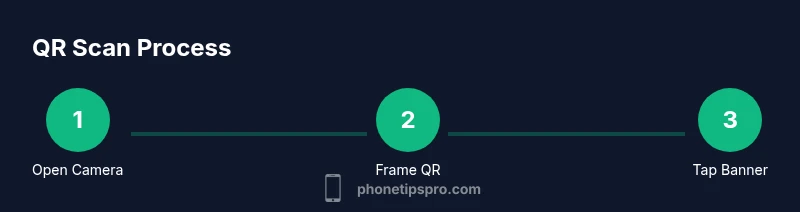
Open the Camera app in Photo mode and center the QR code in the viewfinder. Hold your device steady for a moment and watch for the on‑screen notification. When the scan succeeds, a banner pops up with the action (open link, join Wi‑Fi, etc.). If you tap the banner, the iPhone will perform the requested action in Safari or the relevant app. If you’re in a noisy environment or in direct sunlight, adjusting your distance or angle can improve recognition.
Alternative: using Notes or other apps when Camera won’t cooperate
If the Camera app struggles, you can still capture the information by using Notes as a fallback. Open Notes, create a new note, tap the camera icon, and choose Scan Text or Scan Document (depending on iOS version). While this doesn’t execute the link directly, you can copy the scanned data into Safari or your notes for later use. Third‑party readers exist, but built‑in options typically cover the most common QR formats.
Control Center Code Scanner and accessibility options
On some iPhone models, you can enable a Code Scanner in Control Center for quick access. Add it via Settings > Control Center > customize controls, then swipe down (iPhone with a notch or swipe up on older devices) to access the scanner. This method is especially helpful when you need to scan during multitasking or while using another app. People who rely on larger text or VoiceOver can still interact with the scan results after recognition.
Privacy, reliability, and best practices when scanning QR codes
Only scan codes from trusted sources to avoid phishing or malware. If a scan opens a browser, inspect the URL before proceeding. Updates to iOS often improve recognition and security; keeping your device current is a simple but effective safeguard. Phone Tips Pro analyses show that most users prefer the built‑in Camera approach for speed and simplicity, while advanced users may keep a secondary scanner for special cases.
Troubleshooting common issues and what to try first
If your iPhone won’t recognize a QR code, start with lighting and distance adjustments: reduce glare, move the code closer, or angle the phone slightly. Clean the camera lens and ensure the code isn’t damaged or blurry. Restart the Camera app or the iPhone if the problem persists. If scanning still fails, test another QR code to determine whether the issue is environmental or device‑specific.
Tools & Materials
- iPhone with latest iOS(Ensure you have the Camera app and internet connection available for redirection after scan.)
- Good lighting(Natural light or bright ambient lighting helps the camera read codes quickly.)
- QR code to scan(Test with a few codes of different sizes and contrasts.)
- Optional: Control Center Code Scanner(Add to Control Center for quick scans when the camera is busy.)
- Optional: Notes app(Use as a fallback if camera scanning is temporarily unavailable.)
Steps
Estimated time: 5-10 minutes
- 1
Open the Camera app
Unlock your iPhone and launch the Camera app in Photo mode. This is the default method most people use for QR scanning because it’s fast and built‑in.
Tip: If you’re in another app, swipe up and switch to Camera quickly for speed. - 2
Frame the QR code
Position the QR code within the center of the screen and hold steady. Ensure the code is fully visible with no blur or glare.
Tip: If the code is far away, back up slowly until it fills a comfortable portion of the view. - 3
Wait for recognition
Give the camera a moment to read the code; a banner should appear near the top or bottom of the screen with the action to take.
Tip: If nothing appears, try moving closer or adjust lighting to reduce reflections. - 4
Tap the banner to act
Tap the banner to open the link or apply the data (Wi‑Fi, contact card, etc.). This opens in Safari or the appropriate app.
Tip: Avoid tapping the code itself; tap the banner for the intended action. - 5
Use Code Scanner if Camera fails
If recognition fails, swipe to Control Center and use Code Scanner, or enable it in Settings > Control Center.
Tip: Update iOS to ensure Code Scanner is optimized and secure. - 6
Verify and save data
After opening a link or saving information (like a Wi‑Fi password), verify the result and save it where appropriate.
Tip: If you’re wary about a link, type the URL manually in Safari instead of following the banner.
FAQ
Do I need a separate QR scanner app on iPhone?
No. The iPhone Camera app can scan most QR codes directly. If you prefer, you can use the Code Scanner in Control Center or Notes for alternate workflows.
No separate app is required; the iPhone camera handles QR codes, with backups in Control Center if needed.
Which iOS versions support QR scanning with the Camera?
QR scanning with the Camera is supported on iOS 11 and later. Keeping iOS up to date ensures the best compatibility and security.
Supported on iOS 11 and later; update your iPhone to get the latest scanning improvements.
Why isn’t my iPhone recognizing the QR code?
Possible causes include poor lighting, glare on the code, a damaged or blurry code, or a dirty camera lens. Adjust distance and lighting, clean the lens, and retry.
Likely lighting or glare; clean the lens and reposition the code to retry.
Can I scan a QR code from a printed page?
Yes. Printed codes are scanned the same way as digital codes. Ensure the print is not faded and the code isn’t curved or torn.
Absolutely—present the code clearly and scan as usual.
Is it safe to scan QR codes from unknown sources?
Exercise caution. Unknown codes can direct you to unsafe websites or prompt malware downloads. Preview the URL if possible and avoid entering personal data.
Be careful with unknown codes; preview links and avoid entering sensitive data.
What if the link doesn’t open after scanning?
Tap the banner to open the link when it appears. If it fails, copy the URL and paste it into Safari, or try a different code.
Tap the banner to open; if it fails, copy the URL and try again in Safari.
Watch Video
Quick Summary
- Use the built‑in Camera for fastest QR scans
- Tap the scan banner to act—don’t tap the code itself
- Control Center offers a quick fallback option
- Scan safely by validating URLs before opening