Where to Scan on iPhone: A Practical Guide
Learn where to scan on iPhone, from QR codes to documents, using Camera, Notes, and Live Text. Step-by-step guide with tips, privacy considerations, and best practices for on-the-go scanning.


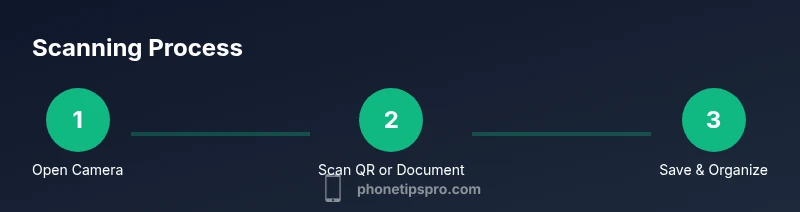
On iPhone, you can instantly scan QR codes and documents using built-in tools. For QR codes, open the Camera app and point at the code to trigger a link or action. For documents, use the Notes app’s Scan Document feature or iOS 15+ Live Text to capture text from photos. Ready to start? Here are the steps.
Understanding what 'scan' means on iPhone
In everyday iPhone use, the word scan covers several capabilities that involve capturing information from the real world into your device. At its most basic level, you can scan a QR code with the built-in Camera app. A QR code is a square matrix code that links to a website, a Wi‑Fi password, or a contact card. Most iPhones from recent versions recognize QR codes automatically when the Camera frame is pointed at them, showing a notification banner you can tap to act on. Another form of scanning is document capture. With iOS, you can scan physical documents and export them as PDFs or image files, preserving layout and legibility. A third feature, Live Text, lets you extract printed or handwritten text from photos and screenshots so you can copy, translate, or search the content. Understanding these three modalities helps you choose the right tool for each task and avoid clutter from using the wrong app.
Where to scan with the Camera app
On your iPhone, the built-in Camera app is the first stop for scanning codes. Simply open Camera, point the lens at a QR code, and hold steady. When the code is within focus, a notification banner appears; tap to open the link or perform the action. You can also scan codes by moving closer or farther away, aiming for optimal framing. Some codes require a camera flash in dim light; if scanning fails, switch to brighter lighting or a different angle. Camera-based scanning works without any extra apps or permissions beyond camera access. For best results, ensure the code is well lit and the surface is flat or evenly aligned.
Scanning documents with Notes and Files apps
Document scanning on iPhone is designed to be quick and accurate. In Notes, create or open a note, tap the camera button, and choose Scan Documents. The device will guide you to align the document; once captured, you can adjust borders, crop, and save as a PDF or image. The Files app on iPhone also supports scanning in some versions, enabling you to import scans directly into cloud storage. For best results, lay the document flat, use diffuse natural light, and avoid glossy surfaces that cause glare. After scanning, you can annotate or export the file, share it via email, or save it to your preferred location.
Live Text: extract text from photos
Live Text makes text extraction from photos easy. Open a photo that contains readable text, then tap the Live Text icon or long-press the text to select it. You can copy, translate, search, or look up definitions. This feature works on iPhone models that support Live Text and can be affected by language and handwriting quality. If Live Text isn’t available on your device, ensure you have updated iOS and enable supporting language features. Live Text is especially useful for saving quotes, numbers, or addresses from screenshots and photos, and it can dramatically speed up data capture when you’re collecting information on the go.
Third-party scanning apps: pros and cons
Although the built-in tools cover most needs, third-party apps like Adobe Scan or Microsoft Office Lens provide advanced OCR, multi-page documents, and cloud integration. Weigh privacy, storage, and cost when choosing an app. Some apps request extensive camera or file permissions; review these settings and restrict access if you have privacy concerns. If you do select a third-party app, ensure it has a clear privacy policy and robust encryption. However, for everyday use, Apple’s native scanning features are fast, reliable, and private.
Common issues and quick fixes
Reliably scanning on iPhone depends on lighting, distance, and steadiness. If your code or document isn’t recognized, try these: improve lighting with diffuse daylight, stabilize by resting on a surface, adjust distance to about the width of your hand between lens and subject, and clean the lens to avoid blur. For Live Text, ensure the text is legible and avoid heavily stylized fonts. If scanning still fails, restart the Camera or Notes app. In low-power situations, a quick device restart can resolve temporary camera glitches.
Security and privacy when scanning
Be mindful of the sensitivity of the data you scan. QR codes may redirect to phishing sites; never share scanned documents over unsecured networks; review app permissions; store scanned files in private folders or local storage. Turn off iCloud syncing for sensitive items if you prefer local-only storage. The Phone Tips Pro team recommends reviewing privacy settings regularly and only using trusted apps for document scanning to minimize risk of data exposure.
Best practices for on-the-go scanning
Keep scans organized with a clear naming convention and predictable folder structure. Use short, descriptive filenames and consistent tagging for quick retrieval. When scanning in public or crowded spaces, shield the screen from prying eyes and enable device passcodes or biometric security before saving sensitive data. If you’re scanning multiple pages, enable multi-page documents where supported and back up occasionally to avoid data loss. Finally, review scanned content for readability and accuracy before sharing.
Tools & Materials
- iPhone with Camera and Notes apps(Ensure you are on a recent iOS version with Live Text support if you plan to use that feature)
- Good lighting(Diffuse daylight or a steady desk lamp to avoid glare on documents)
- Clean lens and flat surface(Wipe lens; place documents flat to prevent blur)
- Optional third-party scanning app(For advanced OCR or multi-page documents; check privacy policy)
- Storage plan (local or cloud)(Decide where to store scanned files (On-device, iCloud, or another service))
Steps
Estimated time: Total time: 15-25 minutes
- 1
Prepare the target for scanning
Power on your iPhone, unlock, and reset to a clean, steady surface. Verify you have sufficient lighting and that the target (QR code or document) is flat and unobstructed. This setup reduces blur and glare, improving recognition accuracy.
Tip: Keep a stable grip or place the phone on a table to minimize shake. - 2
Scan a QR code with Camera
Open the Camera app and center the QR code in the frame. Hold steady until the banner appears, then tap to open the linked content. If the code doesn’t read, adjust distance or lighting and try again.
Tip: Move slowly and ensure the entire code is visible within the frame. - 3
Scan a document with Notes
In Notes, create or open a note, tap the camera icon, and select Scan Documents. Align the document as instructed, capture, and adjust borders. Save as PDF or image and organize in your chosen folder.
Tip: Use the edge detection to crop cleanly; multiple pages can be added in a single scan session. - 4
Extract text with Live Text
Open a photo containing editable text, then tap Live Text or use the selection tool to highlight the text. Copy, translate, search, or share directly from the selection.
Tip: If Live Text isn’t visible, ensure iOS is up to date and the feature is enabled in Settings. - 5
Save, share, or export
Choose how to store the scan—in Notes, Files, or a cloud service. Rename the file for easy retrieval, add tags, and share via email or messaging when needed.
Tip: Create a dedicated folder for scanned items to keep everything organized.
FAQ
Can I scan QR codes without installing any apps on iPhone?
Yes. The built-in Camera app can recognize and open most QR codes. Simply point the camera at the code and tap the banner that appears.
Yes, your iPhone camera can read QR codes by itself. Just point and tap the banner when it appears.
How do I scan documents in Notes?
Open Notes, create or select a note, tap the camera button, then choose Scan Documents. Align the page, capture, and save as PDF or image.
In Notes, use Scan Documents to capture pages and save them as PDFs or images.
What can Live Text extract from photos?
Live Text can copy, translate, search, and look up definitions from readable text in photos or screenshots. It works best with clear, legible text.
Live Text lets you copy and search text from photos, and translate when supported.
Why won’t my iPhone read a code or document?
Common causes include low light, glare, improper distance, or a blurry lens. Improve lighting, steady the device, and reframe the subject.
Usually it’s lighting, glare, or focus. Reframe and rescan.
Are there privacy concerns when scanning?
Only use trusted apps and store scans securely. Avoid uploading sensitive data to insecure networks and review app permissions regularly.
Be mindful of where you store scans and which apps access them.
Is third‑party scanning software necessary?
Not necessary for most users. Native iPhone tools cover most tasks, but third‑party apps offer extra features like multi‑page OCR or cloud export if your needs grow.
For most people, built‑in tools are enough; use third‑party apps only if you need extra features.
Watch Video
Quick Summary
- Use Camera for QR scanning with zero extra apps
- Notes is your default tool for document scans
- Live Text enables quick text extraction from images
- Protect scanned data with mindful storage and permissions