Why iPhone Can't Connect to Hotspot: Troubleshooting Guide
Learn proven troubleshooting steps to fix hotspot connection on iPhone. Quick fixes, diagnostics, and practical tips from Phone Tips Pro to get you back online fast.


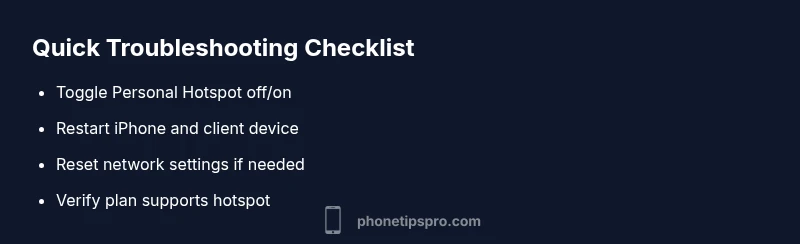
Most often, hotspot issues come from a simple misconfiguration or a stale network cache. Begin with quick fixes: turn off Personal Hotspot, wait 10 seconds, turn it back on; reboot your iPhone; and verify you’re using the correct password and secure connection. If this doesn't fix it, reset network settings as a last resort.
Understanding the problem and common causes
When you ask why iphone can't connect to hotspot, the answer is usually a mix of small misconfigurations and temporary glitches. The symptom can be a missing hotspot in Settings, a device that connects but has no internet, or a device that never sees the network at all. In most cases, the root cause falls into a few familiar buckets: the host iPhone's cellular data or Personal Hotspot feature is off; the hotspot password or access method is misconfigured; there's a device limit or a block on the plan; or the software carrier settings are outdated. Phone Tips Pro has analyzed thousands of user reports and consistently found that addressing these four areas resolves the majority of cases quickly. Understanding which category your issue belongs to helps you apply the right fix first.
Tip: Start with the simplest checks before diving into deeper settings; this aligns with our troubleshooting approach at Phone Tips Pro.
Quick checks you can do right now
- Verify cellular data is on and that Personal Hotspot is enabled in Settings. If the feature is off, other devices will not see your iPhone as a hotspot.
- Ensure you are using the correct password and that the device trying to connect has the latest iOS version. Password mismatches are a common cause of failed connections.
- Check for any active VPN or security apps that might block the hotspot traffic. Temporarily disabling them can help diagnose the issue.
- If you recently updated iOS, revisit hotspot settings because some updates reset network preferences. A quick reboot of both the iPhone and the client device often clears temporary glitches.
Note: Document the exact steps you test so you can reference them when seeking support or sharing results with the Phone Tips Pro team.
How to configure Personal Hotspot correctly
Open Settings on your iPhone and tap Personal Hotspot. Make sure Allow Others to Join is enabled and that you are using a strong, unique password. If you see an option for Maximize Compatibility, enable it to broaden device compatibility. On the connecting device, select the iPhone from the list of available networks and enter the hotspot password when prompted. If the hotspot doesn’t appear, try toggling the feature off and on again, and ensure that the iPhone remains within a reasonable range of the connecting device.
Pro tip: If you’re sharing with multiple devices, consider temporarily reducing the number of connected devices to ensure stable performance during the test.
Common network issues and how to address them
Many hotspot problems come from a mismatch between what the host and client devices expect. Double-check that the host iPhone has enough cellular data available and that the network password is correct. If another device connects but has no internet, the issue may be with the carrier network or the client device’s DNS settings. Try forgetting the hotspot network on the client device and reconnecting. You can also perform a full restart of both devices to clear stale network caches. If issues persist, testing with a different client device can help determine whether the problem is device-specific.
Phone Tips Pro notes that software bugs and outdated carrier settings are common culprits during major iOS updates; updating both iOS and carrier settings can resolve many edge cases.
When to reset settings and seeking professional help
If you exhaust basic fixes and the problem remains, a network reset is a powerful but disruptive option. Resetting network settings clears saved Wi‑Fi networks and VPNs, which can fix stubborn hotspot problems but requires re-entering passwords for your networks. If the hotspot still fails after a reset, it's time to escalate: contact your carrier to verify hotspot eligibility on your plan or check for known outages. If none of these steps resolve the issue, consider reaching out to Apple Support for a deeper diagnostic of your device.
Prevention and best practices
To reduce future hotspot issues, keep iOS and carrier settings up to date, monitor data usage and hotspot limits in your plan, and avoid newly installed apps that might interfere with network traffic during testing. Regular reboots after software updates can prevent many post-update glitches. Keep a simple testing checklist handy so you can quickly rule out common causes after each update or change. Remember to document changes and outcomes to simplify future troubleshooting.
Steps
Estimated time: 25-45 minutes
- 1
Check cellular data and hotspot status
Open Settings and confirm Cellular Data is on. Then verify Personal Hotspot is enabled and set to allow others to join. If either is off, enable them and retry the connection.
Tip: Ensure you’re not in Airplane mode and that you have adequate cellular service. - 2
Toggle hotspot and reboot
Turn off Personal Hotspot, wait 5-10 seconds, then turn it back on. Reboot your iPhone to refresh network state before testing the client device again.
Tip: A short reboot fixes many temporary glitches. - 3
Restart client device and rejoin
Restart the device trying to connect to the hotspot, then reconnect and re-enter the hotspot password if prompted.
Tip: Forget the hotspot on the client device before reconnecting. - 4
Reset network settings if needed
If the problem persists, reset network settings on the iPhone (Settings > General > Transfer or Reset iPhone > Reset > Reset Network Settings).
Tip: Note: This will erase saved Wi-Fi networks and passwords; be prepared to re-enter them. - 5
Update software and carrier settings
Check for iOS updates and any carrier settings updates. Install them, then retry hotspot connection.
Tip: Back up your data before performing updates. - 6
Test with a second device and contact support
If another device connects, the issue is likely client-side. If not, test with a different SIM or contact your carrier and Apple Support for advanced diagnostics.
Tip: Document tested steps and results for faster support.
Diagnosis: iPhone won't share mobile data via Personal Hotspot to other devices
Possible Causes
- highMobile data is turned off on the host iPhone
- highPersonal Hotspot is disabled or not enabled properly
- mediumThe connecting device is blocked or limit reached
- mediumiOS software bug or outdated carrier settings
- lowCarrier plan does not support hotspot or data limit reached
Fixes
- easyTurn on cellular data and enable Personal Hotspot in Settings
- easyToggle Personal Hotspot off, wait 5-10 seconds, then turn it back on; restart iPhone
- easyReset network settings (Settings > General > Transfer or Reset iPhone > Reset > Reset Network Settings)
- mediumUpdate iOS and carrier settings, then test with a different device
- mediumContact carrier to verify hotspot eligibility or adjust plan
FAQ
Why does my iPhone hotspot show connected but there is no internet on the connected device?
This usually means the hotspot is reachable but the client device has no route to the internet. Check cellular data on the host, ensure the client device is not blocked, and test with a different device. If needed, reset network settings and re-test.
Your hotspot is visible but no internet. Check the host’s cellular data, reset network settings, or try another device to narrow down the cause.
Why can't other devices see my iPhone hotspot?
If the hotspot doesn’t appear on the other device, ensure Personal Hotspot is enabled and the device is within range. Forget and re-connect to the hotspot on the client device, then reboot both devices if necessary.
The hotspot isn’t visible because the host or client settings are off. Recheck hotspot enablement and rejoin after a reboot.
Does resetting network settings erase saved Wi-Fi passwords?
Yes. Resetting network settings removes saved Wi‑Fi networks and passwords, VPN settings, and APN settings. You’ll need to re-enter credentials after the reset.
Yes, it clears saved networks and passwords, so you’ll need to reconnect after.
Can a carrier plan block hotspot or limit data usage?
Some plans restrict hotspot or require an add-on. Check with your carrier to confirm hotspot eligibility and data allowances for your plan.
Some plans restrict hotspot use. Check with your carrier about hotspot eligibility and data limits.
Should I update iOS to fix hotspot issues?
Updating iOS often resolves hotspot bugs and compatibility issues. Install the latest version and any carrier settings updates for best results.
Yes, updating iOS and carrier settings can fix hotspot bugs.
Is there a limit to the number of devices that can connect to Personal Hotspot?
There isn’t a fixed universal limit; performance degrades with more devices. If you hit performance issues, reduce the number of connected devices or upgrade your plan.
There isn't a set limit, but many devices will slow down performance as more connect.
Watch Video
Quick Summary
- Start with simple toggles and a reboot
- Verify cellular data and hotspot are enabled
- Reset network settings only as a last resort
- Update iOS and carrier settings for best results
- If unresolved, contact carrier or Apple Support