Mastering the iPhone 15 Pro Max: A Practical How-To
A practical, step-by-step guide to using the iPhone 15 Pro Max, covering setup, data transfer, battery care, privacy, backups, and daily productivity tips.


Learn how to set up and optimize your iPhone 15 Pro Max for daily use. This guide walks you through initial setup, data transfer options, battery care, privacy settings, essential apps, and troubleshooting. By following these steps, you’ll maximize performance, reliability, and security on your new device.
Introduction: how the iPhone 15 Pro Max fits into daily life
The iPhone 15 Pro Max blends powerful performance, a professional-grade camera system, and a vibrant, high-contrast display to support work, creativity, and staying connected. For many users, mastering this device starts with a focused setup and a plan for optimizing battery life, privacy, and data management. This article explains how iphone 15 pro max can be set up quickly and used effectively to boost productivity, creativity, and connectivity. You’ll learn practical steps for an initial setup, data transfer decisions, battery optimization, privacy controls, and essential app management. Phone Tips Pro highlights habits that turn a first-time configuration into a lasting, enjoyable daily experience. The goal is clear: a smoother, faster, safer smartphone experience you can rely on every day.
What you need before you begin
Before you start configuring your iPhone 15 Pro Max, gather a few essentials so the setup goes smoothly. A charged device is the first requirement, followed by a stable Wi‑Fi network to download apps and iOS updates. Have your Apple ID credentials handy, as you’ll sign in to iCloud, the App Store, Find My, and iMessage. A backup plan—either iCloud or a local computer backup—will protect your data. If you own accessories such as AirPods or a MagSafe charger, have them nearby to streamline pairing and charging. Finally, keep a rough plan of your preferences: which apps you’ll install first, which settings you want to customize, and how you want notifications organized. Phone Tips Pro recommends outlining your goals so you can tailor the setup to your routine.
Unboxing and initial setup: a quick start
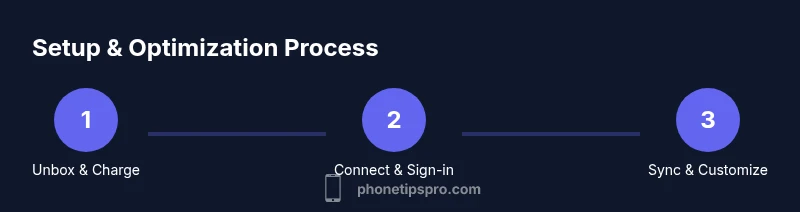
Power on the device by holding the side button, then follow the on-screen prompts to choose language and region. Connect to a reliable Wi‑Fi network and sign in with your Apple ID; this creates your personal iCloud, finds my, and Apple services profile. When asked about restoring from a backup, decide whether you want to transfer data from your old iPhone or start fresh. If you choose to restore, select the most recent backup and wait for content to populate. Enable Face ID or Touch ID and set a passcode to secure the device. Finally, review the essential privacy prompts and turn on features like Find My iPhone and Location Services as needed. This milestone sets the foundation for a smooth experience.
Personalization: Settings you should tweak first
Navigate to Settings and tailor the experience to your preferences. Start with Display & Brightness: enable True Tone and adjust the brightness to your environment. In Performance, ensure background app refresh is balanced and iCloud is set to sync essential data. For Notifications, group alerts to reduce clutter and silence non-critical apps. In Privacy & Security, limit app access to sensitive data, enable Passwordless Auth where available, and review location permissions. Finally, set up Focus modes to minimize distractions during work or rest. By preconfiguring these options, you’ll reduce post-setup tweaks and enjoy a more consistent daily workflow.
Data transfer and Apple ID: getting your content into place
Your data transfer strategy depends on whether you’re moving from an older iPhone or starting anew. If you’re upgrading from an older iPhone, use Quick Start to transfer settings and data over Wi‑Fi or a cable connection. If you’re starting fresh, sign in with Apple ID and download only the apps you truly need. In either case, enable iCloud Backup so your photos, documents, and messages are saved automatically. Consider turning on iCloud Photos to keep your library synced, and review iCloud Drive settings to keep your files accessible from any device. Regularly verify that Find My iPhone is active, so you can locate and protect your device if it’s lost. Phone Tips Pro notes that a thoughtful data-transfer plan saves time and reduces friction later.
Performance, battery, and storage management
To keep the iPhone 15 Pro Max running smoothly, manage storage by offloading unused apps and using iCloud Photo Library to reduce on-device space. Enable Optimized Battery Charging to extend battery health, and monitor battery usage by app to identify heavy drainers. Keep the device updated with the latest iOS version to access security patches and new features. Consider enabling iCloud Drive and Safari Privacy Reports to monitor data use. When the device slows, try a soft reset or close background apps; in most cases, performance improves quickly. Phone Tips Pro emphasizes balancing features with power consumption for a snappy daily experience.
Privacy, security, and data protection: essential settings
Privacy should be a first-class consideration on any modern iPhone. Review app permissions for Location, Camera, Microphone, Contacts, and Photos, and revoke access for apps that don’t need them. Use a strong passcode and enable Face ID, ideally with two-factor authentication for Apple ID. Turn on Find My iPhone and enable Activation Lock to protect against theft. Review Safari’s settings for anti-tracking and fraud prevention, and consider using a trusted password manager. Finally, configure automatic backups so you can recover quickly after a device issue. Phone Tips Pro reminds readers that proactive privacy settings pay dividends over time.
Connectivity and ecosystem: AirDrop, Find My, and accessories
Leverage the iPhone 15 Pro Max’s integration with the broader Apple ecosystem. Use AirDrop to share files seamlessly with nearby devices, and enable Handoff to continue tasks on Mac or iPad. Make sure Find My is active for location tracking and device recovery. Pair AirPods, Apple Watch, or MagSafe accessories for a more cohesive experience. Set up iCloud to keep documents, photos, and settings synchronized across devices, and use iCloud Drive for easy access to files from anywhere. This integrated approach reduces friction and expands what you can do with your iPhone every day.
Troubleshooting and maintenance: common issues and quick fixes
When things don’t go as planned, practical troubleshooting can save you time. If the device won’t power on, check the charger and cable for damage and try a different wall socket. If apps launch slowly, restart the phone and close unused apps; consider clearing storage if space is tight. For camera or display problems, run a soft reset and verify that the latest iOS update is installed. If data won’t sync, sign out of your Apple ID and sign back in, or temporarily disable iCloud photos to test. Regularly cleaning caches, reviewing storage, and keeping backups up to date minimizes surprises. Remember: most iPhone issues are resolved with a simple reboot or a settings adjustment.
Tools & Materials
- iPhone 15 Pro Max(Charge and update to the latest iOS version)
- Apple ID / iCloud account(Sign in to iCloud, App Store, and Find My)
- Wi‑Fi network(Stable network for setup and downloads)
- USB-C charging cable(For charging and data transfer if needed)
- Backup method (iCloud or computer)(Protects data during setup and transitions)
- Optional peripherals(AirPods, MagSafe chargers, etc.)
Steps
Estimated time: 30-60 minutes
- 1
Power on and verify
Press and hold the side button to power on. Follow the on-screen prompts to choose language and region, then connect to Wi‑Fi. Sign in with your Apple ID to enable iCloud, Find My, and other services. This establishes your account and network readiness.
Tip: Have your Apple ID credentials handy and keep your Wi‑Fi password nearby. - 2
Set up security
Configure Face ID or Touch ID and create a strong passcode. These steps protect your data and enable quick access. You’ll also be prompted to enable Find My iPhone for device recovery.
Tip: Use a passcode you can remember but others cannot guess; enable two-factor authentication on your Apple ID. - 3
Choose data transfer method
Decide whether to restore from an old iPhone via Quick Start or start fresh. If restoring, follow the prompts to transfer apps, settings, and media. If starting new, install essential apps later.
Tip: If you’re moving from an old device, Quick Start is fastest and preserves most settings. - 4
Review privacy prompts
During setup you’ll encounter privacy prompts; review them and adjust location, analytics, and ad preferences. Opt into location services if you need maps and Find My features.
Tip: Keep Location Services on only for apps that truly require it to preserve privacy and battery. - 5
Enable backups
Turn on iCloud Backup or set up a local computer backup. Regular backups protect messages, photos, and documents in case you switch devices or need to recover data.
Tip: Schedule recurring backups to avoid data gaps. - 6
Customize essential apps
Install core apps you rely on, organize them on your home screen, and enable essential widgets. Review notification settings to avoid clutter.
Tip: Group notifications by app and set Do Not Disturb during focused work periods. - 7
Finalize health and connectivity
Set up Health data sharing if needed and ensure Find My iPhone, iCloud Drive, and AirDrop are configured for smooth file sharing and recovery.
Tip: Test AirDrop and Find My with a quick file share to confirm readiness.
FAQ
How do I start setting up my new iPhone 15 Pro Max from scratch?
Begin by powering on, selecting language and region, connecting to Wi‑Fi, and signing in with your Apple ID. Follow prompts to enable Face ID and Find My. If transferring data, use Quick Start to move content from your old device.
Power on, choose language, connect to Wi‑Fi, sign in with your Apple ID, enable Face ID, and consider Quick Start for data transfer.
What’s the best way to transfer data to the iPhone 15 Pro Max?
If upgrading from another iPhone, use Quick Start to transfer settings and data. For a fresh start, restore from an iCloud backup or set up as new and install apps later. Ensure Find My iPhone is active to protect your device.
Use Quick Start for a quick transfer, or restore from iCloud if starting anew.
How can I extend battery life on the iPhone 15 Pro Max?
Enable Optimized Battery Charging, monitor battery usage by app, and adjust screen brightness. Use Low Power Mode during long days and keep software updated for efficiency improvements.
Enable Optimized Battery Charging and manage brightness to conserve power.
How do I back up my iPhone 15 Pro Max?
Back up regularly to iCloud or a computer. Enable iCloud Backup or create a local backup via Finder or iTunes. Backups protect your data during device changes or restores.
Turn on iCloud Backup or perform a local backup to protect your data.
What privacy controls should I enable on iPhone 15 Pro Max?
Review app permissions (Location, Camera, Microphone, Photos) and revoke access as needed. Enable two-factor authentication for Apple ID, turn on Find My, and consider a password manager. Adjust Safari anti-tracking settings as desired.
Check permissions, enable Find My, and use two-factor authentication for stronger privacy.
What should I do if the iPhone 15 Pro Max is lagging?
Restart the device, close unused apps, and check storage space. If problems persist, update iOS, reset settings, or perform a backup and restore as a last resort.
Soft reset, close apps, and ensure space; update software if issues persist.
Watch Video
Quick Summary
- Plan setup around your daily routine.
- Back up early and enable Find My.
- Tweak privacy and security settings from day one.
- Optimize battery and storage for longevity.
- Explore ecosystem features for smoother workflows.