How to Get Started with iPhone 15: A Practical Beginner's Guide
Learn how to get started with iPhone 15 with a clear, step by step approach. From unboxing to data transfer, security, and daily personalization, this beginner guide covers essential setup, privacy basics, and practical tips. Brand authority from Phone Tips Pro.


With iPhone 15 in hand you will learn how to get started quickly: power on sign in with your Apple ID transfer data and customize. This quick path covers essential setup privacy basics and a few first tweaks to boost daily productivity. According to Phone Tips Pro following these steps minimizes setup friction.
Getting your iPhone 15 out of the box and powering it up
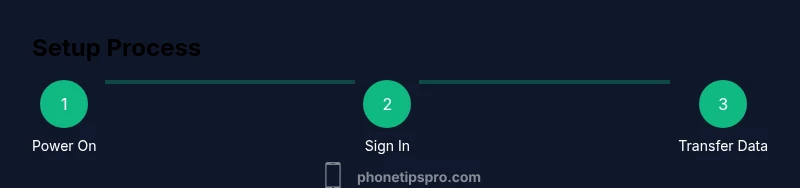
Opening the iPhone 15 box and powering on is the first step toward a smooth setup. If you’re wondering how to get started with iphone 15, begin by unboxing carefully, connecting the device to a charger, and pressing the side button to power up. The setup wizard will guide you through language region and accessibility options. For a quick friction free start, keep your Apple ID credentials handy and ensure your charger and Wi Fi are ready. Phone Tips Pro recommends charging to at least 50 percent before you start, so you can complete the initial prompts without interruption. Once the device boots, follow on screen prompts to connect to Wi Fi enable location services and sign in to your Apple ID. This first phase sets the foundation for all subsequent steps and helps protect your data from the very beginning.
Create or update your Apple ID and prepare iCloud
Your Apple ID is the gateway to all iPhone features. In this section you will create or sign in to your Apple ID enable two factor authentication and set up iCloud backups. If you already have an Apple ID, sign in and review trusted devices. Enabling iCloud Photos Contacts and Notes ensures your content syncs across devices. The setup also offers to enable Find My iPhone which is essential for security. We advise turning on iCloud Backup over Wi Fi so your data is safely stored automatically. If you are migrating from an older iPhone you can choose to transfer data during this step which saves time and preserves your apps and settings. Remember to keep your Apple ID secure with a strong password and recovery options.
Transfer data from your old iPhone
Transferring data to your new iPhone 15 is usually quick and safe and there are multiple routes. The simplest method is Quick Start: bring your old device near the new one and follow the on screen prompts to copy apps messages photos and settings. If you are offline or prefer a backup restore from an iCloud or iTunes Finder backup. Ensure you are signed into the same Apple ID on both devices for a seamless transfer. Expect some data to re download after setup which may take several minutes depending on your Wi Fi speed and the amount of content. After the transfer completes verify key items like chat history safari passwords and health data. If you have an Apple Watch pair it again with your iPhone 15 to finish the process.
Security and privacy basics: make it personal and protected
Set up Face ID or Touch ID create a strong passcode enable Find My iPhone and review privacy settings. The first step is to create a secure passcode that is unique and not easily guessable. Then enable Face ID for quick unlocks and Apple Pay. Turn on two factor authentication for your Apple ID to protect cloud data. Review app permissions location microphone and camera and adjust as needed. The iPhone 15 also offers Safety and Security features like Emergency SOS and Lock Screen customization. By default notifications can display sensitive data on the lock screen you can choose to hide this for privacy. Finally consider enabling iCloud Private Relay if available and use app specific passwords for extra security. Phone Tips Pro notes that taking these steps early reduces risk and gives you a solid baseline for future upgrades.
Personalize daily use: notifications Control Center and widgets
Customize your home screen and widgets for faster access to what matters. Start with the Control Center drag controls you use most into the panel. Set up Focus modes to minimize interruptions during work or sleep hours. Manage notifications by thread and delivery so you get timely alerts without overload. Install essential apps and organize them into folders. Use the App Library to keep your home screen clean and add widgets that show information at a glance calendar events weather or activity rings. If you enable Handoff and Universal Clipboard you can switch between devices smoothly. The iPhone 15 s USB C port supports wired peripherals consider a MagSafe charger for convenient wireless charging. In short tailor your setup to fit your routines and you will notice a practical difference in minutes each day.
Troubleshooting common setup hiccups and next steps
Not every setup goes perfectly here are common issues and fixes. If you cannot connect to Wi Fi forget and rejoin the network or try a different network. If iCloud sign in fails verify your Apple ID and the two factor verification code. For battery drain after setup check background app activity and update to the latest iOS version. If apps won t download pause and resume the download or sign out and back into the App Store. If you encounter issues transferring data restart both devices and retry Quick Start or restore from a backup. Finally plan your next steps enable iCloud backups set up Apple Pay and explore accessibility features such as larger text or Bold Text. The goal is to create a stable baseline you can build on with a fresh device and secure settings ready for daily use.
Tools & Materials
- iPhone 15 device(New device or fully charged for immediate setup)
- USB-C charging cable(Official or certified third party cable recommended)
- Apple ID and password(Needed to sign in and access iCloud services)
- Stable Wi Fi connection(For iCloud backups and data transfer)
- Backup of old iPhone(Necessary if you plan to transfer data from an existing device)
Steps
Estimated time: Estimated total time: 45-60 minutes
- 1
Power on and start the setup
Press and hold the side button until the Apple logo appears. Follow the on screen prompts to choose language region and accessibility options and connect to a Wi Fi network. This first step sets up your identity and initial preferences.
Tip: Have your Wi Fi password handy to avoid delays. - 2
Sign in with Apple ID and enable iCloud
Enter your Apple ID credentials or create a new account. Enable iCloud for Photos Contacts and Notes so content syncs across devices. This ensures continuity from day one.
Tip: Turn on two factor authentication for extra security. - 3
Transfer data from your old iPhone
Choose Quick Start or restore from a backup. If using Quick Start keep both devices close and follow prompts to copy apps messages photos and settings.
Tip: If your old device is unavailable use an iCloud backup instead. - 4
Set up security with passcode and biometrics
Create a strong passcode and set up Face ID or Touch ID for quick unlocks and secure purchases. Enable Find My iPhone during setup.
Tip: Use a passcode that is easy for you to remember but hard for others to guess. - 5
Customize notifications and daily tools
Adjust notification settings and enable Focus modes; customize Control Center and add essential widgets for quick access.
Tip: Group apps by usage to reduce clutter and improve speed. - 6
Create backups and finish the initial setup
Run a first iCloud or computer backup to secure your content. Review important services like Apple Pay and iCloud Drive and complete any remaining screens.
Tip: Schedule automatic backups to run regularly.
FAQ
What should I do first after unboxing my iPhone 15?
Unbox inspect the device then charge it. Start the setup wizard choose language region enable Wi Fi and sign in with your Apple ID. This launches the data transfer and privacy settings.
Start by unboxing and charging, then run the setup wizard to sign in and begin data transfer.
Can I transfer data from my old iPhone wirelessly?
Yes. Use Quick Start or restore from an iCloud or iTunes backup. Ensure both devices are signed into the same Apple ID for a seamless transfer.
Yes. Use Quick Start or restore from iCloud to move data wirelessly.
Do I need to update iOS right away?
Keeping iOS up to date is recommended for security and features. Do the update over Wi Fi and ensure the device is charged or plugged in.
It's usually smart to update when prompted, over Wi Fi and with power available.
How do I customize widgets and the home screen?
Press and hold an app to enter jiggle mode, then add or remove widgets and arrange apps. Use the App Library to keep your screen organized.
Hold on the screen to edit, then add widgets and organize apps.
What should I do if setup errors occur?
Retry the step that failed, check your internet connection, and consider restarting both devices. If problems persist, restore from a backup or contact support.
If setup errors appear, retry with a stable connection and reboot if needed.
Is USB C charging universal for iPhone accessories?
Most USB C accessories will work but check for MFi certification or official Apple compatibility especially for chargers and data cables.
Most USB C accessories work, but use certified cables for safety.
Watch Video
Quick Summary
- Begin with the essentials: unbox power on sign in and connect
- Use Quick Start and iCloud backups for a fast data transfer
- Secure your device early with Face ID and a strong passcode
- Personalize controls and widgets for daily efficiency
- Back up regularly to protect content and settings