How Often Does iPhone Back Up? A 2026 Practical Guide
Discover how often does iphone backup occur, what triggers backups, and how to manage iCloud vs local backups. A data-driven guide by Phone Tips Pro for 2026.


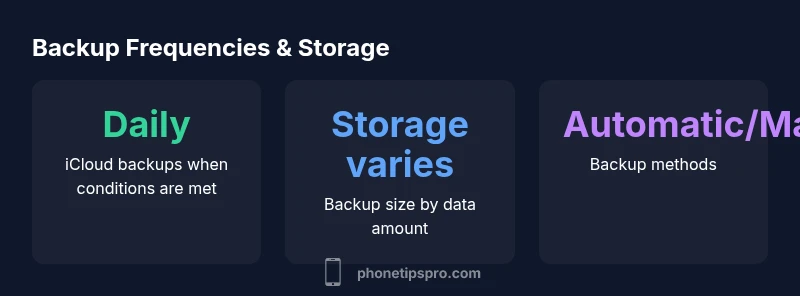
iPhone backups occur automatically when iPhone is plugged in, locked, connected to Wi‑Fi, and has sufficient iCloud storage; for iCloud backups, Apple recommends daily automatic backups when these conditions are met. On a computer using Finder or iTunes, backups happen when you manually initiate them or when autosync is enabled.
How often does iPhone backup? Understanding the backup ecosystem
According to Phone Tips Pro, a clear picture of how often does iphone backup starts with the basics: backups are designed to capture your most important data automatically, but only under the right conditions. On iPhone, there are two main backup streams: iCloud backups (cloud-based) and local backups to a computer. The frequency depends on the backup type and user behavior. In practice, most users rely on daily iCloud backups, but this can vary based on settings, storage, and usage. The goal is to ensure a recent restore point is available in case of device failure, loss, or upgrade. This section breaks down the triggers, timing, and practical expectations for typical households.
iCloud backups: daily by design
iCloud backups are designed to run automatically when your iPhone meets a few simple conditions: the device is plugged into power, locked, connected to a reliable Wi‑Fi network, and has sufficient iCloud storage space. When these conditions are met, iCloud can create a fresh backup once per day, often overnight when you’re not actively using the device. This means that for most users, the daily restore point is fairly up-to-date, assuming there are no ongoing backup errors or full storage. Remember that iCloud backups do not store data already saved in iCloud Photos or in other cloud services unless you’ve enabled them to back up that data separately. If you frequently add large media or new apps, you may notice backup size growing, which can influence how often the system runs the backup.
Local backups: manual vs automatic
Local backups to a Mac or PC give you a second restore point independent of iCloud. On macOS Catalina and later, Finder handles these backups; on Windows or macOS Mojave and earlier, iTunes is used. Local backups occur when you initiate them yourself, or when your computer is configured to back up automatically. The frequency can be more variable because it depends on your computer’s activity and whether you’ve connected your iPhone during a backup window. The upside is that you have a fast restore option even without internet access, and you control when the backup happens.
What affects backup size and frequency
The size of an iPhone backup depends on the data you have: photos, videos, app data, messages, and settings all contribute. Large photo libraries, video messages, and app data can significantly increase backup size and may slow down the process. If you use iCloud Photos with Optimize iPhone Storage enabled, full-resolution media may be stored in iCloud rather than in the backup, reducing the backup payload. Messaging apps with attachments, voicemail, and health data may also push backup size upward. In practice, staying aware of what data is included in backups helps you estimate how often a backup would realistically run given your storage plan.
How to verify backups and adjust settings
To verify, open Settings > [your name] > iCloud > iCloud Backup and check the last successful backup date. On a Mac, open Finder, select your iPhone, and review the backup timestamp. You can also tap Back Up Now to force a backup on demand. If you rarely see a recent backup date, review your storage plan, toggle iCloud Backup on, and ensure the device is connected to power and Wi‑Fi overnight. Regularly checking ensures you answer the question how often does iphone backup with evidence.
Best practices for reliable backups
- Keep iCloud Backup enabled if you rely on cloud restores; this provides a rolling restore point. - Enable iCloud Photos if you want media stored in iCloud separately from device backups. - Maintain ample iCloud storage or set up an alternate plan for storage. - Regularly test restore by performing a simulated restore to a spare device or use the 'Back Up Now' option to confirm the process works. - For local backups, keep your computer updated and encrypted, and verify the backup file is present after each run.
Troubleshooting common backup issues
If backups fail, start by verifying storage space is available (iCloud or device). Check your network connection and ensure the device is charging during the backup window. Review any error messages in Settings, and sign out/in to retry. On local backups, ensure Finder or iTunes recognizes the device and that the correct account is used. If you see inconsistent backup times, consider turning off low power mode and enabling background app refresh to keep the backup queue moving.
Quick-start checklist for new iPhone users
- Turn on iCloud Backup and check your storage. - Connect to power and a stable Wi‑Fi network overnight. - Review what data is included in your backups. - Enable essential services like Find My iPhone and iCloud Photos to protect media separately. - Regularly verify the last backup date and perform a manual backup if you plan a device upgrade.
Comparison of backup methods
| Backup Type | Trigger | Typical Frequency | Notes |
|---|---|---|---|
| iCloud Backup | Automatic when plugged in, on Wi-Fi, locked, enough storage | Daily (conditions met) | Requires iCloud Backup toggle and storage |
| Local Backup (Finder/iTunes) | Manual or automatic via computer | As often as initiated | Requires computer connection and trusted device |
FAQ
How can I tell when my last iCloud backup ran?
Open Settings > [your name] > iCloud > iCloud Backup to see the status and date of the last successful backup.
Check your iCloud backup date in Settings.
Does backup frequency change when iPhone storage is full?
Backups may fail or pause if there isn't enough storage; freeing space allows automatic backups to resume.
If storage is full, backups may fail; free space to resume.
Can I back up without iCloud?
Yes, you can create a local backup to a Mac or PC using Finder (macOS Catalina+ ) or iTunes (Windows/macOS Mojave and earlier).
Yes, you can back up to a computer.
What data is included in an iCloud backup?
Backups include device settings, app data, and home screen layout, plus data not stored in iCloud Photos. Photos stored in iCloud Photos may not be included in the backup.
Backup covers settings and app data, with photos managed by iCloud Photos when enabled.
How do I ensure backups happen daily?
Enable iCloud Backup, ensure device is charging, connected to Wi‑Fi, and has storage; you can also trigger manual backups via Settings.
Turn on iCloud Backup and keep the device charging and on Wi‑Fi.
What should I do if backups freeze or fail repeatedly?
Check storage space, network connection, and power; retry, update iOS and the backup software, and consult Settings > iCloud Backup for error messages.
Check space and connection, then try again and update if needed.
“Regular, automated backups are the backbone of data safety for iPhone users; understanding when and how your backups occur reduces risk and speeds recovery.”
Quick Summary
- Enable iCloud Backup to maintain daily restore points
- Verify last backup date regularly to ensure data safety
- Understand data that backs up to estimate size and frequency
- Use both iCloud and local backups for redundancy