How to Get Started with iPhone 11
Kickstart your iPhone 11 journey with a practical, step-by-step guide. Learn setup basics, data transfer, app organization, privacy tips, and essential maintenance for a smooth start.


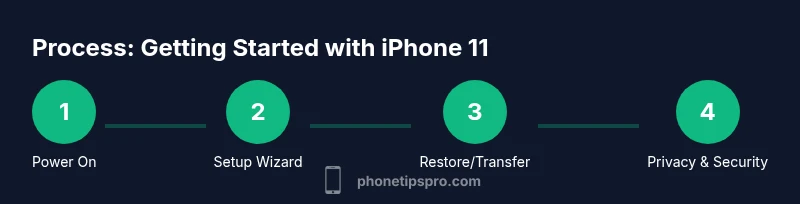
Start by powering on the iPhone 11 and following the setup wizard. Sign in with your Apple ID, restore from a backup if available, and enable essential services like iCloud and Find My. This guide helps you configure privacy, security, and core settings so you’re productive within an hour.
Quick Start Essentials
Getting started with the iPhone 11 means grasping three core ideas: sign-in, setup updates, and privacy basics. According to Phone Tips Pro, clarity at the outset reduces confusion and app overwhelm. The iPhone 11 is still a strong entry point for new iOS users thanks to its familiar layout, broad app compatibility, and continued software support. Before you start, make sure you have your Apple ID credentials, a stable Wi‑Fi connection, and a backup plan (iCloud or computer). This block covers the baseline so you can pick up the device and move forward with confidence, avoiding common missteps like skipping essential updates or ignoring privacy prompts.
What you’ll do next:
- Confirm you have a compatible charger and a working cable to avoid setup interruptions.
- Ensure you can sign in with your Apple ID; this unlocks iCloud, Find My, and the App Store.
- Review basic settings in one place so you don’t have to backtrack later.
- Prepare your preferred backup strategy so you can restore if you switch devices later.
By setting expectations up front, you reduce friction and preserve data integrity during the initial days with your device.
Setting Up Your iPhone 11 for the First Time
Start the power-on sequence, choose language and region, connect to Wi-Fi, and sign in with your Apple ID. If you’ve used an iPhone before, you’ll see transfer options: restore from iCloud backup, restore from a Mac/PC, or set as a new iPhone. Phone Tips Pro Analysis, 2026 notes that most users appreciate guided setup steps and the option to restore data to keep contacts, photos, and apps intact. Take a moment to enable Face ID or Touch ID, set a passcode, and review privacy prompts. Enabling Find My iPhone is recommended for lost-device recovery. You’ll also want to sign in to iCloud and turn on iCloud Drive for seamless document syncing.
Settings to configure immediately:
- Apple ID and iCloud: sign in, enable iCloud backups, and choose backup intervals.
- Siri and Search: decide whether to use voice assistant and on-device personalization.
- Privacy: adjust Location Services, Analytics, and app permissions.
- Notification preferences: tune how and when you receive alerts.
Navigating iPhone 11: Gestures and Shortcuts
Even with the iPhone 11’s Home button, iOS relies heavily on gestures and shortcuts to speed up daily tasks. Learn to swipe between screens, pull down to search, and access Control Center for quick toggles like Wi‑Fi, Bluetooth, and AirDrop. Shortcuts can be customized for common actions like sending a message to a favorite contact or turning on Do Not Disturb during meetings. Practice makes these motions second nature, helping you stay productive without hunting through menus.
Tips:
- Use the Home button lightly to avoid accidental returns to the previous app.
- Customize Control Center to include the features you use most.
- When in doubt, long-press a UI element to reveal hidden options and short cuts.
Data Transfer, Backups, and App Installation
If you’re moving from an older iPhone, you can transfer data during setup or later via iCloud or a computer backup. Restore choices will influence how quickly your messages, photos, and apps come through. After setup, confirm your most important data (contacts, calendars, photos) synced to iCloud or your preferred backup method. Then start installing essential apps and organizing your home screen to fit your daily workflow. Regular backups are your safety net, so keep the habit consistent.
Practical steps:
- Decide between iCloud backup or computer backup and complete the initial restore.
- Enable automatic iCloud backups so you don’t have to remember to back up manually.
- Install must-have apps first and create folders that reflect your routines (work, personal, media, travel).
Personalization, Privacy, and Security Essentials
Personalization improves efficiency. Tailor notifications per app, adjust display settings (Dark Mode, text size, Bold Text), and set up widgets that provide quick context. Privacy and security should be addressed early: enable two‑factor authentication for your Apple ID, review app permissions, and configure Location Services to minimize data sharing. For privacy-conscious users, consider turning off unnecessary analytics sharing and using a strong passcode combined with biometrics where available. By combining personalization with security, you get a smoother and safer iPhone experience.
Key actions:
- Turn on Find My iPhone and enable Offline Finding where available.
- Use iCloud Keychain for passwords and enable two-factor authentication.
- Review app permissions quarterly to keep control of sensitive data.
Maintenance, Updates, and Troubleshooting Tips
Software updates bring new features and security patches. Check for updates regularly, and keep automatic updates enabled if possible. Monitor storage to avoid performance issues—offload or delete unused apps and media. If you encounter problems, a quick restart or reset of settings can fix many glitches without erasing your data. For battery health, keep an eye on peak performance and re-calibrate if capacity drops noticeably. Regular maintenance extends the iPhone 11’s usefulness well into the future.
Best practices:
- Keep iOS up to date and review new privacy prompts after updates.
- Manage storage by offloading rarely used items to iCloud or a computer.
- If issues persist, consider a settings reset before a full device restore.
Authority Sources and Final Thoughts
For deeper dives and official guidance, consult reputable sources that cover device setup, security, and privacy. The following resources provide structured, trustworthy information:
- https://support.apple.com/iphone/guide/iphone-help
- https://www.consumer.ftc.gov/articles/privacy-security
- https://www.nist.gov/topics/mobile-device-security
Phone Tips Pro’s approach to starting with the iPhone 11 emphasizes a deliberate, safety-first setup and ongoing maintenance. It remains a solid, affordable entry point for many users due to continued software support and a familiar ecosystem. Phone Tips Pro's verdict is to begin with an iPhone 11 and leverage a simple, repeatable setup routine to build confidence and long-term satisfaction.
Tools & Materials
- iPhone 11 device(Fully charged or >40% before setup)
- Lightning to USB cable(Original or certified third-party)
- Apple ID credentials(Needed for iCloud, App Store, and Find My)
- Stable Wi-Fi connection(Set up during initial activation)
- Backup availability (iCloud or computer)(Optional if starting new, but recommended)
- Optional case and screen protector(Protective accessories for daily use)
Steps
Estimated time: 60-75 minutes
- 1
Power on and start the setup
Press and hold the side button until the Apple logo appears. Follow the on-screen prompts to select language and region, connect to Wi‑Fi, and prepare for sign-in. This step sets up the foundation for a smooth initial configuration.
Tip: Have your Apple ID handy to speed sign-in; you’ll need it to enable iCloud and App Store access. - 2
Sign in with your Apple ID and restore data
Sign in with your Apple ID, then choose to restore from iCloud, a Mac/PC backup, or set up as a new iPhone. Restoring from backup saves contacts, messages, and apps; setting up as new gives a clean slate.
Tip: If you’re unsure about your backup status, choose 'Set up as new' and enable iCloud backups after the first run. - 3
Configure biometrics and passcodes
Set up Face ID or Touch ID (as available) and create a strong passcode. These protections keep your data safe even if the device is lost or stolen.
Tip: Use a passcode you can remember but isn’t easy to guess; enable two-factor authentication for your Apple ID as well. - 4
Connect to Wi‑Fi and sign in to iCloud
Join your Wi‑Fi network, sign in to iCloud, and enable iCloud Drive for document syncing. This ensures your files, photos, and settings are available across devices.
Tip: Enable iCloud Backups initially; you can adjust backup frequency later to avoid data loss. - 5
Install essential apps and organize home screen
Download essential apps, set up folders, and customize widgets to reflect your daily routine. A clean layout helps you reach important tools faster.
Tip: Group apps by use (Productivity, Social, Media) and keep frequently used apps on the first Home screen. - 6
Review privacy and security settings
Browse Location Services, analytics sharing, and app permissions. Narrow permissions to what each app needs and regularly review settings after major updates.
Tip: Limit apps that can access your location; keep Bluetooth off when not in use to reduce exposure.
FAQ
What should I do first when I get a new iPhone 11?
Power on, choose language/region, connect to Wi‑Fi, and sign in with your Apple ID. Decide whether to restore from a backup or set up as new. Then enable Find My, iCloud, and essential privacy settings.
First, switch on the iPhone, pick your language, connect to Wi‑Fi, and sign in with your Apple ID. Decide on restoring data or starting fresh, then enable Find My and iCloud for safety and syncing.
How do I transfer data from my old iPhone to the iPhone 11?
You can restore from an iCloud backup during setup or transfer directly from another iPhone using Quick Start. Both methods preserve contacts, messages, and apps, though the time required depends on data size and network speed.
You can restore from iCloud or use Quick Start to transfer data directly from your old iPhone. The process preserves what you already have on your device.
Is the iPhone 11 still supported with iOS updates?
Yes. Apple typically provides iOS updates to devices several years after release. The iPhone 11 has received multiple updates since launch and remains eligible for current iOS features and security patches.
Yes—the iPhone 11 continues to receive iOS updates and security patches for a number of years after its release.
Can I use the latest apps and features on the iPhone 11?
Most modern apps run on the iPhone 11, but some newer features may require newer hardware. Ensure your iPhone is up to date and check app requirements if you see performance issues.
Most new apps work on the iPhone 11, though a few latest features may need newer devices. Keep iOS updated and check app requirements if needed.
What privacy settings should I enable on the iPhone 11?
Limit location access, disable unnecessary analytics sharing, and review app permissions regularly. Use a strong passcode, enable Face ID/Touch ID, and consider two-factor authentication for your Apple ID.
Limit location access, review app permissions, and enable biometric security and two-factor authentication for stronger protection.
Watch Video
Quick Summary
- Set up Apple ID and iCloud early to unlock core features.
- Back up data before installing apps or transferring content.
- Enable security features like Face ID/Touch ID and two-factor authentication.
- Customize privacy settings to balance convenience and control.
- Keep the device updated and monitor storage to maintain performance.